Immediate Fixes: Update GPU Drivers & Verify Game Files
Start by ensuring your graphics driver is current. For Nvidia cards, download the latest GeForce Experience driver (version 551.XX or newer) from Nvidia's driver page. AMD users should grab the newest Adrenalin edition from AMD's site. After installing, reboot. Next, verify Palworld’s integrity via Steam: right-click the title in your library, Properties → Installed Files → Verify Integrity of Game Files. This process replaces any corrupted or missing assets, a common cause of crashes when loading high‑resolution textures in the Volcano biome. For more on general PC crash troubleshooting, see our HellDivers 2 PC crash fix guide. If verification reports errors, let Steam redownload the affected files before launching again.
Optimize In‑Game Graphics Settings
Launch Palworld and open the Settings → Graphics menu. Set Texture Quality to High but enable Texture Streaming and cap the budget at 2048 MB to prevent VRAM overflow. Lower Shadow Quality to Medium and disable Cascaded Shadows; this reduces GPU stutter when summoning large Pals like Jetragon. Turn Anti‑Aliasing to TAA Low or off, and set Motion Blur to Off. Keep View Distance at Medium; pushing it to Ultra often triggers memory leaks in the Desert region. Finally, enable DLSS Quality if you have an RTX card, or FSR 2.0 Quality for AMD GPUs, which maintains frame stability without sacrificing visual fidelity. For additional performance tips, check our HellDivers 2 lag and FPS guide.
Adjust Windows & DirectX Settings
Ensure Windows 10/11 is fully updated via Settings → Windows Update. Install the latest DirectX End‑User Runtime from Microsoft to guarantee all D3D12 libraries are current. In the Nvidia Control Panel, manage 3D settings: set Power Management Mode to Prefer Maximum Performance, Threaded Optimization to On, and Low Latency Mode to Ultra. For AMD Radeon Settings, enable Radeon™ Anti‑Lag and set Graphics Workload to Gaming. Disable Windows Game Bar and Game DVR (Settings → Gaming → Game Bar) as these overlays can interfere with Palworld’s rendering pipeline and cause sporadic crashes. To learn about optimal system specs, visit our HellDivers 2 system requirements page.
Disable Third‑Party Overlays & Background Apps
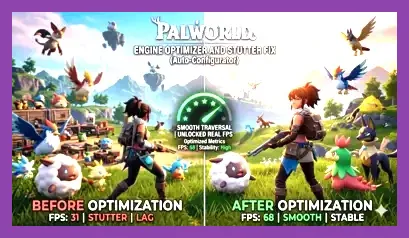
Close any overlay software before launching Palworld: Discord, GeForce Experience, Xbox Game Bar, MSI Afterburner, RivaTuner Statistics Server (RTSS), and any RGB lighting suites (Corsair iCUE, Razer Synapse). These programs inject DLLs that may conflict with the game’s anti‑cheat or memory allocation. Use Task Manager → Startup to disable non‑essential services like Spotify, Chrome, or torrent clients that consume RAM. If you use a VPN, temporarily disconnect it; some VPN drivers cause packet loss that manifests as crashes during online co‑op sessions. For a quick reference on managing background apps, see our HellDivers 2 stratagems guide.
Advanced Tweaks: Config File Edits & Memory Limits
Navigate to %LOCALAPPDATA%\Palworld\Saved\Config\WindowsNoEditor and open Engine.ini with Notepad. Add or modify the following lines under [/Script/Engine.RendererSettings]:
r.VSync=0
r.Streaming.PoolSize=2048
r.TextureStreaming=1
r.MaxAnisotropy=8
These settings force the engine to cap texture streaming at 2 GB, disable VSync to eliminate input lag, and limit anisotropic filtering to a stable level. Save the file, then set its attribute to Read‑Only to prevent Palworld from overwriting it on launch. Additionally, increase virtual memory: System → Advanced → Performance → Settings → Advanced → Virtual Memory → Change → Custom size: Initial 8192 MB, Maximum 16384 MB. This provides a larger pagefile for the game’s memory‑heavy Pal summoning routines. For tips on farming resources to offset any performance hit, read our Palworld gold farming guide.
Address Specific In‑Game Triggers
Certain scenarios reliably provoke crashes. Summoning Jetragon or Frostcaller in the Volcano biome often triggers a memory leak; avoid using these Pals until after you’ve applied the config tweaks above. If you must fight the Alpha Boss — Kingpaca — in the Snowy Mountains, lower the Particle Effect scale to Low in the graphics menu to reduce GPU load. When building large bases, keep the total number of placed structures under 2 000; exceeding this limit can overflow the game’s entity buffer and cause a crash to desktop. Finally, regularly clear the game’s cache by deleting the %LOCALAPPDATA%\Palworld\Saved\SaveGames folder’s temporary .sav files after each session; this prevents corruption that accumulates over long playthroughs. For a step‑by‑step on tackling Palworld’s toughest secret boss, consult our secret boss guide.