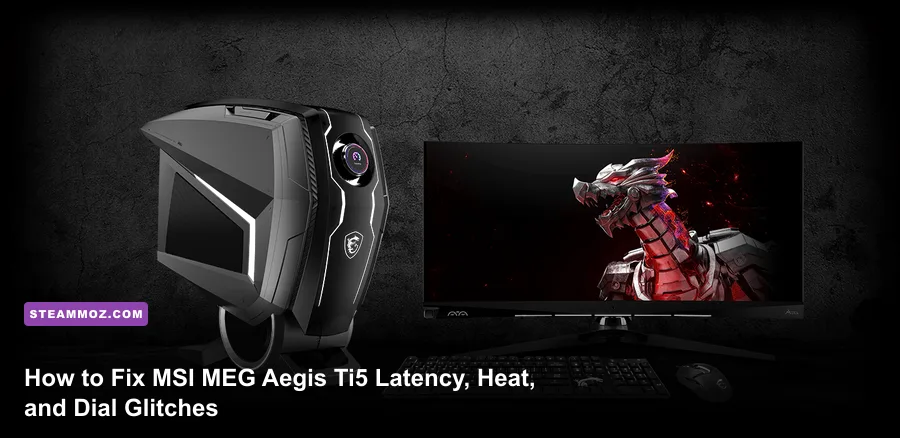
If your MSI MEG Aegis Ti5 is hitching during competitive matches, cooking its CPU past 90°C, or leaving its front OLED Gaming Dial permanently frozen on an MSI logo, the issue isn't broken silicon—it's software bloat, aggressive factory power targets, and broken network packet prioritization. You can eliminate micro-stutters and drop core temperatures by up to 12°C by wiping the factory Killer Network software suite, dialing back Intel Turbo Boost power limits in the Click BIOS, and performing a clean firmware reflash on the front MCU.
The Aegis Ti5 looks like a futuristic mech cockpit pulled straight out of an anime, packing top-tier silicon like an Intel Core i9 and an Nvidia GeForce RTX 3080, 3090, or 4090. Yet straight out of the crate, MSI loads this machine with redundant background services that butcher real-time system performance. When you are pushing high-framerate gameplay in fast-paced titles, random DPC latency spikes and unoptimized fan logic will ruin an otherwise god-tier experience. Here is the complete blueprint to strip the junk, steady your latency, and optimize every critical setting on this flagship rig.
Eliminating DPC Latency and Network Spikes on the Aegis Ti5
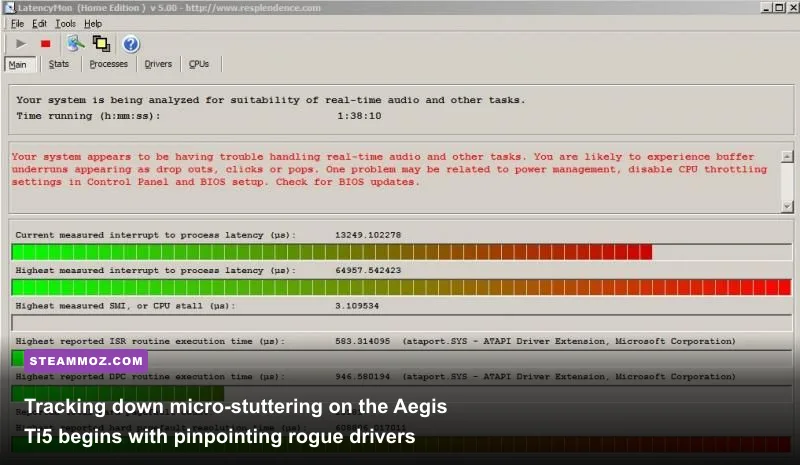
Network latency spikes on the Aegis Ti5 almost never stem from your home router. Instead, they trace back to the pre-installed Intel Killer Performance Suite and its companion software, the Killer Intelligence Center. This software attempts to dynamically packet-prioritize your games over background traffic using active heuristics, but in practice, it hooks deeply into your Windows network stack and triggers massive Deferred Procedure Call (DPC) latency spikes. These spikes show up in-game as jarring micro-freezes, sudden ping fluctuations, and teleporting hitboxes.
To cure this, download the standalone drivers for your 2.5G LAN (Intel I225-V or Killer E3100G) and Wi-Fi 6E module directly from the Intel Driver & Support Assistant. Do not download the full installer bundle—grab only the bare INF driver files. Next, head into Windows Settings, open Installed Apps, and scrub everything branded as "Killer" from your system. Reboot into Safe Mode, run Driver Store Explorer to remove lingering Killer service hooks, and install the clean drivers. If you have been battling similar system-level stutter on other gaming rigs, our guide on ELEX PC fixes that stop crashes and rescue your FPS highlights how background service conflicts wreck rendering pipelines.
Secondary latency culprits lurk in the audio subsystem. The Aegis Ti5 ships with Nahimic Audio drivers baked alongside the Realtek ALC1220 codec. Nahimic injects multiple helper services—specifically NahimicService.exe—that constantly poll audio buffers. This polling creates noticeable audio latency and intermittent popping in Discord or competitive shooters. Open Windows Services (services.msc), locate Nahimic service, set its Startup Type to Disabled, and stop the service. Your primary sound output will continue working through Windows HD Audio without the driver latency overhead.

🎮 Aegis
Looking to experience this game? Grab your digital key directly on our store for $2.99.
View on Steammoz Store →Taming MSI Center and Unfreezing the OLED Gaming Dial
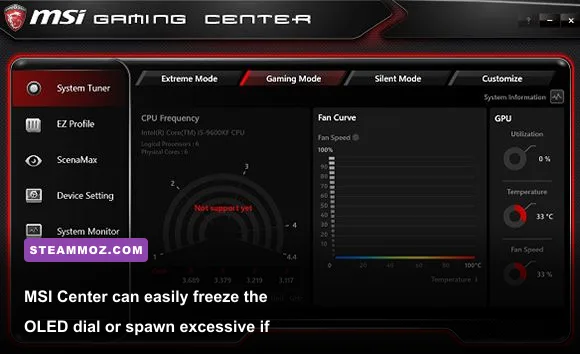
The interactive Gaming Dial on the front chassis is the crown jewel of the Aegis Ti5, but it is also the system's most fragile software point. The dial relies on an internal Microcontroller Unit (MCU) that communicates with Windows via an internal USB 2.0 header. When the motherboard's main software hub—MSI Center (or Dragon Center on older revisions)—crashes, attempts an unprompted telemetry update, or corrupts its cache, the dial screen freezes, desyncs its temperature readouts, or refuses to toggle system performance profiles.
To fix an unresponsive Gaming Dial once and for all, bypass standard Windows uninstall routines. Grab the official MSI Clean Center Tool from the MSI Official Support Portal. Run the utility as an administrator to purge MSI Center, its cache registries, and its background telemetry tasks completely. Once the machine restarts, shut it down entirely, unplug the AC power cable from the back for 60 seconds (which forces the front MCU capacitor to fully discharge), and boot back up. Reinstall the latest barebones version of MSI Center from the Microsoft Store.
When MSI Center boots, install only the Gaming Dial module and Mystic Light if you care about RGB customization. Skip hardware diagnostic packs, system clean utilities, and cloud sync modules. These extra modules continuously poll CPU sensors every 500 milliseconds, introducing measurable frame drops during intensive gaming sessions. If software conflicts are tanking your stability in title after title, check out our troubleshooting steps for EscapeVR: The Basement crashing and low FPS fixes for insights on isolating background process interruptions.
BIOS Tuning: Power Limits, XMP Profiles, and Fan Acoustics
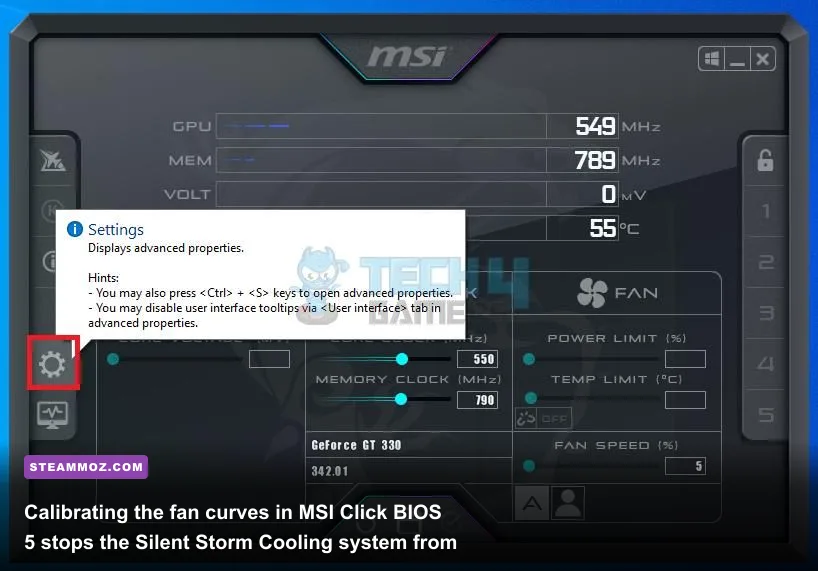
Out of the box, MSI's Click BIOS 5 applies an unlocked "Water Cooler" power profile to the Aegis Ti5's CPU. While the machine features a custom 240mm liquid AIO cooler, setting Intel's Short Duration Power Limit (PL2) and Long Duration Power Limit (PL1) to infinite (4096W) causes high-end chips like the Core i9-10900K, 11900K, or 12900K to slam directly into their 100°C thermal thresholds within seconds of a heavy gaming load. Once that thermal wall hits, aggressive thermal throttling kicks in, slashing your clock speeds by 400–800MHz and triggering frame drops.
Restart your Aegis Ti5 and tap Delete to enter Click BIOS 5. Switch to Advanced Mode (F7), navigate to OC (Overclocking Settings), and locate CPU Cooler Tuning. Change the profile from "Water Cooler (4096W)" to "Tower Cooler (255W)" or manually set PL1 to 125W and PL2 to 241W (or 253W on 12th/13th gen configs). This curbs voltage spikes without sacrificing any single-core gaming boost clocks.
Next, make sure your RAM is actually running at its rated speed. Prebuilts frequently drop back to baseline JEDEC speeds (2133MHz or 2400MHz) after a BIOS update or crash recovery. Locate Extreme Memory Profile (X.M.P.) in the OC menu and set it to Profile 1. Verify the DRAM Voltage registers at 1.35V (for DDR4) or 1.25V–1.35V (for DDR5). Save and exit with F10.
To eliminate the erratic fan noise where the cooling fans scream like jet turbines whenever an app opens, navigate to the Hardware Monitor screen in BIOS. Switch all fan headers from DC mode to PWM mode and smooth out the aggressive factory curve.
| Cooling Target / Temperature | Factory Stock Fan Speed | Pro-Tuned Curve Speed | Acoustic & Thermal Impact |
|---|---|---|---|
| Idle / Light Load (Below 45°C) | 45% PWM | 30% PWM | Near-silent operation; zero coil or motor whine during desktop work. |
| Moderate Gaming (46°C – 65°C) | 70% PWM | 50% PWM | Stable airflow through chamber; steady acoustic profile without revving. |
| Heavy AAA Load (66°C – 80°C) | 90% PWM | 72% PWM | Maintains CPU boost clocks below 78°C; eliminates erratic speed cycling. |
| Emergency Limit (85°C+) | 100% PWM | 100% PWM | Maximum emergency thermal dissipation; protects silicon longevity. |
For fine-tuning demanding open-world games after stabilizing your BIOS profiles, reference our performance optimization guide for Far Cry 6 GOTY Upgrade Pass settings for max FPS, where stable CPU clock pacing directly cures engine-level traversal stutter.
Windows & GPU Settings for Rock-Solid Frame Pacing
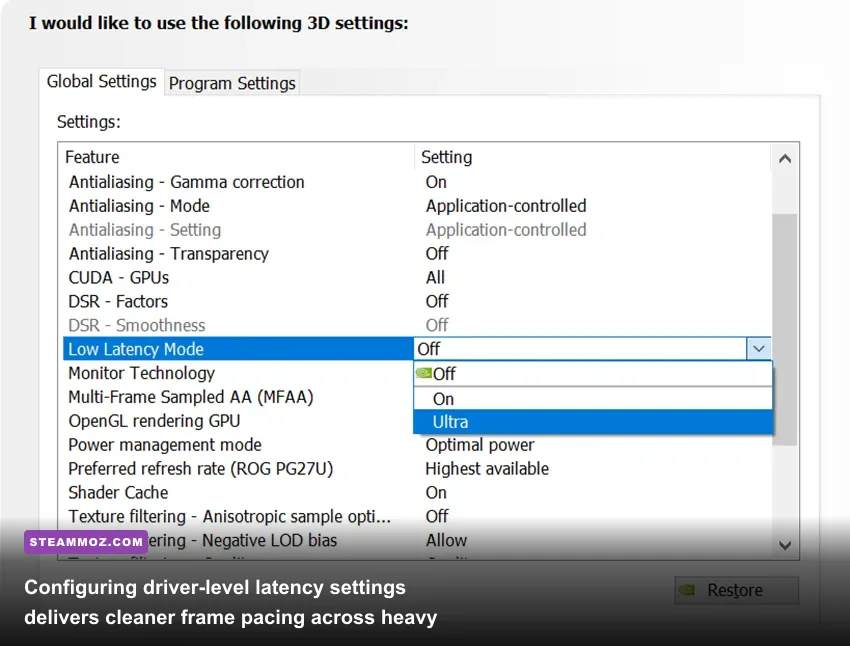
With hardware and BIOS calibrated, the operating system and graphics driver require alignment. The Aegis Ti5 features a custom motherboard design with a PCIe riser assembly connecting the vertically mounted GeForce RTX graphics card. If your graphics drivers suffer from configuration mismatches, the communication overhead across the PCIe bus can induce intermittent frame drops.
Start by cleanly updating your graphics drivers via the Nvidia GeForce Game Ready Drivers portal using the Custom > Clean Installation option. Next, confirm that Resizable BAR is active. Open the Nvidia Control Panel, click System Information in the bottom left corner, and look for "Resizable BAR" in the details column. If it says "No," return to the Click BIOS 5, enter Advanced > PCIe/PCI Subsystem Settings, and enable both Above 4G Decoding and Re-Size BAR Support. This grants your CPU direct, unhindered access to the GPU's entire VRAM buffer, shaving milliseconds off frame render times in modern games.
Next, adjust Windows Graphics Settings. Search for "Graphics settings" in the Windows search bar, click it, and ensure Hardware-Accelerated GPU Scheduling (HAGS) is toggled On. This passes frame scheduling directly to the GPU's onboard processor, taking pressure off the CPU's primary thread.
| Nvidia Control Panel Setting | Stock Factory Default | Recommended Value | Operational Benefit |
|---|---|---|---|
| Low Latency Mode | Off | On (or Ultra for non-Reflex titles) | Limits queue frames in the render buffer, cutting mouse-to-display delay. |
| Power Management Mode | Optimal Power | Prefer Maximum Performance | Prevents core clock fluctuations during transient scene transitions. |
| Threaded Optimization | Auto | On | Forces multi-threaded CPU dispatch for older Direct3D applications. |
| Vertical Sync | Use 3D Application Setting | Off (Enable G-Sync in driver) | Removes driver-induced input lag while G-Sync syncs panel refresh. |
| Max Frame Rate | Off | 3 FPS below native panel Hz | Keeps frame delivery inside the G-Sync window, eliminating frame tear. |
If you enjoy fast-paced space sims or aerial dogfights on this hardware, check our breakdown on Everspace 2 Wrath of the Ancients crashing fix and FPS settings to see how strict GPU buffer capping stabilizes high-load rendering engines. Similarly, our benchmark walkthrough for Filament Marmalade Edition settings for higher FPS proves how much performance you can reclaim by eliminating driver-level queue bottlenecks.
Chassis Airflow Maintenance and Hardware Cable Check
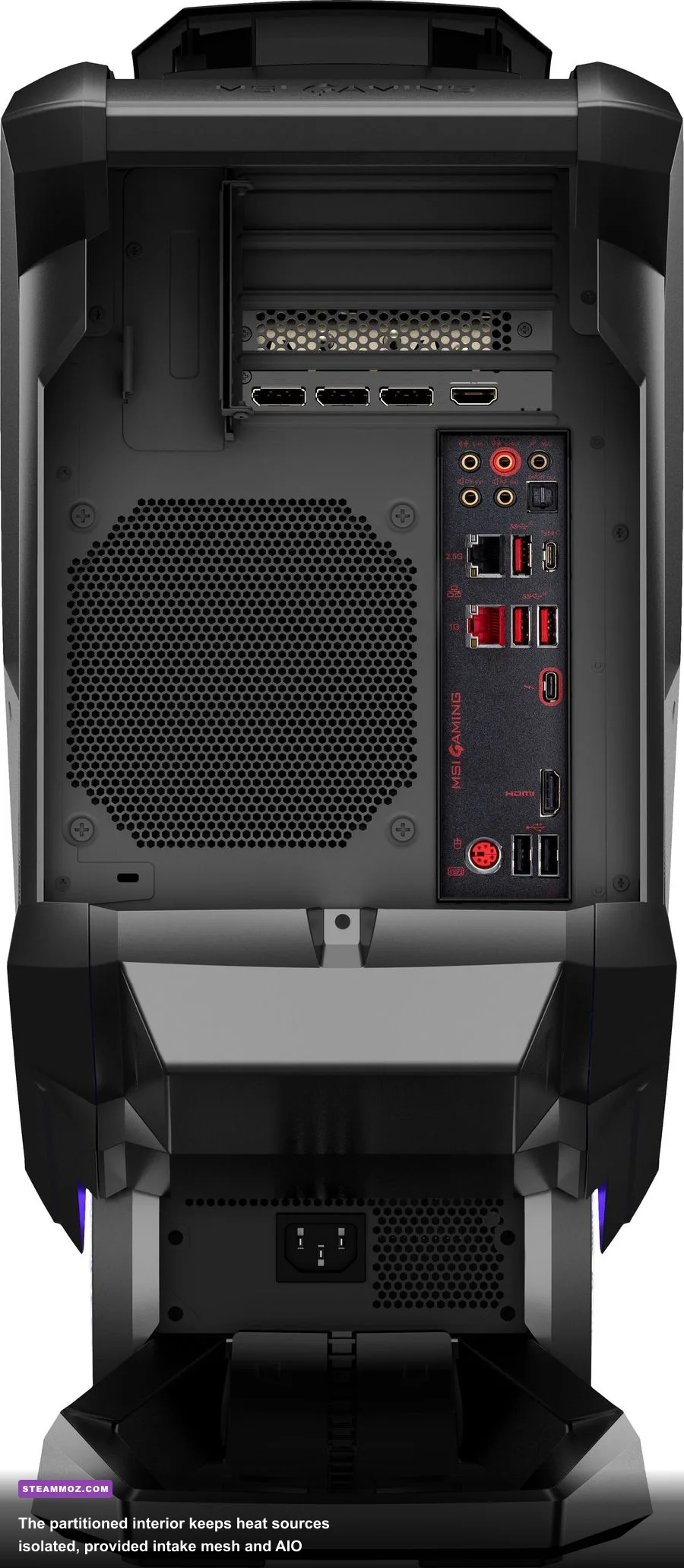
The Aegis Ti5 utilizes MSI's "Silent Storm Cooling 4" design, which partitions the interior into separate chambers: one for the power supply unit in the bottom pedestal, one for the graphics card in the upper rear, and one for the liquid-cooled motherboard and CPU in the main core. While visually stunning, this compartment design creates narrow air intake channels that clog far faster than a standard square mid-tower.
Inspect the bottom pedestal vents and the angled front mesh gills every three to six months. If fine dust cakes the intake filters, the 240mm AIO radiator on the side exhaust will begin recycling hot interior air, sending VRM temperatures soaring past safe limits. Use compressed air to blow outwards from the interior of the side radiator out through the chassis louvers to dislodge trapped debris.
While the side panels are off, verify the seated connections on your vertically mounted GPU. The Aegis Ti5 includes a built-in chassis transport brace, but heavy RTX graphics cards can still wiggle slightly inside their PCIe riser slots during shipping or heavy desk movement. If you ever experience a sudden black screen accompanied by maxed-out GPU fan speeds while gaming, shut down the PC, loosen the mounting bracket, firmly reseat the card into the riser socket until the retaining clip snaps shut, and retighten the bracket screws.
To inspect real-time process activity, background thread conflicts, and driver handles during your troubleshooting, open Microsoft Sysinternals Process Explorer. Running this tool will instantly pinpoint any rogue background software that attempts to monopolize CPU cores while your games are running.
By stripping the telemetry-heavy bloatware, locking in realistic Intel power profiles in Click BIOS, and calibrating your network drivers, your MSI MEG Aegis Ti5 transforms from a loud, erratic showpiece into the whisper-quiet, ultra-responsive gaming powerhouse it was always engineered to be.