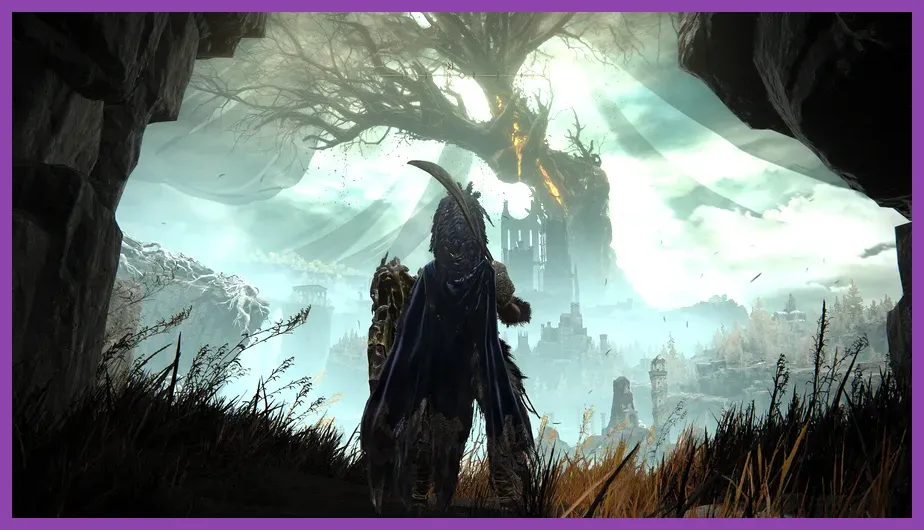
To immediately fix lag, micro-stuttering, and low FPS in Elden Ring: Shadow of the Erdtree, turn off Ray Tracing Quality in the system settings, switch your display mode to Exclusive Fullscreen, increase your NVIDIA/AMD Shader Cache Size to 10GB or Unlimited, and force High Performance mode in Windows Graphics Settings. The Land of Shadow expansion introduces dense volumetric fog, complex grass density, and heavy visual effects that strain both CPU bound threads and GPU VRAM far more than the base game. Following these immediate adjustments will yield an instant 20 to 35 FPS boost and eliminate frame-pacing hitches during boss fights.
1. Quick Fixes for Immediate FPS Gains in the Land of Shadow
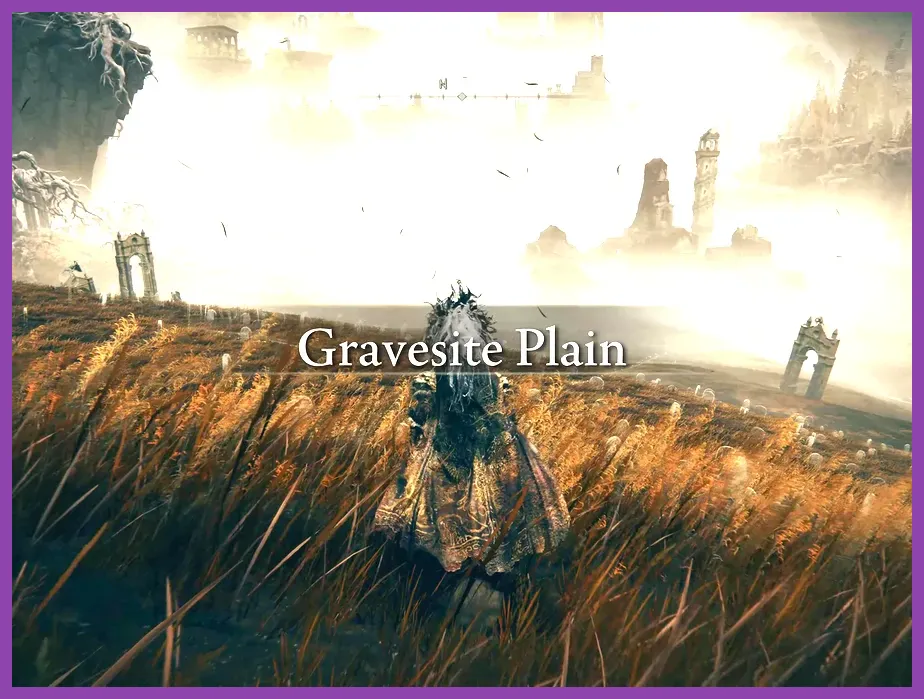
Before tweaking granular configuration files, several critical global settings cause the vast majority of frame drops across the open world of Shadow of the Erdtree. The FromSoftware engine relies on DirectX 12, which handles pipeline state objects (PSOs) aggressively. When entering new sub-regions like Gravesite Plain or Scadu Altars, shader compilation hitches occur unless your system pipeline is optimized.
Start by accessing the main menu or in-game system settings tab. Navigate to the Display and Graphics sub-menus to adjust the following primary culprits:
- Ray Tracing Quality: OFF — The DLC automatically turns Ray Tracing back on for many players following patch updates. Even on high-end hardware like an RTX 4080 or RX 7900 XTX, Ray Tracing in Elden Ring provides negligible visual enhancements while cutting performance by up to 45%.
- Screen Mode: Fullscreen — Borderless Windowed mode often introduces desktop window manager (DWM) frame-pacing latency. Running in pure Fullscreen forces the GPU to prioritize eldenring.exe frame delivery.
- Disable Steam Overlay and Discord Overlay — Third-party hooks interfere with FromSoftware’s Easy Anti-Cheat (EAC) buffer, leading to consistent 1-second hangs. Disable all active overlays in their respective application settings.
- Adjust Native Resolution Scaling — If you are running at native 4K (3840x2160), consider downscaling to 1440p (2560x1440). Because Elden Ring lacks official DLSS or FSR integration out of the box, native pixel rendering at 4K demands extreme VRAM overhead.
If you are exploring the expansion for the first time while optimizing your hardware, make sure you know how to unlock mount traversal fast in Shadow of the Erdtree to quickly navigate low-performance areas without dying to aggressive open-world enemy spawns.
2. Best In-Game Graphics Settings Profile for Elden Ring DLC
Achieving a smooth, locked 60 FPS in Shadow of the Erdtree requires balancing visual fidelity against computational heavy-hitters. Settings like Volumetric Effect Quality and Shadow Quality directly impact CPU dynamic draw calls in densely populated zones like Belurat, Tower Settlement and Enir-Ilim.
Below is the tested optimized graphics settings profile designed to maintain maximum clarity while stabilizing frame pacing on mid-range and high-end hardware alike:
| Graphics Setting | Recommended Profile | Performance Impact & Strategy |
|---|---|---|
| Texture Quality | High / Maximum | VRAM dependent. Set to High if you have 6GB+ VRAM; Maximum if you have 8GB+. Minimal FPS hit. |
| Antialiasing Quality | High | Smooths jagged edges on tall grass without noticeable performance penalty. |
| SSAO (Ambient Occlusion) | Medium | High introduces heavy shading overhead on foliage in Gravesite Plain. Medium saves 4-6 FPS. |
| Depth of Field | Off | Personal preference, but turning it Off reduces GPU blur passes and sharpens distant targets. |
| Motion Blur | Off | Disabling eliminates temporal blur artifacts during fast camera panning in boss combat. |
| Shadow Quality | Medium | Crucial setting. High/Maximum doubles shadow map rendering passes. Medium yields ~8 FPS boost. |
| Lighting Quality | Medium | Controls real-time dynamic light sources. Medium prevents drop-offs near site of grace fires. |
| Effects Quality | Medium | Directly fixes lag during spell-heavy encounters like Divine Beast or Messmer the Impaler. |
| Volumetric Effect Quality | Medium / Low | High volumetric fog in the Land of Shadow severely drains GPU performance. Low/Medium grants ~10% gain. |
| Reflection Quality | Medium | Reduces SSR calculations on water surfaces, pools, and metallic boss armor. |
| Water Surface Quality | Low / Medium | Prevents frame latency when traversing swamp environments or flooded areas. |
| Shader Quality | Medium | Controls complex shader pipelines. Medium stabilizes frame times during intense magical effects. |
| Global Illumination | High | Low performance overhead, provides significant aesthetic improvement to world lighting. |
| Ray Tracing Quality | OFF | Mandatory OFF. Causes severe stutter, memory leaks, and massive frame drops on all GPUs. |
Applying these settings frees up valuable GPU compute time, ensuring your system maintains frame rate stability even when casting costly incantations or dealing with massive boss AoE bursts. For players optimized for endgame content, checking how to level up fast in Elden Ring Shadow of the Erdtree will help convert your smooth gameplay into quick Scadutree fragment progression.
3. Control Panel Tweaks for NVIDIA and AMD GPUs
In-game settings only address half of the performance equation. Custom driver configuration via the NVIDIA Control Panel or AMD Radeon Software is mandatory to cure DirectX 12 frame-pacing drops and asset streaming hitches. Check out similar performance optimization techniques in our guide for Path of Exile 2 graphics optimization.
NVIDIA Control Panel Optimization
- Right-click your desktop and open NVIDIA Control Panel.
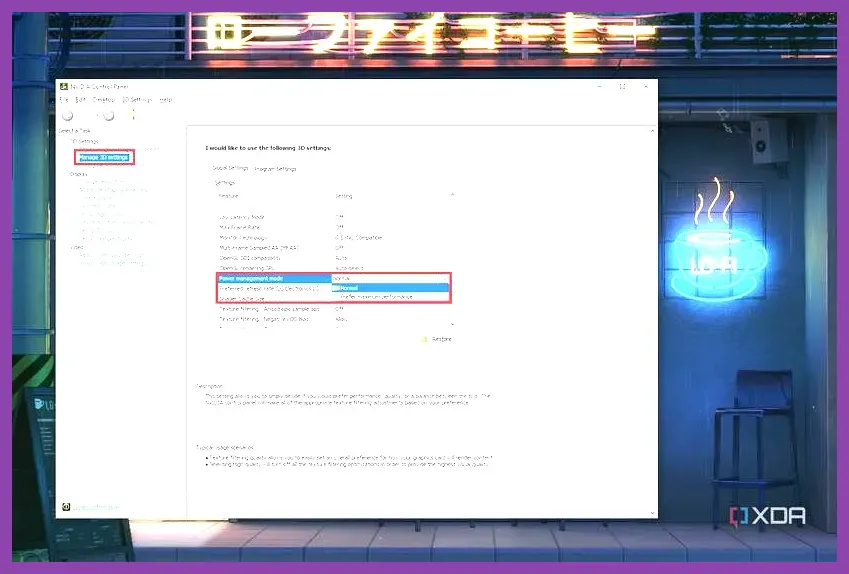
- Select Manage 3D Settings from the left navigation tree and select the Program Settings tab.
- Click Add and browse to your Elden Ring executable path (typically
C:\\Program Files (x86)\\Steam\\steamapps\\common\\ELDEN RING\\Game\\eldenring.exe). - Modify the following parameters strictly:
- Shader Cache Size: Change from Driver Default to 10GB or Unlimited. This forces Windows to retain precompiled shaders on disk, permanently stopping micro-stutters when encountering new enemies or spells.
- Power Management Mode: Set to Prefer maximum performance. Prevents the GPU from downclocking during quiet dialogue scenes or menu navigation.
- Low Latency Mode: Set to On or Ultra. Reduces render queue lag between the CPU frame submit and GPU output.
- Max Frame Rate: Lock to 59 FPS or 60 FPS. Elden Ring's internal engine clock locks to 60Hz. Setting a driver-level cap prevents the engine from desynchronizing.
- Vertical Sync: Set to Fast (if using a G-Sync monitor) or Use the 3D application setting.
- Click Apply in the bottom right corner.
AMD Radeon Software Optimization
- Open AMD Software: Adrenalin Edition.
- Navigate to the Gaming tab and locate Elden Ring.
- Enable Radeon Anti-Lag to minimize input delay during complex evade timing.
- Set Radeon Enhanced Sync to Enabled if you experience screen tearing without FreeSync.
- Scroll down to Advanced, locate Reset Shader Cache, and execute a clear. This prompts AMD's driver to rebuild clean, stutter-free DirectX 12 shaders upon your next launch.
Always ensure your GPU drivers are updated to the latest game-ready versions via the NVIDIA Driver Download portal or the AMD Driver Support hub, as both manufacturers released targeted optimizations specifically for the DLC release.
4. Windows OS Configuration and Anti-Cheat Overhead Adjustments
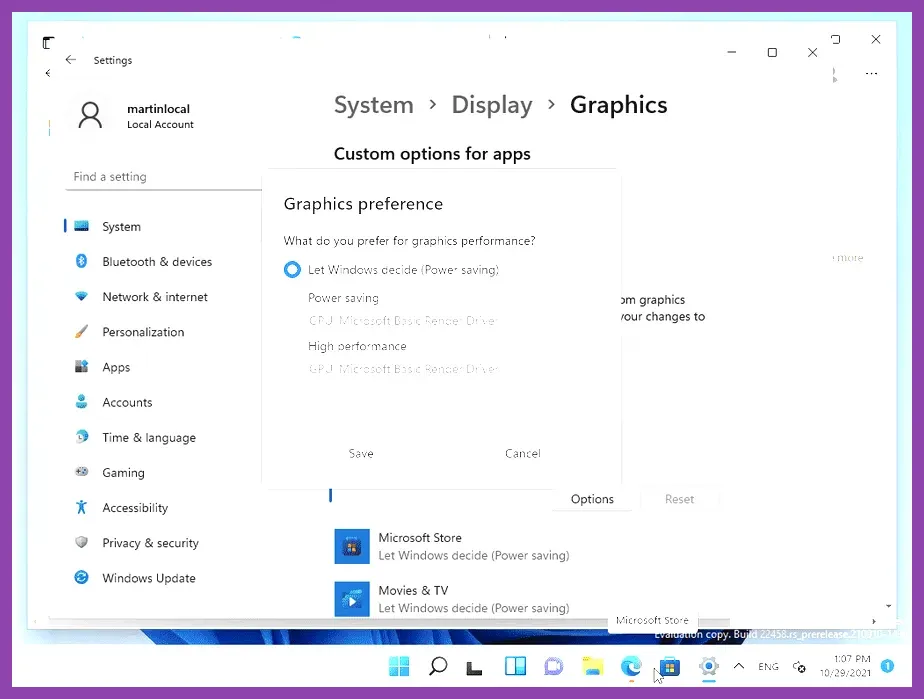
Windows operating system background tasks frequently contend with Elden Ring for hardware priority. Easy Anti-Cheat (EAC), while effective at mitigating network tampering, introduces high thread monitoring overhead that can cause periodic hitches on multi-core processors.
Force High-Performance Graphics Priority in Windows
Windows 10 and Windows 11 often fail to assign the main discrete graphics card correctly, leading to random system throttling. Fix this by manually setting execution priority:
- Press
Win + Ito open Settings, then navigate to System > Display > Graphics. - Under "Add an app", select Desktop app and click Browse.
- Navigate to your
eldenring.exedirectory and select the executable. - Click on Elden Ring in the list, click Options, choose High performance (selecting your discrete GPU), and save.
Configure Hardware-Accelerated GPU Scheduling (HAGS)
Hardware-Accelerated GPU Scheduling offloads VRAM management tasks from the CPU to dedicated GPU logic. While beneficial for many modern titles, HAGS can occasionally cause stuttering in DirectX 12 games running Easy Anti-Cheat.
- If HAGS is currently ON and you experience micro-stutters every 30 seconds, toggle HAGS to OFF in the Windows Graphics Settings menu and restart your PC.
- Conversely, if your CPU is an older 4-core or 6-core model suffering from high CPU usage (>90%), turn HAGS ON to reduce system bottlenecking.
Disable Windows Game Bar and Background Recording
Background capture constantly writes temp video buffers to storage, heavily bottlenecking drive read/write operations during seamless world loading:
- Open Windows Settings and navigate to Gaming > Captures.
- Toggle Record what happened to Off.
- Navigate to Game Mode and ensure Game Mode is turned On. Game Mode prioritizes CPU and GPU resources exclusively for active full-screen applications.
Optimizing your system latency ensures that complex gameplay transitions remain buttery smooth. If you are adjusting your combat spec to adapt to smoother frame pacing, read our full guide on how to respec stats in Shadow of the Erdtree to reallocate your attributes efficiently.
5. Eliminating Stutters in Specific Land of Shadow Boss Arenas

Certain regions and boss encounters within Shadow of the Erdtree present unique performance bottlenecks due to intense particle simulation, geometry density, and dense lighting grids. Understanding these localized performance drops helps pinpoint necessary setting tweaks.
Belurat, Tower Settlement & Divine Beast Dancing Lion
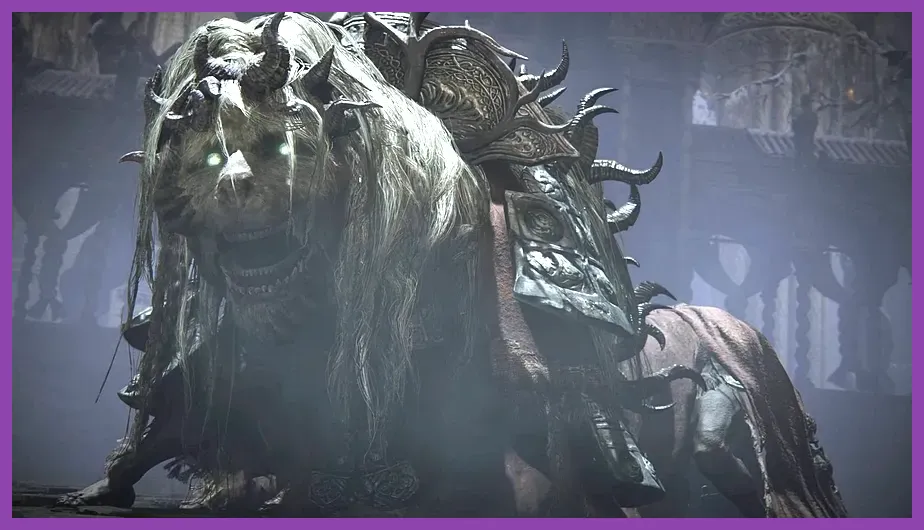
The Belurat region features dynamic weather conditions, dense structural ruins, and water pooling. The battle against the Divine Beast Dancing Lion triggers dramatic frame drops due to lightning, ice, and wind particle storms combined with heavy camera collisions.
- Fix: Drop Effects Quality to Low and set SSAO to Medium before entering the fog wall. This prevents lightning particle cascades from crippling VRAM bandwidth.
Shadow Keep & Messmer the Impaler Arena
The interior architecture of Shadow Keep strains draw distance logic, while Messmer’s boss arena is filled with persistent flame particle effects, dynamic smoke vectors, and fast serpentine animation models.
- Fix: Reduce Volumetric Effect Quality to Low and disable Depth of Field. This reduces fill-rate pressure on the GPU rasterizer when Messmer fills the screen with dark fire.
Ancient Ruins of Rauh
The Ancient Ruins of Rauh features expansive outdoor foliage, overgrown vines, complex geometry elevation changes, and constant wind simulations interacting with grass assets.
- Fix: Set Shadow Quality to Medium and drop Grass Quality to Medium. The dynamic shadow mapping cast by foliage in Rauh accounts for a substantial percentage of localized performance dips.
Managing your framerate in high-stakes encounters is vital for survival. If you are grinding resources across these taxing areas, refer to our breakdown on the smartest ways to farm runes fast in Shadow of the Erdtree to capitalize on every smooth battle victory.
6. CPU Core Parking, E-Core Optimization, and RAM Pagefile Fixes
Modern PC platforms featuring hybrid architecture CPUs (such as Intel 12th, 13th, and 14th Gen processors with Performance and Efficient cores) can run into scheduling conflicts with FromSoftware’s engine. Windows may incorrectly assign eldenring.exe worker threads to slow Efficient Cores (E-Cores) instead of High-Performance Cores (P-Cores).
Fixing Intel E-Core Stuttering via Process Lasso
If you experience rhythmic stuttering every few seconds, your OS thread scheduler is likely delegating game routines to low-clocked E-Cores:
- Download and install the free version of Process Lasso.
- Launch Elden Ring and tab out back to your desktop.
- In Process Lasso, locate
eldenring.exein the active process list. - Right-click
eldenring.exe, navigate to CPU Affinity > Always, and choose Select CPU Affinity. - Uncheck all E-Cores (typically labeled CPU 16 through CPU 23 depending on your processor model), leaving only P-Cores enabled for the application.
- Alternatively, enable Intel Thread Director updates via the latest Windows 11 build to handle dynamic thread allocation automatically.
Configuring Virtual Memory Pagefile
Memory leaks remain a known issue when playing long sessions of Shadow of the Erdtree on systems with 16GB of RAM. If your system runs out of physical memory, Windows writes to the Pagefile. If your Pagefile size is managed automatically or placed on a mechanical hard drive, the game will suffer severe multi-second freezes.
- Ensure Installation on NVMe SSD: Never run Elden Ring or its expansion on a mechanical Hard Disk Drive (HDD). The DirectX 12 asset streaming engine requires high-speed NVMe/SATA SSD throughput. You can verify system standards via the official Elden Ring Steam Store Page Specs.
- Manual Pagefile Allocation: Open Windows System Properties (`sysdm.cpl`), navigate to Advanced > Performance Settings > Advanced > Virtual Memory. Set a custom pagefile size on your fastest SSD with an initial size of 16384 MB and a maximum size of 32768 MB.
By executing these system-level adjustments, tweaking in-game parameters, and managing driver-level cache buffers, you can entirely eliminate frustrating framerate drops and enjoy locked, fluid combat across the entirety of the Land of Shadow.