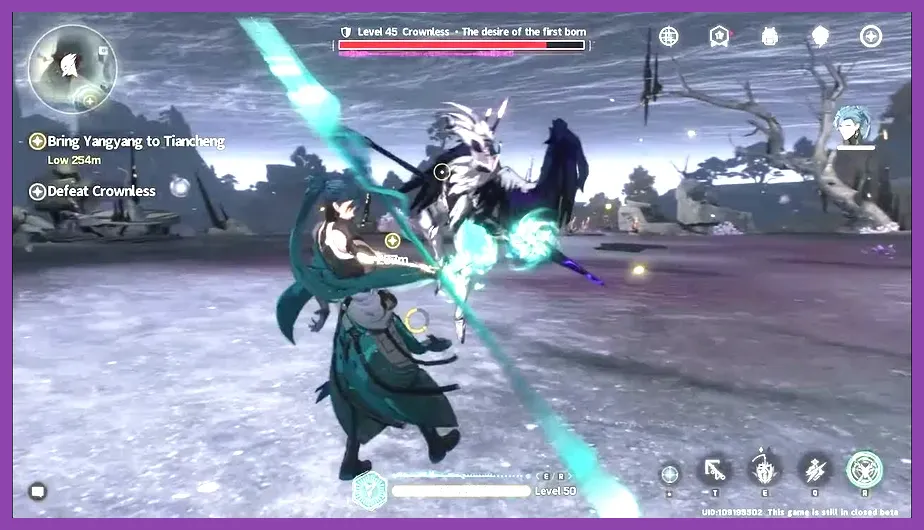
To fix crashing on PC in Wuthering Waves, you must address engine-level stuttering, bypass unstable Shader Cache allocations, and correct DirectX 11 rendering bottlenecks. Whether your game is freezing during intense boss encounters against Crownless or dropping straight to your desktop during open-world traversal in Huanglong, these targeted technical fixes will stabilize your client.
Verify and Repair Game Files via the Official Launcher
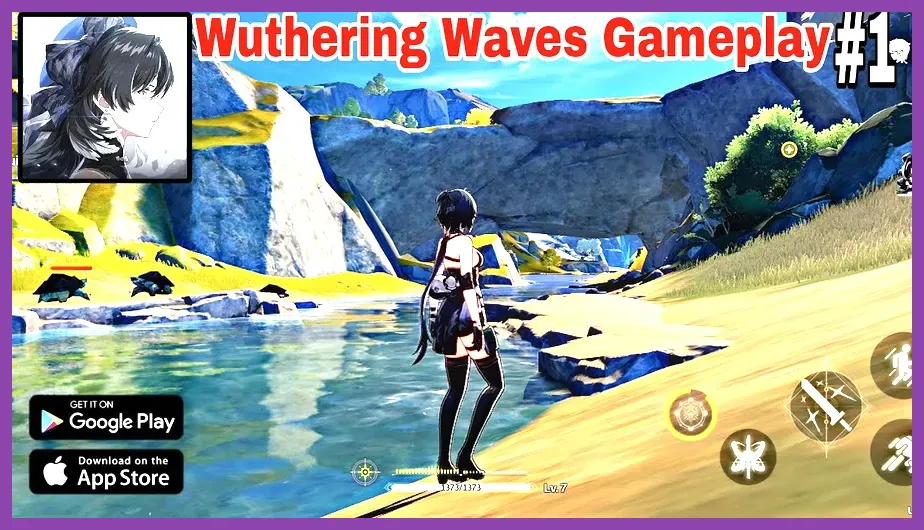
Corrupted asset files are the leading cause of sudden fatal error crashes when loading into Jinzhou or initiating combat sequences with characters like Jiyan or Yinlin. If a PAK file failed to unpack correctly during an update patch, the game engine will crash the moment it attempts to call that asset.
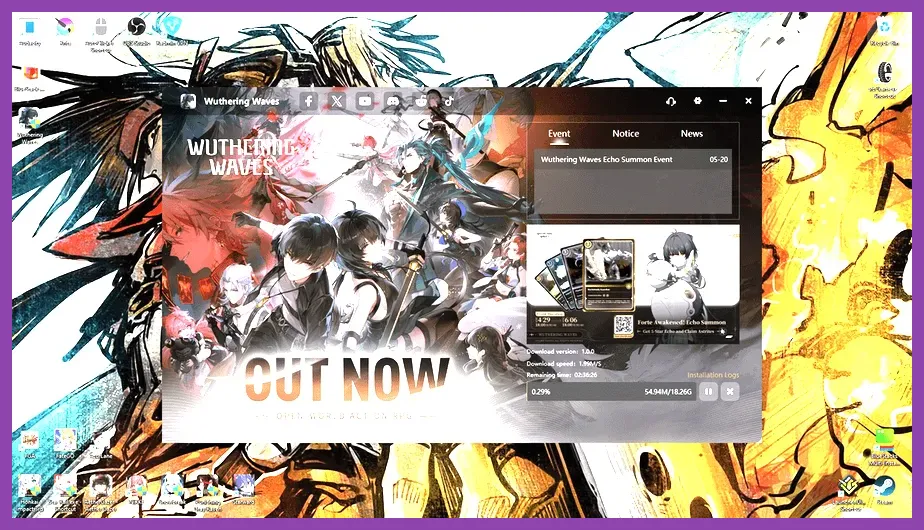
Open the official Kuro Games launcher, click the gear icon next to the Launch button, and select the "Game Repair" option. This utility will scan your entire directory, compare checksums against the live server database, and redownload any corrupted textures or audio banks. For similar troubleshooting insights on hardware stability, check out this hardware performance setup guide.
Adjust In-Game Graphics Settings to Prevent VRAM Leaks
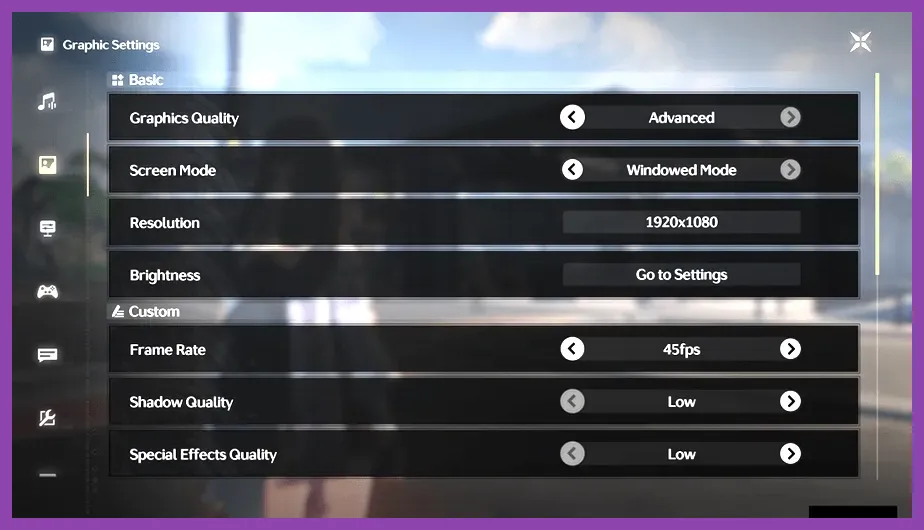
Wuthering Waves suffers from memory management issues on specific GPU architectures when volumetric lighting and high-shadow maps are forced. To stop out-of-memory crashes, apply the following optimized configuration profile:
- Resolution: Native monitor resolution (Exclusive Fullscreen)
- FPS Cap: 60 or 120 (Match your monitor refresh rate, avoid uncapped if experiencing frame pacing issues)
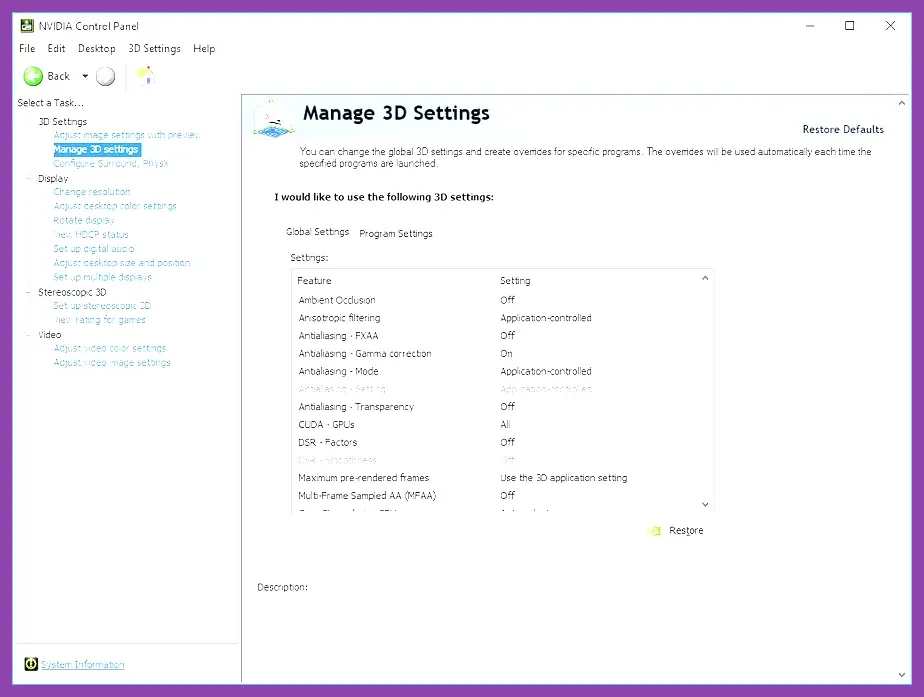
- VSync: Off (Control via Nvidia Control Panel or AMD Adrenalin instead)
- Shadow Quality: Medium (High introduces severe VRAM spikes during dynamic weather)
- Volumetric Fog: Low
- NVIDIA DLSS / AMD FSR: Quality (Crucial for cards under RTX 3070 / RX 6700 XT)
If you enjoy optimizing other open-world experiences, you might find our Starfield loot guide helpful for hardware tuning contexts as well. Furthermore, users running older rigs can balance resource demands by reviewing tactics outlined in our resource management tips.
Clear Shader Cache and Override GPU Driver Settings
Corrupted shader caches compiled by your GPU driver will cause immediate crash-to-desktop events upon launching the title or entering new regional sectors like the Tiger's Maw Mine. You need to manually purge these shader files.
Navigate to your Nvidia or AMD driver cache folder (typically located in AppData/Local/Nvidia/GLCache or via Disk Cleanup for DirectX Shader Cache) and delete the accumulated files. Next, open your GPU control panel, locate Wuthering Waves' executable (Client/Client-Win64-Shipping.exe), and set the Shader Cache Size to "Unlimited" or at least 10GB. For tactical action optimization strategies, review our breakdown of skill progression optimization.
Run the Game as Administrator and Disable Fullscreen Optimizations
Windows security protocols and User Account Control (UAC) can block Wuthering Waves from writing essential temporary configuration files to your documents directory, triggering unhandled exception crashes.
Locate your installation path (default is C:/Wuthering Waves/Wuthering Waves Game/Client/Binaries/Win64/Client-Win64-Shipping.exe). Right-click the executable, select Properties, navigate to the Compatibility tab, and check both "Disable fullscreen optimizations" and "Run this program as an administrator". For parallel optimization workflows in demanding titles, refer to our team synergy and performance guide.
Update or Roll Back Dedicated Graphics Drivers
Unstable GPU drivers are notorious for causing Unreal Engine 4 and 5 crashes in anime-style action games. If you recently updated to the latest Game Ready driver and began experiencing crashes, use Display Driver Uninstaller (DDU) in Safe Mode to completely wipe the installation before rolling back to a stable previous version.
Conversely, if you are running drivers that are more than six months old, download the latest package directly from the NVIDIA Driver Downloads or AMD portals. Clean driver installations resolve memory allocation bugs tied to Echo transformations and cooperative multiplayer instances.
Set High Priority in Task Manager and Disable Overlay Software
Background applications like Discord hardware acceleration, Razer Cortex, MSI Afterburner OSD (On-Screen Display), and RivaTuner Statistics Server (RTSS) frequently conflict with Wuthering Waves' anti-cheat system (ACE-Guard), resulting in silent process terminations.
Before launching the game, close all background overlays. Once the game is running, press Ctrl + Shift + Esc to open Task Manager, go to the Details tab, right-click Client-Win64-Shipping.exe, hover over Set Priority, and change it to High. This ensures Windows allocates dedicated CPU threads to the game process, preventing micro-stutters and timeout crashes during heavy combat animations.