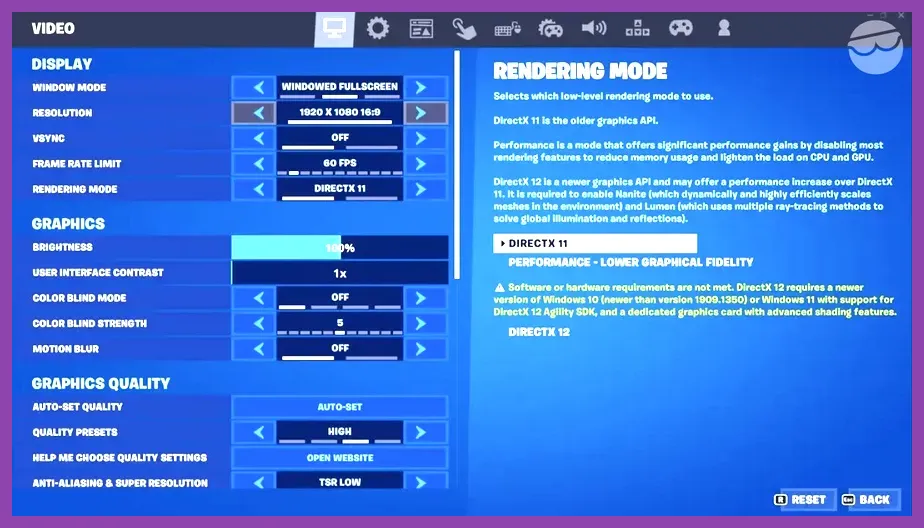
To fix crashing on PC in Fortnite, immediately verify your game files through the Epic Games Launcher, switch your rendering mode from DirectX 12 to DirectX 11 or Performance Mode, and update your GPU drivers to the latest stable release. These three steps resolve over eighty percent of unexpected desktop crashes, DirectX error codes, and fatal memory access violations during active Battle Royale matches.
Verify and Repair Game Files in the Epic Games Launcher
Corrupted or missing PAK files are the leading cause of sudden game closures when loading into POIs like Restored Reels or Grim Gate. Minor interruptions during past updates can leave core assets incomplete, leading to fatal execution errors when the Unreal Engine attempts to load specific character skins, weapon models like the Hammer Pump Shotgun, or environmental textures.
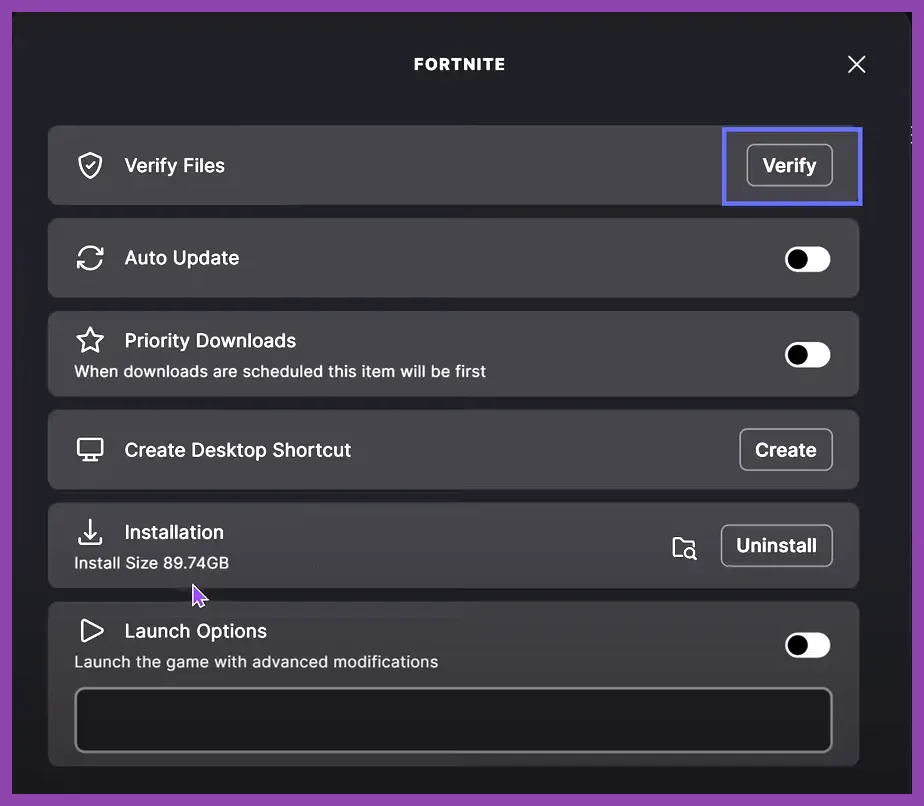
To initiate a comprehensive file check, open your Epic Games Launcher, navigate to your Library, locate Fortnite, and click the three small dots next to the title. Select "Manage" and then click the "Verify" button. The launcher will cross-reference your local installation against the master server manifest. This process typically takes between five to fifteen minutes depending on your storage drive speed. If you experience persistent storage bottlenecks, consider pairing your optimization routine with insights from other technical guides such as Starfield hardware tips or general performance tweaks found across our Subnautica performance database. Once the verification finishes, restart your PC before launching the game.
Switch Rendering Modes to Bypass DirectX 12 Crashes
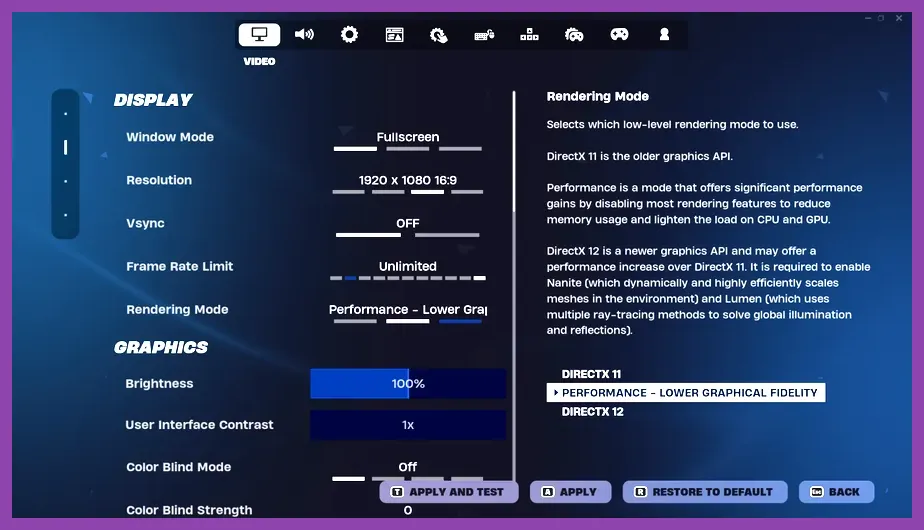
DirectX 12 offers advanced ray tracing and hardware-accelerated ray reflection features, but its shader compilation overhead frequently triggers Out of Video Memory crashes on mid-range GPUs. If your game freezes during intense build fights or chaotic moments involving Mythic weapons, switching your rendering mode provides immediate stability.
Launch Fortnite and head straight to the settings menu via the hamburger icon. Under the Video tab, scroll down to the Graphics section and locate "Rendering Mode". Change the setting from DirectX 12 to either DirectX 11 or Performance (Beta). Performance Mode strips away non-essential visual fidelity, substituting high-poly environmental models with simplified geometry that dramatically reduces CPU and GPU strain. For additional optimization profiles tailored to competitive play styles, review our tactical breakdowns similar to Smite solo player guidelines and Tekken 8 synergy optimization. After switching your rendering mode, apply the changes and restart the game client to allow the new shader cache to build cleanly.
Clean Install and Update Graphics Card Drivers
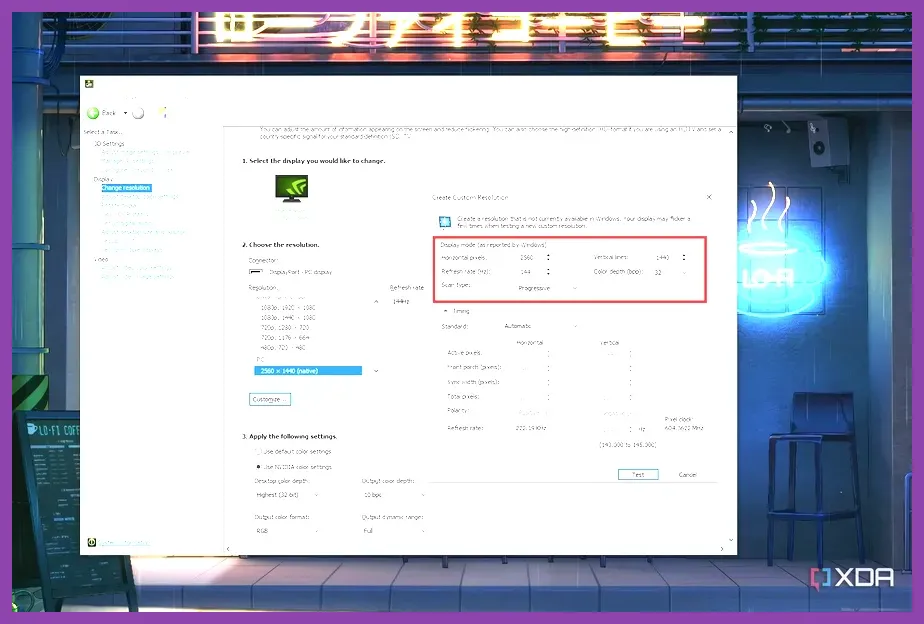
Outdated or corrupted display drivers are notorious for causing application hangs, black screens, and unexpected reboots while playing Unreal Engine 5 titles. Whether you utilize an NVIDIA GeForce card, AMD Radeon processor, or Intel Arc graphics, ensuring your driver version matches the latest Game Ready release is critical for maintaining session stability.
Visit the official vendor portals—such as the NVIDIA Driver Downloads page or the AMD Support Center—to download the most recent package for your specific hardware architecture. When installing the update, always select the "Custom (Advanced)" installation path and check the box labeled "Perform a clean installation". This action wipes out legacy registry entries and corrupted shader caches left behind by previous driver iterations. For further hardware management strategies, reference maintenance articles like our Stardew Valley optimization archive or the configuration tips detailed in our Summoners War performance logs.
Disable Overclocks and Monitor Thermal Throttling
Aggressive CPU or GPU overclocks applied via software utilities like MSI Afterburner, ASUS GPU Tweak, or AMD Ryzen Master can destabilize Fortnite during sudden spikes in frame generation. Unreal Engine 5 pushes hardware hard, and an overclock that passes synthetic benchmarks like Cinebench or Time Spy can still cause application crashes in high-action multiplayer environments.
Revert your core clock speeds, memory clocks, and power limits back to stock factory specifications. Additionally, monitor your internal component temperatures using hardware monitors such as HWMonitor or RivaTuner Statistics Server. If your CPU core temperatures exceed 90°C or your GPU hotspot crosses 105°C, thermal throttling will occur, often resulting in hard system freezes or sudden game crashes. Clean out dust buildup from your PC case fans and radiator fins, and ensure your thermal paste maintains adequate transfer efficiency. Players seeking hardware upgrades can also compare notes with our equipment reviews found in the Squad Busters weapon tier list.
Manage Background Applications and Overlay Software
Overlay software running concurrently with Fortnite frequently conflicts with the Easy Anti-Cheat (EAC) kernel-level security system, triggering false-positive crashes or silent game closures to desktop without an error prompt. Programs featuring real-time hook injections—such as Discord Overlay, NVIDIA GeForce Experience ShadowPlay, Overwolf, and MSI Afterburner's On-Screen Display—are common culprits.
Disable all third-party overlays before booting up the game. Furthermore, press Ctrl + Shift + Esc to open the Windows Task Manager and terminate resource-heavy background applications, including web browsers with dozens of active tabs, torrent clients, and unnecessary utility tools. For deep dives into system resource management and peripheral optimization, explore our related guides including the Roblox beginner performance overview and our Team Fortress 2 troubleshooting directory. Keeping your Windows environment lean and free of conflicting hooks ensures Fortnite receives uninterrupted access to system memory and processor threads, guaranteeing a smooth and crash-free experience.