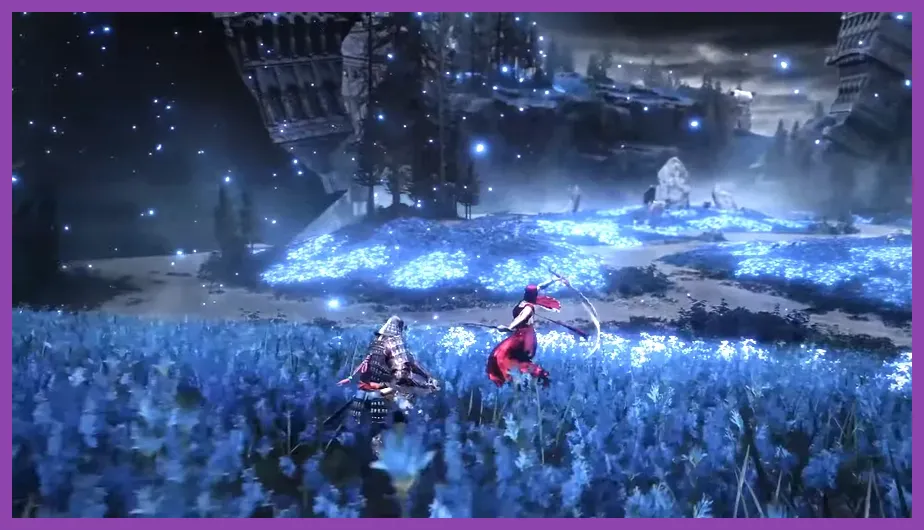
Landing in the Lands Between for the Shadow of the Erdtree expansion is an incredible experience, but nothing pulls you out of the immersion faster than a sudden game crash to desktop. If you are constantly hitting the Elden Ring crash-to-desktop error on PC, you are not alone. The expansion introduces highly detailed new assets, demanding shader compilations, and complex physics in areas like the Jagged Peaks and the final boss arena that can push older or mismatched hardware to its breaking limit. Fortunately, there is a systematic way to stabilize your game. By carefully adjusting your graphics drivers, in-game settings, and system configurations, you can eliminate these disruptive crashes and explore the Shadow Realm smoothly.
Update Your GPU Drivers and Windows Operating System
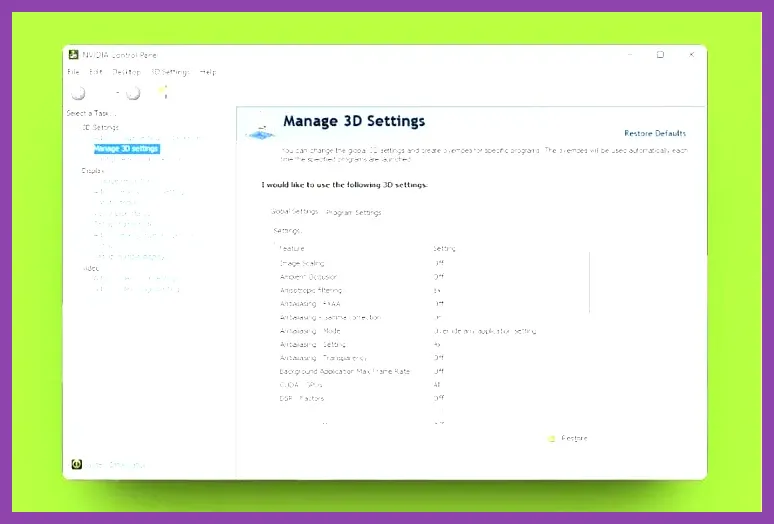
The first and most common culprit behind Elden Ring Shadow of the Erdtree crashes is outdated or corrupted graphics drivers. FromSoftware’s engine relies heavily on modern GPU architectures and specific API implementations. If you are running an older driver version, shader compilation or direct rendering in newly loaded assets—such as those in the new Enir-Ilim cathedral or the Cerulean Coast—will fail and crash your game.
To fix this, you must ensure your system is fully up to date. For NVIDIA users, you should download and install the latest Game Ready driver, specifically version 551.68 or newer, which provides explicit optimizations for Shadow of the Erdtree. AMD users should head to the official site and grab the Adrenalin 24.4.1 driver or later. Intel Arc GPU users must also check the official Arc graphics page for their latest driver builds.
Alongside your GPU drivers, make sure your Windows 10 or Windows 11 operating system has the latest cumulative updates installed. Outdated system DLLs or missing Windows updates can cause memory allocation conflicts that lead directly to crashes. Head to Windows Update, install all pending updates, and restart your machine before launching the game. If the issue persists, try uninstalling any third-party system overclocking software like MSI Afterburner or RGB control utilities, as these background processes often conflict with the game engine.
As you optimize your system, you might want to check out our guide on how to fix crashing on PC in Black Myth: Wukong, which shares very similar driver-level fixes for demanding action RPGs.
Verify Game Files and Manage Corrupted Save Data
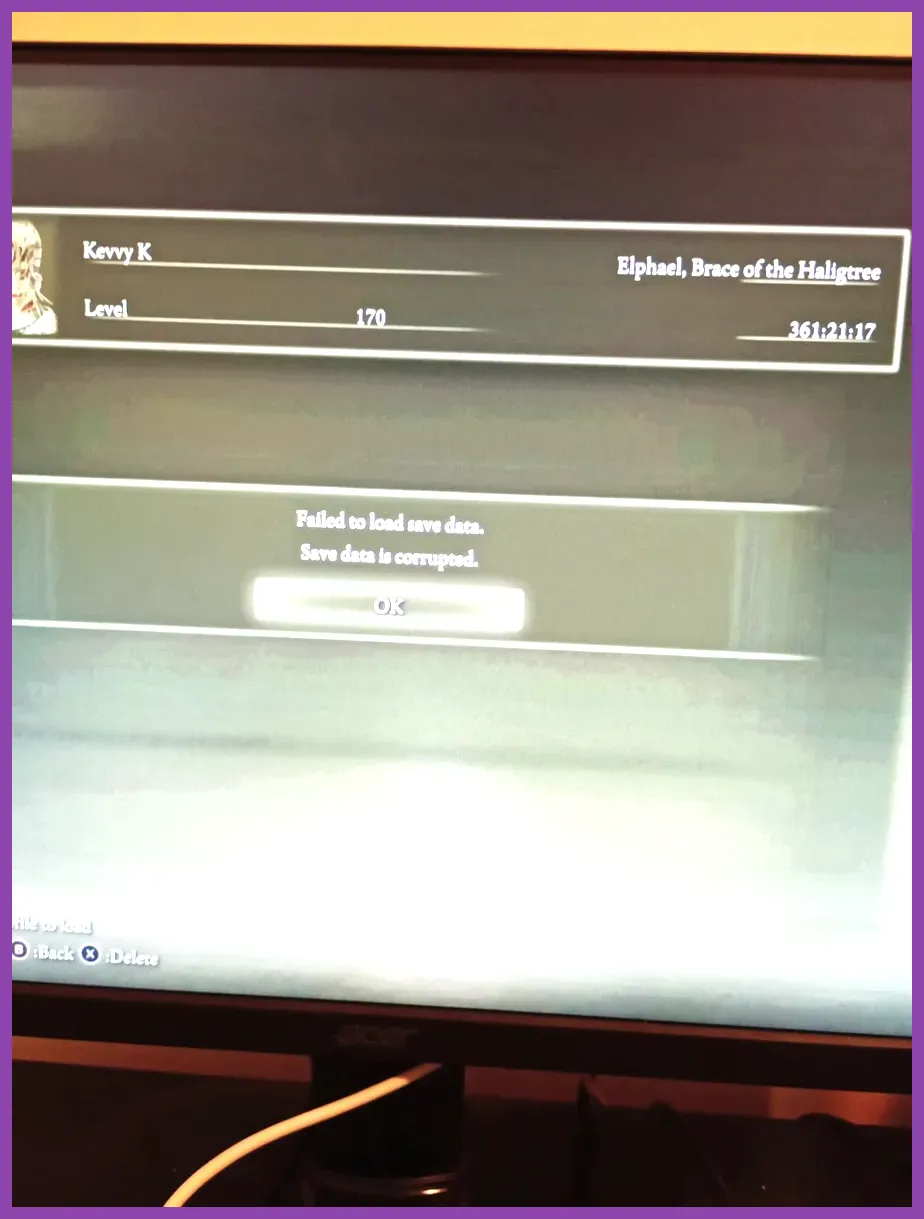
Sometimes, the crash is not a hardware or driver issue, but a corrupted local game file or an incompatible save profile. Shadow of the Erdtree introduces new inventory items, grace sites, and map data. If your local save file gets partially corrupted during the transition into the expansion, the game engine will crash when trying to load specific assets or scripts associated with your progress.
The easiest way to rule out corrupted game files is to use Steam’s built-in tool. Navigate to your Steam Library, right-click on Elden Ring, select ‘Properties’, go to the ‘Local Files’ tab, and click ‘Verify Integrity of Game Files.’ Steam will scan your local game folder and compare it against the server’s master files, downloading and replacing any missing or damaged data. This process often resolves crashes caused by incomplete expansion downloads or broken mod configurations.
Regarding save files, if you have been using third-party save editors or importing saves from online, this can trigger anti-tampering mechanisms that force the game to crash. Delete any non-official save files from the ELDEN RING save folder in your Documents folder, and let the game generate a fresh save. If you have a backup of your legitimate save, restore it. It is also wise to disable cloud saves temporarily while troubleshooting to prevent corrupted files from syncing back to your local storage.
For players looking to optimize their progression in the new DLC, our guide on how to level up fast in Elden Ring Shadow of the Erdtree will help you avoid unnecessary grinds that might stress the save system.
Tweak In-Game Graphics Settings for Maximum Stability
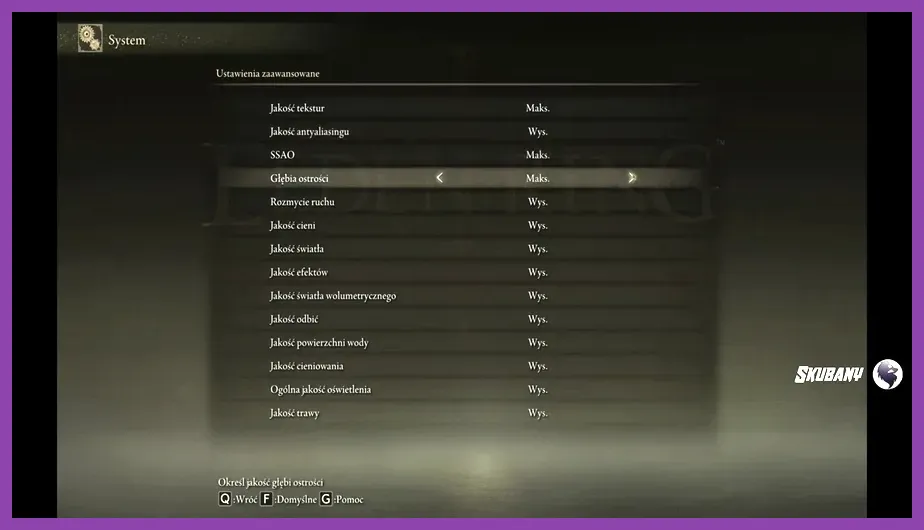
Elden Ring Shadow of the Erdtree pushes visual boundaries, particularly with its new lighting, shadow rendering, and environmental density. If your PC’s hardware is on the lower end of the recommended specifications, you need to prioritize stability over high-fidelity visuals. The game’s graphics settings menu offers several key options that you can manually adjust to prevent crashes.
Graphics Settings Priority Checklist
First, turn off Ray Tracing entirely. Ray Tracing is incredibly demanding and is a primary cause of persistent crashes on mid-range GPUs. Next, set your Maximum Frame Rate to an uncapped or custom limit, or simply cap it to 60 FPS if you are playing on a standard monitor. Uncapped frame rates can sometimes cause memory leaks or buffer overflows that crash the game.
Inside the Graphics tab, set the ‘Texture Quality’ to High or Medium. VRAM allocation is critical here; setting textures to ‘High’ is usually safe if you have 8GB or more of VRAM, but if you have a 6GB card, drop it to ‘Medium’ to avoid VRAM overflow crashes. Keep ‘Shadow Quality’ at Medium or Low. Shadows in the expansion’s dense forest areas are highly complex, and setting them to High will heavily tax your GPU’s rasterization cores. Set ‘Anti-Aliasing’ to ‘SMAA’ or disable it completely if you have a low-end card, as modern AA techniques like TAA can cause ghosting or shader compilation stutters. Finally, ensure ‘Shader Compilation’ is set to ‘Skip’ or ‘Compile at Startup’ to prevent mid-game stuttering and crashes when entering new areas.
Disable Background Overlays and Third-Party Software

Your operating system’s background applications can easily interfere with Elden Ring Shadow of the Erdtree, leading to sudden crashes, particularly during intense boss fights or fast travel. Software like Discord overlay, GeForce Experience shadow play, MSI Afterburner, RGB lighting software, and even Windows Game Bar can hook into the game’s rendering pipeline and cause conflicts.
To ensure a clean gaming environment, open your task manager and disable all non-essential background processes. In Discord, go to User Settings > Advanced and turn off ‘Hardware Acceleration’ and disable in-game overlays. In the NVIDIA GeForce Experience app, navigate to the Settings tab and turn off the ‘Shadow Play’ recording feature. If you use Windows, head to Settings > Gaming > Xbox Game Bar and toggle it off, as the Game Bar is notorious for causing memory leaks and crashes in FromSoftware titles.
If you are using a second monitor or have multiple display configurations, try unplugging any extra monitors and running the game in full-screen exclusive mode. Multi-monitor setups can sometimes cause rendering issues, especially when the game tries to transition between different resolution profiles or load new shader caches upon entering the expansion’s massive open areas.
If you are experiencing performance hiccups in other demanding titles, check out our comprehensive guide on how to fix lag and low FPS in ARC Raiders for additional background process management tips.
Manage VRAM, Memory Allocation, and System Resources
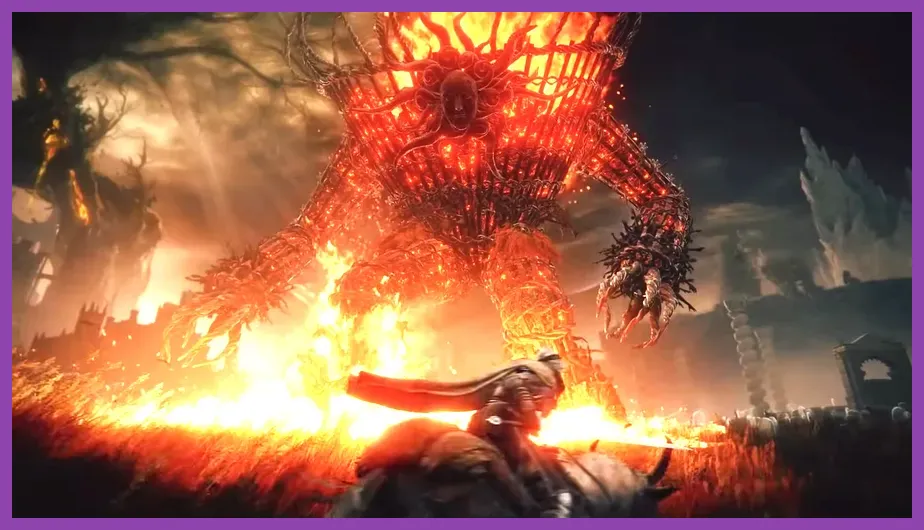
Elden Ring Shadow of the Erdtree is a memory-intensive game. The expansion adds massive new map sectors, high-resolution textures, and complex NPC AI behaviors that require substantial system RAM and VRAM. If your PC has 16GB or less of system RAM, you may experience frequent crashes due to memory exhaustion, especially if you have web browsers, Discord, and other applications running in the background.
To optimize memory allocation, close all unnecessary tabs and applications before launching Elden Ring. On Windows 10 and 11, you can also adjust your virtual memory (paging file) manually, though the default system-managed size is usually optimal. The key is to ensure your system is not swapping memory to disk frequently, which causes massive stutters and crashes.
For VRAM management, if you have a modern graphics card with 8GB or more of VRAM, ensure that your Windows power plan is set to ‘High Performance’ or ‘Ultimate Performance’. A balanced power plan can throttle your GPU clock speeds, leading to buffer underruns and shader compilation crashes. Head to your GPU control panel—NVIDIA Control Panel or AMD Adrenalin—and set the ‘Power management mode’ to ‘Prefer maximum performance.’ Additionally, in the NVIDIA control panel, set ‘Texture Filtering - Quality’ to ‘High Performance’ to free up valuable VRAM that the game engine can use for rendering new assets.
Adjust Launch Options and GPU Preferences
Sometimes, the default GPU selection or launch configuration can cause the game to run on the wrong hardware, leading to crashes. If you have a PC with a dedicated GPU (like NVIDIA or AMD) and an integrated CPU GPU (like Intel Iris Xe or AMD Radeon Vega), Windows might default to the integrated graphics, which are entirely unequipped to handle Shadow of the Erdtree.
To force the game to run on your dedicated GPU, open the Windows Settings app, go to System > Display > Graphics settings (or Graphics > Default Graphics Settings), and select ‘Desktop app.’ Browse to the Elden Ring executable file, usually located in C:\Program Files (x86)\Steam\steamapps common\ELDEN RING\Game\win64\elde ring.exe (or similar path depending on your installation drive). Once selected, click ‘Options’, set it to ‘High Performance’, and save.
You can also use launch options in Steam to tweak how the game boots up. Right-click Elden Ring in your Steam library, go to Properties, and in the ‘Launch Options’ text box, type -d3d12 -fullwborder to force DirectX 12 and full-borderless windowed mode, which is often much more stable than the default full-screen exclusive mode. If you are still experiencing crash loops, try adding -force-d3d11 to force DirectX 11, which can bypass specific driver-level bugs present in the DirectX 12 implementation on older hardware.
For players seeking to optimize build progression and gear acquisition in the expansion, our guide on how to get legendary weapons in Elden Ring Shadow of the Erdtree will help you secure powerful loot without crashing your system in intense farming sessions.