
If you only treat Microsoft PC Game Pass as a basic digital storefront where you hit install on whatever is sitting on the front banner, you are leaving more than half your subscription's value on the table. Between buried partner subscriptions, unannounced free digital loot, restrictive default file systems that chew up SSD storage, and download throttles baked straight into Windows, the service has plenty of quirks. By tuning a handful of critical settings inside Windows, claiming unadvertised cross-platform account perks, and exploiting the built-in Microsoft Rewards cycle, you can turn a basic subscription into an endless gaming pipeline that pays for itself.
Free Subscriptions and Secret Account Link Integrations
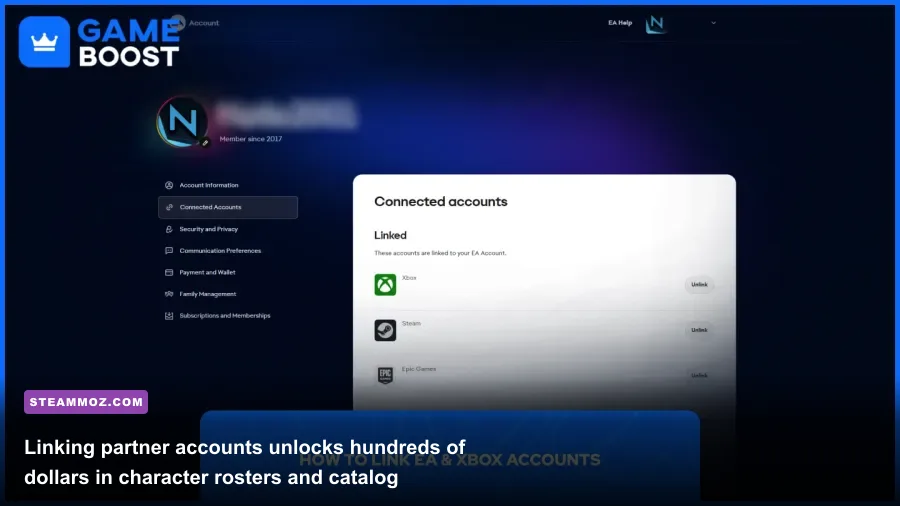
Your subscription is not limited to games housed directly inside the Xbox desktop application. A standard PC Game Pass membership quietly bundles multiple third-party platform integrations that double your playable catalog and hand out hundreds of dollars in live-service content. The most notable inclusion is EA Play, which grants full access to dozens of Electronic Arts titles without requiring an EA Play Pro tier. Games like Dead Space, Mass Effect Legendary Edition, and the Battlefield franchise do not install natively through Xbox; you must link your Microsoft account to the EA App. Once connected, your EA client registers an active EA Play membership automatically, granting access to EA's library, 10-hour trials of brand-new releases, and a flat 10% discount on digital EA purchases.
Beyond EA, Riot Games offers one of the most lucrative perks currently active on PC Game Pass. By linking your Xbox profile to your Riot Games account, you immediately unlock every single champion in League of Legends (saving thousands of hours of Blue Essence grinding or over $600 in real money), unlock all existing and future agents in Valorant on day one, and obtain an active 20% match XP boost across both titles. Similar integrations periodically appear with Ubisoft Connect, allowing you to access open-world stalwarts like the Far Cry franchise directly through Ubisoft's launcher. If you dive into these vast worlds, check out our guide on Far Cry 6 GOTY settings for max FPS as well as the best beginner builds in Far Cry 6 to kickstart your campaign.
Finally, make a habit of checking the dedicated "Perks" tab located directly under the Game Pass header on the Xbox app home screen. Microsoft routinely drops high-value codes here that expire silently if left unclaimed. These frequently include three-month trial subscriptions to Discord Nitro, free monthly starter packs for games like Sea of Thieves and Warframe, and cosmetics for competitive shooters. These perks refresh monthly, so neglecting this tab means burning free bonuses you have already paid for.
Reclaiming Your SSD: Advanced File Management and Modding
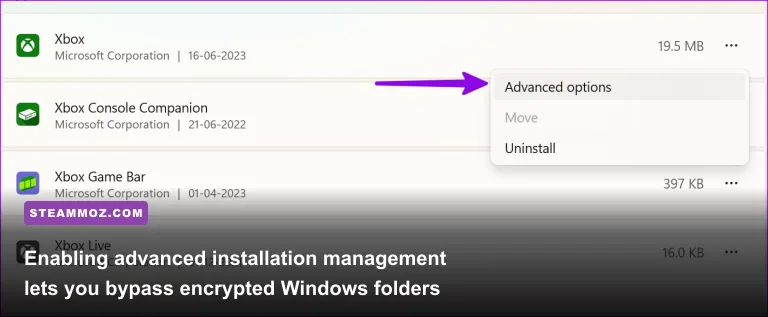
Historically, the biggest headache for PC enthusiasts using Game Pass was Microsoft's aggressive Universal Windows Platform (UWP) file container. Games were locked away inside an impenetrable, encrypted WindowsApps folder. You could not browse executable files, inject custom reshade profiles, modify configuration .ini files, or manage manual backups. Fortunately, Microsoft modernized this system with Advanced Installation Options, but many systems still run on legacy configurations unless you manually change your directory rules.
To gain complete control of your local game files, open the Xbox app, click your gamer profile icon in the top-left corner, go to Settings, and select the General tab. Under "Installation Options," check the path for your default install folder. Rather than letting Windows manage this automatically on your C: drive, set a dedicated path on a secondary high-speed NVMe drive (for example, D:\XboxGames). Below this, ensure the toggle for "Use advanced installation and management features" is enabled. This simple step strips away the encrypted UWP wrapper for all supported titles, allowing you to browse raw game files through File Explorer just like a standard Steam directory.
Unlocking raw directory access opens the door to third-party mods via platforms like Nexus Mods. While games with strict server-side anti-cheat remain locked down, major single-player titles like The Elder Scrolls V: Skyrim Special Edition, Starfield, and Fallout 4 can now accept community patches, custom textures, and scripted overhauls directly. If you hit stability roadblocks when tweaking deep RPGs, our ELEX PC crash fixes guide provides excellent general troubleshooting strategies for finicky open-world engines.
| Storage & Directory Setting | Default App State | Optimal Power-User Tweak | System Impact & Benefit |
|---|---|---|---|
| Installation Directory | Hidden C:\WindowsApps |
Explicit D:\XboxGames Custom Folder |
Full file read/write access; enables loose-file modding |
| Advanced Folder Management | Off (on older setups) | Enabled globally | Restores standard Win32 file layouts for community tools |
| Delivery Optimization Cache | Retained indefinitely | Purge via Disk Cleanup monthly | Frees up 20GB to 80GB of ghost storage on primary SSDs |
| Offline Permissions | Disabled | Enabled under App Profile Settings | Allows single-player gaming during internet dropouts |
One major storage trap unique to the Xbox app is phantom cache hoarding. When you update or uninstall a large game, Windows often holds onto the cached installation packages within the Delivery Optimization files. Over several months, your drive can quietly lose 50GB or more to empty space. Open your Windows Start menu, type Disk Cleanup, run it as Administrator, select your system drive, check "Delivery Optimization Files," and hit Delete. This wipes out lingering installation residue without impacting your installed games.
Shattering the Xbox App Download Bottlenecks
It is an infuriatingly common scenario: you have a blazing-fast gigabit fiber line, yet the Xbox app for PC crawls along at a miserable 15 MB/s, stalls at 0%, or locks up completely at 99%. This is rarely an issue with your ISP or Microsoft's content delivery servers. Instead, it is almost always caused by Windows 10 and 11 imposing background throughput restrictions via the system-level Delivery Optimization engine.
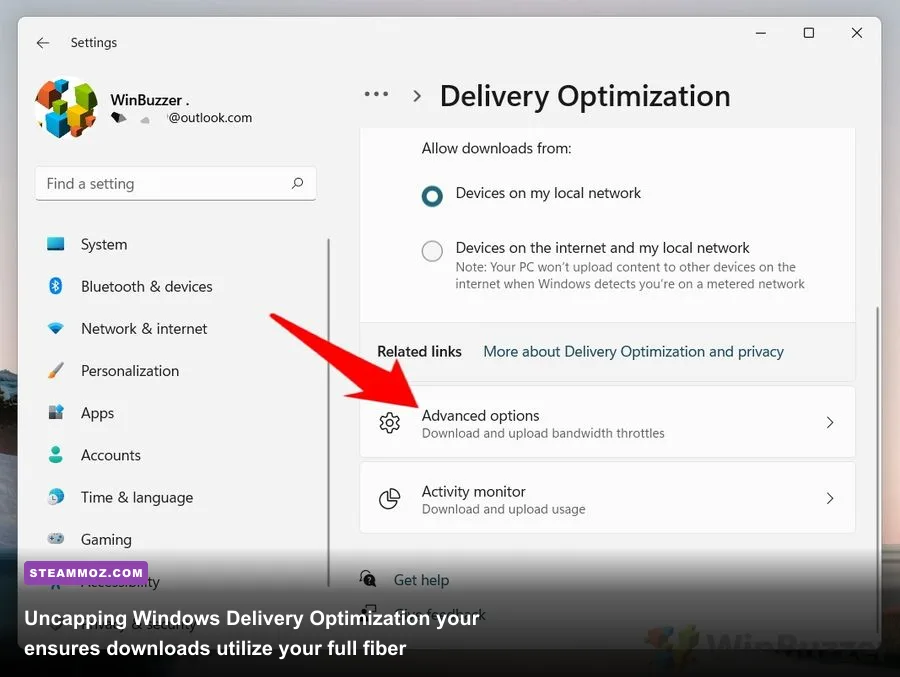
To eliminate download caps, open your system Windows Settings, navigate to Windows Update, click on Advanced Options, and select Delivery Optimization. First, toggle "Allow downloads from other PCs" to Devices on my local network only (or turn it completely off). Leaving this set to public internet uploads turns your rig into a peer-to-peer distribution node for strangers, which saturates your upstream bandwidth and ruins ping in online games.
Next, click Advanced Options inside the Delivery Optimization menu. Under Download Settings, switch the radio button from "Absolute bandwidth" to Percentage of measured bandwidth. Crank both sliders—for background and foreground downloads—up to 100%. By default, Windows aggressively reserves 55% to 90% of your operational bandwidth for generic background processes, artificially crippling your game download speeds. If your download completely freezes on an error code like 0x80070002 or refuses to initiate, close the Xbox app and open Windows PowerShell as Administrator. Execute the following command to completely reset the underlying service:
get-appxpackage Microsoft.GamingServices | remove-AppxPackage -allusersRestart your PC, reopen the Xbox app, and it will prompt you to reinstall Gaming Services through a quick micro-update. This clears broken update queues and resets the communication pipeline between the app and the Windows Store background service, immediately restoring full-speed downloads.
The Microsoft Rewards Loop: Playing Games for Free Subscriptions
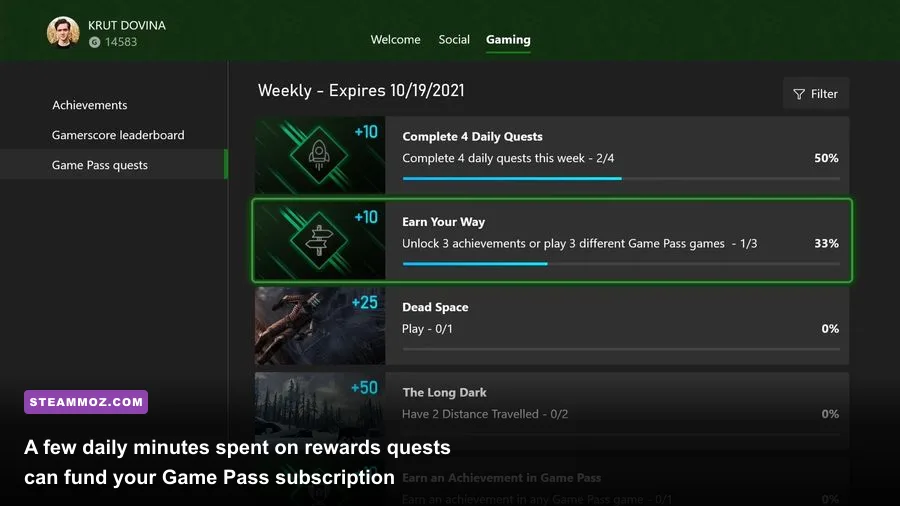
One of the most overlooked features of the Microsoft ecosystem is that you can realistically fund your PC Game Pass subscription forever without pulling out a credit card. Through the Microsoft Rewards platform, basic daily activities generate reward points that convert directly into digital Xbox Game Pass membership codes or Windows Store gift cards.
A month of PC Game Pass generally costs between 6,800 to 7,750 Microsoft Rewards points (or roughly 10,500 points if you set up Auto-Redeem for standard tiers). If you dedicate four minutes a day to knocking out daily tasks, the average player pulls in between 8,000 and 12,000 points every month with zero financial expenditure. Here is how to construct a fast, friction-free daily farming loop:
| Activity / Platform | Specific Action Required | Estimated Daily Investment | Monthly Point Yield |
|---|---|---|---|
| Xbox App for PC | Launch the desktop app & open any Game Pass title | 60 seconds (background) | 1,500 – 2,500 pts |
| Xbox Mobile App | Tap daily check-in & play a quick round of Microsoft Jewel | 2 minutes | 1,800 – 3,000 pts |
| Bing Daily Set (Edge) | Complete daily 3-card quiz set & trending searches | 90 seconds | 4,500 – 6,000 pts |
| Game Pass Quests | Complete weekly/monthly gameplay objectives | Passive gameplay | 1,000 – 2,000 pts |
The easiest routine starts with launching the Xbox mobile app on your phone during your morning routine to collect the check-in bonus and clearing a single level of Jewel. Next, fire up your PC and run any low-footprint Game Pass indie in the background while browsing your morning feeds—this satisfies the daily "Play a PC Game" quest. Couple this with quick searches on Microsoft Edge, and your points reserve will easily outpace your subscription renewal rate. Enable the "Auto-Redeem" feature on your Rewards dashboard to secure a discount on each code, ensuring your PC Game Pass access remains continuous and entirely cost-free.
Cross-Progression, Cloud Saves, and Hidden Play Anywhere Perks
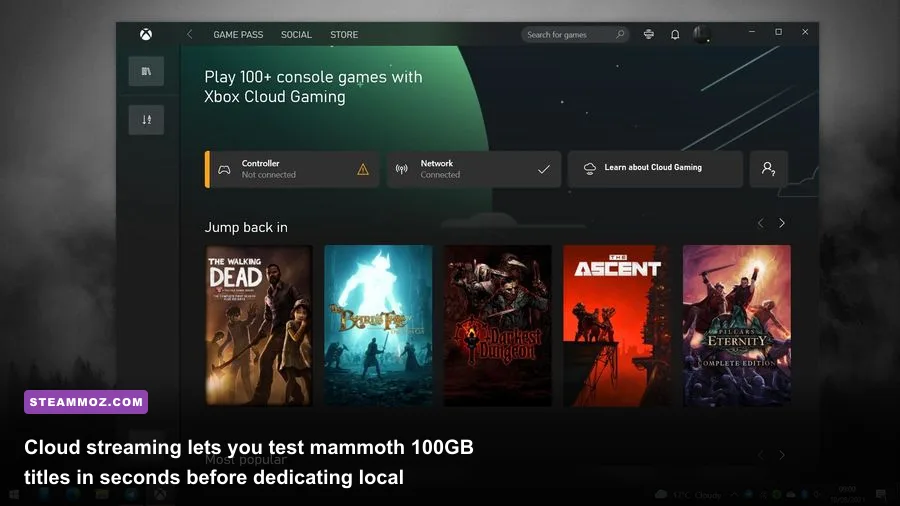
Storage management is a major battle when modern releases routinely command 100GB to 150GB of drive space. Before you sacrifice a massive chunk of your SSD and wait an hour for a game you might drop after twenty minutes, take advantage of the cloud integration. Even though PC Game Pass is focused on local downloads, members with linked Ultimate upgrades or cloud access can stream games instantly through a browser or the Xbox app. Use this as an interactive demo reel: stream the game for fifteen minutes to evaluate combat feel, pacing, and visual style. If it hooks you, trigger the full local installation knowing it is worth the SSD real estate.
Furthermore, look for the Xbox Play Anywhere tag on store listings. Games marked with this badge share unified licensing and cross-progression across PC, Xbox consoles, and cloud-supported handhelds like the ROG Ally. Games like the expansive space-combat RPG Everspace 2 take massive advantage of this structure, allowing you to push high-frame-rate combat on your desktop rig and carry your save files seamlessly over to a mobile handheld. If you are exploring deep space sectors, dive into our Everspace 2 secret locations and hidden rewards guide as well as the Everspace 2 crashing and FPS fix manual to keep your dogfights smooth.
Keep in mind that save files for Xbox app games operate differently than Steam Cloud. While Steam places saves in obvious directories like Documents or Saved Games, Game Pass stores encrypted cloud sync tokens within hidden app data folders:
%LOCALAPPDATA%\Packages\[Publisher.GameTitle]\SystemAppData\wgsIf you plan to cancel your subscription or transition a 100-hour playthrough to a Steam copy down the road, do not uninstall the game immediately. Third-party tools like Xbox-Save-Transfer or community scripts can extract your raw .sav files directly from this wgs (Windows Game Save) directory and format them for Steam. Exporting your data before uninstallation preserves your hard-earned progress, ensuring your campaigns survive whether you maintain your subscription or buy your favorite titles permanently on another platform.
When you look beyond the default settings and configure PC Game Pass like a seasoned power user, you stop treating it like a glorified rental launcher. Taking charge of your network rules, stripping away UWP file restrictions, claiming high-tier bundled memberships, and letting reward points pay your tab transforms the service into the most cost-effective ecosystem in PC gaming.