If Helldivers 2 keeps crashing on your PC, start by verifying game files, updating your GPU drivers, lowering a few key graphics settings, disabling overlays, and tweaking Windows power options—these steps resolve the majority of stability issues.
1. Verify Game Files Through Steam
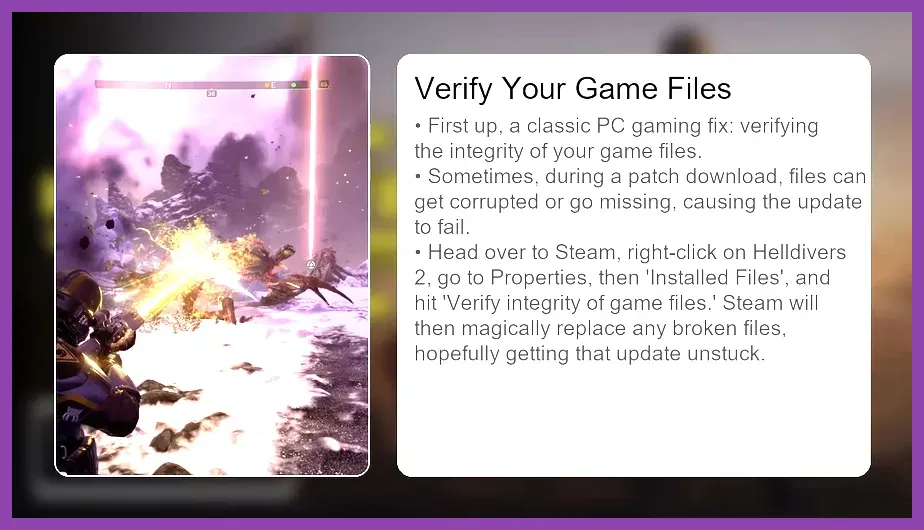
Corrupted or missing game files are a frequent cause of crashes, especially after updates. Open your Steam Library, right‑click Helldivers 2, select Properties, go to the Installed Files tab, and click Verify Integrity of Game Files. Steam will scan the installation and replace any damaged files. This process usually takes a few minutes depending on your storage speed. After verification, launch the game again to see if the crash persists. If the verification reports that files were missing or corrupted and were redownloaded, that often fixes the problem immediately.
2. Update Your GPU Drivers to the Latest Stable Release
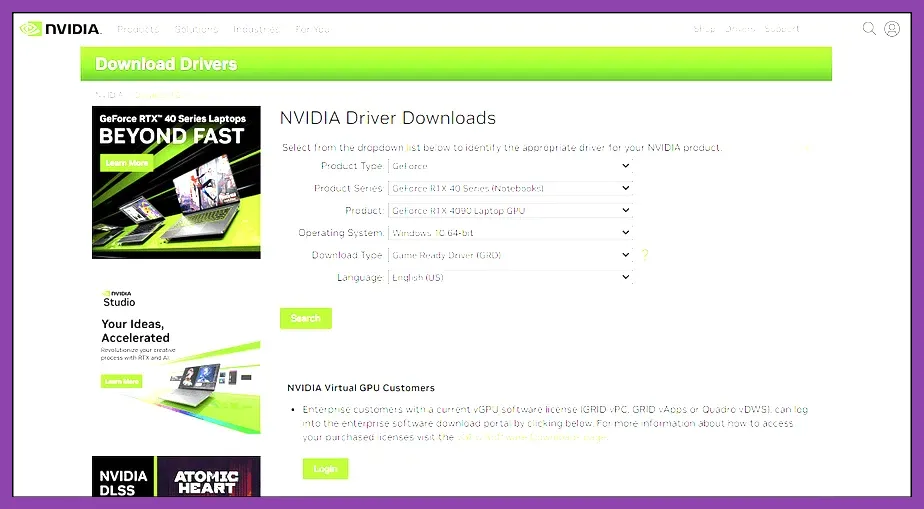
Outdated graphics drivers are a leading cause of crashes in modern titles like Helldivers 2. For NVIDIA cards, visit the official NVIDIA driver download page (NVIDIA Drivers) or use GeForce Experience to check for updates. Select the latest Game Ready Driver that supports your GPU (RTX 30/40 series or GTX 16/20 series). For AMD cards, head to the AMD Support site (AMD Drivers) and download the most recent Radeon Software Adrenalin Edition. After installing, restart your PC. Updated drivers not only improve performance but also include bug fixes for specific game engines, which can stop crashes that occur during intense combat with the Illuminate faction.
3. Optimize Helldivers 2 Graphics Settings for Stability
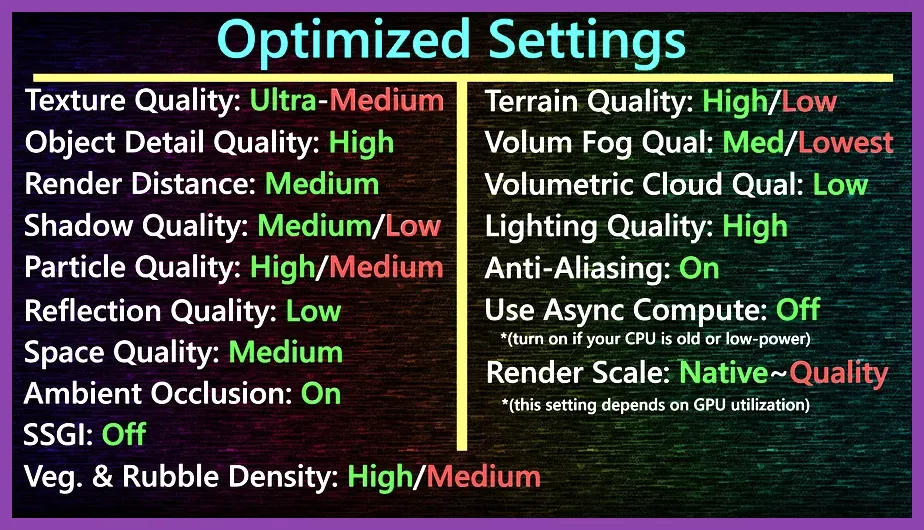
Helldivers 2 offers a range of graphics options; tweaking a few key settings can greatly improve stability without sacrificing too much visual fidelity. Start by launching the game and opening the Settings menu, then navigate to Graphics. Recommended baseline settings for most mid‑range PCs (GTX 1660 Super / RTX 3060 or equivalent) are:
- Texture Quality: High (if you have ≥6 GB VRAM) otherwise Medium
- Shadow Quality: Medium (high shadows can cause spikes during large enemy swarms)
- Anti‑Aliasing: Temporal AA (TAA) – provides smooth edges with low overhead
- VSync: Off – prevents input lag and reduces GPU load
- Motion Blur: Off – removes a post‑process effect that can cause stutter
- DLSS: Quality (if you have an RTX card) – upscales while maintaining frame stability
- Field of View: 90 – wider view increases CPU/GPU load slightly; keep at 90 unless you need more peripheral vision
- Volumetric Fog: Low – reduces particle‑heavy effects that can trigger crashes during explosions
4. Disable Third‑Party Overlays and Background Applications
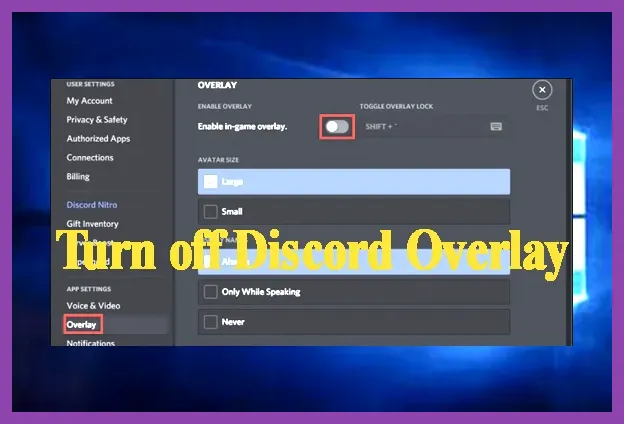
Overlays from Discord, Steam, NVIDIA GeForce Experience, Xbox Game Bar, or even third‑party chat apps can inject DLLs into the game process, leading to instability. To disable them:
- Steam Overlay: In Steam → Settings → In‑Game, uncheck "Enable the Steam Overlay while in‑game".
- Discord Overlay: Open Discord → User Settings → Overlay, toggle off "Enable in‑game overlay".
- NVIDIA GeForce Experience Overlay: Open GeForce Experience → Settings → General, turn off "In‑Game Overlay".
- Xbox Game Bar: Press Win + G, click Settings, then uncheck "Enable Xbox Game Bar for things like recording game clips, chatting with friends, and receiving game invites".
- Close unnecessary background apps: Use Ctrl+Shift+Esc to open Task Manager, end processes for browsers, voice chat, or download clients that consume CPU or RAM.
5. Adjust Windows Power Plan and Virtual Memory Settings
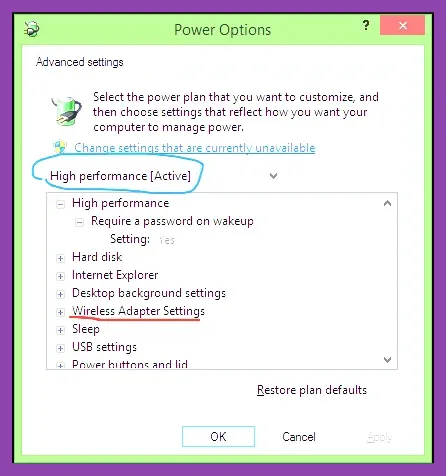
Windows power settings can throttle your CPU and GPU, causing frame drops that manifest as crashes. Set your power plan to High Performance:
- Open Control Panel → Hardware and Sound → Power Options.
- Select the High Performance plan (if not visible, click "Show additional plans").
- Click "Change plan settings" → "Change advanced power settings".
- Processor power management → Minimum processor state: 100 %.
- PCI Express → Link State Power Management: Off.
- Graphics settings → Power saving mode: Maximum Performance.
6. Set Steam Launch Options and Check DirectX/VCRedist
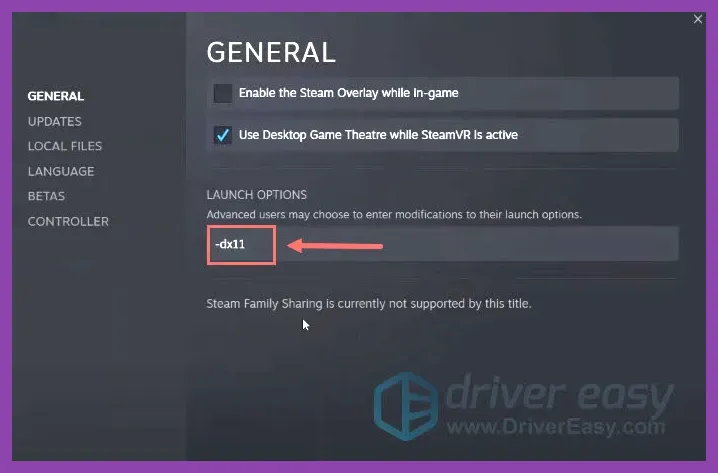
Launch options can force the game to use a stable DirectX version and prioritize CPU cores. In Steam, right‑click Helldivers 2 → Properties → General → Launch Options, and enter:
-high -dx11 -novid -nojoy -threads 6
Explanation:
- -high: Sets the game’s priority to high in the Windows scheduler.
- -dx11: Directs the game to use DirectX 11 instead of the newer DX12, which can be more stable on certain hardware.
- -novid: Skips the intro video, reducing startup load.
- -nojoy: Disables joystick detection, eliminating a potential input‑device conflict.
- -threads 6: Limits the game to six CPU threads; adjust to match your physical core count (e.g., -threads 8 for an 8‑core CPU). This can prevent oversubscription on CPUs with hyper‑threading.
By following these six steps—verifying files, updating drivers, tuning graphics, disabling overlays, optimizing Windows settings, and configuring launch options—you should eliminate the majority of crashes in Helldivers 2. If problems persist, monitor your hardware temperatures (CPU < 80 °C, GPU < 83 °C under load) and consider checking for hardware faults such as failing RAM or an unstable power supply. Happy diving, and may your missions stay crash‑free!