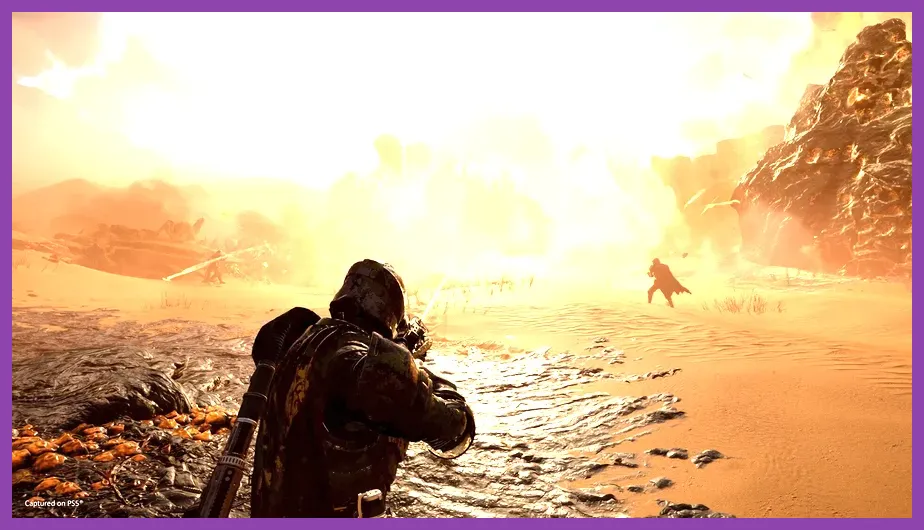
Helldivers 2 is a visually stunning but demanding co-op shooter. To ensure smooth gameplay, especially during intense bot and bug invasions, tweaking your graphics settings is crucial. This guide provides the optimal graphics settings for low-end, mid-range, and high-end PCs to maximize performance without sacrificing visual fidelity. By carefully balancing texture resolution, shadow quality, and upscaling technologies, you can achieve a stable, high frame rate that keeps you responsive on the battlefield.
Understanding the Graphics Engine and Key Settings
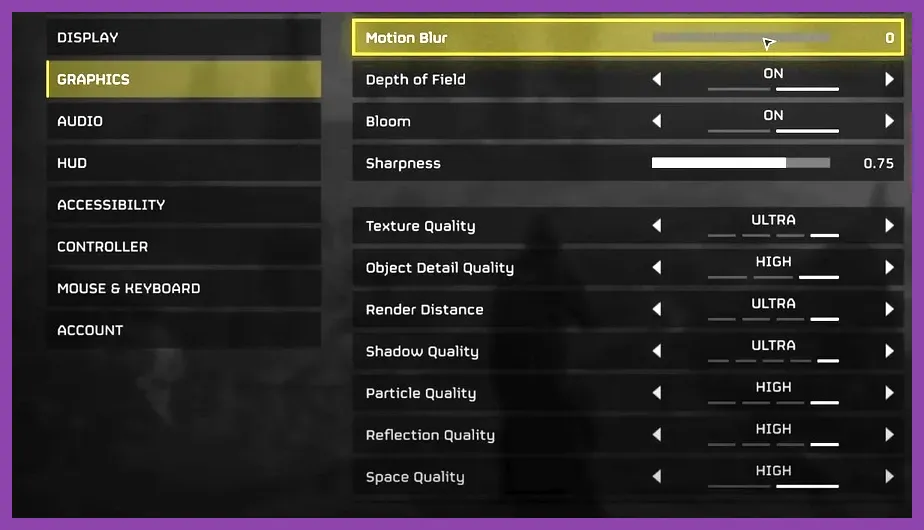
Helldivers 2 runs on a modified version of the Autodesk Stingray engine, which was originally designed for mobile and web-based games but has been heavily upgraded by Arrowhead Game Studios to support high-fidelity PC visuals. The engine is particularly demanding on the CPU due to the sheer number of NPCs, physics interactions, and screen-space effects occurring simultaneously during chaotic battles against both the Automatons and the Terminids. To get the most out of your hardware, you need to understand which settings impact performance the most and how to balance visual quality with frame rate stability.
The most performance-heavy settings in Helldivers 2 include Shadow Quality, Ambient Occlusion, Particle Effects, and Texture Resolution. Shadows are notoriously CPU-intensive, especially in outdoor environments with dynamic sunlight and multiple explosions casting complex real-time shadows. Ambient Occlusion (AO) adds depth to crevices and tight spaces but can eat up valuable GPU cycles. Meanwhile, the massive explosions and bug breaches generate hundreds of particle effects that can bottleneck both your CPU and GPU if set to Ultra.
Fortunately, Helldivers 2 features robust support for upscaling technologies like NVIDIA DLSS (Deep Learning Super Sampling) and AMD FSR (FidelityFX Super Resolution). Utilizing these upscalers is the single easiest way to boost your frame rate without a visible drop in image quality. Additionally, NVIDIA Reflex is available to reduce system latency, which is vital for quick aiming and responsive stratagem calls in high-pressure situations. For official updates and system requirements, you can always check the official Helldivers 2 Steam page or the Arrowhead Game Studios official website.
The High-End PC Settings Profile (Max Settings & Beyond)
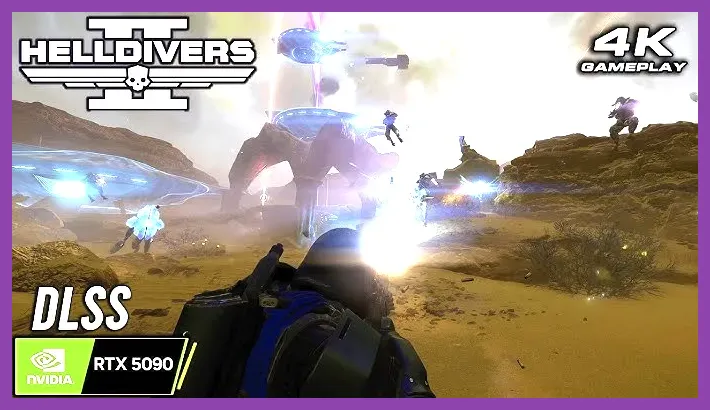
If you are running a top-tier graphics card like the NVIDIA GeForce RTX 4090, RTX 4080 Super, or AMD Radeon RX 7900 XTX, you can easily push Helldivers 2 to its absolute limits while maintaining ultra-smooth frame rates. The goal here is maximum visual fidelity at 4K resolution or high-refresh-rate 1440p, leveraging Frame Generation and ray-tracing-like enhancements where available.
For high-end rigs, we recommend the following configuration profile:
- Display Resolution: 4K (3840x2160) or 3440x1440 (ultrawide) with DLSS Quality mode.
- Texture Quality: Ultra (utilizes up to 12GB+ VRAM for crisp, high-resolution weapon and armor details).
- Shadow Quality: Ultra (essential for realistic lighting and depth in dark, atmospheric levels like the Terminid jungle or urban Automaton zones).
- Ambient Occlusion: High (provides excellent contact shadowing around robot joints and character models).
- Model Quality: High (ensures fine geometric details on enemies and allies are preserved at a distance).
- Particle Effects: High (keeps explosions looking spectacular without overwhelming the GPU).
- Lighting Quality: High (enables advanced dynamic lighting and global illumination effects).
- DLSS / FSR: DLSS Quality or Balanced, with Frame Generation enabled on RTX 40-series cards to boost frame rates beyond 120 FPS.
- NVIDIA Reflex: Enabled (Low Latency mode) to ensure your inputs feel incredibly snappy during intense firefights.
This setup ensures that every detail of the chaotic battlegrounds is rendered in stunning clarity, allowing you to easily spot those sneaky Terminid hunters or distant Automaton patrols. To get the most out of this high-end setup, make sure your monitor supports high refresh rates (144Hz or higher) to fully appreciate the fluid motion. If you need help maximizing your overall PC performance for gaming, check out our comprehensive guide on best settings for Black Myth Wukong to get max FPS, which shares many overlapping optimization principles for demanding AAA titles.
The Mid-Range Sweet Spot (RTX 3060 / 3070 / 3080 or RX 6700 XT / 6800)
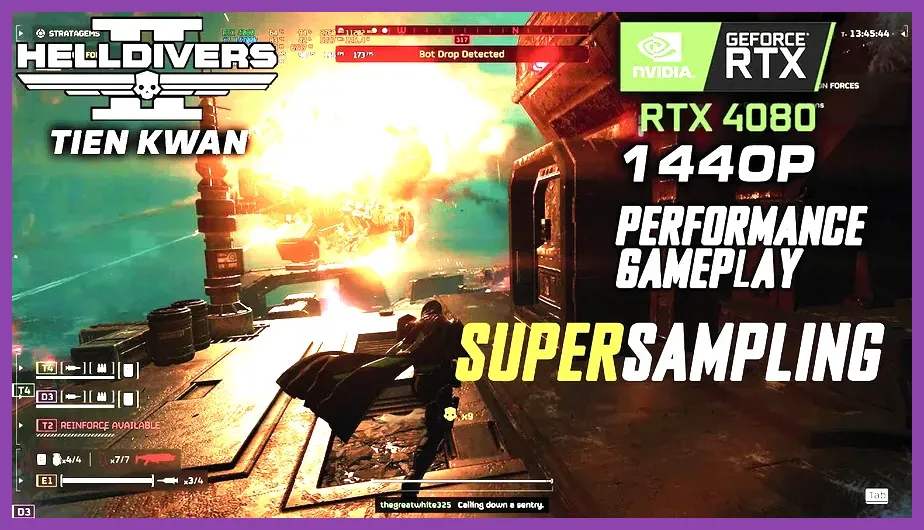
The mid-range PC market represents the largest segment of Helldivers 2 players. For these systems—typically targeting 1080p at 120 FPS or 1440p at 60-90 FPS—finding the perfect balance between performance and visual clarity is key. You don't want to sacrifice too much shadow detail, as dark environments can become unplayable if shadows are set too low, but you also cannot afford the massive performance hit of Ultra settings.
We recommend the following optimized settings profile for mid-range hardware:
- Display Resolution: 1440p (2560x1440) or 1080p (1920x1080).
- Texture Quality: High (or Medium if your GPU has only 6GB of VRAM, such as the RTX 3060, to avoid VRAM overflow).
- Shadow Quality: Medium (this is the critical compromise. Medium shadows still provide excellent depth and visibility while saving a massive amount of GPU horsepower).
- Ambient Occlusion: Medium (keep this on to maintain the depth of underground tunnels and cave systems).
- Model Quality: Medium to High (model geometry has a minor impact on FPS compared to shadows and particles).
- Particle Effects: Medium (reduces the visual clutter of explosions, making it easier to track enemies through the smoke while saving GPU cycles).
- Lighting Quality: Medium (strikes a balance between dynamic highlights and performance overhead).
- DLSS / FSR: Set to Balanced or Quality mode depending on your specific GPU headroom.
- NVIDIA Reflex: Enabled (Essential for maintaining low input latency even at 60 FPS).
This profile ensures that your mid-range system remains highly responsive, allowing you to call in orbital strikes and navigate chaotic battlefields without stuttering. If you are looking to optimize your overall gaming experience on these cards, learning how to manage your system background processes is also highly beneficial. For more general hardware and game optimization tips, you can refer to guides like best tips and tricks for beginners in Black Myth Wukong, which covers general PC gaming preparation.
Low-End / Budget PC Optimization (GTX 1650 / 1060 / RTX 3050 / Integrated Graphics)
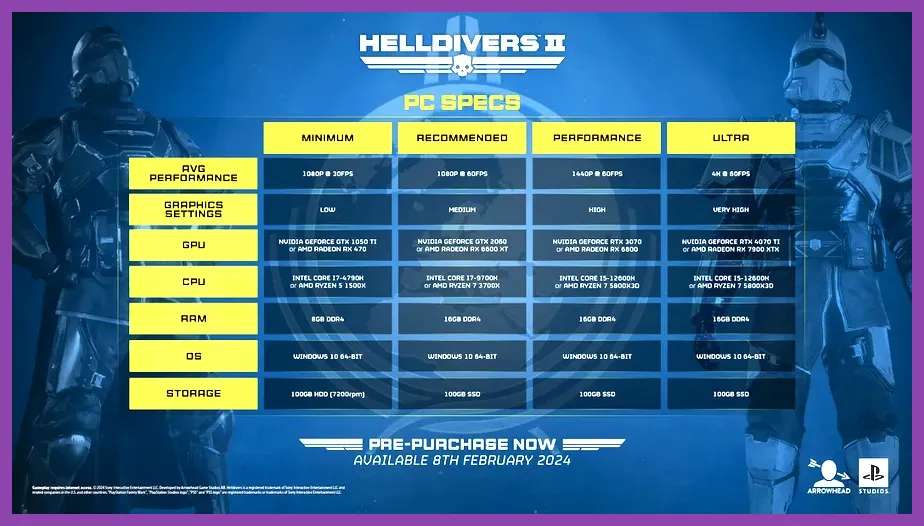
Running Helldivers 2 on budget hardware or integrated graphics (like Intel Iris Xe or AMD Radeon Vega) requires an aggressive, performance-focused approach. On these systems, visual fidelity must be heavily compromised to achieve a playable 30 to 60 FPS at 1080p or 720p. The good news is that Helldivers 2 is still highly playable even on low settings, as the game's core gameplay loop relies on clear visual feedback rather than hyper-realistic lighting.
To get the best possible experience on a budget setup, apply the following configuration:
- Display Resolution: 1080p (or 720p if using integrated graphics and struggling to maintain 30 FPS).
- Texture Quality: Low or Medium (textures are VRAM-heavy. Setting them to Low ensures they fit comfortably within 2GB or 4GB of VRAM, preventing micro-stuttering).
- Shadow Quality: Low (this is the most important setting to turn down. Low shadows significantly simplifies shadow mapping calculations, freeing up massive amounts of CPU and GPU power).
- Ambient Occlusion: Off (AO provides negligible gameplay benefit on low settings but carries a heavy performance penalty).
- Model Quality: Low (reduces the polygon count of characters and environment assets, boosting frame rates on CPU-bound systems).
- Particle Effects: Low (limits the density of smoke, debris, and muzzle flashes, which are major sources of CPU spikes during heavy combat).
- Lighting Quality: Low (disables advanced dynamic lighting features, relying on simpler static lighting models).
- DLSS / FSR: Set to Performance or Ultra-Performance mode. Even if your card doesn't support DLSS, FSR 2.1 or 3.0 can provide a massive frame rate boost at the cost of slight image softening.
- NVIDIA Reflex: Enabled (Low Latency) to keep aiming responsive even if your frame rate fluctuates between 30 and 45 FPS.
- Motion Blur: Off (always disable motion blur in fast-paced shooters to maintain target tracking clarity).
With these settings, your budget PC will be able to handle the chaos of bug breaches and automaton patrols. While the game will look simpler, the core action remains incredibly intense and satisfying. For players on tight budgets, mastering these settings is the key to enjoying the co-op experience. If you are playing Helldivers 2 on a budget laptop or older desktop, you can also check out our guide on Helldivers 2 beginner tips and tricks to learn how to play more strategically and make those lower frame rates feel smoother.
Advanced Tweaks and Config File Edits
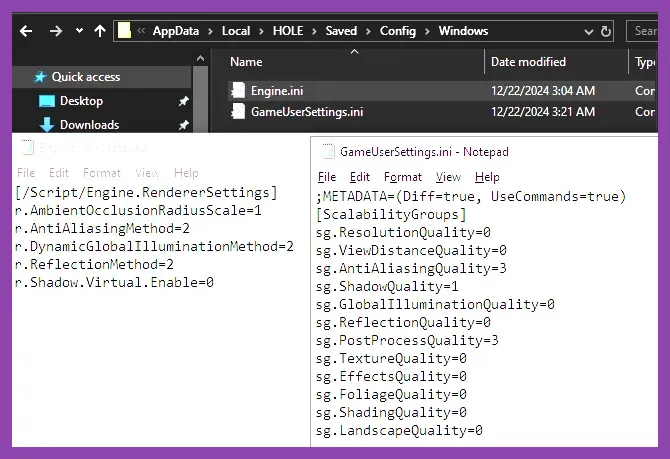
Beyond the in-game menu, there are several advanced tweaks you can apply to squeeze out every last drop of performance from your system in Helldivers 2. One of the most effective methods is editing the game's configuration files, which are typically located in your local Windows files under %USERPROFILE%\AppData\Local\Helldivers2\Saved\Config\WindowsNoEditor. By manually adjusting variables like r/streaming-async or disabling unnecessary post-processing effects, you can bypass graphical bottlenecks that the in-game slider might not fully address.
Another vital step is to ensure your PC is fully optimized for gaming. This includes updating your GPU drivers to the latest version released by NVIDIA or AMD, as driver updates frequently include specific performance patches for newly released titles like Helldivers 2. Additionally, disabling background applications (such as Discord overlays, RGB control software, or cloud backups) can free up vital CPU cycles and RAM, preventing stutters during intense gameplay moments.
If you find yourself frequently running out of VRAM, consider lowering the TextureRes value in the config files to 1080p or 2K, even if your in-game setting is set to High. This trick tricks the engine into loading smaller texture assets, significantly reducing VRAM usage without a major visual downgrade. For players looking to fully optimize their library, understanding how to manage your Steam downloads and cloud saves is also a great way to keep your system running smoothly. You can find more general PC optimization and system preparation tips in our guide on best tips and tricks for beginners in Black Myth Wukong, which emphasizes system readiness for demanding games.
Integrating Performance with Gameplay Strategy
Ultimately, achieving the best graphics settings is not just about raw numbers; it is about creating a responsive, fluid experience that enhances your tactical gameplay. In Helldivers 2, a stable frame rate is your greatest ally. It ensures that your stratagem calls register instantly, your aiming is precise, and you can clearly see the visual cues of incoming enemy attacks, such as the charge-up of a Fabricator or the leg movements of a Charger.
Once your PC is optimized, you can focus on the strategic side of the game. To help you succeed in your democratic missions, be sure to check out our detailed guides on Helldivers 2 best armor sets, fast gold farming in Helldivers 2, and Helldivers 2 best crafting materials. These resources will help you gather the super credits and medals needed to acquire the best gear, ensuring you are fully prepared to liberate the galaxy. For those looking to explore hidden secrets, our guide to Helldivers 2 secret locations (often referred to as Heldens Fall in community discussions) will help you find exclusive items and Easter eggs that give you an edge on the battlefield. You can also explore the official Helldivers 2 Wiki for deep mechanical insights and enemy data.