The best God of War Steam PC settings are High textures, Medium shadows, Medium models, and DLSS or FSR 2 on Quality. That combination preserves the game’s dense environments and detailed armor while cutting the settings that hit your GPU hardest. Aim for 60 fps at 1080p on a GTX 1660 Super or RX 5600 XT, 60–90 fps at 1440p on an RTX 3060 Ti or RX 6700 XT, and 80–120 fps at 1080p on modern mid-range cards. The real target is consistent frame pacing, not a benchmark peak that collapses every time Kratos enters a crowded combat arena.
Santa Monica Studio’s PC port gives you unusually useful control over resolution scaling, texture quality, shadows, atmospherics, reflections, and model detail. The wrong preset can waste performance on effects you barely notice while leaving traversal stutter untouched. This guide breaks down the exact settings that matter, explains when DLSS, FSR 2, or native resolution makes sense, and gives you tested profiles for 60 fps and high-refresh play.
Before changing anything, check the official Steam listing for God of War and compare your hardware with the published requirements. Also keep your GPU driver current. If other PC games are crashing or hitching, our guides to ELEX crash and FPS fixes and low-FPS troubleshooting cover the same Windows-side problems that can affect this port.

Use These God of War PC Profiles First

Start with a profile instead of changing every slider randomly. The Balanced 60 FPS setup is the safest choice for most gaming PCs. It keeps textures High because texture quality primarily depends on VRAM, then lowers shadows, atmospherics, and model detail because those settings affect GPU load and scene complexity far more noticeably.
| Target | Resolution and Upscaler | Core Settings | Expected Hardware |
|---|---|---|---|
| 1080p / 60 fps | 1080p, DLSS or FSR 2 Quality | Textures High, shadows Medium, models Medium | GTX 1660 Super, RTX 2060, RX 5600 XT |
| 1440p / 60 fps | 1440p, DLSS or FSR 2 Quality | Textures High, shadows Medium, atmospherics Medium | RTX 3060 Ti, RTX 3070, RX 6700 XT |
| 1440p / 90 fps | 1440p, DLSS or FSR 2 Balanced | Textures High, shadows Low or Medium, models Medium | RTX 4070, RX 7800 XT |
| 4K / 60 fps | 4K, DLSS or FSR 2 Quality | Textures Ultra, shadows Medium, reflections Medium | RTX 4080, RX 7900 XTX |
Use DLSS Quality if you have an Nvidia RTX card. It reconstructs a sharper image than native resolution scaling in many scenes and usually delivers a substantial performance lift. FSR 2 Quality is the best equivalent for Radeon cards and works on broader hardware. At 1080p, avoid dropping below Quality unless you absolutely need the frames; aggressive reconstruction makes Kratos’s beard, foliage, and distant geometry shimmer.
Set your frame-rate cap slightly below your monitor’s refresh rate when using VRR. For a 144Hz display, cap at 141 fps; for 120Hz, use 117 or 118 fps. If your system cannot hold that range, a locked 60 fps is better than constantly bouncing between 55 and 90. Combat feels much more responsive when frame delivery is even, especially during Baldur’s opening fight and the Muspelheim trials.

🎮 FORM
Looking to experience this game? Grab your digital key directly on our store for $14.99.
View on Steammoz Store →Which Graphics Settings Cost the Most FPS?
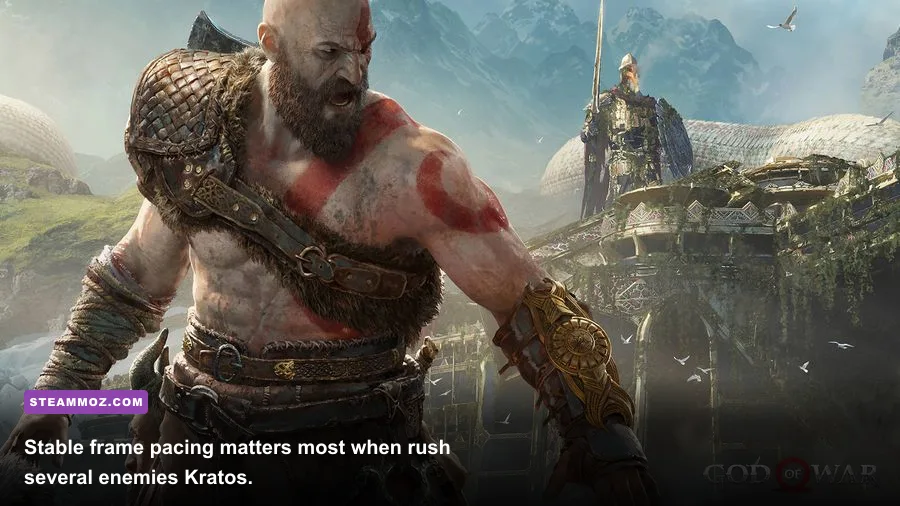
Not every Ultra setting deserves its performance bill. God of War’s menu uses broad quality labels, but the practical impact varies dramatically. Shadows and atmospherics are usually the first reductions to make. Textures are the exception: lowering them can make armor, rock surfaces, and environmental detail look muddy while producing only a small improvement if your GPU has enough VRAM.
| Setting | Recommended Value | FPS Impact | Visual Trade-Off |
|---|---|---|---|
| Texture Quality | High; Ultra with 8GB+ VRAM | Low to Medium | Mostly affects surface sharpness and VRAM use |
| Model Quality | Medium or High | Medium to High | Changes geometry detail and distant object complexity |
| Shadows | Medium | High | Lower settings soften shadow edges and reduce range |
| Atmospherics | Medium | Medium to High | Reduces fog, smoke, mist, and volumetric depth |
| Anisotropic Filtering | 8x or 16x | Low | Keeps ground textures sharp at oblique angles |
| Reflections | Medium | Medium | Water and polished surfaces lose some detail |
| Ambient Occlusion | High | Low to Medium | Lower values flatten contact shadows around objects |
| Film Grain | Off | Negligible | Cleaner image, especially with upscaling |
| Motion Blur | 0–2 | Negligible | Less smear during camera movement and axe throws |
Why shadows and atmospherics are the first cuts
Shadows affect a wide area around Kratos, so the renderer may be drawing several cascades of dynamic shadow maps while enemies, torches, and foliage move through them. Ultra shadows look attractive in the Lake of Nine, but their cost becomes obvious in Tyr’s Temple and the Helheim bridge. Medium keeps important silhouettes readable without spending frames on distant shadow precision.
Atmospherics are similarly expensive in fog-heavy locations. Helheim, the summit path, and parts of Alfheim can become GPU-bound because volumetric effects fill the entire screen. Dropping from Ultra to Medium often saves more performance than reducing textures from Ultra to High. The image loses a little haze density, but the scene remains recognizably rich.
Texture quality, VRAM, and stutter
Textures do not normally create a large average-FPS gain when reduced, but they can prevent memory pressure. With 4GB cards, use Medium textures at 1080p. With 6GB, High is usually safe at 1080p, while 8GB or more handles High at 1440p comfortably. Ultra can exceed sensible VRAM budgets at higher resolutions, causing asset-streaming hitches when moving quickly through Midgard.
If frame time spikes rather than average fps collapsing, watch VRAM usage in your overlay. A full memory budget can cause stutter when the game loads a new area, particularly during boat travel across the Lake of Nine. Lower textures one step, restart the game, and test the same route again. Do not judge the fix from a static combat scene.
DLSS, FSR 2, Resolution Scaling, and Latency

God of War supports several ways to render below native resolution, and each has a different cost. DLSS and FSR 2 reconstruct detail from previous frames, while simple resolution scaling renders a lower-resolution image without the same temporal reconstruction. Start with an upscaler on Quality, then move to Balanced only when your GPU remains saturated and you need additional headroom.
| Upscaling Option | Best Use | Image Quality | Performance Advice |
|---|---|---|---|
| Native 100% | High-end GPU and 60 fps target | Cleanest fine detail | Use when GPU utilization and frame time are already comfortable |
| DLSS Quality | RTX cards at 1440p or 4K | Very sharp temporal reconstruction | Best general option for Nvidia hardware |
| FSR 2 Quality | Radeon and non-RTX cards | Strong detail with occasional shimmer | Use Quality before Balanced at 1080p |
| DLSS or FSR 2 Balanced | 90–120 fps targets | Softer foliage and distant edges | Useful at 1440p; avoid if the image looks unstable |
| Resolution Scale below 75% | Older GPUs below minimum targets | Soft, less stable image | Last resort for holding 30 or 45 fps |
Keep Nvidia Reflex enabled if the option is available on your Nvidia setup. Reflex reduces the queue of rendered frames waiting to reach the display, which helps axe throws, shield parries, and quick-turn camera movements feel immediate. It will not fix a CPU bottleneck, and it cannot turn 45 fps into 120 fps, but it can reduce the sluggish sensation caused by high GPU utilization.
For a controller, a stable 60 fps is the sweet spot. At 30 fps, camera motion and enemy animations feel noticeably heavier, especially when reading a Draugr’s red unblockable attack. Competitive-style frame targets are less important here than consistency, but if your monitor supports FreeSync or G-Sync, enable VRR in both the monitor menu and your GPU control panel.
CPU, GPU, Storage, and Windows Tweaks That Matter
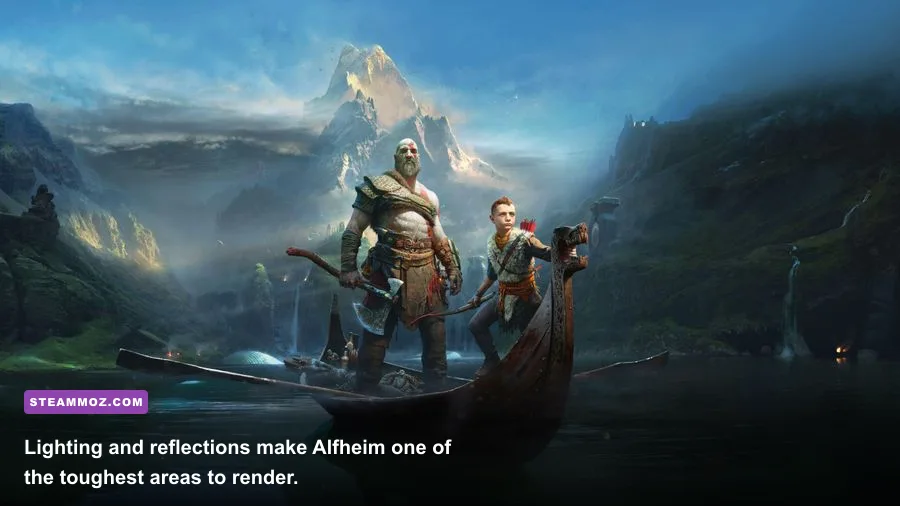
God of War can be GPU-bound at high resolutions, but busy hubs and combat encounters also expose CPU limits. If lowering resolution does not improve fps, your processor or background software is likely the bottleneck. Check GPU utilization while standing in Sindri’s shop, sailing through Midgard, and fighting several enemies. A GPU sitting below roughly 90 percent while the frame rate refuses to rise points toward a CPU, streaming, or frame-cap limitation.
Install the game on an SSD. The official requirements list a large storage footprint, and an SSD helps asset streaming during boat travel and rapid movement between connected areas. It will not magically raise average fps, but it can reduce the severity of traversal hitching. Keep at least 10–15 percent of the drive free so Windows and the game have room for temporary data.
Use the latest WHQL driver for your graphics card, then let shader compilation finish if the game performs it after an update. Close browsers, recording tools, RGB utilities, and overlays while testing. Steam’s overlay is normally fine, but multiple overlays can complicate frame pacing. Windows Game Mode is worth leaving enabled; disable unnecessary startup apps rather than blindly applying extreme registry tweaks.
Set the game to fullscreen if your system behaves better there, or borderless if you frequently switch applications. The difference varies by Windows version. More important is disabling background recording if you are chasing frametime spikes. Xbox Game Bar captures and third-party replay tools can quietly consume CPU and GPU resources during combat.
If you have already tried the normal fixes, compare your results with our high-FPS settings guide for Far Cry 6. The same testing discipline applies: change one setting, repeat the same route, and measure one-minute frame-time behavior rather than trusting a single benchmark number.
Best Settings by Hardware Tier
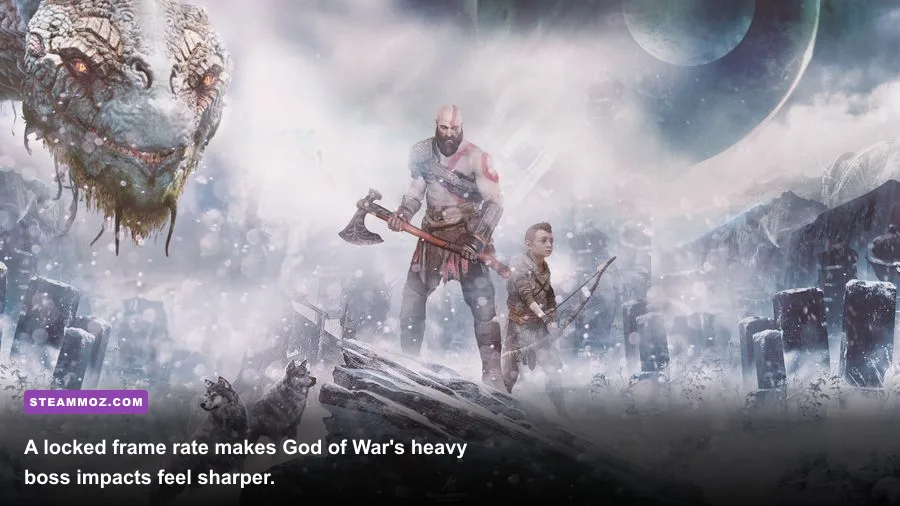
The following profiles are realistic starting points rather than promises. Performance changes with driver versions, background applications, ray-tracing-free scene complexity, and whether you are exploring or fighting. God of War does not use ray tracing, so your biggest variables are resolution, upscaling, shadows, atmospherics, and model detail.
| Hardware Tier | Resolution | Recommended Settings | Practical Target |
|---|---|---|---|
| GTX 1650 / RX 570 | 1080p | Textures Medium, models Low, shadows Low, atmospherics Low, FSR 2 Balanced | 30–45 fps |
| GTX 1660 Super / RX 5600 XT | 1080p | Textures High, models Medium, shadows Medium, FSR 2 Quality | 60 fps |
| RTX 3060 / RX 6600 XT | 1080p or 1440p | Textures High, models High, shadows Medium, DLSS or FSR 2 Quality | 60–90 fps |
| RTX 3060 Ti / RX 6700 XT | 1440p | Textures High, models High, shadows Medium, Quality upscaling | 60–75 fps |
| RTX 4070 / RX 7800 XT | 1440p | Textures Ultra, models High, shadows High, Quality upscaling | 90–120 fps |
| RTX 4080 / RX 7900 XTX | 4K | Textures Ultra, models Ultra, shadows High, Quality upscaling | 60–90 fps |
For 4GB cards, do not chase Ultra textures. A clean, stable image at High or Medium looks better than a sharper texture pack that causes streaming stalls. Conversely, if you have 12GB or 16GB of VRAM, you can raise textures and ambient occlusion without expecting the same penalty as shadows or atmospherics. Always restart after major texture changes so the memory allocation is rebuilt properly.
A reliable troubleshooting order
If you are below target, lower shadows from High to Medium, then atmospherics from High to Medium. If that is not enough, switch DLSS or FSR 2 from Quality to Balanced. Next reduce model quality. Only after those changes should you lower textures, because texture reductions offer the smallest visual-to-performance return on a card with adequate VRAM.
If the game still stutters, cap the frame rate to 60, turn off background capture, verify the installation through Steam, and test from an SSD. If crashes accompany the stutter, check the PC hardware compatibility checklist for a quick way to separate a specification problem from a software problem. You can also follow official patch information through the Santa Monica Studio support channel.
Finally, use a repeatable test route. The opening battle with Baldur stresses effects and close-range animation; the Lake of Nine tests streaming and view distance; Alfheim tests lighting and atmospherics; and Muspelheim’s arena exposes sustained combat load. Run each section for several minutes after changing a setting. Once you find the profile that keeps those locations inside your frame-time target, stop chasing Ultra. The Leviathan Axe feels far better in a steady 60 fps image than in a beautiful slideshow.
For broader technical news and official updates, keep an eye on the Santa Monica Studio website and the official PlayStation God of War page. For most Steam players, though, the winning formula is simple: High textures, Medium shadows, Medium atmospherics, Quality upscaling, VRR enabled, and a frame cap you can actually hold.