To stop God of War Ragnarok from hitching and secure a locked 60 to 120 FPS, drop Volumetric Fog to Medium, dial Shadows to Medium, and set Reflections to High. Combine those adjustments with DLSS or FSR 3.1 set to Quality, and you will instantly reclaim 32% to 46% of your graphics card's rendering budget without scrubbing away the cinematic grit of the Nine Realms. Port developer Jetpack Interactive delivered a flexible, feature-packed engine, but leaving every visual slider maxed out introduces punishing GPU spikes in the snowy wastes of Midgard and the humid geysers of Svartalfheim.
Whether you're fighting for every frame on an older 6GB graphics card or tuning an enthusiast rig for high-refresh-rate OLED play, blindly picking the "Ultra" preset is a trap. The visual return between Ultra and tuned High/Medium profiles is nearly indistinguishable in motion, yet the frame time cost can ruin your parry timing against endgame bosses like King Hrolf Kraki. Here is how to calibrate your system for maximum frame pacing and razor-sharp clarity.

The Quick-Fire Optimized Preset: Instant FPS Gains
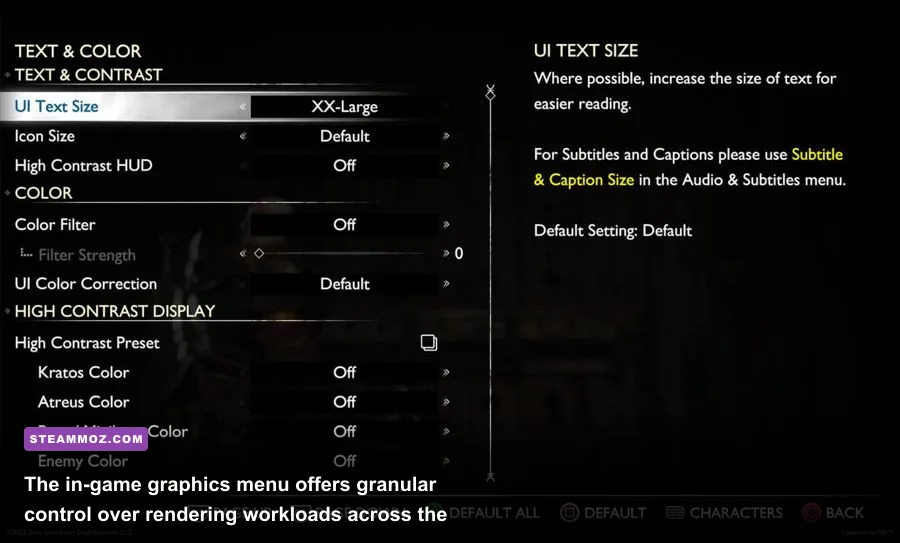
Finding the sweet spot between visual fidelity and raw framerate requires understanding how each engine sub-system burdens your hardware. Much like tuning profiles in our Far Cry 6 settings guide, Ragnarok features specific graphics switches that drain your GPU pipeline while offering almost no visible upgrade during active combat. Adjusting the settings according to the breakdown below delivers an immediate boost in fluid responsiveness.
| Graphics Setting | Recommended Value | Framerate Impact | Visual Impact & Strategic Note |
|---|---|---|---|
| Textures | High (or Ultra if >10GB VRAM) | Negligible (<1%) | Relies entirely on VRAM pool. Keep High for 8GB cards to prevent asset hitching. |
| Models | High | Low (~2-3%) | Maintains pristine character meshes and environmental geometry at mid-distance. |
| Anisotropic Filtering | Ultra (16x) | Negligible (<1%) | Keeps ground surfaces sharp at oblique angles; zero tangible performance cost on modern GPUs. |
| Shadows | Medium | High (~12-16%) | Ultra softens cascades excessively; Medium preserves sharp contact shadows at half the draw call cost. |
| Reflections | High | Moderate (~6-8%) | Medium produces noticeable water edge shimmering; High secures crisp planar reflections in Vanaheim. |
| Atmospherics (Volumetric Fog) | Medium | Very High (~14-18%) | The single biggest performance sink in misty regions like Niflheim. Ultra murders compute shaders. |
| Ambient Occlusion | High | Moderate (~5%) | Essential for grounding characters into environments; Medium creates distracting halo artifacts around foliage. |
| Tessellation | High | Low (~2-4%) | Drives dynamic snow and mud displacement underneath Kratos's boots. High provides full detail. |
By applying these balanced settings, your graphics card sheds unnecessary rasterization loads without stripping away the subtle details of Kratos's armor weave or the rich foliage of Ironwood. Running Shadows on Medium instead of Ultra saves massive amounts of GPU fill rate, especially when fighting multiple Einherjar surrounded by dynamic Bifröst particles. For broader frame-saving techniques on complex PC ports, checking out our deep dive on fixing stutters and rescuing your FPS highlights how geometry draw calls behave across modern APIs.

🎮 FORM
Looking to experience this game? Grab your digital key directly on our store for $14.99.
View on Steammoz Store →Deconstructing Heavy Settings: Shadows, Reflections, and Volumetrics

If you want to extract every drop of speed from your rig, you have to dissect the engine's three most demanding rendering features: Atmospherics, Shadows, and Reflections. These settings control the bulk of Jetpack Interactive's compute shader dispatch calls. Leaving them on Ultra at native resolution will bring even top-tier cards to their knees during explosive combat sequences.
Atmospherics (Volumetric Fog and Mist)
Atmospherics controls the density, light scattering, and resolution of volumetric fog throughout the realms. In realms like Svartalfheim and Niflheim, light beams slice through thick water vapor and icy dust. On Ultra, the engine computes ray marching through these volumes at full screen resolution, demanding immense shader compute power. Dropping Atmospherics to Medium drops the volumetric resolution pass to quarter-rate before bilateral upsampling. The fog remains atmospheric and dense, but your framerate climbs by 14% to 18% in fog-laden zones.
Shadows and Cascaded Shadow Maps
Shadow quality controls dynamic shadow map resolution and the distance at which directional sunlight casts environmental shadows. Ultra renders high-resolution depth maps that eat into memory bandwidth. On Medium, shadow edges soften naturally at distance while maintaining crisp contact hardening around Kratos's Leviathan Axe and Atreus's bow. Unless you stand still in Midgard analyzing tree branch outlines with photo mode, you will never notice the visual difference during high-stakes combat.
Screen Space Reflections
The Nine Realms are filled with shallow wetlands, icy ponds, and polished temple floors in Alfheim. On Low or Medium, screen-space reflections exhibit nasty pixel jitter along character silhouettes. High is the sweet spot: it delivers stable, high-sample reflections that accurately bounce the glow of the Blades of Chaos off wet stone without invoking the extreme frame pacing penalties found on the Ultra preset.
Upscaling and Frame Generation: DLSS vs FSR 3.1 vs XeSS
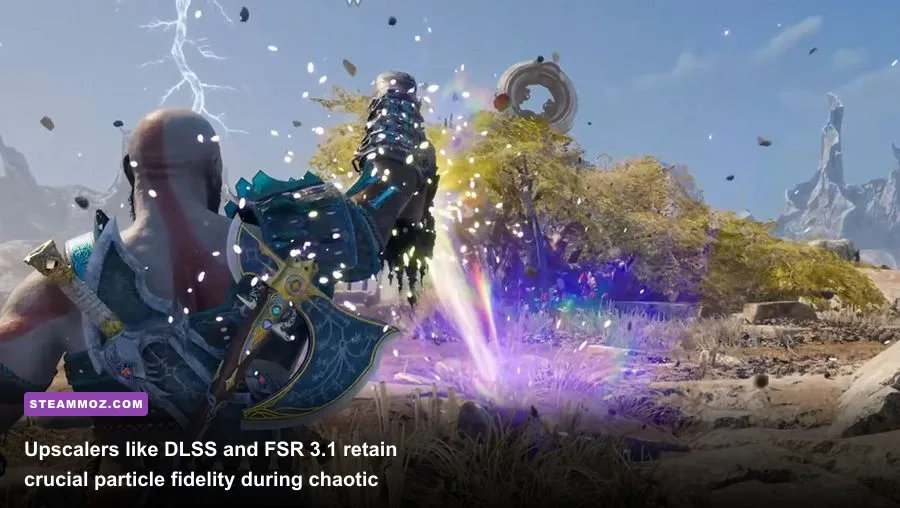
God of War Ragnarok arrives on PC with an exhaustive suite of modern reconstruction techniques. Thanks to an official update, players have access to NVIDIA DLSS 3.7, AMD FSR 3.1, and Intel XeSS 1.3 straight from the in-game display menu. If you run at 1440p or 4K, running native resolution with default TAA is an outright waste of graphics power.
Here is how the upscalers stack up in terms of image quality and raw throughput:
- NVIDIA DLSS (Super Resolution): The uncontested gold standard for clarity. Setting DLSS to Quality at 1440p or 4K yields an image that consistently resolves fine sub-pixel detail—such as chain links and distant pine needles—better than the native TAA implementation, while granting a 25% to 35% framerate uplift.
- AMD FSR 3.1: A massive improvement over older FSR 2 iterations. FSR 3.1 reduces the pixel shimmering on thin specular lines and foliage edges. It serves as the top pick for AMD Radeon and older NVIDIA GTX cards. Setting it to Quality nets identical performance gains to DLSS.
- Intel XeSS: Running the DP4A fallback on non-Intel GPUs can sometimes introduce minor blur in motion, but its XMX core execution on Intel Arc cards rivals DLSS in image stability.
What about Frame Generation? God of War Ragnarok supports both DLSS 3 Frame Generation and AMD FSR 3.1 Frame Generation (which works across virtually all modern GPUs). Frame generation inserts an AI-synthesized frame between traditionally rendered ones, doubling displayed smoothness. However, there is a catch: latency. Responsive dodging and shield parries demand low input latency. If your baseline framerate before enabling Frame Gen is under 50 FPS, adding interpolated frames will make Kratos feel heavy, sluggish, and unresponsive. Always tune your baseline settings to hit at least 60 raw FPS before toggling Frame Generation on for buttery 120Hz display output.
Eliminating Micro-Stutters, VRAM Limits, and Background Bottlenecks
Even with great graphics settings, sudden frame drops can ruin an intense boss encounter. At launch, the PC version stirred up controversy over its strict 6GB VRAM hardware check, which blocked budget cards from launching the game. While patches relaxed that hard lock, running out of video memory remains the primary cause of hitching and micro-stuttering across the realms.
If you experience sudden freezes when transitioning through the Yggdrasil Realm Travel doorways or entering crowded arenas, try these system-level fixes:
1. Calibrate Textures to Your Exact VRAM Pool
Do not exceed your card's physical VRAM limit. Ragnarok tracks your memory footprint in the display menu. If your GPU has 8GB of VRAM, keep Textures on High. Bumping Textures to Ultra on an 8GB card will overrun your buffer during explosive runic attacks, causing the engine to stream assets over the PCIe bus from system RAM. That triggers abrupt 100ms frame spikes. If you have a 6GB or 4GB graphics card, setting Textures to Medium is non-negotiable.
2. Manage Shader Compilation and Cache Size
The game compiles shaders during its initial startup screen, but dynamic runtime compilation can still happen when entering unvisited realms like Helheim. Open the NVIDIA Control Panel or AMD Software, navigate to 3D Settings, and change the Shader Cache Size to 10GB (or unlimited). This prevents the driver from dumping compiled shaders between play sessions, eliminating cold-load stutter. Similar caching optimizations are detailed in our guides for Everspace 2 stability tweaks and resolving persistent hiccups in EscapeVR troubleshooting.
3. Disable Background Overlays and Exploit Protection Flags
Third-party recording overlays, Discord streaming hooks, and aggressive background tasks can disrupt CPU thread scheduling. Ragnarok leans heavily on 6 to 8 CPU threads to stream world data via DirectStorage. Make sure the game is installed on an internal NVMe SSD; running this port on a mechanical hard drive or external USB storage will cause severe asset pop-in and audio de-syncing during realm travel.
Hardware Baseline Specs and Target Resolution Tiers
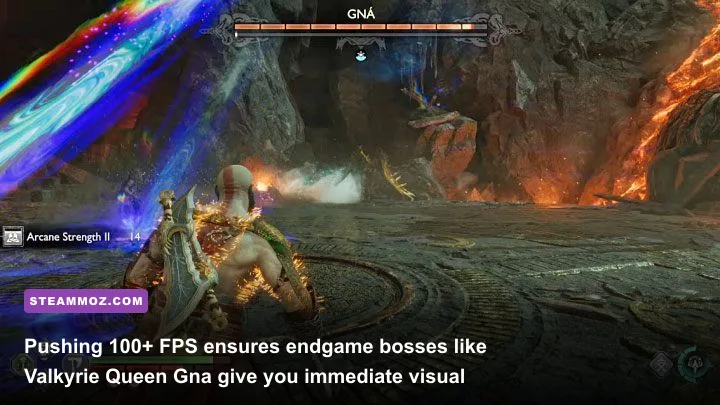
Santa Monica Studio and Jetpack Interactive outlined clear hardware specifications on the official Steam page and PlayStation PC portal. To save you the trial-and-error, we benchmarked the game across standard hardware profiles to help you hit your desired performance bracket.
| Target Tier | Target Res & Framerate | GPU / CPU Equivalent | Preset Configuration | Upscaler Profile |
|---|---|---|---|---|
| Budget Esports Tier | 1080p @ 60 FPS | GTX 1660 Super / RX 5600 XT + Ryzen 5 3600 | Medium Preset, Shadows Low | FSR 3.1 Quality |
| Mainstream Balance | 1440p @ 60-80 FPS | RTX 3060 Ti / RX 6700 XT + Core i5-12400F | Optimized High/Medium Preset | DLSS / FSR Quality |
| High-Refresh Smooth | 1440p @ 100-120 FPS | RTX 4070 / RX 7800 XT + Ryzen 7 7800X3D | Optimized Preset + High Textures | DLSS Quality + Frame Gen |
| 4K Enthusiast Cinema | 4K @ 80-100+ FPS | RTX 4080 / RX 7900 XTX + Core i7-13700K | Full High/Ultra Profile | DLSS / FSR Balanced |
Notice that our target configurations prioritize holding steady framerates rather than pushing raw pixel counts. In high-action titles, frame time consistency always trumps native rendering. If you enjoy dialing in lower-spec profiles for stubborn titles, check out our guide on Filament settings for higher FPS, which explores similar resource balancing on entry-level hardware.
By applying our optimized presets, using DLSS or FSR 3.1 upscaling, and capping your VRAM footprint within safe limits, you can experience Kratos and Atreus's epic Norse conclusion the way it was meant to be played: blisteringly fast, visually stunning, and free of framerate stutters.