Valorant is not available on Steam: the official PC version runs through Riot Client. If you're searching for a “Valorant Steam” fix, start there, then cap your frame rate, disable troublesome overlays, update or clean-install your GPU driver, and repair Riot Vanguard. Those steps solve most stuttering, low-FPS, and crashing problems without sacrificing the visibility and latency competitive play demands.
Before changing anything, check whether the problem is genuinely graphical. Valorant can show high average FPS while still feeling awful because of 1% lows, inconsistent frametimes, packet loss, or an overloaded CPU. Turn on Stats > Client FPS, Frame Time, Packet Loss, and Network RTT under Settings > Video. If frame time jumps while FPS drops, you have a rendering issue. If FPS stays steady but enemies teleport, investigate your network instead.
First, Fix the “Valorant Steam” Misunderstanding

There is no official Steam build, Steam depot, or Steam workshop version of Valorant. Downloading a supposed Steam installer is a security risk, especially because fake launchers often bundle malware or steal Riot account credentials. Use the official Valorant website and let Riot Client manage updates.
For reference, Riot's published targets are modest, but they describe 30 FPS, 60 FPS, and 144-plus FPS classes rather than a guarantee for every modern match. Background recording, laptop power limits, Windows updates, and crowded fights can still produce spikes on hardware that clears the listed requirements.
| Performance target | CPU/GPU reference | Memory and OS | What it really means |
|---|---|---|---|
| 30 FPS minimum | Intel i3-540 / Intel HD 4000 | 4GB RAM, 64-bit Windows 10 | Playable baseline, not ideal for ranked |
| 60 FPS recommended | Intel i3-4150 / GeForce GT 730 | 4GB RAM, DirectX 11 | Good entry point for casual competitive play |
| 144 FPS target | Intel i5-9400F / GTX 1050 Ti | 4GB RAM, updated drivers | Designed for high-refresh competitive play |
Also check the official Riot support hub before downloading third-party “FPS boosters.” Riot Vanguard is a kernel-level anti-cheat, so aggressive system tweakers can create more problems than they solve.
Use a Stable Valorant Graphics Profile
Valorant is usually CPU-limited rather than GPU-limited, particularly at 1080p with a powerful graphics card. That means lowering every setting to Low won't magically fix a Ryzen 5 or Core i5 that is busy with background tasks. Start with a clean competitive profile, then raise texture quality only if your GPU has plenty of headroom.
| Setting | Recommended value | FPS/frametime impact | Visual or competitive note |
|---|---|---|---|
| Display Mode | Fullscreen | Low | Usually gives the cleanest presentation and avoids desktop compositing issues |
| Resolution | Native 16:9 | Medium GPU impact | Keep native resolution unless the GPU is the clear bottleneck |
| Multithreaded Rendering | On | Often improves CPU-side performance | Essential on modern multi-core CPUs |
| Material, Texture, Detail | Low or Medium | Low to medium | Medium textures are usually safe with 4GB-plus VRAM |
| UI Quality | Low | Very low | Little visual cost during fights |
| Vignette | Off | Very low | Removes unnecessary edge darkening |
| VSync | Off | Can reduce latency | Use a frame cap instead if tearing bothers you |
| Anti-Aliasing | MSAA 2x or None | Low to medium GPU impact | 2x is a sensible clarity/performance compromise |
| Anisotropic Filtering | 4x or 8x | Minimal on modern GPUs | Keeps surfaces clearer at oblique angles |
| Improve Clarity | On | Small | Generally worthwhile for target visibility |
| Bloom, Distortion, Cast Shadows | Off | Small but useful in busy scenes | Removes visual noise rather than transforming FPS |
Don't chase an absurd uncapped number. A consistent 240 FPS is preferable to bouncing between 400 and 140 during utility-heavy rounds. Cap FPS in Settings > Video > General at a number your PC can hold in combat. A 144Hz monitor might use 160 or 180 FPS; a 240Hz display can use 240 if your 1% lows remain stable. If you use G-Sync or FreeSync, test a cap a few frames below the display refresh rate and keep VSync behavior consistent across the driver and game.
Stop Stutter with Drivers, Overlays, and Windows Cleanup
Stuttering commonly arrives after a driver update, a Windows patch, or the first launch following a game update. The fix isn't always “install the newest driver.” If the issue began immediately after updating, use a clean installation or roll back to the previous stable driver. NVIDIA users can choose Custom installation and select a clean install; AMD users can use Factory Reset in the Adrenalin installer. A full Display Driver Uninstaller pass is the next step when normal cleanup fails.
- Update Windows and chipset drivers. CPU scheduling and USB behavior can suffer on old chipset packages, especially on Ryzen systems.
- Disable overlays temporarily. Turn off Discord overlay, Xbox Game Bar, GeForce Experience or AMD overlay, MSI Afterburner OSD, Overwolf, and browser hardware acceleration one at a time. Overlays hook into the render path and are prime suspects for hitching.
- Close background capture. Disable Instant Replay, OBS preview, cloud-sync clients, RGB utilities, and browser tabs playing video. Recording at high bitrate can steal CPU time even when GPU usage looks low.
- Set the power profile sensibly. Use Windows Best Performance while testing, and set the GPU driver to Prefer maximum performance for Valorant. On laptops, plug in the charger and select the dedicated GPU rather than integrated graphics.
- Leave shader cache enabled. Clearing it can help a corrupted cache, but the first match afterward may stutter while shaders rebuild. Test two or three matches before judging the result.
Track frametimes with the in-game graph or a trusted monitor. If GPU usage is 95–99%, lower resolution or anti-aliasing. If GPU usage sits near 40–70% while one CPU thread is maxed, lowering textures won't help; close CPU-heavy apps, enable Multithreaded Rendering, and use a stable cap. This distinction is the difference between a real fix and placebo tweaking.
Our guides on PC crash and FPS troubleshooting and low-FPS diagnosis cover the same driver and overlay logic in more detail.
Fix Valorant Crashes and Vanguard Launch Errors
Crashes at startup, during agent selection, or immediately after a round begins usually point to Vanguard, corrupted files, permissions, unstable drivers, or an overclock. Start with the least destructive fixes and reboot after Vanguard changes; the anti-cheat service does not always reload correctly until Windows restarts.
- Restart the PC. This sounds basic, but Vanguard's vgc service and pending Riot updates often need a complete reboot.
- Check the service. Press Windows+R, type
services.msc, find vgc, set Startup type to Automatic, and start it. If it refuses to run, reinstall Vanguard from Installed Apps, reboot, then launch Riot Client to reinstall it. - Run Riot repair. Open Riot Client, select your profile, choose Settings, select Valorant, and use the repair option if available. This replaces damaged game files without deleting settings unnecessarily.
- Remove unstable tuning. Return CPU, GPU, and RAM to stock settings. Valorant may crash even when a benchmark appears stable because short bursts and Vanguard expose marginal overclocks.
- Check security requirements. Windows 11 systems need TPM 2.0 and Secure Boot enabled for Vanguard. BIOS menus differ by motherboard, so use the board manufacturer's manual rather than guessing.
- Test administrator and antivirus exclusions carefully. Add the Riot Games and Valorant folders as exclusions only if your security software is blocking legitimate files. Never disable protection permanently.
Do not grab random DLL files from the internet. Missing-runtime errors should be addressed with Microsoft's official Visual C++ Redistributable packages and DirectX components, not anonymous download sites. If you see a blue-screen error, capture the stop code; that is a driver or hardware stability problem, not a normal Valorant crash.
Build a Reliable Competitive PC Profile
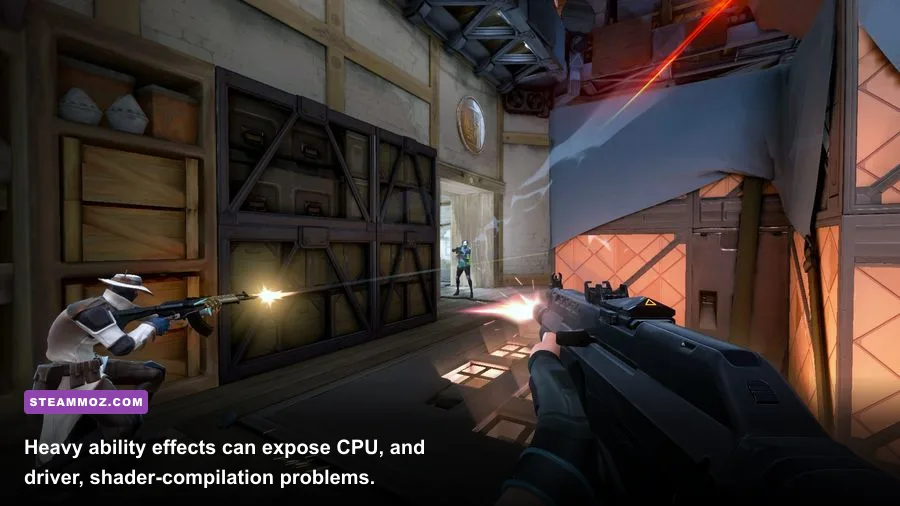
Once the game stops crashing, make the result repeatable. Use a separate Valorant profile in NVIDIA Control Panel or AMD Software, keep mouse polling at a rate your system handles consistently, and avoid changing five variables between matches. A 4,000Hz mouse can increase CPU interrupt load on weaker systems; if frametime spikes follow rapid mouse movement, test 1,000Hz.
| Symptom | Likely cause | Best first test | Keep if it works |
|---|---|---|---|
| FPS drops when abilities fill the screen | CPU limit, driver issue, background process | Enable Multithreaded Rendering and close overlays | Stable FPS cap and Low effects settings |
| High FPS but visible hitching | Bad 1% lows, shader cache, recording hook | Disable capture software and monitor frametime | Clean driver install, enabled shader cache |
| Crash before the main menu | Vanguard, corrupted files, antivirus conflict | Restart, repair files, reinstall Vanguard | Automatic vgc service and current Windows |
| Crash after 10–20 minutes | Heat, overclock, RAM instability | Return BIOS/GPU settings to stock and check temperatures | Stable stock profile with sensible fan curve |
| Input feels delayed despite good FPS | VSync, buffering, display mode, network lag | Disable VSync and check RTT/packet-loss graphs | Fullscreen with a stable frame cap |
For network symptoms, use Ethernet if possible and watch Packet Loss rather than blaming FPS. A dropped packet can feel like a frame hitch, but lowering shadows won't repair an unstable Wi-Fi connection. Riot's connection troubleshooting guide is the right reference for router, DNS, and firewall checks.
Finally, keep expectations realistic. Valorant's official PC hardware specifications are enough to launch and play, not a promise of locked 144 FPS in every situation. The strongest fix is a repeatable baseline: native resolution, Multithreaded Rendering enabled, unnecessary effects and overlays disabled, a cap your PC can sustain, current chipset and GPU drivers, and Vanguard running cleanly. If that profile still produces sudden drops, record the exact map, round, FPS, frametime, GPU usage, temperatures, and crash code before changing anything else. That evidence points to the real bottleneck far faster than another generic “FPS boost” utility.
If other PC games are also crashing, compare your results with Steamoz's graphics settings optimization guide and higher-FPS configuration tips. The same rule applies here: measure frametimes, change one variable, and keep the setting that improves consistency rather than the one that produces the biggest screenshot number.