If The Last of Us Part I on Steam is stuttering, dropping below 60 fps, or crashing, start with the boring-but-essential fix: let the game finish its shader compilation, verify the installation, update your GPU driver, and lower texture-heavy settings until your VRAM warning disappears. Then cap the frame rate to a number your PC can hold consistently. The PC port is demanding, and an unstable 60 fps target often feels worse than a locked 30 or 40 fps.
This guide focuses on the Steam version of Naughty Dog’s remake, not The Last of Us Part II Remastered. The biggest problems usually come from shader compilation, VRAM saturation, CPU-heavy geometry and AI streaming, outdated drivers, or corrupted shader caches. Work through the fixes in order; changing twelve settings at once makes it impossible to identify the real culprit.
Before touching advanced options, check the official Steam page for The Last of Us Part I and Naughty Dog’s current PC support information. Patches have changed performance behavior substantially since launch.
Start with shader compilation and a clean launch
The most common mistake is launching into gameplay before the shader-building process finishes. The Last of Us Part I uses a large shader library for lighting, materials, weather, vegetation and character effects. The first run can take a long time, especially on a six-core CPU or a hard drive. If you interrupt compilation, the game may compile more shaders while you move through Jackson, Bill’s Town or Pittsburgh. That produces the classic hitch: the frame rate looks fine, then freezes for a second as a new effect appears.
Do this before testing performance
- Open the game from Steam and wait at the main menu until shader building reaches 100 percent.
- Keep the game open for several minutes after compilation completes, then restart it once.
- Install the game on an SSD with at least 100 GB of free space. A nearly full drive can worsen streaming and shader-cache behavior.
- In Steam, open Properties > Installed Files > Verify integrity of game files.
- Close overlays temporarily: Steam Overlay, Discord, GeForce Experience, Radeon Software recording, MSI Afterburner’s overlay and RGB utilities.
Do not delete the shader cache every time you see a hitch. A cache reset can help after a driver change, but it forces the game to rebuild everything. On Nvidia hardware, updating the driver can replace the cache automatically. On AMD, use the Radeon Software reset option only if the cache is clearly corrupted or the game crashes during shader creation.
If compilation repeatedly freezes at the same percentage, verify files first, reboot Windows, and run Steam as normal rather than stacking multiple launchers with administrator privileges. A crash during shader building is also a good reason to remove CPU or GPU overclocks temporarily. Naughty Dog’s official PC release information lists the demanding hardware targets, but stable clocks and current drivers matter just as much as the headline GPU model.

🎮 The Last of Us Part I
Looking to experience this game? Grab your digital key directly on our store for $59.99.
View on Steammoz Store →Use this graphics profile for smoother FPS

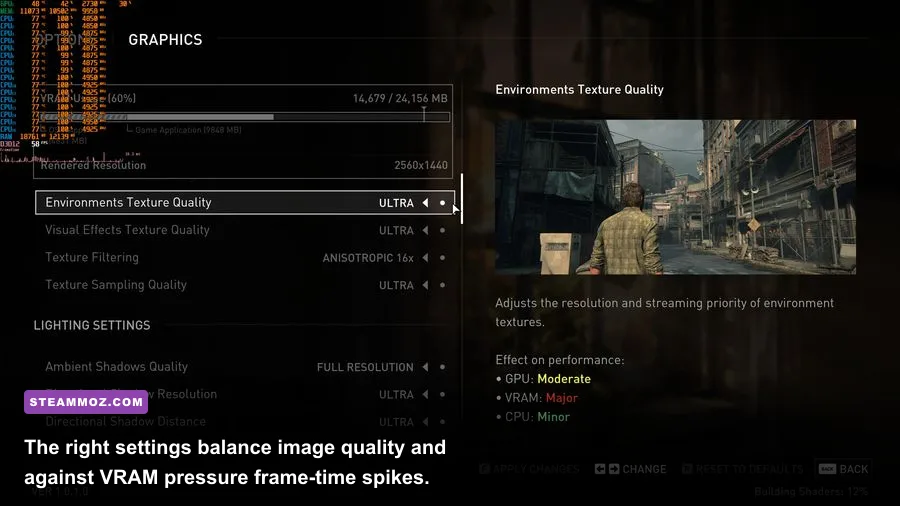
Start from the Medium preset, then adjust the settings that actually move frame time. Ultra is a poor default for most PCs because it pushes texture memory, geometry detail and reflections without delivering a proportional improvement during normal play. The game’s dynamic resolution option can rescue a GPU-limited scene, but it cannot cure CPU stalls or shader hitches.
| Setting | Recommended value | FPS impact | Visual trade-off |
|---|---|---|---|
| Display resolution | Native or 1440p | Very high | Lowering resolution gives the largest GPU gain |
| Graphics preset | Medium, then custom | High | Avoids Ultra’s heavy memory and geometry load |
| Texture quality | High if VRAM allows; Medium on 6 GB | Medium to high | High keeps faces and surfaces sharper, but consumes VRAM |
| Texture filtering | 16x | Low | Keep it high; the performance cost is tiny |
| Dynamic objects level of detail | Medium | Medium | Reduces CPU and streaming work in busy scenes |
| Background character level of detail | Low or Medium | Medium | Less detail on distant NPCs, usually hard to notice |
| Draw distance | Medium | Medium to high | Lower values reduce geometry and CPU pressure |
| Shadow quality | Medium | Medium | Very high shadows cost frames in outdoor areas |
| Reflections | Medium | Medium | Water and glossy surfaces lose some accuracy |
| Ambient occlusion | SSAO or Medium | Low to medium | Preserves contact depth without expensive effects |
| Volumetric effects | Medium | Medium | Fog and light shafts become less dense |
| Motion blur | Off for clarity | Low | Does not fix performance, but makes camera movement cleaner |
Three profiles that make sense
1080p performance: Use Medium textures, Medium shadows, Low background character detail, Medium draw distance and dynamic resolution targeting 60 fps. This is the sensible profile for cards such as the GTX 1660, RTX 2060 or RX 5600 XT. Keep texture filtering at 16x and disable motion blur.
1440p balanced: Use High textures only with 8 GB or more of usable VRAM, Medium geometry and shadows, Medium reflections, and a 40 or 60 fps cap. An RTX 3060 Ti, RTX 3070, RX 6700 XT or faster card can target this more comfortably, though the CPU still decides how smooth dense scenes feel.
4K quality: Use upscaling rather than native rendering. DLSS Quality on Nvidia RTX cards or FSR 2 Quality on compatible AMD hardware preserves much more detail than simply dropping the output resolution. Avoid Ultra textures if the game’s VRAM meter enters the warning zone. A 12 GB or 16 GB card gives you much more headroom, but it doesn’t make Ultra shadows free.
For a laptop, connect the charger, select the high-performance Windows power mode, and confirm the game is using the discrete GPU. Hybrid graphics can accidentally run the game on integrated graphics, producing extremely low FPS that no menu tweak will solve.
Fix low FPS by finding the real bottleneck
Low FPS and stutter aren’t always the same problem. Low FPS means the game consistently cannot render frames quickly enough. Stutter means frame delivery is uneven: you might see 70 fps on a counter while the game pauses for 100 milliseconds. Use the Steam performance overlay or a tool such as PresentMon to watch GPU usage, CPU usage and frame-time graphs, not just the average FPS number.
| Symptom | Likely bottleneck | Best first change | Target profile |
|---|---|---|---|
| GPU at 95–99%, smooth frame graph | Graphics load | Lower resolution, reflections, shadows or upscaling quality | Locked 30, 40 or 60 fps |
| GPU below 80%, one or more CPU cores pinned | CPU, simulation or streaming | Lower draw distance and dynamic object detail | Stable 30 or 40 fps |
| VRAM meter full, textures pop in | Video-memory saturation | Lower textures and texture streaming distance | Medium or High textures |
| Short freezes when entering new areas | Shaders or asset streaming | Finish shaders and use an SSD | Consistent frame times |
| FPS drops after 20–30 minutes | Thermal throttling or memory pressure | Check temperatures, close background apps | Lower sustained GPU power |
Cap the frame rate slightly below what your system can sustain. If your PC swings between 52 and 75 fps, a 50 or 45 fps cap usually feels better than uncapped. For a 144 Hz monitor, 72 fps can be a good half-refresh target if the system holds it. For weaker hardware, 30 fps is perfectly playable here; use a frame limiter with consistent pacing rather than chasing a volatile 40–60 range.
V-Sync deserves a quick test. If you see tearing, enable it in-game or through the GPU control panel, but don’t enable several layers of V-Sync and frame limiting at once. If you use G-Sync or FreeSync, enable the monitor’s adaptive-sync mode, cap a few frames below refresh rate, and test the game’s own V-Sync behavior. Disable Nvidia Reflex or other latency options only if they cause instability; they don’t generally fix shader compilation.
Close browsers with hardware acceleration, game launchers, capture software and motherboard monitoring tools while testing. These rarely cause a massive average-FPS loss, but they can steal CPU time and create intermittent frame-time spikes. Our Elex PC performance fixes cover the same useful process of separating a GPU limit from background-software interference.
Stop crashes, freezes, and black screens

Crashes in The Last of Us Part I usually fall into four buckets: damaged files, driver conflicts, unstable hardware settings, or memory exhaustion. Start with a clean baseline instead of immediately reinstalling the entire game.
Run this crash-fix sequence
- Verify the Steam installation and reboot the PC.
- Install the latest WHQL Nvidia or AMD driver. Choose a clean installation if the driver installer offers it.
- Remove GPU overclocks, undervolts and aggressive RAM profiles temporarily. XMP or EXPO can be stable in most games yet fail during heavy shader compilation.
- Disable overlays and recording hooks, especially Discord, Steam, Xbox Game Bar and GeForce Experience Instant Replay.
- Allow The Last of Us Part I through Windows Security’s controlled-folder protection if it blocks save or cache writes.
- Set the Windows virtual-memory page file to System managed on an SSD. Do not disable it because the game appears to have enough physical RAM.
- Run Windows Update, then restart before testing again.
A crash that happens during the same cutscene or at the same door often points to a bad file or corrupted cache. A crash that happens randomly after extended play is more suspicious of heat, VRAM exhaustion or unstable memory. Check GPU temperatures and hotspot temperature with a monitoring tool, but don’t obsess over a single reading; look for throttling or clocks dropping sharply when the crash occurs.
Black screens with audio still playing can indicate a driver timeout. Return the GPU to stock settings, lower textures, and test a lower resolution. If the problem disappears, the card may be running out of VRAM or hitting an unstable overclock. If the entire PC reboots, investigate power delivery, temperatures and RAM stability rather than blaming the game alone.
Keep Windows Defender active while troubleshooting. Downloading random DLL files or “FPS booster” utilities creates more problems than it solves. If you need a second checklist for PC-port instability, see Steamoz’s crashing and low-FPS troubleshooting guide; the file verification, overlay and thermal checks apply here too.
Hardware targets and the settings that matter most

The official minimum target is demanding: Naughty Dog lists a 64-bit Windows 10 system, 16 GB of RAM, an Intel Core i7-4770K or AMD Ryzen 5 1500X, and a GTX 970, GTX 1050 Ti, RX 470 or RX 570-class GPU with 4 GB of VRAM. That minimum target is aimed at 720p output around 30 fps on Low, not 1080p High at 60 fps. The recommended tier rises to 16 GB RAM, a Ryzen 5 3600X or Core i7-8700, and an RTX 2070 Super, RTX 3060, RX 6600 XT or comparable card with 8 GB of VRAM.
Those specifications are best treated as a starting point, not a promise. The game streams dense environments, animated characters, foliage and high-resolution assets at the same time. An old quad-core processor may meet the listed CPU model but still deliver worse frame pacing than a modern six-core chip. Likewise, 4 GB VRAM can launch the game but leaves little room for high textures and streaming distance.
| Hardware tier | Practical target | Suggested settings | Important limitation |
|---|---|---|---|
| Minimum-class PC | 720p/30 fps | Low preset, Low/Medium textures, dynamic resolution | 4 GB VRAM and older CPUs can stutter during streaming |
| Mainstream 1080p PC | 1080p/30–60 fps | Medium preset, Medium textures, reduced draw distance | Stable 60 may require upscaling |
| Recommended-class PC | 1440p/60 fps | Medium/High mix, DLSS or FSR Quality | 8 GB VRAM can still struggle with Ultra textures |
| High-end PC | 1440p/60 or 4K/30–60 fps | High preset, selective Ultra options, upscaling | CPU-heavy scenes still need a frame cap |
Use an SSD, 16 GB of system memory at minimum and 32 GB if you multitask heavily. More RAM won’t magically raise GPU-limited FPS, but it reduces the chance of paging when browsers and launchers are open. A modern six-core CPU is a much better baseline for consistent frame times than the minimum’s older four-core parts.
Final troubleshooting order for a stable game
Here’s the short version you can save: verify files, update the GPU driver, finish shader compilation, move the game to an SSD, disable overlays, return hardware to stock, then use Medium as your baseline. Lower textures first when VRAM is full; lower draw distance and dynamic object detail when the CPU is struggling. Don’t confuse a 100 percent GPU load with a broken game—that simply means the graphics card is doing its job.
After each change, test the same demanding area for five minutes. The open spaces around the University of Eastern Colorado, downtown Pittsburgh and the flooded hotel can expose streaming and CPU problems more reliably than a quiet hallway. Watch frame-time consistency, not a single peak FPS number. A locked 30 fps with clean pacing, controller response and no shader hitch is a legitimate win on minimum hardware.
If the game still crashes after a clean driver, stock clocks, verified files and a completed shader build, collect the crash behavior, GPU model, driver version, RAM amount and graphics settings before contacting Naughty Dog support. Include whether the crash occurs during startup, shader compilation, a specific chapter or after extended play. That information is far more useful than saying only that the game “runs badly.”
For more PC optimization reading, Steamoz’s guide to Far Cry 6 settings for maximum FPS and its Filament performance settings use the same practical rule: identify the bottleneck, change one setting, and judge frame pacing after the change. That approach is especially valuable in The Last of Us Part I, where the prettiest preset isn’t automatically the smoothest—or the most enjoyable.