To fix stuttering, low FPS, and crashing in Skyrim on PC, start with a clean baseline: verify the game files, cap Skyrim at 60 FPS, disable unstable overlays, lower shadows and god rays, then test mods one at a time. On Special Edition and Anniversary Edition, the biggest troublemakers are usually an uncapped frame rate, broken SKSE or Address Library dependencies, overloaded script-heavy mod lists, and outdated GPU drivers—not a weak graphics card alone.
This guide covers both Skyrim Special Edition (1.5.97) and the newer 1.6.x builds used by Anniversary Edition. Before changing anything, note your exact runtime in the main menu and back up your saves. Old LE fixes, old SKSE plugins, and random INI “boosts” copied from a decade-old forum post can make a modern installation worse.
Build a clean baseline before tweaking
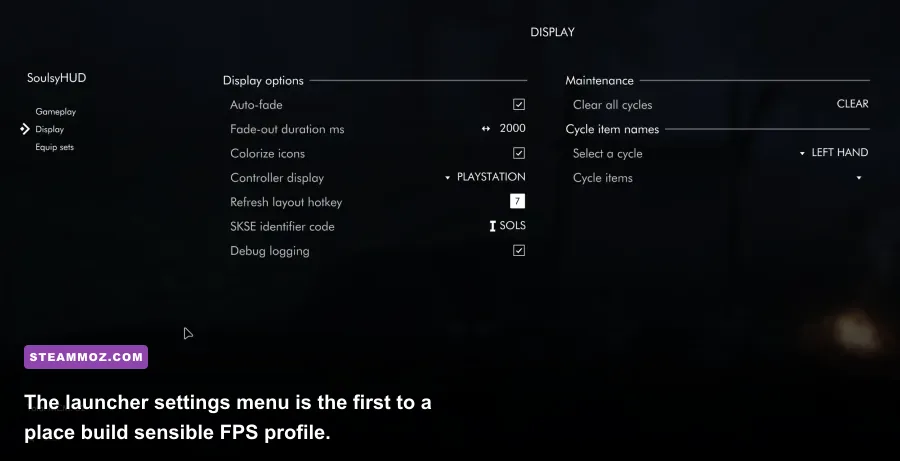
First, close Skyrim and disable every overlay you can live without: Steam Overlay, Discord, Xbox Game Bar, GeForce Experience or AMD Adrenalin recording, MSI Afterburner’s on-screen display, and ReShade. Overlays hook into the renderer, and a crash that looks like a Skyrim problem may actually be a conflicting capture or monitoring tool. You can re-enable them later after the game survives a test session.
In Steam, open Library > Skyrim Special Edition > Properties > Installed Files, then choose Verify integrity of game files. This replaces damaged archives and executable files without deleting your saves. If the launcher keeps resetting settings, run Steam once as administrator, choose the correct GPU in Windows Graphics settings, and make sure Skyrim is installed on an SSD with at least 15 GB of free space for shader and mod-cache activity.
For official troubleshooting, compare your installation against Bethesda Support and the official Steam page. Bethesda’s recommended hardware is a floor, not a guarantee of consistent frame pacing once high-resolution textures, ENB, grass mods, and dense city overhauls enter the picture.
| Check | What to do | Why it matters |
|---|---|---|
| Game files | Verify integrity in Steam | Repairs missing or corrupted executable and archive files |
| Runtime | Record 1.5.97 or 1.6.x | Determines compatible SKSE plugins and Address Library |
| Overlays | Disable recording and FPS overlays | Removes common hook conflicts and frame-time spikes |
| Storage | Move the game and mod staging area to an SSD | Reduces cell-loading pauses and texture-streaming hitching |
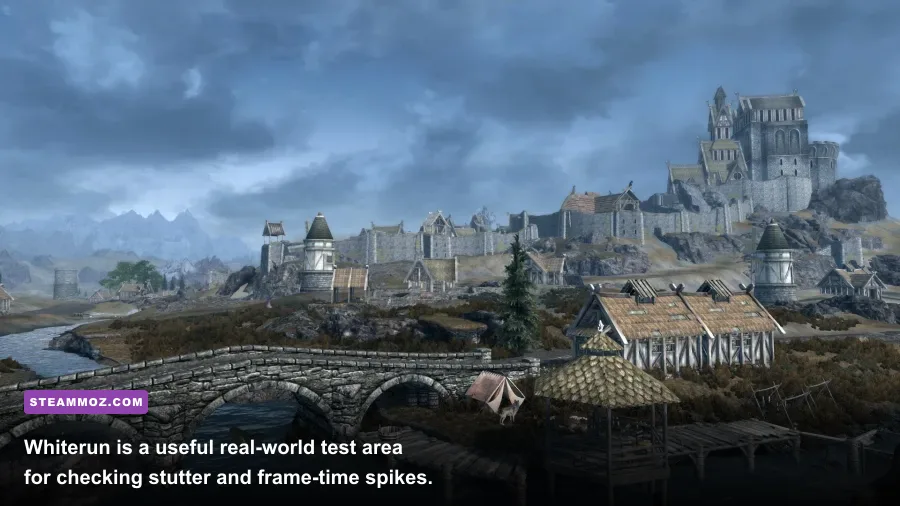
Test the unmodded game for 15 minutes around Whiterun, Riverwood, and the road to Bleak Falls Barrow. If vanilla Skyrim is smooth but your modded profile crashes, stop changing graphics settings: the problem is almost certainly your load order, a missing dependency, or a bad plugin.
Use a stable FPS and graphics profile
Skyrim’s physics and animation systems were designed around 60 FPS. Higher frame rates can produce flying objects, strange ragdoll behavior, dialogue timing issues, and save corruption in extreme cases. Set a firm 60 FPS cap through your GPU driver or a trusted frame limiter. V-Sync can work, but an external limiter set to 60—or 59.94 on some displays—often gives cleaner frame pacing. If you own a 120Hz or 144Hz monitor, keep Skyrim capped at 60 unless you have specifically tested a modern physics-fix setup.
For a quick performance win, lower Shadow Quality before reducing texture quality. Shadows are CPU-heavy in cities and forests, while textures mostly consume VRAM. God rays, screen-space reflections, ambient occlusion, and distant object detail also create large frame-time spikes when looking across Skyrim’s open valleys. Don’t slash everything to Low; that makes the game ugly while leaving the worst CPU bottlenecks untouched.
| Setting | Recommended value | FPS impact | Visual trade-off |
|---|---|---|---|
| Resolution | Native 1080p or 1440p | High if reduced | Lower resolution is effective but visibly softer |
| Shadow Quality | Medium or High | High CPU impact | Less detailed shadows, especially outdoors |
| God Rays | Low | Medium to high | Sunbeams lose some density without harming clarity |
| Screen Space Reflections | Off or Low | Medium | Water and wet surfaces look less reflective |
| Ambient Occlusion | Off or driver-controlled | Low to medium | Reduced contact shading around objects |
| Object Fade | 60–80% | Medium CPU impact | Fewer distant objects and less draw distance |
| Grass Fade | 60–80% | High with grass mods | Less dense grass in open terrain |
| Texture Quality | High with 6–8 GB VRAM | Low FPS impact | Lower textures mainly save VRAM |
If the counter says 60 FPS but the game still feels jerky, watch frame time rather than average FPS. A jump from 16.6 ms to 40 or 80 ms is the stutter you feel. Cap the game below your monitor’s refresh rate, use fullscreen rather than borderless if borderless introduces hitching, and try disabling Hardware-Accelerated GPU Scheduling in Windows if the issue began after a driver or Windows update.
For comparison, the same troubleshooting logic applies to other Bethesda-style PC ports; our Elex crash and FPS guide also explains why average FPS can hide bad frame pacing.
Fix mod crashes, SKSE errors, and infinite loading
Modded Skyrim crashes usually have a pattern. A crash during startup points to an incompatible DLL or missing master. A crash when entering a city suggests a bad worldspace edit, heavy script activity, or a broken mesh. A crash after 20–30 minutes can indicate script overload, VRAM exhaustion, or a save that has accumulated suspended quest scripts. Read the crash log instead of guessing: Crash Logger SSE AE VRAMr and Trainwreck can identify the last loaded plugin, though the final name in a log is not always the true culprit.
Install SKSE64 from the official SKSE site for your exact runtime. Skyrim 1.5.97 needs the matching 2.0.x SKSE build; 1.6.x needs the appropriate 2.2.x build. Never overwrite a working 1.5.97 setup with a 1.6.x DLL. Then install the correct Address Library for SKSE Plugins. If an essential DLL mod says “DLL plugin failed to load,” stop there and install its exact dependency or remove the plugin.
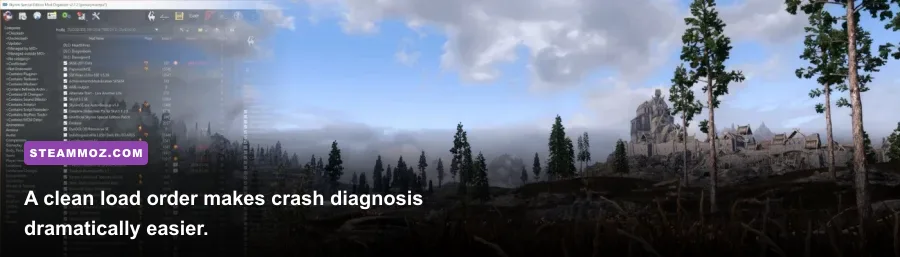
Use Mod Organizer 2 rather than manually dumping files into the Data folder. Sort plugins with LOOT, but treat its result as a starting point, not divine law. xEdit can reveal conflicts between leveled lists, landscape records, and worldspaces. Create a new profile, disable half your mods, and test. If the crash disappears, divide the remaining suspects again. This binary-search method is far faster than disabling 150 mods individually.
| Symptom | Likely cause | Best first action |
|---|---|---|
| Crash before the main menu | Wrong DLL, missing master, incompatible SKSE plugin | Check SKSE version, Address Library, and crash log |
| Crash entering one location | Worldspace conflict, broken mesh, city overhaul | Disable location edits and inspect the area in xEdit |
| Infinite loading screen | Script backlog, corrupted save, too many high-resolution assets | Test an earlier save with script-heavy mods disabled |
| Random outdoor crashes | VRAM pressure, grass, animation, or NPC overhaul | Lower textures and grass; test animation frameworks |
Never uninstall a script-heavy mod mid-playthrough and keep using the same save. Removing mods such as Alternate Start, major follower frameworks, or quest expansions can leave scripts suspended forever. Test on a new character, keep rolling backups, and remember that a clean save is often more valuable than rescuing a broken 200-hour file.
Repair INI settings without making Skyrim worse
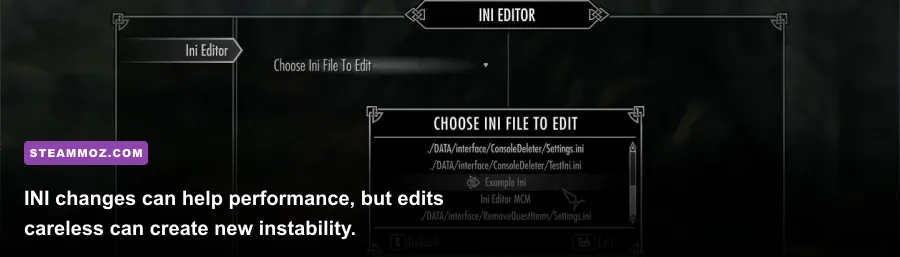
Skyrim stores user settings in Documents\My Games\Skyrim Special Edition. Back up Skyrim.ini, SkyrimPrefs.ini, and your saves before editing. The launcher can rewrite these files, so launch once, quit, and then make controlled changes. Avoid downloading a giant “ultra performance INI” that changes dozens of hidden variables with no explanation.
For stutter caused by texture streaming, confirm that your VRAM is not saturated first. A powerful GPU with 4 GB of VRAM can still hitch under 4K textures, 2K city packs, ENB effects, and 3D tree mods. Reduce texture resolution or remove one high-memory pack before touching memory-management settings. On Special Edition, old LE advice about endlessly increasing uGridsToLoad is particularly dangerous; leave it at the default value of 5. Raising it expands the simulation area, damages performance, and can permanently destabilize saves.
Grass mods deserve special attention. iMinGrassSize controls density in many setups: a larger number means thinner grass and better performance. Values around 60–80 are a sensible starting point for a demanding load order, although the exact result depends on the grass mod. Lowering fGrassStartFadeDistance can also help, but it creates a visible grass cutoff. Test one change at a time in Falkreath or the Rift, where dense vegetation exposes CPU and draw-call limits quickly.
For modded setups, use STEP’s Skyrim SE documentation as a reference rather than stacking random tweaks. If the problem is purely a broken game install, the Steamoz crash-fix checklist offers a useful second pass for drivers, overlays, and clean reinstalls.
Find the real bottleneck and keep it fixed
Monitor CPU usage, GPU usage, VRAM, RAM, and frame time with a tool such as CapFrameX or RTSS. If GPU usage sits near 95–99% and frame time improves when you lower resolution, the GPU is the limit. If GPU usage drops in Whiterun while one or two CPU threads are saturated, lower shadows, NPC density, grass, and city overhauls; lowering resolution will barely help.
Skyrim is famously sensitive to heavy script ecosystems. Frostfall, Campfire, wet-and-cold systems, survival overhauls, complex follower frameworks, and large quest mods can all be excellent individually, but stacking them creates background work even when no combat is happening. Give the game a few in-game minutes after loading before fast-traveling, especially after entering a new cell. If menus freeze while scripts initialize, that is not an FPS problem—it is a script timing problem.
Use this final order of operations: update the GPU driver with a clean installation, verify Skyrim’s files, launch vanilla, cap at 60 FPS, establish medium shadows and low god rays, then add SKSE and core fixes. Add texture packs next, followed by gameplay and quest mods, and leave grass, ENB, city overhauls, and animation frameworks until last. After every major group, test Whiterun, Falkreath, and a dragon encounter.
| Hardware profile | Practical Skyrim target | Starting profile |
|---|---|---|
| Older quad-core, 4–6 GB VRAM | 1080p / locked 60 where possible | Medium shadows, low god rays, modest grass fade |
| Modern six-core, 8 GB VRAM | 1080p or 1440p / locked 60 | High textures, medium shadows, selective visual mods |
| Modern eight-core, 10–16 GB VRAM | 1440p / locked 60 with heavy modding | High textures, ENB tuned carefully, capped grass density |
Finally, keep three save types: a rotating manual-save set, a recent quicksave, and a clean backup from before your latest mod batch. Skyrim remains wonderfully moddable because its files are accessible, but that freedom rewards discipline. A capped frame rate, matched SKSE runtime, restrained shadows, and a methodical load order will usually do more for stability than chasing a magical INI line.
Once Skyrim is stable, apply the same evidence-first approach to other PC games. Steamoz’s Far Cry 6 FPS settings guide is useful for separating GPU-heavy options from settings that mainly affect CPU frame time, while our Everspace 2 crash guide shows why testing one variable at a time beats blindly reinstalling everything.