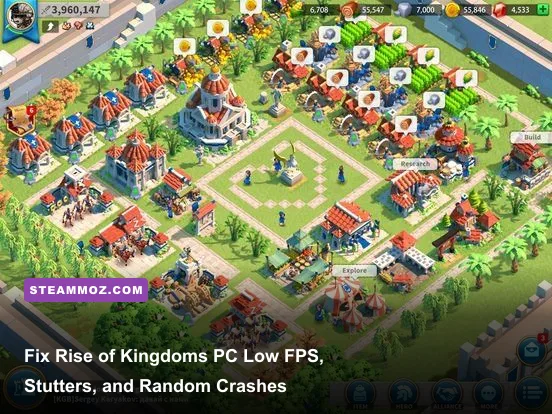
If your Rise of Kingdoms PC client stutters during massive deathballs, locks up on zooming out, or crashes straight to your desktop mid-KvK, the root cause is almost always improper GPU assignment, unmanaged RAM caching, or an aggressive troop-rendering bottleneck. You can fix most framerate drops instantly by forcing the game onto your dedicated graphics card via Windows Graphics Settings, dropping your Troop Display limit to Minimum during open-field skirmishes, and clearing the local client cache. Whether you run the native official Lilith PC client or an emulator like BlueStacks 5, these targeted optimizations will stabilize your frame times and stop random crashes dead in their tracks.
Dialing In-Game Graphics for Peak Frame Stability
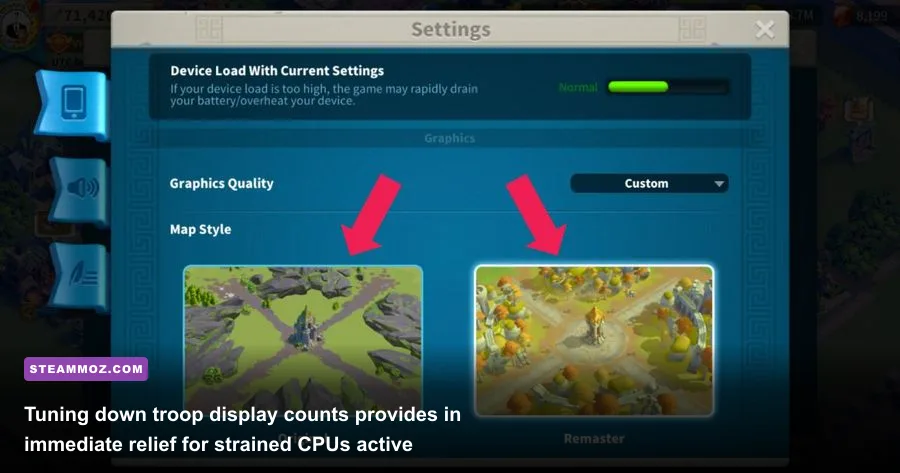
The graphics menu in the Rise of Kingdoms PC client looks deceivingly simple, but a few specific toggles brutally tax your system. The biggest culprit behind sudden frame drops is not rendering your city or terrain textures; it is the sheer volume of animated 3D troop models colliding on your screen during pass fights, altars, and ruins.
When hundreds of marches commanded by Guan Yu, Scipio Prime, and Nevsky clash in Pass 4, your system has to calculate animations, health bars, buffs, and rage generation cycles simultaneously. If your Troop Display setting is set to Maximum, your CPU thread will choke, sending your frame rate tumbling from 60 FPS down into single digits. Just as we covered in our Far Cry 6 max FPS configuration, aggressive asset culling is the secret weapon for butter-smooth framerates.
| In-Game Setting | Recommended Value | Performance Impact | Tactical Advantage |
|---|---|---|---|
| Graphic Quality | Medium / Simple | Moderate (10-15% FPS boost) | Cleaner visibility of march lines and skill icons |
| Frame Rate | High (60 FPS) | High | Crucial for precision micro-movement and dodging AOE |
| Troop Display Limit | Low / Minimum | Extreme (40-60% FPS boost in KvK) | Reduces deathball visual clutter and input lag |
| Show Commander Avatar | Enabled | Negligible | Essential to identify prime targets like Joan or Trajan |
| Battle Special Effects | Off / Simplified | High (15-20% FPS boost in rallies) | Eliminates particle burst stutters when skills detonate |
To configure these settings, open your Governor Profile by clicking your avatar in the upper-left corner, head into Settings, and click General Settings. Set Graphic Quality to Medium, toggle Frame Rate to High, and pull the Troop Display slider to its lowest tolerable threshold before heading into any contested war zone.
Configuring Windows and Driver Settings for the Native PC Client
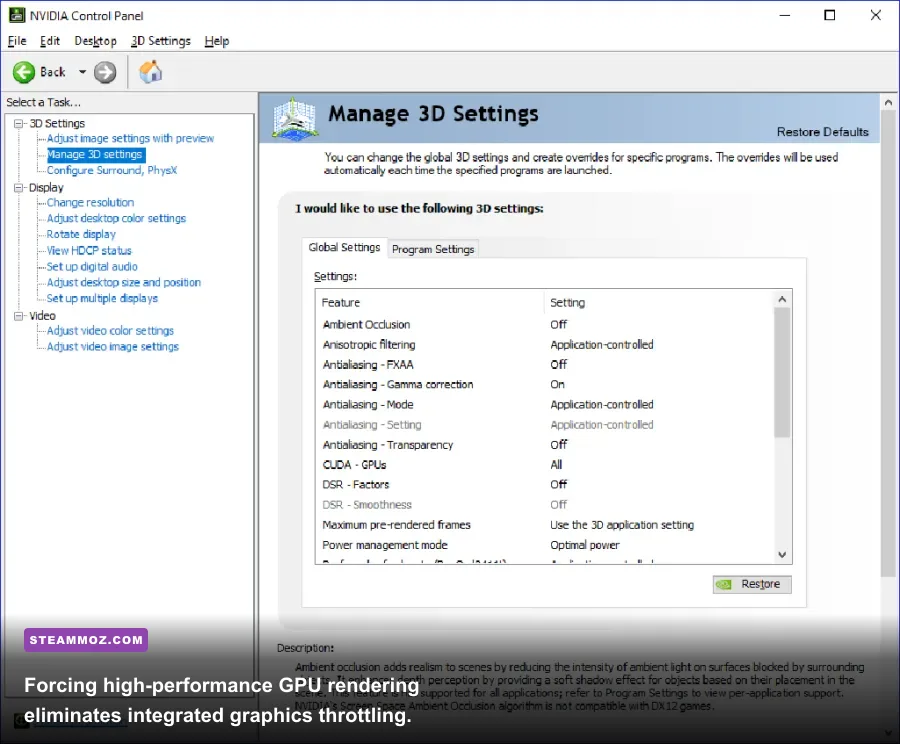
A massive flaw with the standalone Lilith PC client is its habit of running on integrated graphics chips (like Intel UHD or AMD Radeon Vega) rather than switching to your dedicated NVIDIA GeForce or AMD Radeon GPU. This creates severe micro-stuttering whenever you pan the camera quickly across kingdom zones or zoom out to inspect distant alliance territory.
To force the executable onto your performance GPU:
- Press the Windows Key + I to open Settings, then navigate to System > Display > Graphics.
- Click Browse under the "Add an app" section.
- Navigate to your Rise of Kingdoms installation directory (default path is usually
C:\Program Files\Lilith Games\Rise of Kingdoms\or inside your custom games directory). - Select the main game launcher executable (
rok.exeorRoK_PC.exe) and hit Add. - Click the newly added entry in your graphics list, choose Options, select High Performance (pointing directly to your dedicated GPU), and click Save.
Next, apply low-overhead driver overrides. Much like adjusting parameters in our ELEX stuttering and crash remedies, forcing optimal driver defaults prevents background shader compilation lag from interrupting active gameplay.
Open the NVIDIA Control Panel via your Windows desktop context menu, jump into Manage 3D Settings > Program Settings, and target Rise of Kingdoms. Change Power Management Mode to Prefer Maximum Performance, set Threaded Optimization to On, and turn Low Latency Mode to Ultra. AMD users should jump into AMD Software: Adrenalin Edition, click the Gaming tab, add the game profile, and activate Radeon Anti-Lag while turning off Radeon Enhanced Sync, which frequently induces map-panning hitches.
Taming Memory Leaks Across Lilith PC and Android Emulators
Have you noticed that Rise of Kingdoms runs smooth as butter for the first thirty minutes, but turns into a laggy, unresponsive mess after an hour of alliance warfare? That issue is a textbook memory leak. The game caches textures, map coordinates, and march states without cycling them out of RAM efficiently. Over time, your system memory usage climbs until the game freezes or terminates without warning.
If you play through an emulator like BlueStacks 5 rather than the official Lilith client, this problem doubles down due to hypervisor overhead. Here is how the native client stacks up against emulators in system resource demands:
| Platform / Client Type | CPU Utilization | RAM Overhead | Crash Vulnerability | Recommended Backend |
|---|---|---|---|---|
| Lilith Official PC Launcher | Low (Direct X86 code) | Medium (2GB - 4GB) | Low (Occasional asset cache crash) | DirectX 11 Native |
| BlueStacks 5 (Pie 64-bit) | High (Virtualization translation) | High (4GB - 8GB allocated) | Moderate (Memory leaks in long runs) | Vulkan / OpenGL Interface |
| Google Play Games PC | Moderate (Hyper-V native) | Medium-High (3GB - 6GB) | Low-Moderate (Occasional boot failure) | DirectX 12 / Vulkan wrapper |
To flush the asset bloat on the official native client, close the game completely. Press Windows Key + R, type %localappdata%, and press Enter. Locate the folders named LilithGames or RiseofKingdoms, open the Saved or Cache sub-directory, and delete the temporary cache files. Do not delete your user profile or configuration files. Restarting the client will force it to build clean shader caches, banishing the sluggishness that builds up after marathon sessions.
If you prefer running on BlueStacks 5 for multi-instance farming or macro hotkeys, open BlueStacks Settings, choose Performance, allocate at least 4 Cores and 4GB (High) Memory, and set the Performance Mode to High Performance. Head into the Graphics tab, select OpenGL or Vulkan as your Graphic Renderer, and disable ASTC Textures to offload unneeded decompression cycles from your CPU. For users wrestling with emulator stutters, our tips for EscapeVR crash troubleshooting tips explore similar thread affinity conflicts that cripple virtualized software.
Eliminating KvK Open-Field Micro-Stutters and Input Lag

Nothing costs more troops in Lost Kingdom than an input lag spike when you attempt to retreat a wounded march from an enemy swarm. In 90% of cases, micro-stuttering in field combat stems from Windows Fullscreen Optimizations clashing with the borderless window container used by the game engine.
To disable these problematic OS hooks:
- Locate your game installation path and right-click the main executable.
- Click Properties and select the Compatibility tab.
- Check the box for Disable fullscreen optimizations.
- Click Change high DPI settings at the bottom of the window.
- Check Override high DPI scaling behavior and set the dropdown to Application.
- Click Apply and close the dialogue.
This bypasses Windows Desktop Window Manager (DWM) frame-buffering, letting mouse clicks and hotkey inputs register with instant latency. Similar tuning advice yields dramatic improvements in lightweight engines, as shown in our Filament FPS tweak guide.
Another overlooked variable is polling rate instability. If you use a high-end gaming mouse set to an 8000Hz or 4000Hz polling rate, the constant stream of coordinate updates can cause severe stuttering whenever you drag your screen across the map. Drop your mouse polling rate to 1000Hz or 500Hz inside your peripheral software (such as Razer Synapse, Logitech G HUB, or SteelSeries GG) to eliminate instant frame drops during rapid camera pans.
Fixing Startup Crashes, DLL Errors, and Antivirus Conflicts
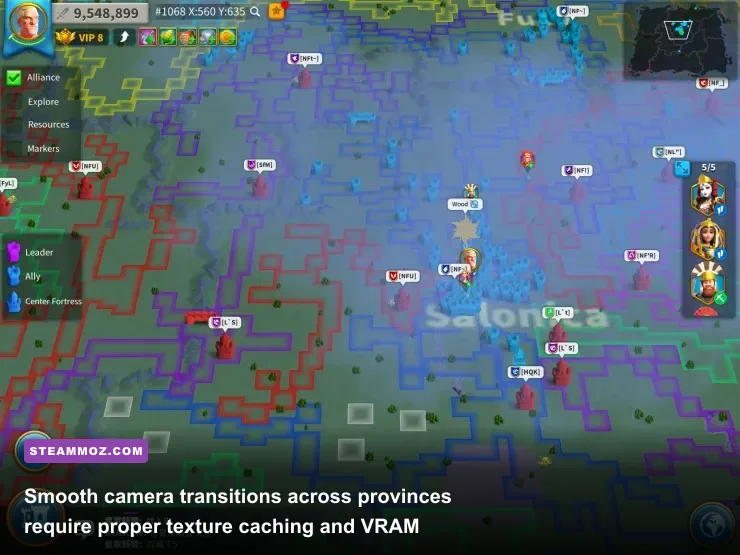
When Rise of Kingdoms refuses to boot at all, white-screens on the Lilith Games logo, or crashes right after the verification captcha screen, the problem points to missing shared libraries or aggressive anti-cheat flags. The PC client relies on standard Microsoft runtimes that don't always ship cleanly with fresh Windows updates.
First, grab the latest Visual C++ Redistributable packages directly from Microsoft. Make sure you install both the x86 and x64 versions, as the launcher bootstrap and the main 64-bit engine binary utilize separate runtime hooks. If your system lacks updated C++ runtimes or DirectX 11 helper binaries (like d3dcompiler_47.dll), the client will shut down without generating an error code.
Next, whitelist the game directory in your security suite. The game uses a background anti-tamper client to catch automated farming bots and screen memory injections. Aggressive antivirus tools—including Windows Defender SmartScreen, Bitdefender, and Norton—frequently flag this background process as a false-positive trojan, locking the memory address and causing the engine to crash abruptly.
To add an exclusion in Windows Defender:
- Open Windows Security and head into Virus & threat protection.
- Under Virus & threat protection settings, select Manage settings.
- Scroll down to Exclusions and click Add or remove exclusions.
- Click Add an exclusion, choose Folder, and select the entire directory containing your Rise of Kingdoms installation.
If you keep suffering from unprovoked crashes while jumping into large rallies, verify that your GPU drivers are up to date through the NVIDIA driver portal or AMD's driver hub. Corrupt driver configurations create severe DXGI device removal crashes; we broke down similar crash behavior in our Everspace 2 stability fixes.
By enforcing high-performance GPU routing, dropping troop counts to spare your single-core CPU speeds, clearing bloated local caches, and adding antivirus exclusions, you will transform Rise of Kingdoms into a stable, stutter-free PC experience. You will maintain full control over your armies in the thickest KvK warfare without losing marches to frozen frames or surprise desktop crashes.