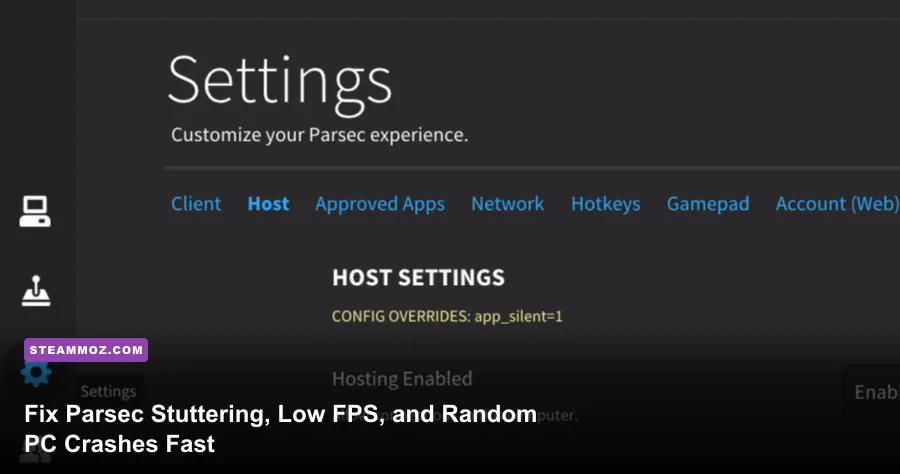
Parsec stuttering, low streaming framerates, and random client crashes almost always trace back to three specific bottlenecks: hardware encoder starvation on the host machine, client-side decoding pipeline stalls, or mismatched display refresh rates triggering erratic frame pacing. When a host system runs a graphics-intensive game at 99% GPU utilization, the dedicated hardware encoder—such as NVIDIA NVENC or AMD AMF—gets starved of memory bandwidth and scheduling cycles, resulting in dropped frames and connection error codes like 14003 or 15000. You can stop this instantly by forcing hardware decoding via Direct3D 11 on the client, capping your host game's maximum framerate just below your monitor's native refresh rate to reserve GPU headroom, and synchronizing your refresh rates across both endpoints.
Optimize Client Hardware Decoding and Renderer Pipelines
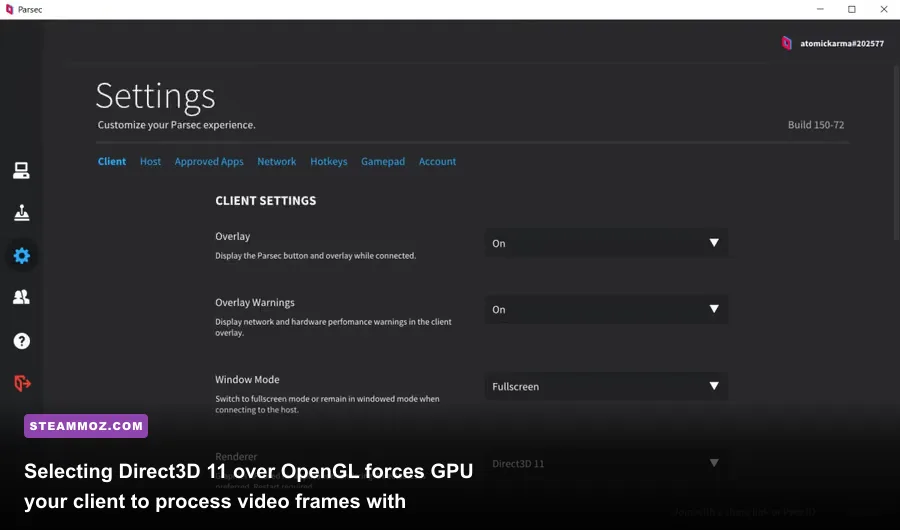
Your client device is responsible for receiving a compressed H.264 or H.265 video stream, decoding those frames, and pushing them to your display with minimal delay. If the client drops back to software decoding (using your CPU instead of your integrated or discrete graphics chip), decode times shoot up from 2–4 milliseconds to over 20–30 milliseconds. That delay turns smooth gameplay into a stuttering slide show, especially during high-motion camera pans.
Open Parsec on your client PC, navigate to Settings > Client, and locate the Renderer option. Never leave this on OpenGL unless you are troubleshooting specific driver bugs on legacy Linux builds; on Windows, select DirectX 11 (Direct3D 11). Direct3D 11 interacts natively with the Windows Desktop Window Manager (DWM) to deliver the lowest presentation latency and prevent frame-pacing judder.
Directly beneath the renderer option, set Decoder to Hardware. If you run an Intel CPU with QuickSync, an AMD APU, or a dedicated GPU, hardware acceleration ensures your video processor uncompresses frames effortlessly. For the H.265 (HEVC) codec, keep it disabled unless your client's hardware explicitly supports low-latency HEVC decoding. While H.265 saves bandwidth, many older budget laptops or handhelds struggle to unpack HEVC streams without introducing severe frame drops. Testing H.264 first gives you a rock-solid, low-latency baseline.
Next, configure the V-Sync option inside Parsec's client settings. Setting V-Sync to "Smooth" forces Parsec to buffer extra frames to smooth out delivery, which introduces perceptible mouse latency. Setting it to "On" synchronizes frames but can produce micro-stutters if your host and client refresh rates differ by even a fraction of a hertz. In almost all scenarios, selecting Off yields the crispiest input response. If you notice horizontal tearing, use an external frame limiter or run your client monitor in borderless display mode to let Windows DWM handle presentation cleanly.
Stop Host GPU Encoder Overload and Random Desktop Crashes
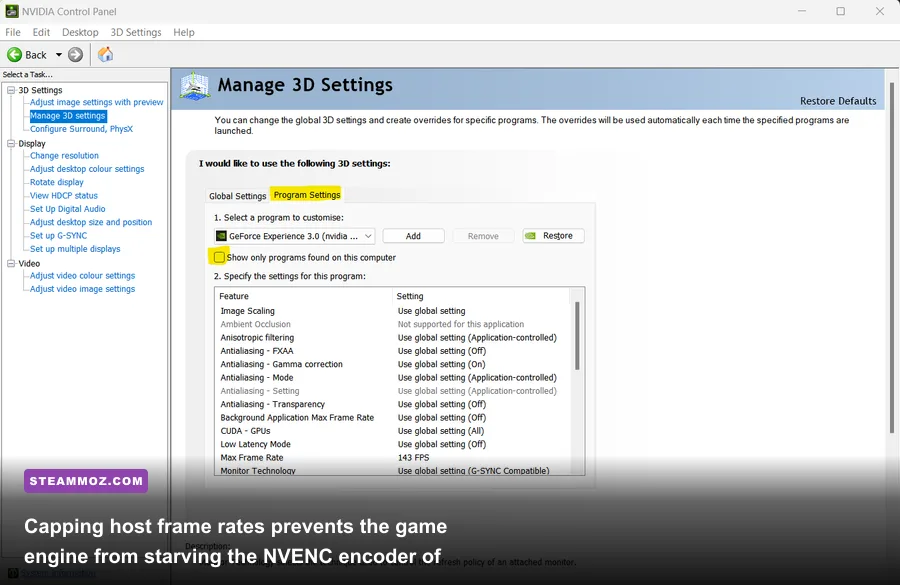
Host-side crashes—often presenting as Parsec throwing error codes 14003, 15000, or the desktop stream simply freezing while audio continues playing—occur when the host's GPU driver resets the video encoder. Modern game engines naturally consume every ounce of available GPU compute unless you explicitly constrain them. When demanding titles max out the core clock and VRAM, the hardware encoder misses its rendering deadlines, causing Parsec to drop the connection entirely, a scenario seen when debugging heavy graphics pipelines in Far Cry 6 GOTY upgrade pass settings for max FPS.
To eliminate host encoder starvation, open the NVIDIA Control Panel or AMD Software: Adrenalin Edition on your host machine. Navigate to global 3D settings and set a strict Max Frame Rate. If your client display runs at 60Hz, lock your host's maximum framerate to 60 FPS (or 59 FPS if you want ultra-clean buffer clearing). For 120Hz displays, lock it to 120 FPS. This leaves a crucial 5% to 10% GPU overhead buffer that NVENC or AMF requires to process frames without hitching.
Another major culprit behind crashes is Windows Hardware-Accelerated GPU Scheduling (HAGS). While HAGS boosts native gaming performance in select scenarios, it frequently conflicts with capture pipelines by prioritizing 3D game tasks over background encoding tasks. If your host crashes with Parsec error 14003, disable HAGS by typing "Graphics Settings" into the Windows search bar, clicking on Change default graphics settings, toggling Hardware-accelerated GPU scheduling to Off, and restarting your host PC. For more technical background, consult the Microsoft Hardware-Accelerated GPU Scheduling guidelines.
| Configuration Parameter | Recommended Value | System Location | Impact on Stability & Latency |
|---|---|---|---|
| Client Renderer | DirectX 11 (D3D11) | Parsec Client Settings | Eliminates presentation stutter; minimizes client latency. |
| Client Decoder | Hardware | Parsec Client Settings | Reduces decode times from >25ms down to 2–4ms. |
| Client V-Sync | Off (or Fast) | Parsec Client Settings | Removes artificial stream buffering and input lag. |
| Host Frame Rate Limiter | Match Display Hz (60/120) | GPU Driver / RTSS | Prevents 99% GPU saturation and stops error 14003 crashes. |
| Hardware-Accelerated GPU Scheduling | Off (if crashing persists) | Windows Graphics Settings | Prioritizes NVENC/AMF video encoding pipelines. |
| Color Format | 4:2:0 | Parsec Host Settings | Halves encoding bandwidth; protects stability on budget GPUs. |
Additionally, check your in-game display mode. Running games in Exclusive Fullscreen can break the desktop capture hook whenever you Alt-Tab or when resolution shifts occur, crashing the Parsec daemon. Always configure your host games to run in Borderless Windowed mode. This ensures the Windows Desktop Duplication API maintains constant access to the frame buffer, just like the stability practices detailed in our Elex PC fixes that stop crashes and rescue FPS.
Master the Config.txt Tweaks for Deep Network and Render Tuning

While the Parsec graphical user interface covers standard settings, advanced connection variables are governed by the raw configuration file. Sometimes the graphical interface fails to apply high-bandwidth parameters or resets custom bitrates after an update. Modifying the configuration file directly forces the Parsec engine to obey your explicit hardware environment, a reliable troubleshooting step documented in the official Parsec Support knowledge base.
To access this file on either your host or client PC, press Windows Key + R, type %appdata%\Parsec, and press Enter. Locate config.txt and open it using Notepad. If Parsec is currently running, exit the app completely from your system tray before editing, or your changes will be overwritten when the process terminates.
Add or edit the following key-value pairs depending on whether you are configuring the host or client:
# Host Configuration Tweaks
encoder_bitrate = 30
encoder_min_bitrate = 10
host_stream_exclusive = 1
encoder_fps = 60

# Client Configuration Tweaks
client_vsync = 0
client_window_mode = 1
network_adapter = 0
The encoder_bitrate = 30 parameter sets your transmission bandwidth to a reliable 30 Mbps. If you are operating strictly over a Gigabit local area network (LAN), you can safely raise this to 45 or 50 for pristine visual fidelity. Avoid setting this to 0 or exceeding 50 Mbps over wireless connections; pushing excessive bitrates down an unstable Wi-Fi channel saturates client hardware buffers and introduces massive frame drops. Establishing stable limits matches the baseline performance concepts we explored when stabilizing framerates in EscapeVR: The Basement low FPS and crashing guide.
Diagnostic Matrix: Resolving Network Packet Jitter and Error Codes
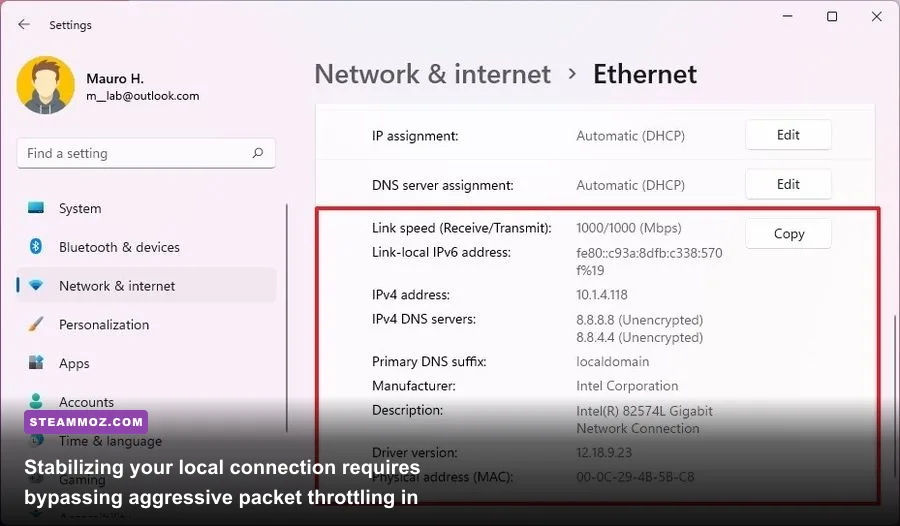
A yellow or red network icon flashing in the top-right corner of your Parsec screen is a clear warning sign: your rendering pipeline may be flawless, but your network stack is dropping UDP packets. Parsec streams over UDP (User Datagram Protocol) to prioritize speed over guaranteed delivery. However, when packets drop, the client cannot construct the next P-frame or I-frame, resulting in an immediate freeze followed by a rapid "catch-up" jump.
Wi-Fi jitter is the number one cause of persistent micro-stutter. Even a 5GHz Wi-Fi connection with high download speeds suffers from periodic background channel scans by Windows, producing 100ms latency spikes every minute. Switch both host and client to wired Ethernet connections whenever possible. If you must use Wi-Fi, disable Windows autoconfig scanning via the command prompt using netsh wlan set autoconfig enabled=no interface="Wi-Fi" while streaming (remembering to turn it back on with enabled=yes when switching networks).
| Error Code / Symptom | Root Cause | Immediate Fix | Long-Term Prevention |
|---|---|---|---|
| Error 14003 | Host GPU capture or encoder initialization failure. | Lower game graphics settings; turn off HAGS. | Cap host game framerate below 100% GPU utilization. |
| Error 15000 | Client hardware decoder crashed or unsupported. | Switch decoder to H.264; set Renderer to D3D11. | Update integrated and discrete GPU graphics drivers. |
| Error 6023 / 6024 | UDP peer-to-peer NAT traversal failed. | Enable UPnP on router; reboot client and host. | Configure static port forwarding for UDP ports 8000–8010. |
| Red Network Icon | Severe packet loss (>2%) or bandwidth throttling. | Reduce client bitrate slider down to 15–20 Mbps. | Switch from Wi-Fi to Cat6 Ethernet cable. |
| Micro-Stuttering (No Drop) | Mismatched display refresh rates (e.g. 144Hz vs 60Hz). | Set host virtual display refresh rate to match client. | Lock render tick rates uniformly across both systems. |
In addition to hardware wiring, check your host machine's network adapter settings. Open the legacy Network Connections panel in Windows, right-click your active Ethernet adapter, select Properties, and click Configure under your network card name. Navigate to the Advanced tab and disable Energy Efficient Ethernet, Green Ethernet, and Large Send Offload (IPv4). These power-saving and offloading features introduce packet bundling behaviors that wreak havoc on real-time UDP interactive video streams, mirroring the responsiveness optimizations needed when tackling Everspace 2 crashing and FPS fixes.
Display Synchronization, Headless Display Emulators, and Refresh Rates
If your diagnostic overlay shows decode times under 5ms, encode times under 5ms, and 0% packet loss, yet the game still feels choppy, you are dealing with a display timing mismatch. When a host renders at 144Hz but your client laptop display only runs at 60Hz, Parsec drops frames unevenly to squeeze the faster feed into the slower window. The result is uneven frame pacing that makes a 60 FPS stream feel like 30 FPS.
Always align your host desktop resolution and refresh rate to match your client's physical screen before launching a game. If your host runs headless (without a physical monitor plugged into it), Windows defaults to basic display configurations or turns off GPU acceleration entirely. Running headless without an active display output causes the Parsec host service to freeze, drop FPS down to single digits, or crash on launch.
To operate a headless host properly, enable the Parsec Virtual Display Driver in the host settings. This installs an emulated display adapter directly into Windows that supports native resolutions up to 4K and refresh rates up to 240Hz. Alternatively, plug an inexpensive physical HDMI or DisplayPort dummy plug (EDID emulator) into the host graphics card. An EDID dongle tricks your GPU into thinking a real monitor is attached, keeping high-performance display clocks and NVENC/AMF hardware active at all times.
Finally, check your color subsampling configuration. Parsec defaults to YUV 4:2:0 chroma subsampling. While Parsec supports YUV 4:4:4 for sharper text rendering, running 4:4:4 doubles the decoding workload on your client GPU and increases bandwidth spikes by roughly 30%. Unless you are reading fine text in software development tools, keep your color mode set to 4:2:0 for gaming. This preserves valuable decoding head-space on budget client systems, in line with the rendering efficiency tweaks detailed in our guide on Filament Marmalade Edition settings for higher FPS.
Once your host GPU has enough breathing room to encode without choking, your client is set to Direct3D 11 hardware decoding, and your refresh rates are perfectly aligned, Parsec delivers a desktop streaming experience that feels virtually indistinguishable from playing on bare metal.