To fix Hogwarts Legacy stuttering, low FPS, and crashing on PC, start with a clean GPU-driver install, verify the Steam files, disable ray tracing, enable an upscaler, and cap the frame rate below your system's real average. Then clear the game's shader cache and test Hogsmeade, Hogwarts castle, and open-world flight separately. Those areas expose different problems: shader compilation, CPU-heavy asset streaming, and GPU load.
Hogwarts Legacy is unusually sensitive to frame-time spikes because Unreal Engine 4 streams huge numbers of textures, meshes, and NPC assets while you move between interiors and the open world. A machine that reports 90 FPS in a quiet corridor can still feel rough at 45 FPS in Hogsmeade. The goal here isn't a fake benchmark number; it's a stable frame-time graph with fewer traversal hitches and enough headroom to prevent crashes.
Before changing anything, check the game's official Steam page for current requirements and patch notes. If another PC game is behaving badly too, our guides to ELEX crash and FPS fixes and EscapeVR performance troubleshooting cover the same driver and Windows-level culprits.

Use the right baseline before chasing FPS
Start by removing variables. Close browsers with hardware acceleration, Discord overlays, MSI Afterburner overlays, RGB utilities, and recording software. Overlays don't always cause a crash, but they add another hook into a game that already has a busy streaming pipeline. On Steam, open Hogwarts Legacy's Properties, choose Installed Files, and select Verify integrity of game files.
Next, update your graphics driver from NVIDIA's driver page or AMD's support page. If the game began crashing directly after an update, use Display Driver Uninstaller in Windows Safe Mode and install a stable driver fresh. Avoid importing an old control-panel profile; Hogwarts Legacy can inherit an aggressive sharpening, frame-generation, or anti-aliasing setting that destabilizes testing.
Windows 10 64-bit is supported, while Windows 11 is generally the better choice for current drivers and scheduling. The official PC target is roughly a Core i7-8700 or Ryzen 5 3600, 16GB RAM, and a GTX 1080 Ti, RX 5700 XT, or Arc A770 for 1080p/60 on High. Those specifications are not a promise of locked 60 FPS in every location. Hogwarts Legacy's recommended 85GB SSD requirement is also meaningful: an old hard drive can turn normal asset streaming into long pauses and texture pop-in.
| Component | Official baseline | Practical recommendation | Why it matters |
|---|---|---|---|
| Operating system | Windows 10 64-bit | Updated Windows 10 or 11 | Improves driver compatibility and shader behavior |
| Memory | 16GB RAM | 16GB minimum, 32GB preferred | Reduces paging during fast travel and traversal |
| Storage | 85GB | NVMe or SATA SSD | Speeds texture and world streaming |
| Graphics memory | 4GB class minimum | 8GB or more for High textures | Limits texture swapping and hitching |
🎮 Hogwarts Legacy
Looking to experience this game? Grab your digital key directly on our store for $59.99.
View on Steammoz Store →Best graphics settings for stable frame times

Don't begin with the Ultra preset. It pushes several expensive options that offer little value during active combat. Use High textures if your card has at least 8GB VRAM, but reduce shadows, population quality, and effects first. Population quality is especially important because it affects NPC density and CPU work in Hogsmeade; lowering it won't make the castle look muddy, but it can smooth busy streets.
Set the display mode to Fullscreen if available, choose your monitor's native resolution, and turn off motion blur, depth of field, chromatic aberration, and film grain if you want a cleaner image. These aren't major FPS wins, but disabling them makes dips easier to read. Keep V-Sync on only if you use a fixed refresh display and see tearing. Otherwise, cap FPS with your GPU driver or an in-game limiter.
| Setting | Recommended value | FPS impact | Visual trade-off |
|---|---|---|---|
| Ray Tracing Reflections | Off | Very high gain | Less accurate reflective detail |
| Ray Tracing Shadows | Off | High gain | Less precise shadowing |
| Ray Tracing Ambient Occlusion | Off | Medium gain | Slightly flatter contact shading |
| Textures | High on 8GB+ VRAM | Low to medium cost | Preserves material detail |
| Population Quality | Medium | Medium CPU gain | Fewer NPCs in crowded areas |
| Effects Quality | Medium or High | Medium GPU cost | Changes spell and weather detail |
| View Distance Quality | Medium | Medium gain | More distant objects appear later |
| Fog Quality | Medium | Low to medium gain | Less volumetric atmosphere |
| Upscale Type | DLSS Quality or FSR 2 Quality | Large gain | Minor softness or ghosting |
For NVIDIA cards, DLSS Quality is the best first test at 1440p, while DLSS Balanced helps GPUs such as the RTX 3060 stay above 60 FPS. At 1080p, DLSS can look softer because the internal resolution becomes low, so try native resolution with lower shadows if your GPU allows it. AMD and Intel users should test FSR 2 Quality, then Balanced only if the frame rate still falls short. Avoid stacking driver-level sharpening on top of aggressive upscaling; it exaggerates foliage shimmer.
Stop traversal stutter in Hogsmeade and Hogwarts
Traversal stutter is the most notorious Hogwarts Legacy PC issue. You'll usually notice it when sprinting through Hogsmeade, flying over the countryside, or entering a new Hogwarts wing. The GPU may be sitting at 70 percent usage while one CPU thread spikes. That's not a sign that your graphics card is broken; the game is compiling shaders, loading assets, and updating world data faster than the engine can present frames.
First, let the game sit at the main menu for a minute after a driver change, then play a repeatable route for 10 minutes. Don't judge performance during the first few seconds after loading a save. Shader caches rebuild after driver updates, and deleting them repeatedly can make stutter worse because the game has to compile the same effects again. Clear the cache only when it is corrupted, the game crashes during loading, or a driver update leaves bizarre hitching.
On NVIDIA hardware, use the Windows Disk Cleanup utility and select DirectX Shader Cache, then reboot. On AMD, the Adrenalin software includes a Reset Shader Cache option under Gaming and Graphics. Verify the files afterward. Keep the game installed on an SSD with at least 15-20GB of free space, and close other applications that consume RAM. Windows' page file should remain system-managed on an SSD; disabling it is a common cause of crashes during fast travel.
Cap your frame rate to a number your slowest test area can hold. If Hogsmeade fluctuates between 52 and 78 FPS, a 50 or 48 FPS cap can feel much better than an uncapped average of 65. On a 60Hz screen, 60 FPS is fine when stable; on a 120Hz display, 60 or 72 FPS with consistent frame pacing is preferable to wild swings. NVIDIA Reflex can reduce latency on supported GeForce cards, but it cannot repair a CPU bottleneck, so treat it as a latency feature rather than a stutter fix.
For more context on storage and frame-time troubleshooting, compare this process with our Far Cry 6 maximum-FPS settings guide. The games use different engines, but the principle is identical: fix the worst frame-time spike before chasing the highest peak.
Fix crashes, freezes, and black screens

Crashes need a different approach from low FPS. If Hogwarts Legacy closes to desktop while loading a save, remove all overclocks, undervolts, and custom GPU memory profiles first. A setting that survives synthetic benchmarks can fail when the game rapidly allocates assets. Also disable XMP or EXPO temporarily if crashes continue; unstable system memory often looks like a game bug.
For a crash on launch, run Steam as normal rather than administrator, verify files, and remove launch options. Check Windows Security's ransomware protection if the game cannot create or update files in its save directory. Don't delete your saves blindly. Copy the folder in %LocalAppData%\Hogwarts Legacy\Saved\SaveGames before testing anything involving configuration files.
If the screen goes black after changing resolution or ray tracing, use the game's configuration reset as a last resort. Back up the save folder, then rename the configuration directory under %LocalAppData%\Hogwarts Legacy\Saved\Config\WindowsNoEditor. The game will regenerate default settings on the next launch. This removes a broken graphics profile without touching progress.
Ray tracing is the first suspect for many GPU crashes, especially on cards close to their VRAM limit. Turn off all three ray-traced options, restart the game, and test a demanding area. If the crash disappears, re-enable only one feature at a time. Ray-traced reflections tend to be the most expensive, while ambient occlusion can still produce a noticeable visual improvement at a smaller cost on powerful hardware.
Use Warner Bros. Games' official support information when reporting a repeatable crash. Include your GPU, driver version, Windows build, crash location, and whether the issue occurs in DX12 shader compilation, loading, or gameplay. That detail is far more useful than saying the game simply “doesn't work.”
Choose a tested profile for your hardware
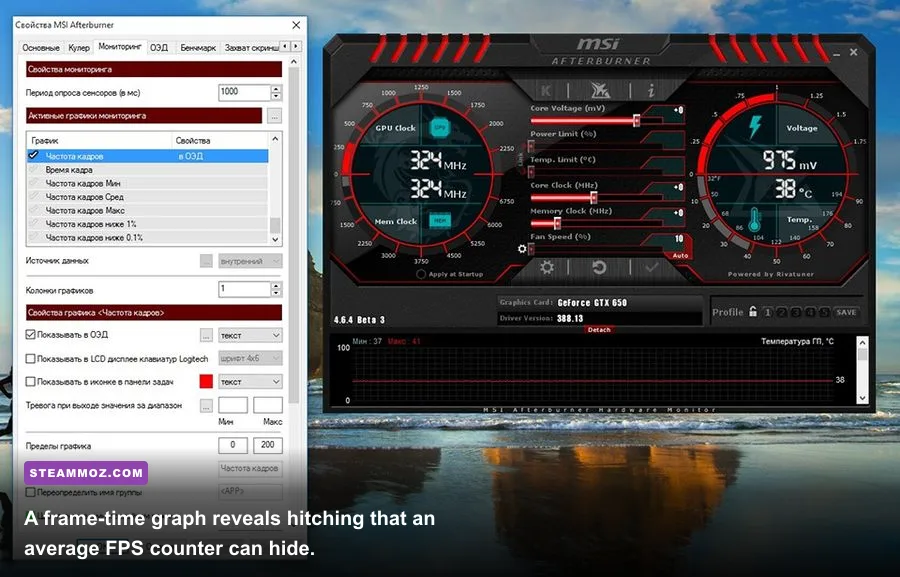
These profiles are starting points, not magic presets. Watch GPU usage, VRAM, RAM, and frame time with an overlay, then change one setting at a time. If GPU usage stays near 99 percent, reduce resolution, upscaling quality, effects, or ray tracing. If GPU usage falls while the frame rate collapses in Hogsmeade, lower population and view distance, close background tasks, and consider a lower FPS cap.
| Hardware class | Resolution and upscaler | Core settings | Target profile |
|---|---|---|---|
| GTX 1060 / RX 580 | 1080p, FSR 2 Balanced | Low-Medium, RT off, textures Medium | 30-45 FPS with a 30 or 40 cap |
| RTX 3060 / RX 6600 XT | 1080p, native or Quality | Medium-High, RT off, population Medium | 60 FPS outside heavy traversal |
| RTX 3070 / RX 6800 | 1440p, DLSS or FSR Quality | High, RT off, textures High | 60 FPS with occasional dips |
| RTX 4070 / RX 7800 XT | 1440p, Quality upscaling | High-Ultra, RT optional | 60-100 FPS depending on RT |
| RTX 4080 / RX 7900 XTX | 1440p or 4K, Quality | Ultra, RT selectively enabled | High FPS with a sensible cap |
If you're on an RTX 40-series card, frame generation can raise displayed FPS after the base frame rate is already healthy, but it won't fix traversal stutter or poor input response at 30 FPS. Aim for at least 45-60 real rendered FPS first, then test frame generation. On older cards, leave it unavailable and spend the performance budget on a stronger base frame rate.
Finally, keep expectations realistic. Hogwarts Legacy can still show a brief hitch when entering a new area even after excellent tuning, particularly after a fresh driver install. The win is reducing long freezes, repeated shader compilation, and unstable frame pacing. If a new patch changes behavior, check the official Hogwarts Legacy news page before rebuilding your entire setup. And if you enjoy this kind of practical troubleshooting, our Filament FPS settings guide offers another useful frame-time checklist.