
To fix Halo Infinite stuttering, low FPS, and crashing on PC, start by updating Windows and your GPU driver, verifying the game files, disabling conflicting overlays, then use a capped 60, 90, or 120 FPS profile with Dynamic Resolution enabled. The biggest gains usually come from lowering Simulation Quality, Terrain Quality, Effects Quality, and Shadow Quality—not blindly dropping every setting to Low. If the game still hitches, clear the shader cache, remove unstable overclocks, and check whether your system is running out of VRAM or RAM.
Halo Infinite is unusually sensitive to frame pacing. A counter showing 100 FPS can still feel awful if the frame-time graph spikes whenever a Pelican arrives, a new Banished outpost streams in, or several players trigger explosions at once. The fixes below target both average FPS and those ugly one-percent lows. They apply to the Steam and Xbox app versions of Halo Infinite, including multiplayer and the campaign.
Start With These Halo Infinite PC Fixes
Before changing advanced settings, close Halo Infinite completely and work through the basic stability checks. Many crashes blamed on the game are actually caused by a damaged shader cache, an overlay hook, an outdated driver, or a Windows page-file problem. Make one change at a time, then test the same multiplayer playlist or campaign location so you can identify what actually helped.
- Restart the PC. This sounds obvious, but Halo Infinite can retain a bad graphics allocation after a driver timeout or failed Quick Resume-style session.
- Update Windows and your graphics driver. Use a clean installation option in Nvidia's installer if you have repeatedly updated drivers over an old installation. AMD users should use the Factory Reset option only if normal installation does not help.
- Verify the installation. In Steam, right-click Halo Infinite, choose Properties, Installed Files, then Verify integrity of game files. In the Xbox app, use Halo Infinite's Manage menu and select Files, followed by Verify and Repair if available.
- Disable overlays temporarily. Turn off Steam Overlay, Xbox Game Bar, Discord Overlay, Nvidia App overlay, AMD Adrenalin metrics, and MSI Afterburner's overlay for the first test.
- Remove launch tweaks. Delete experimental Steam launch options and return GPU control-panel settings to their defaults. Forced sharpening, injected ReShade files, and aggressive anti-lag profiles can trigger instability after an update.
- Check free space. Keep at least 20 GB free on the drive containing the game and Windows. A nearly full SSD can make shader compilation and the page file behave badly.
For a broader crash checklist, Steamoz's Elex PC crash and FPS guide covers several Windows-level fixes that also apply here. The same goes for our general crashing and low-FPS troubleshooting guide, particularly the sections on overlays and clean driver installs.
Use a Stable Graphics Profile Before Chasing Ultra
Open Halo Infinite's Settings, select Video, and first choose a sensible frame-rate target. Set Minimum Frame Rate to the lowest number you can sustain during combat and Maximum Frame Rate to the same value. If your PC swings between 74 and 116 FPS, a locked 90 FPS often feels substantially better than an uncapped average of 95 because the frame times become predictable.
Set the Resolution Scale to 100 percent initially. If GPU usage sits near 99 percent and your target is still out of reach, reduce it to 90 or 85 percent. This is usually cleaner than lowering the entire image-quality preset. Dynamic Resolution is also worth enabling for a locked target, especially on mid-range GPUs. Halo Infinite will reduce internal resolution during heavy scenes instead of allowing a major frame-time spike.
| Setting | Recommended Value | FPS Impact | Visual Note |
|---|---|---|---|
| Texture Quality | High on 8GB VRAM; Medium on 4-6GB | Medium to high VRAM impact | Mostly affects surface detail, not geometry |
| Texture Filtering | High or Ultra | Low | Keep it high; the performance cost is small |
| Geometry Quality | Medium or High | Medium | Lower values simplify distant objects |
| Reflections | Low or Medium | Medium | Reducing it helps indoor and wet surfaces |
| Shadow Quality | Low or Medium | High | One of the best settings to lower first |
| Cloud Quality | Low | Medium | Large sky scenes become cheaper to render |
| Effects Quality | Medium | High during explosions | Helps with grenades, vehicles, and campaign firefights |
| Terrain Quality | Medium | High in campaign | Important around large outdoor landscapes |
| Simulation Quality | Low or Medium | High CPU impact | Lower it if the GPU is underused but FPS remains poor |
| Async Compute | On, then test Off if crashes continue | System-dependent | Can improve GPU scheduling on some hardware |
| Raytraced Sun Shadows | Off | High | Disable this first on competitive or mid-range systems |
Do not automatically set Texture Quality to Ultra. Halo Infinite's high-resolution assets can push a 6GB graphics card into VRAM pressure, which often appears as hitching rather than a simple FPS drop. When VRAM fills, the driver begins moving assets through system memory and the PCIe bus. That is why lowering textures can fix a stutter that lowering shadows barely touches.
Best FPS Profiles for Different Gaming PCs

Halo Infinite's official Steam page lists a GTX 1050 Ti and Radeon RX 570 as minimum-class hardware, with an RTX 2070 and RX 5700 XT in its recommended tier. Those specifications are useful starting points, but they do not guarantee a locked frame rate. Multiplayer arena maps, campaign traversal, and Big Team Battle stress different parts of the PC.
| Hardware Class | Resolution | Pro-Tuned Profile | Realistic Target |
|---|---|---|---|
| GTX 1050 Ti / RX 570, four-core CPU | 1080p | Low preset, textures Medium, Dynamic Resolution On, shadows Low | 45-60 FPS |
| GTX 1660 Super / RX 5600 XT | 1080p | Medium preset, textures High, terrain Medium, RT Off | 60-90 FPS |
| RTX 3060 / RX 6600 XT | 1080p or 1440p | High preset, effects Medium, shadows Medium, RT Off | 90-120 FPS at 1080p |
| RTX 4070 / RX 7800 XT | 1440p | High preset, selective Ultra settings, RT Off for competition | 120-165 FPS |
| RTX 4080 / RX 7900 XTX | 1440p or 4K | High preset, native resolution, RT optional | 100-165 FPS at 1440p |
For ranked multiplayer, prioritize a stable cap over cinematic quality. Use Low or Medium shadows, disable Raytraced Sun Shadows, keep Effects at Medium, and choose a cap your CPU can hold during vehicle-heavy Big Team Battle matches. A 120Hz monitor is not being used well if the game repeatedly falls from 140 to 70 FPS. A locked 90 or 100 FPS can give you cleaner mouse input and fewer distracting hitches.
On a gaming laptop, connect the charger, set Windows power mode to Best Performance, and force Halo Infinite onto the discrete GPU in Windows Graphics settings. Laptop cooling also matters: a CPU that reaches its thermal limit can downclock mid-match, creating stutters that look like a graphics problem. Clean the vents and avoid testing performance immediately after waking the machine from sleep.
How to Stop Stuttering and Bad Frame Pacing
Stuttering usually has a different cause from low average FPS. If the camera feels smooth in an empty Forge space but hitches while driving across Zeta Halo, the likely culprits are asset streaming, shader compilation, CPU simulation, or VRAM exhaustion. If stutters happen at regular intervals every few seconds, background software and disk activity deserve attention.
Clear shader and DirectX caches
Windows can retain a shader cache created by an older driver or game build. Use Windows Settings, System, Storage, Temporary Files, and remove DirectX Shader Cache. Nvidia users can also clear the contents of the DXCache and GLCache folders in the local Nvidia App or driver cache locations. AMD users should use Adrenalin's Reset Shader Cache option. Do not delete random Halo files from the installation folder.
The first launch after clearing the cache may stutter while shaders are rebuilt. That is normal. Play a few minutes of multiplayer and visit several campaign regions before deciding whether the fix worked. If every match continues to hitch in the same way, the problem is probably not shader compilation alone.
Find out whether the CPU or GPU is the bottleneck
Enable the in-game performance overlay or use a trusted monitoring tool. A GPU pinned at 98-99 percent means the graphics card is limiting FPS; lower resolution scale, shadows, effects, reflections, and ray tracing. GPU usage around 60-80 percent while one or two CPU cores are saturated points to a processor or simulation limit. Lowering resolution will barely help that situation.
Simulation Quality is particularly important in campaign and Big Team Battle. It affects the work needed for physics, vehicles, AI, and world activity. Lower it from High to Medium, then Low if necessary. You may see less distant simulation detail, but the improvement to minimum FPS can be more valuable than a sharper shadow map. Close browsers with video playback, RGB utilities, motherboard monitoring tools, and recording software while testing.
Use a frame cap and sensible sync option
If you have a FreeSync or G-SYNC display, enable the display's variable refresh mode, set V-Sync according to the monitor manufacturer's recommended setup, and cap Halo Infinite a few frames below the refresh rate. For a 144Hz monitor, try 141 FPS; for 165Hz, try 162 FPS. If your system cannot hold those numbers, choose a lower fixed cap such as 120, 90, or 72.
Do not stack multiple limiters at first. The in-game limiter is a clean baseline. If it produces uneven frame pacing, compare it with the Nvidia Control Panel or AMD Adrenalin limiter, but leave only one active. A frame-time graph is more useful than the headline FPS number here.
Stop Halo Infinite From Crashing

Crashes to desktop, freezes after the splash screen, and device-removed errors usually point to different layers of the system. A crash during shader compilation or a menu transition suggests corrupted files or a driver issue. A crash after ten minutes of combat may indicate unstable GPU overclocking, overheating, insufficient virtual memory, or a VRAM spike.
Remove unstable tuning
Return GPU core, memory, CPU, and RAM settings to stock. This includes XMP or EXPO if you are troubleshooting repeated crashes, not just a visible overclock. Halo Infinite can expose marginal memory instability that other games never trigger. Once the game is stable, re-enable one profile at a time and test a full multiplayer session before restoring the next tweak.
Repair anti-cheat and permissions
Halo Infinite multiplayer relies on Xbox services and its anti-cheat components. Make sure the Xbox app, Gaming Services, and Microsoft Store are updated if you use that version. Sign out and back into the Xbox app, then restart Windows. On Steam, verify files and avoid running the game with unusual compatibility layers or undocumented DLL injectors.
Run the game normally before trying administrator mode. Permanent administrator settings can create permission conflicts with overlays and save locations. If security software quarantines a file, restore it only when you have confirmed the file belongs to the official installation, then add the game folder as an exclusion cautiously. Never download replacement DLLs from random websites.
Fix device removed and graphics driver crashes
For messages mentioning DXGI_ERROR_DEVICE_REMOVED or a graphics device reset, install the latest stable driver, disable ray tracing, reduce textures, and remove overclocks. If the crash survives that process, use Display Driver Uninstaller in Windows Safe Mode and perform a clean driver installation. AMD and Nvidia both publish official driver pages through their support portals; use those rather than third-party driver aggregators.
Also check Windows Event Viewer under Windows Logs, System, for display-driver errors around the crash time. A Kernel-Power event after a hard reboot may indicate a power or thermal problem rather than Halo Infinite itself. If the game crashes only after alt-tabbing, use borderless fullscreen, disable fullscreen optimizations on the executable, and turn off hardware-accelerated GPU scheduling as a test. Those options behave differently across Windows builds, so keep the change only if it clearly improves stability.
Campaign Streaming, RAM, and Storage Fixes
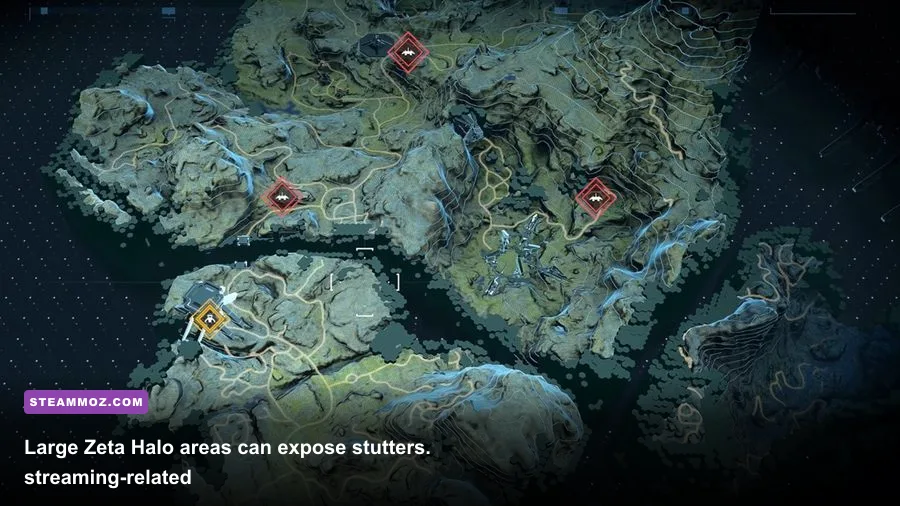
The campaign's open spaces create more streaming work than a small arena. Driving quickly across Zeta Halo can expose a slow hard drive, low available RAM, or a memory-management issue even when indoor multiplayer maps run perfectly. Install Halo Infinite on an SSD, preferably an NVMe drive with plenty of free space. An SSD will not magically raise average FPS, but it can reduce traversal hitches and texture-pop delays.
Use an adequately sized Windows page file on the SSD. System-managed size is usually the safest choice. Disabling virtual memory is a bad performance tweak for Halo Infinite because the game, browser, Xbox services, and GPU driver may all need committed memory at once. Close unnecessary applications and avoid recording uncompressed footage to the same drive while testing campaign performance.
Keep Texture Quality below Ultra when you have 6GB or less VRAM, especially at 1440p. Watch dedicated GPU memory while entering a heavily detailed area such as a Forerunner structure or Banished base. If usage is at the limit and hitching begins, lower textures and effects before touching resolution. On a 16GB system, background applications can also leave too little RAM for smooth streaming; 32GB is a more comfortable target for modern Windows gaming.
For more hardware-focused comparisons, Steamoz's PC specs explainer and system requirements guide offer useful ways to judge whether a component is genuinely below a game's practical target. The same logic applies here: minimum specifications describe launchability, not a locked competitive frame rate.
Final Troubleshooting Order for Halo Infinite
If you want the shortest reliable path, follow this order: update Windows and the GPU driver; verify Halo Infinite's files; disable every overlay; reset overclocks; clear the shader cache; install the game on an SSD; then apply a capped FPS profile with Raytraced Sun Shadows off. Test multiplayer first, then campaign traversal. If the issue disappears after one step, stop changing things and record that setting for future updates.
For most mid-range PCs, the winning profile is 1080p, 100 percent resolution scale, Dynamic Resolution enabled, textures High only when VRAM allows it, shadows Low or Medium, effects Medium, terrain Medium, simulation Medium, and a fixed 60, 90, or 120 FPS cap. High-end systems can push resolution and textures harder, but even an RTX 4080 benefits from a cap when the goal is consistent competitive input rather than a fluctuating benchmark score.
Finally, keep an eye on the official Halo Support site and the Halo Waypoint news hub after major updates. Halo Infinite's rendering behavior can change with driver releases, seasonal patches, and new content. A setting that fixes stuttering today may need revisiting after a large update, but the core approach remains the same: identify the bottleneck, stabilize frame times, and only then raise visual quality.