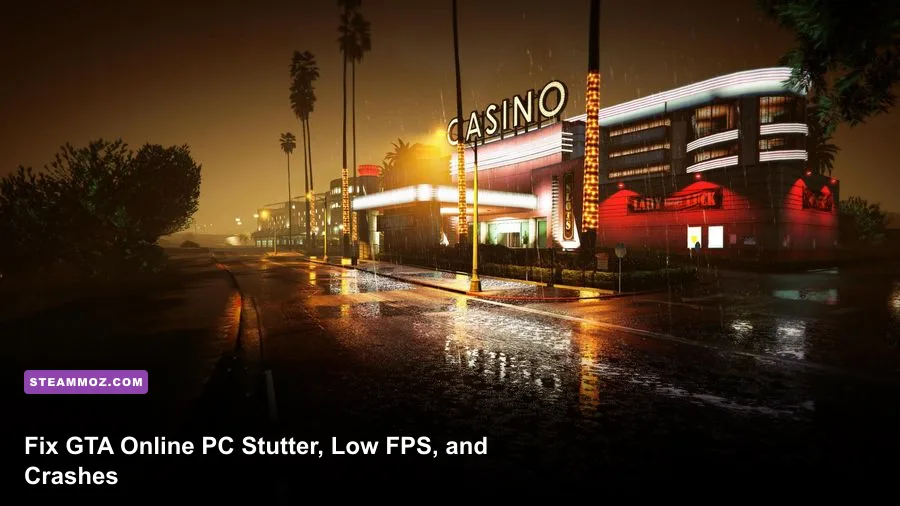
To fix GTA Online stuttering, low FPS, and crashes on PC, start by separating the problem: use a capped frame rate, reduce CPU-heavy population and distance settings, disable overlays and incompatible mods, verify the game files, reset GTA V's settings.xml, and update or clean-install your GPU driver. For GTA V Enhanced, install the game on an SSD and check BattlEye; for Legacy, focus first on CPU frame-time spikes, corrupted configuration files, and background software.
GTA Online is unusually sensitive to frame pacing. You can see 90 FPS in an empty interior and still feel every hitch when the camera sweeps across downtown Los Santos. That happens because the renderer is not only drawing a large world; it is streaming traffic, pedestrians, buildings, reflections, shadows, and online-session data while the CPU handles simulation. The fix isn't one magic launch command. It's a controlled tune-up that identifies whether your GPU, CPU, storage, memory, driver, or game installation is the actual bottleneck.
First, identify what is causing the hitch
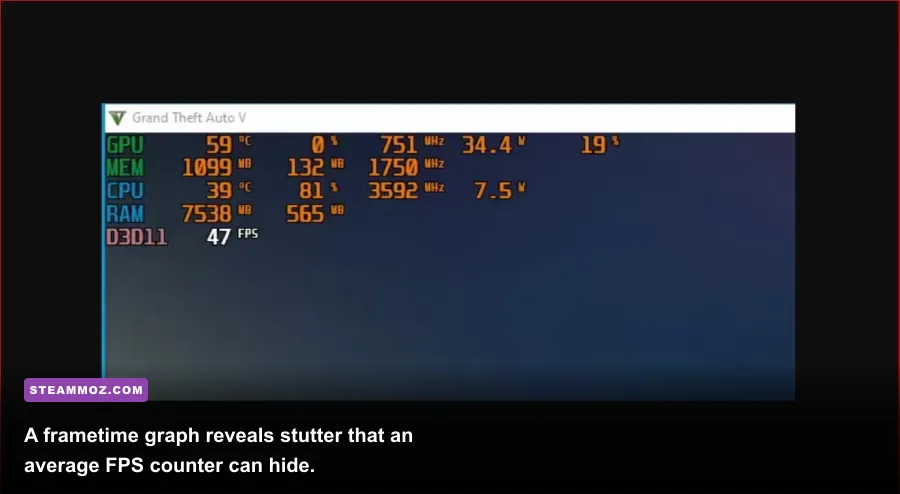
Before changing ten settings at once, run the same test three times. Load into Story Mode, drive from the Del Perro Pier through downtown Los Santos, then enter an invite-only GTA Online session. Watch the GPU usage, CPU usage, VRAM allocation, RAM usage, average FPS, and especially frametime. MSI Afterburner with RivaTuner Statistics Server works well, although the Xbox Game Bar performance widget is enough for a basic check.
A smooth 60 FPS frame should arrive every 16.7 milliseconds. If the graph repeatedly jumps to 40, 80, or 150 milliseconds, you have stutter even if the counter says 60. GPU usage sitting around 95-99 percent means the graphics card is the limit. GPU usage falling to 60-80 percent while one or two CPU threads are saturated points to the game engine, population density, distance scaling, or another CPU task. Sudden drops to single-digit FPS usually suggest shader compilation, asset streaming, thermal throttling, a driver conflict, or storage trouble rather than a normal graphics bottleneck.
| Symptom | Likely cause | First test | Best first fix |
|---|---|---|---|
| GPU at 98-100%, stable usage | GPU-limited settings or resolution | Lower MSAA, reflections, and resolution | Use the Balanced profile below |
| GPU below 80%, CPU thread maxed | Population, distance scaling, or CPU limit | Lower population and extended distance | Cap FPS and reduce CPU-heavy sliders |
| Brief freezes while driving fast | Streaming, slow drive, or shader cache | Compare SSD and HDD behavior | Move the game to an SSD and rebuild cache |
| Crash at launch or loading | Files, mods, overlays, driver, or BattlEye | Launch with a clean game folder | Verify files and remove injectors |
| Online-only disconnect or crash | BattlEye or third-party software | Test an invite-only session | Repair BattlEye and disable overlays |
Use the official Rockstar Games Support status and troubleshooting pages if every mode fails at the same time. A server outage won't be solved by lowering texture quality, and a local crash won't be fixed by waiting for matchmaking.
Use a stable GTA Online graphics profile
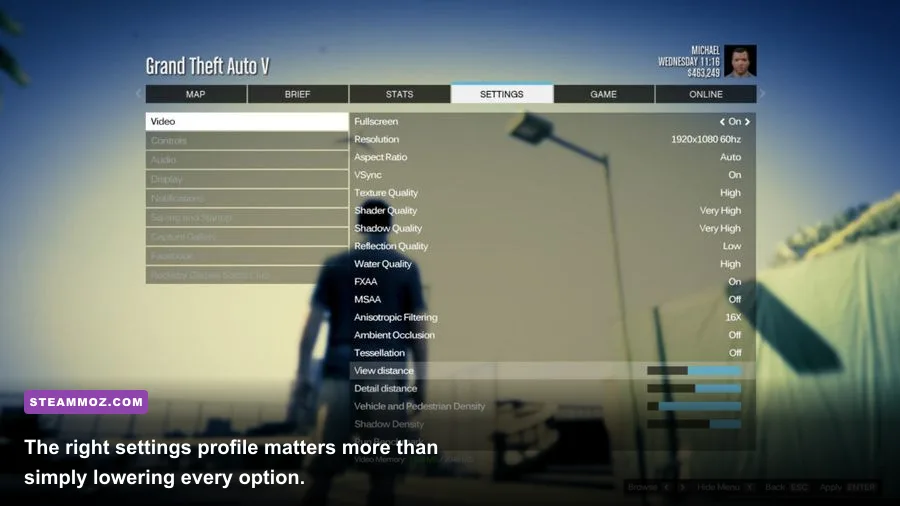
GTA V's most expensive options aren't always the prettiest. MSAA is a classic performance trap: 4x MSAA can remove jagged edges, but it consumes a large amount of GPU bandwidth and VRAM, especially with high-resolution grass and reflections. Advanced Graphics settings are even more dangerous because Extended Distance Scaling and Extended Shadow Distance can push draw calls far beyond what your processor can comfortably deliver.
Start with a frame-rate target your system can hold during a busy public session, not an empty garage. If your PC fluctuates between 55 and 100 FPS, a locked 60 FPS often feels better than an uncapped average of 75. Use the in-game limiter first. If frame pacing remains uneven, cap through RTSS a few frames below your display refresh rate—for example, 58 FPS on a 60 Hz monitor, 72 FPS on a 75 Hz display, or 141 FPS on a 144 Hz monitor. Enable G-SYNC or FreeSync if your monitor supports it, then avoid stacking multiple limiters unless testing shows a benefit.
| Setting | Recommended value | Typical FPS impact | Visual and performance note |
|---|---|---|---|
| Screen Type | Fullscreen | Low | Usually provides the most predictable focus and frame pacing. |
| Texture Quality | Very High if VRAM allows | Low to medium | Mostly affects VRAM; lower it if textures stream late or shimmer. |
| Shader Quality | High | Low | Keep High unless older GPUs show shader-heavy drops. |
| Shadow Quality | High or Normal | Medium | High-quality shadows cost GPU time across the entire scene. |
| Reflection Quality | High | Medium to high | Lower this before textures; water and car reflections are expensive. |
| Reflection MSAA | Off | High | One of the easiest settings to disable for a large gain. |
| Water Quality | High | Low to medium | Normal is sensible on entry-level GPUs. |
| Particles | High | Low | Explosions can expose weak GPUs, but this is rarely the main culprit. |
| Grass Quality | High or Normal | High | Ultra grass can punish both GPU performance and frame-time consistency. |
| Post FX | High | Medium | Very High adds motion blur and depth effects you may not need. |
| MSAA | Off or 2x | High | Use FXAA and modern driver sharpening before jumping to 4x MSAA. |
| Population Density | 50-70% | CPU-dependent | Lowering it reduces traffic and pedestrian simulation in crowded areas. |
| Population Variety | 50-70% | Low to medium | Reduces asset variety and streaming pressure without emptying Los Santos. |
| Distance Scaling | 40-60% | CPU-dependent | High values increase draw calls and can cause downtown stutter. |
| Extended Distance Scaling | 0% | Very high | Leave off while troubleshooting; it is a common frame-time killer. |
| Extended Shadows | Off | Medium to high | Disable it unless you have substantial CPU and GPU headroom. |
Keep texture quality high when your VRAM budget permits it, but don't confuse texture memory with raw performance. GTA V Legacy generally behaves well with a 4GB graphics card at 1080p, while GTA V Enhanced is substantially more demanding. The official Steam listing for GTA V Enhanced lists an SSD and a DirectX 12-capable GPU, so an old HDD or a card near the minimum specification can create streaming hitches even when the average FPS looks acceptable.
Two profiles worth trying
Balanced 60 FPS: Use 1080p, High textures, High shaders, High or Normal shadows, High reflections, Off reflection MSAA, High water, High particles, High post FX, Normal or High grass, FXAA on, MSAA off, population at 60%, distance scaling at 50%, and all Advanced Graphics options off. This is the profile to use first on a six-core mainstream CPU and a GTX 1660, RTX 2060, RX 5600 XT, or similar card.
Competitive smoothness: Use 1080p or 1440p, High textures, Normal shadows, Normal reflections, Normal grass, FXAA on, MSAA off, population at 40-50%, distance scaling at 35-45%, and a firm 60, 90, or 120 FPS cap. You lose some foliage and distant detail, but aiming, driving, and aerial combat feel more consistent. This profile is often better than chasing a fluctuating 144 FPS on a CPU-limited system.
Stop crashes caused by files, mods, and overlays
Remove every unofficial modification before diagnosing GTA Online. ScriptHookV, OpenIV ASI loaders, ReShade, Redux, custom DLLs, and single-player trainers can be perfectly harmless in Story Mode yet trigger BattlEye or crash when Online initializes. Move mod files out of the main directory rather than merely disabling a launcher toggle. Pay particular attention to dinput8.dll, dsound.dll, version.dll, and custom ASI files. Never use a mod menu or memory injector in GTA Online.
Next, verify the installation. On Steam, right-click Grand Theft Auto V, choose Properties, Installed Files, and Verify integrity of game files. The official GTA V Steam page is the correct product page for the Legacy PC build; Rockstar Launcher and Epic users should use their launcher's equivalent verify or repair option. Verification can replace a broken executable or archive, but it won't remove a bad settings file or an injected third-party DLL.
Reset the configuration after a crash loop. Close the game and launcher, then open Documents\Rockstar Games\GTA V. Rename settings.xml to settings.old and, if necessary, rename the Profiles folder after backing it up. The next launch creates a clean configuration. Don't delete your entire Documents folder blindly: profile data and local screenshots may be stored there. If the game crashes immediately after changing graphics settings, this reset is often faster than reinstalling.
Disable overlays one at a time: Steam Overlay, Discord Overlay, Xbox Game Bar, NVIDIA App or GeForce Experience overlay, AMD Adrenalin overlay, MSI Afterburner OSD, Overwolf, and motherboard monitoring utilities. Also turn off third-party “game optimizers” and RGB tools for testing. These programs hook into the rendering pipeline, and two overlays fighting over DirectX 12 or an anti-cheat module can produce a crash that looks like a GPU failure.
For more general troubleshooting patterns, Steamoz's guides on PC crash and FPS fixes and low-FPS diagnosis cover the same clean-install and overlay principles in other demanding PC games.
Fix BattlEye, launcher, and driver conflicts
GTA Online on current PC builds uses BattlEye anti-cheat. If Story Mode works but Online crashes, freezes at the loading screen, or closes with an initialization error, BattlEye deserves immediate attention. Open the GTA V installation folder, locate the BattlEye directory, and run the included uninstall and install or repair tools if they are present. Then reboot Windows and launch the game normally from Steam, Epic, or Rockstar Games Launcher. Avoid custom compatibility modes and don't add random BattlEye DLLs downloaded from unofficial sites.
Check Windows Security and any third-party antivirus quarantine history. A security product that blocks the launcher, Social Club, or BattlEye service can create a silent failure. Add the official game and launcher folders as exclusions only if you trust the installation, then remove those exclusions again if they don't help. Also check that Windows is fully updated and that the Rockstar Games Launcher is current.
GPU drivers are another frequent culprit, particularly after switching from AMD to NVIDIA or installing several major driver branches over an old installation. Download the current driver directly from the NVIDIA driver page or AMD support page. Choose a clean installation where offered. If crashes started immediately after a driver update, rolling back to the previous stable driver is a sensible test.
Clear shader caches only after closing GTA V and the launcher. Windows' DirectX Shader Cache can be removed through Settings, System, Storage, Temporary files. NVIDIA and AMD also maintain driver shader caches. The next launch may stutter briefly while shaders rebuild; that first-run hitch is expected and should not be mistaken for a failed fix. If stutter continues across several sessions, the cache is not the only problem.
Don't run GTA V with aggressive CPU, GPU, or RAM overclocks while troubleshooting. An undervolt that passes a benchmark can still fail during GTA Online's mixed CPU-GPU workload. Return to stock settings, disable motherboard auto-overclocking, and test again. Watch temperatures and clock speeds: a CPU or GPU that drops clocks under load can explain a smooth opening minute followed by worsening performance.
Remove streaming stutter with storage and Windows fixes
Install GTA V Enhanced on an SSD, preferably an NVMe drive with at least 15-20% free space. The game constantly streams world data as you cross Los Santos, and an aging mechanical hard drive can turn rapid driving into visible pauses, missing textures, and delayed building detail. A SATA SSD is still a major improvement over an HDD. Keep the Windows page file system-managed on an SSD; disabling virtual memory can cause crashes when GTA V, a browser, Discord, and recording software compete for RAM.
Use Windows Game Mode, but test Hardware-Accelerated GPU Scheduling rather than assuming it helps. On some systems HAGS improves frame pacing; on others it introduces instability with an older driver. Change one option, reboot, and repeat the same route. Set GTA5.exe to High performance in Windows Graphics settings if you have a hybrid laptop. On laptops, connect the power adapter, select the manufacturer's performance mode, and force the discrete GPU in NVIDIA Control Panel or AMD Software.
Background CPU spikes matter more in GTA Online than many players expect. Pause OneDrive synchronization, browser video playback, torrent clients, RGB suites, and scheduled scans while testing. Disable unnecessary startup applications through Task Manager. Don't set the process priority to Realtime; it can starve audio, input, or anti-cheat services and make the whole PC less stable. Normal priority is usually correct, while High is only worth testing for a very specific scheduling problem.
V-Sync deserves a deliberate setup. If you use adaptive sync, enable G-SYNC or FreeSync for fullscreen and borderless modes, cap the frame rate slightly below refresh, and test in-game V-Sync off first. If tearing bothers you and adaptive sync isn't available, in-game V-Sync can stabilize presentation at the cost of latency. For a 60 Hz display, a reliable 60 is preferable to a fluctuating 75 with repeated drops to 45.
Use this order when nothing else works
- Return hardware to stock. Remove GPU, CPU, and RAM overclocks, connect the PC to power, and confirm temperatures and clock speeds during a 15-minute session.
- Clean the game folder. Move out ScriptHookV, ReShade, ASI loaders, trainers, custom DLLs, and every mod. Keep a backup outside the GTA V directory.
- Verify files. Run Steam, Epic, or Rockstar Launcher verification, then restart Windows instead of immediately launching again.
- Reset settings.xml. Rename the configuration file in Documents\Rockstar Games\GTA V and let the game generate a fresh one.
- Test the Balanced profile. Turn off MSAA, Reflection MSAA, Extended Distance Scaling, and Extended Shadows. Set population and distance scaling to 50%.
- Repair BattlEye. Use the files included with the installation, confirm antivirus has not quarantined the service, and launch Online without overlays.
- Clean-install or roll back the GPU driver. Use the official vendor package, then rebuild the shader cache through a normal first launch.
- Move the game to an SSD. This is especially important for GTA V Enhanced and for driving-related pauses caused by slow asset streaming.
- Test Story Mode, invite-only Online, and public Online separately. If only public sessions fail, network or session behavior is involved; if every mode fails, keep investigating the local installation.
| Component | Legacy baseline | Enhanced baseline | Practical recommendation |
|---|---|---|---|
| Operating system | 64-bit Windows 10-class system | 64-bit Windows 10 or newer | Keep Windows updated and use current chipset drivers. |
| Memory | 8GB minimum class | 8GB minimum class | 16GB is a much safer target with browsers and overlays closed. |
| Storage | Large HDD installation possible | SSD strongly expected | Use an SSD for both game files and the page file. |
| Graphics memory | 2GB-class minimum | Modern 4GB-class minimum | 4-8GB VRAM gives more room for high textures at 1080p. |
| CPU target | Older quad-core can launch | Modern six-core is preferable | Prioritize strong per-core performance for city and traffic scenes. |
| Performance target | Stable 60 FPS at 1080p | Stable 60 FPS at 1080p | Consistency beats an uncapped average with bad 1% lows. |
That hardware distinction matters. GTA V Legacy can remain playable on older machines that struggle badly with Enhanced, while Enhanced adds heavier rendering features and a more demanding storage and graphics baseline. If your PC barely meets the Enhanced minimum, lowering the resolution and Advanced Graphics settings is more realistic than chasing a locked 120 FPS.
For broader GPU tuning ideas, Steamoz's Far Cry 6 performance settings guide and Filament FPS settings guide offer useful comparisons of frame caps, overlays, and graphics trade-offs.
If you still crash after a clean folder, verified files, repaired BattlEye, reset settings, and a stock driver, collect the Rockstar launcher logs and crash details before contacting official Rockstar PC support. Include your GTA V version, GPU model, driver version, Windows build, whether you use Legacy or Enhanced, and the exact moment of failure. “It crashes” is frustratingly hard to diagnose; “it crashes when entering a public session after BattlEye initializes, while Story Mode works” gives support something actionable.
The most reliable GTA Online setup is refreshingly unglamorous: clean game files, no injectors, current drivers, an SSD, 16GB of RAM, sensible population and distance settings, and a frame cap your busiest city scenes can actually hold. Start there, measure frametime rather than average FPS, and add visual quality back one setting at a time. Los Santos is still demanding, but it shouldn't be the reason your PC freezes every time you reach the Diamond Casino.