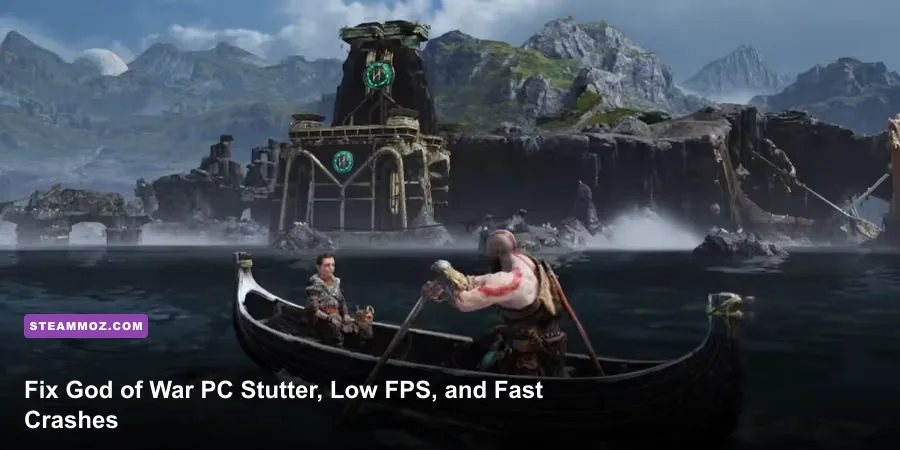
If God of War PC is stuttering, running below its expected FPS, or crashing to desktop, start with a clean GPU driver install, verify the game files, move the game to an SSD, and use a sensible High settings profile with DLSS or FSR 2.0. The biggest wins usually come from reducing shadows, reflections, atmosphere, and CPU-heavy background activity rather than blindly dropping every option to Low.
Santa Monica Studio's 2018 adventure is still demanding because it streams huge environments around Kratos and Atreus while handling cinematic camera work, physics, particle effects, and combat effects at the same time. A PC that holds 60 FPS in a simple hallway can hitch badly around the Lake of Nine, during the Stranger fight, or when entering a new realm. Follow the fixes below in order so you can identify the real cause instead of changing ten variables at once.

Check Your PC Against God of War's Real Demands
Before tuning graphics, confirm that your system is above the port's baseline. The official Steam listing asks for Windows 10 64-bit, 8GB of RAM, an Intel Core i5-2500K or AMD Ryzen 3 1200, and a GeForce GTX 960 4GB or Radeon R9 290X 4GB at minimum. That target is designed around 720p at Low settings and roughly 30 FPS, not a locked 60 FPS experience.
The recommended specification is an Intel Core i5-6600K or Ryzen 5 2400G, 8GB of RAM, and a GTX 1060 6GB or Radeon RX 570 4GB. Even that recommended tier should be treated as a 1080p High, approximately 30-FPS-class target rather than a guarantee of smooth 60 FPS. The game also needs around 70GB of storage, and an SSD is strongly preferable because slow asset streaming is a common source of traversal hitching.
| Target | Hardware Profile | Expected Result | Best Storage Choice |
|---|---|---|---|
| Minimum | GTX 960 4GB, i5-2500K, 8GB RAM | 720p Low, around 30 FPS | SSD recommended |
| Recommended | GTX 1060 6GB, i5-6600K, 8GB RAM | 1080p High, around 30 FPS | SSD preferred |
| 60-FPS target | Modern six-core CPU, RTX 2060 or RX 6600-class GPU, 16GB RAM | 1080p High with upscaling | NVMe SSD ideal |
| 1440p target | RTX 3060 Ti or RX 6700 XT-class GPU, 16GB RAM | High settings with DLSS or FSR | NVMe SSD ideal |
Use the official God of War Steam page to compare the published requirements with your machine. If you only have 8GB of RAM, close browsers, launchers, RGB utilities, and recording software before testing. The game can run with 8GB, but 16GB gives Windows enough breathing room to prevent paging stutters.
🎮 God of War
Looking to experience this game? Grab your digital key directly on our store for $49.99.
View on Steammoz Store →Apply These Graphics Settings for Smoother FPS
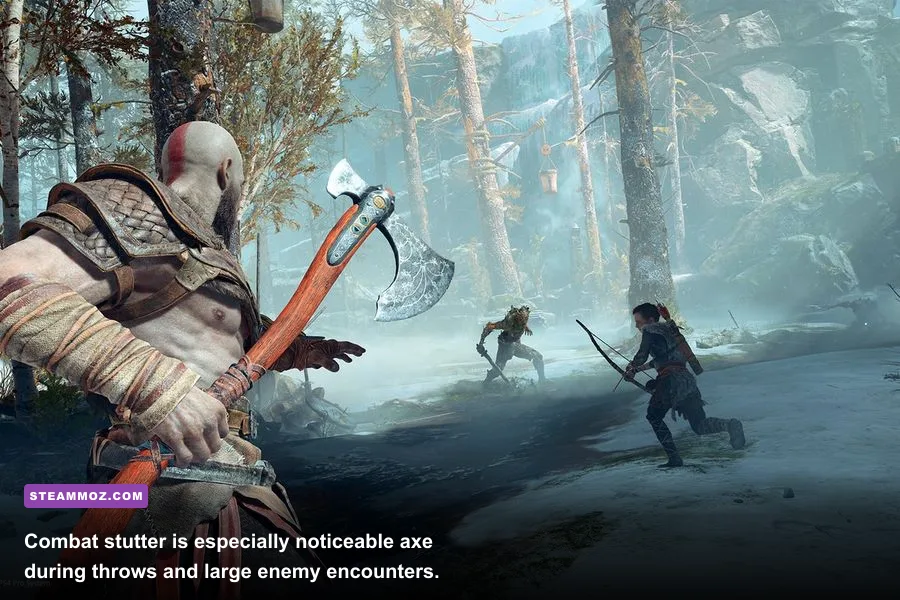
God of War's Ultra preset is a poor starting point for troubleshooting. It increases image quality in several areas that are expensive during realm transitions and wide outdoor scenes, but it doesn't always deliver a proportional visual upgrade. Select High first, restart the game, and then adjust individual settings while watching frame time rather than only the average FPS counter.
| Setting | Recommended Value | FPS Impact | Visual Trade-Off |
|---|---|---|---|
| Texture Quality | High if VRAM allows | Medium on 4GB cards | Lower values blur armor and environment detail |
| Model Quality | High | Medium | Low reduces geometry detail at distance |
| Atmospherics Quality | Medium | High | Less fog and volumetric depth in realms |
| Shadows | Medium | High | Shadow edges become softer and less detailed |
| Reflections | Medium | Medium to high | Water and polished surfaces lose clarity |
| Ambient Occlusion | On or Low | Low to medium | Contact shadows look less pronounced |
| Anisotropic Filtering | 8x | Very low | Keep this on for sharper ground textures |
| Tessellation | Off or Low | Medium | Small gains in surface geometry are lost |
| Motion Blur | Off | Small | Cleaner camera movement and combat visibility |
| Film Grain | Off | Negligible | Sharper image with less artificial noise |
Use resolution scaling before destroying texture quality
On an Nvidia GPU, enable DLSS and start with Quality at 1080p or 1440p. If your card still dips below your target, try Balanced. DLSS generally preserves fine detail better than a major native-resolution reduction, though foliage and thin geometry can shimmer at aggressive modes.
AMD and compatible Nvidia cards should test FSR 2.0 in Quality mode first. Balanced is useful for a 1440p 60-FPS target, while Performance should be reserved for weaker hardware or 4K output. Don't stack aggressive upscaling with Low textures on a 4GB card; the result can look soft while still suffering from VRAM pressure.
Set the in-game frame limiter a few frames below your monitor's refresh rate if frame pacing feels uneven. For a 60Hz display, a stable 58 or 60 FPS cap is better than wild swings between 45 and 75. If your system cannot hold 60, lock 30 or 40 FPS consistently instead of chasing an unstable number. A flat 40 FPS on a 120Hz display can feel surprisingly good, while repeated 30-to-50 FPS spikes feel awful.
Stop Stuttering Caused by Drivers, Shaders, and Background Apps
Stuttering has two different personalities. Brief hitches when entering a new area often come from shader compilation or asset streaming. Repeated pauses during every fight usually point to a driver, overlay, CPU, storage, or VRAM problem. Test the game after each change and note whether the hitch happens in the same location.
1. Install the latest stable GPU driver cleanly
Download the current driver directly from the Nvidia driver page or the AMD support page. Choose a clean installation when the installer offers it. If the problem began immediately after a driver update, test the previous stable driver rather than repeatedly reinstalling the same package.
For persistent crashes, use Display Driver Uninstaller in Windows Safe Mode, reboot, and install only the graphics driver and required control panel. Avoid installing extra capture, browser, or promotional components until the game is stable. This is particularly useful after switching from Radeon to GeForce or vice versa.
2. Disable overlays and aggressive monitoring tools
Turn off Steam Overlay, Discord Overlay, GeForce Experience or Radeon recording, Xbox Game Bar, MSI Afterburner OSD, and motherboard control software for one test run. These tools aren't automatically bad, but each one hooks into the rendering pipeline. God of War can crash at launch or hitch during a cutscene when several overlays try to capture the same frame.
Also disable browser hardware acceleration temporarily, especially Chrome or Edge with multiple video tabs open. Check Task Manager while playing and close anything consuming CPU time or several gigabytes of memory. If you use a laptop, select the dedicated GPU in Windows Graphics Settings and play while connected to AC power.
3. Clear shader and DirectX caches carefully
Use Windows Settings, System, Storage, Temporary Files, and remove DirectX Shader Cache. Nvidia users can also clear the contents of the shader cache folder through Disk Cleanup or the Nvidia control panel settings; AMD users can use the Reset Shader Cache option in Adrenalin. The first launch afterward may stutter while shaders rebuild, so let the game sit at the menu for a minute and then revisit the same test area.
Don't delete your save files while cleaning caches. Your campaign progress lives separately, and deleting random folders in Documents can create a new problem. Back up your saves before experimenting with configuration files.
4. Verify files and repair Windows components
In Steam, right-click God of War, open Properties, Installed Files, and select Verify integrity of game files. This repairs damaged archives after an interrupted update. If verification repeatedly redownloads files, check the SSD's health and available space.
Run sfc /scannow in an Administrator Command Prompt, followed by DISM /Online /Cleanup-Image /RestoreHealth if Windows reports corruption. Install pending Windows updates, but avoid testing during an active update or antivirus scan. For more general PC crash troubleshooting, Steamoz's ELEX crash and FPS fixes cover several of the same driver and overlay checks.
Fix Crashes at Launch, During Cutscenes, or in Combat

Different crash timings point toward different faults. A crash before the main menu usually suggests a driver, permissions, corrupted configuration, or missing runtime issue. A crash after several minutes can indicate overheating, unstable overclocking, VRAM exhaustion, or a memory leak triggered by a specific area.
| Crash Timing | Likely Cause | First Fix to Try | Follow-Up Test |
|---|---|---|---|
| Immediately after launch | Driver, overlay, bad config | Clean driver and disable overlays | Launch with default settings |
| During a cutscene | Overlay hook, corrupted file, VRAM spike | Verify files and lower textures | Replay the same checkpoint |
| Entering a new realm | Streaming, shader cache, storage | Move game to SSD and rebuild cache | Monitor disk usage and frame time |
| After 20-60 minutes | Heat, RAM pressure, overclock | Return CPU/GPU to stock settings | Log temperatures and memory use |
| Only with HDR or ultrawide | Display mode conflict | Test borderless and disable HDR | Re-enable features one at a time |
Reset the configuration without touching saves
Exit the game and back up the God of War settings folder under your user Documents or Saved Games location before renaming it. The exact folder can vary by Windows installation and port updates, so search for the God of War configuration directory rather than deleting files from memory. Rename the folder to something like GodOfWar_backup, launch the game, and let it create fresh defaults.
This can fix black screens, instant crashes after changing resolution, and settings that refuse to apply. Rebuild your profile slowly. Start at 1080p, borderless or fullscreen, High preset, motion blur off, and upscaling disabled. Once that baseline works, add DLSS or FSR and raise one setting at a time.
Remove unstable overclocks and check thermals
God of War is an excellent stability test because it loads both the CPU and GPU for long stretches. Return GPU undervolts, memory overclocks, XMP or EXPO experiments, and CPU tuning to stock settings. A benchmark passing for ten minutes doesn't prove a demanding campaign is stable.
Watch GPU temperature, hotspot temperature, CPU package temperature, clock speed, and VRAM usage. If the GPU hits its thermal limit and clocks collapse, improve airflow or cap FPS. If VRAM reaches capacity, lower Texture Quality and Model Quality first. If system RAM is nearly full, close background applications or upgrade to 16GB. Hardware instability often masquerades as a game-specific crash.
For an additional checklist covering a different DirectX title, see Steamoz's EscapeVR crashing and low-FPS fixes. The same clean-install and temperature logic applies here.
Build a Stable God of War PC Performance Profile
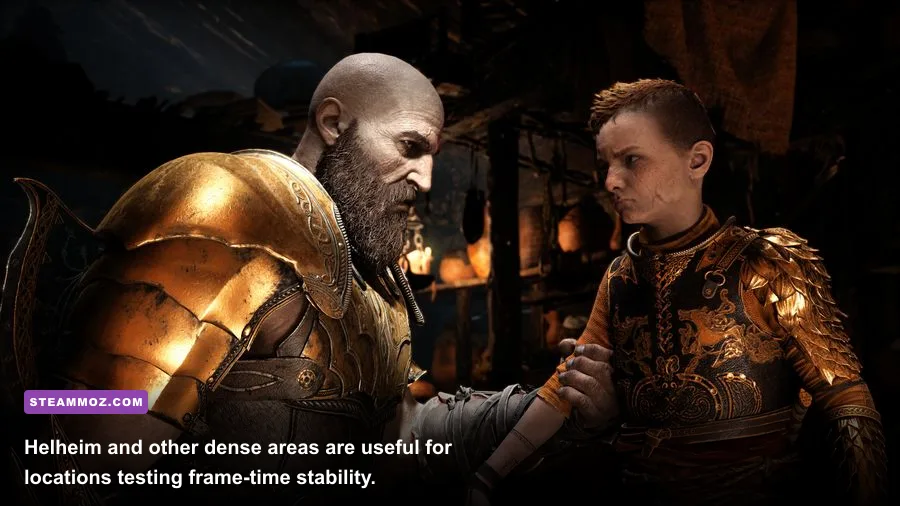
Once the game stops crashing, tune for consistent frame time. A useful test route starts at the Lake of Nine, moves through a busy dock or shop area, and then includes a combat encounter with multiple enemies. The opening fight with the Stranger is also valuable, but don't use a quiet menu or empty corridor as your only benchmark.
Save your profile after each successful change. If performance drops after a driver update, you can quickly return to a known-good setup. Use the game's performance display or a tool such as CapFrameX to watch the 1% low FPS. Average FPS tells you how fast the best moments are; 1% lows reveal the hitching you actually feel.
| Hardware Situation | Resolution | Preset Profile | Upscaling and Cap |
|---|---|---|---|
| GTX 960 or RX 470-class | 720p-900p | Low, textures Medium if VRAM permits | FSR Performance, 30 FPS cap |
| GTX 1060 or RX 570-class | 1080p | High, shadows and atmospherics Medium | FSR Quality or native, 30-45 FPS |
| RTX 2060 or RX 6600-class | 1080p | High, reflections Medium | DLSS or FSR Quality, 60 FPS target |
| RTX 3060 Ti or RX 6700 XT-class | 1440p | High, selective Ultra textures | DLSS or FSR Quality, 60 FPS cap |
| RTX 4070 or RX 7800 XT-class | 1440p-4K | High to Ultra after testing | Quality upscaling, refresh-rate cap |
Use Windows and Steam settings that reduce surprises
Set Windows to High Performance or the appropriate game-focused power mode, but don't disable every power-saving feature if temperatures are already high. Enable Game Mode, keep the page file system-managed, and leave enough free space on the game drive for updates and shader data. A drive with only a few gigabytes remaining can produce unusual streaming behavior.
Try both exclusive fullscreen and borderless if one mode produces black screens or inconsistent frame pacing. Disable third-party frame limiters while testing the in-game limiter. If you use G-Sync or FreeSync, enable the monitor's variable refresh mode, cap FPS slightly below the display's maximum, and avoid combining several independent sync methods.
When lowering settings doesn't fix the problem
If Low settings barely improve FPS, you may be CPU-limited, thermally throttled, or dealing with background activity rather than GPU load. Check GPU utilization during a hitch. GPU usage near 95-99% means lower resolution, DLSS, FSR, shadows, or atmospherics can help. GPU usage falling sharply while one CPU core is maxed points toward a CPU or streaming bottleneck, where lowering resolution won't do much.
If every game stutters, test RAM stability, storage health, chipset drivers, and Windows power behavior. If only God of War has trouble, focus on its files, shader cache, overlays, and configuration. The Far Cry 6 settings guide and Filament FPS settings guide also show why frame caps and targeted setting cuts usually beat an all-Low preset.
Finally, keep the official God of War game page and PlayStation Support bookmarked for publisher information and account-related checks. After each fix, test the same save, same display mode, and same graphics profile for at least 15 minutes. That repeatable approach will tell you whether you actually solved the stutter or simply got lucky during a quiet section of Midgard.