If your CyberPowerPC Gamer Xtreme is stuttering, delivering unexpectedly low FPS, or crashing during games, don't buy new parts first. The fastest fixes are usually enabling the correct GPU, removing thermal throttling, updating the chipset and graphics drivers cleanly, and using a sensible FPS cap. Work through the checks below in order; each one targets a different failure point, from Windows selecting integrated graphics to unstable RAM or a clogged front-panel filter.
“Gamer Xtreme” covers many configurations, including systems with Intel Core i5-10400F, i5-11400F, i5-12400F, or newer processors paired with GeForce GTX 1660, RTX 2060, RTX 3060, RTX 4060, and Radeon alternatives. That matters. A 1080p profile that works beautifully on an RTX 4060 may be too ambitious for a GTX 1660, while a crashing RTX 3060 system needs a different diagnosis from a machine that simply runs out of CPU headroom.
Start by identifying the real bottleneck
Install MSI Afterburner and enable the on-screen display for GPU usage, GPU temperature, CPU usage, CPU temperature, VRAM, RAM, FPS, and frame time. A smooth 60 FPS frame takes about 16.7 milliseconds; 30 FPS takes 33.3 ms. The average FPS counter can look fine while frame-time spikes produce the familiar hitch every few seconds.
Play the same demanding scene for five minutes rather than jumping between menus. If GPU usage stays between 95 and 99 percent, the graphics card is the limit. Reduce resolution, render scale, shadows, reflections, and ray tracing. If GPU usage sits around 50 to 75 percent while one or two CPU threads hit 100 percent, lowering graphics quality won't help much. Reduce view distance, NPC density, simulation quality, and background applications instead.
| What the overlay shows | Likely cause | Best first fix |
|---|---|---|
| GPU 95-99%, stable clocks | GPU-limited rendering | Lower resolution, ray tracing, shadows, or cap FPS |
| GPU below 80%, one CPU thread at 100% | CPU or game-engine bottleneck | Lower crowd density and close browser overlays |
| GPU and CPU temperatures above 85°C | Thermal throttling | Clean filters, improve airflow, check fan curves |
| RAM above 90% or VRAM nearly full | Memory pressure and asset streaming | Close apps, lower textures, use an FPS cap |
| Frame time spikes with normal temperatures | Shader compilation, driver, storage, or background task | Update drivers and move the game to an SSD |
Use Windows Task Manager's Performance tab as a second opinion. A Gamer Xtreme with 8GB of RAM can stutter badly in modern games once Windows, Discord, a browser, and the game compete for memory. If memory usage is consistently above 90 percent, 16GB is the practical baseline. Dual-channel 2x8GB is preferable to a single 16GB stick because it gives the CPU more memory bandwidth.
Fix power, heat, and the wrong-GPU problem
First, connect your monitor to the graphics card's HDMI or DisplayPort outputs, not the motherboard's video ports. The motherboard ports may route through integrated graphics or produce no signal, depending on the processor. This simple mistake can make a powerful Gamer Xtreme appear catastrophically slow.
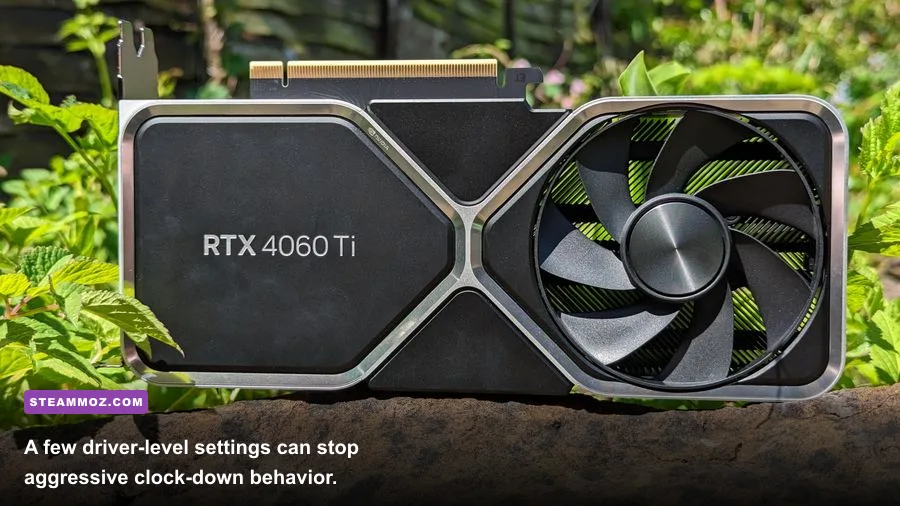
In Windows 11, open Settings, System, Display, Graphics, select the game's executable, choose Options, and set it to High performance. In NVIDIA Control Panel, open Manage 3D settings, select the game, choose the dedicated NVIDIA processor if the option exists, set Power management mode to Prefer maximum performance, and leave Low Latency Mode off initially. Enable it only after the game is stable; forcing several latency features at once can create inconsistent frame pacing.
Heat is the other common culprit. CyberPowerPC cases vary, but the usual warning signs are fans suddenly becoming loud, clocks dropping after 10 to 20 minutes, and FPS falling without any graphics-setting change. Shut down the PC, unplug it, and use compressed air to clean the front filter, CPU cooler, graphics-card heatsink, and rear exhaust. Hold fans still while cleaning rather than letting compressed air spin them freely.
Use these temperature targets as troubleshooting guidelines, not hard failure limits. Many GPUs can technically operate above them, but sustained high temperatures leave less boost headroom and make stutter more likely.
| Component | Healthy gaming range | Warning sign | Action |
|---|---|---|---|
| GPU core | 55-80°C | 85°C or higher with clock drops | Clean airflow and check GPU fans |
| CPU | 50-80°C | 90-95°C repeatedly | Inspect cooler mounting and case airflow |
| GPU hotspot | Below 95°C | 100-110°C range | Check paste, cooler contact, and airflow |
| SSD | 30-70°C | 75°C or higher | Improve heatsink contact and ventilation |
Set Windows to Settings, System, Power, and choose Best performance while testing. Also confirm that the PC's power cable is fully seated and that the graphics card's PCIe power connector is secure. If the PC instantly reboots instead of showing a game error, suspect power delivery, overheating, or unstable memory before blaming the game.
Build a stable FPS profile instead of chasing maximum settings
Uncapped FPS is often the reason a midrange Gamer Xtreme feels worse than its benchmark average. The GPU runs at 99 percent, clocks and temperatures fluctuate, and frame delivery becomes uneven. Cap the frame rate a few frames below your display refresh rate: 58 FPS for a 60Hz monitor, 72 for 75Hz, 117 for 120Hz, and 141 for 144Hz. If the system cannot hold that target, use 60, 45, or 30 consistently rather than bouncing between 47 and 83.
Start with the game's native resolution. On a GTX 1660 or RTX 2060, 1080p with medium-to-high settings is generally the sensible target. An RTX 3060 or RTX 4060 can usually push higher presets at 1080p, but ray tracing remains expensive and should be enabled only with DLSS or another upscaler. Texture quality is mainly a VRAM decision: lowering textures helps when VRAM is full, but it often does little for raw GPU load when VRAM usage is comfortable.
| Setting | Recommended starting value | FPS impact | Visual trade-off |
|---|---|---|---|
| Resolution | 1920x1080 | Very high | Keep native; reduce only when GPU-limited |
| Render scale | 90-100% | High | Lower values soften the image |
| Ray tracing | Off initially | Very high | Less reflected lighting and shadows |
| Shadows | Medium | Medium-high | Fewer distant shadow details |
| Volumetrics and fog | Medium or low | Medium | Less atmospheric lighting |
| Textures | High if VRAM allows | Low-medium | Lower values reduce surface detail |
| View distance | Medium-high | Medium CPU impact | Objects appear later at distance |
| Motion blur | Off | Negligible | Sharper camera movement |
Turn off overlays from Xbox Game Bar, Discord, GeForce Experience, AMD Adrenalin, and third-party monitoring tools one at a time. Don't disable everything blindly; the goal is to find the offender. Browser hardware acceleration can also cause flicker or crashes on some driver versions, so close Chrome or Edge completely during testing.
For more game-specific tuning, compare this approach with Steamoz's Far Cry 6 settings guide and Filament FPS settings breakdown. The exact menus differ, but the principle is identical: remove the settings with the biggest frame-time cost first.
Clean up drivers and repair broken game files
Download the latest driver directly from the official NVIDIA driver page or AMD's support page. Choose a clean installation when offered. If the problem began immediately after a driver update, use Display Driver Uninstaller in Windows Safe Mode, disconnect the internet temporarily so Windows doesn't inject an older driver, then install a known-stable package.
Install your motherboard chipset driver from CyberPowerPC Support or the motherboard manufacturer's support page. Chipset, LAN, audio, and BIOS updates can correct power-management and USB issues, but don't flash a BIOS without identifying the exact motherboard model. A wrong BIOS file can leave the machine unbootable.
In Steam, right-click the game, choose Properties, Installed Files, and Verify integrity of game files. Clear the game's shader cache only if the cache is clearly corrupted or the developer recommends it; the next launch may stutter while shaders rebuild. Also check that the game is installed on an SSD with at least 15 percent free space. A nearly full hard drive can turn asset streaming into hitching, especially in open-world games.
Windows Update should be current, but optional driver updates aren't automatically good choices. Create a restore point before major changes, and avoid “driver booster” utilities. They frequently install mismatched packages and add another background process to an already unstable system.
Stop crashes by separating software from hardware
Crash behavior gives you useful clues. A desktop crash to Windows with an error message often points to the game, driver, or corrupted files. A black screen followed by a driver recovery suggests the graphics stack. A complete reboot or blue screen points more strongly toward temperatures, RAM, motherboard firmware, or the power supply.
Return every overclock and undervolt to stock settings. That includes XMP or EXPO memory profiles, GPU tuning, and CPU auto-overclock features. XMP is usually safe, but a marginal memory kit can pass everyday use and crash under a game that rapidly allocates assets. Run Windows Memory Diagnostic first; for a serious check, use several passes of MemTest86 with the PC at stock settings.
Open Reliability Monitor by searching Windows for “reliability history.” Repeated LiveKernelEvent 141 or 117 entries generally deserve a GPU driver, temperature, cable, and power investigation. Application Error entries naming the same executable point toward that game. Event Viewer is useful too, but don't get trapped reading every warning; focus on errors timestamped at the crash.
If the game still crashes, test with a clean boot, disable third-party antivirus overlays, reinstall Visual C++ Redistributables from Microsoft's official documentation, and remove mods temporarily. Never delete save files without backing them up. For hardware-specific symptoms, CyberPowerPC's support resources are more useful than guessing from the Gamer Xtreme branding alone.
| Symptom | Most likely area | Confirmation test |
|---|---|---|
| Only one game crashes | Game files, mods, shader cache | Verify files and run without mods |
| Every 3D game crashes | GPU driver, heat, power, RAM | Clean driver and stress-test at stock |
| PC reboots instantly | Power or thermal protection | Watch temperatures and inspect connectors |
| Black screen, audio continues | GPU driver or display link | Clean driver and try another cable/port |
| Stutter begins after 10 minutes | Heat or memory pressure | Compare clocks and temperatures over time |
Steamoz's ELEX crash and FPS fixes and EscapeVR troubleshooting guide cover similar driver, file, and frame-pacing patterns.
When an upgrade is actually justified
Upgrade only after the overlay proves the limitation. If GPU usage is pinned at 99 percent and VRAM is full, a stronger graphics card is the cleanest improvement. If the GPU is idle while the CPU saturates, a CPU platform upgrade may help, though the exact motherboard and BIOS determine compatibility. If RAM usage repeatedly exceeds 90 percent, move to 16GB at minimum; 32GB is worthwhile for demanding open-world games, streaming, and heavy browser use.
Storage upgrades improve loading and reduce streaming hitches, but an SSD won't magically double FPS. Likewise, more RGB fans won't solve a cooler that is badly mounted or a front panel with no usable intake. Measure first, change one thing at a time, and keep the winning settings documented. That method is less glamorous than buying parts, but it fixes the Gamer Xtreme problems that upgrades often leave untouched.
For a final baseline, use native 1080p, medium shadows, high textures when VRAM permits, ray tracing off, a stable 60 FPS cap, current chipset and GPU drivers, and stock CPU/GPU/RAM settings. If that profile remains smooth, raise one setting at a time. Your CyberPowerPC Gamer Xtreme should then tell you exactly where its ceiling is instead of hiding the answer behind random stutter and crashes.