If Car Game PC is hitching around every chicane, plummeting from a silky 120 FPS down into the choppy twenties, or dumping you straight back to the Windows desktop during race loading screens, you aren't alone. The immediate fix for the game's notorious micro-stutters is capping your framerate three frames below your monitor's native refresh rate via an external utility, increasing your GPU driver's Shader Cache to at least 10GB, and disabling aggressive real-time planar mirror reflections. Crashes during vehicle loading or track transitions, on the other hand, almost universally trace back to Windows TDR (Timeout Detection and Recovery) timeouts, corrupt DirectX runtimes, or unmanaged virtual memory running out of address space.
Driving physics engines place an asymmetric load on your PC hardware compared to standard shooters or third-person adventures. When you rip a sports coupe down an open straightaway, the engine is juggling high-frequency tire contact patch calculations, suspension telemetry, dynamic smoke particle emitters, and streaming track geometry simultaneously. When the CPU's primary game thread drops the ball on physics math, your GPU starves for draw calls—manifesting as that nauseating micro-stutter right as you hit your apex. Let's systematically dismantle every bottleneck, eradicate desktop crashes, and get your frametime graph running flat as a runway.
Taming the Physics Engine: CPU Bottlenecks and Polling Rate Drops
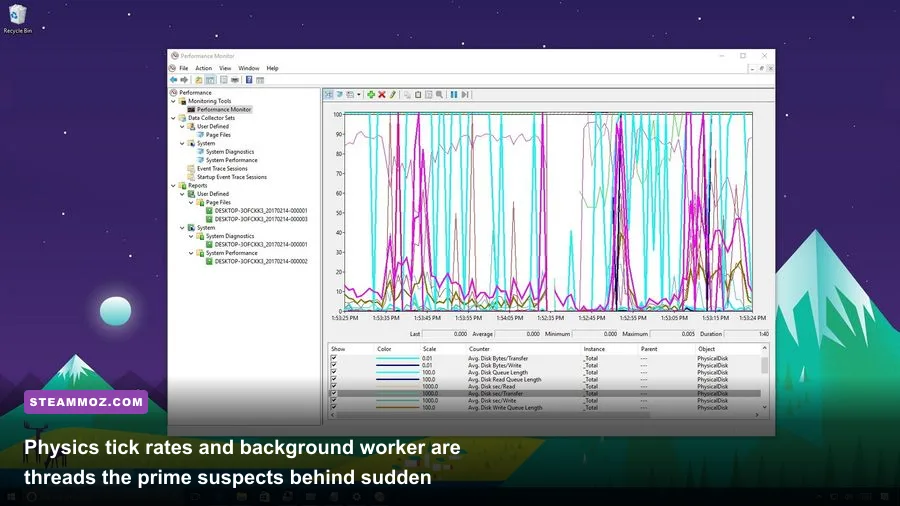
Most players assume that low framerates in driving sims are strictly GPU-related, but physics calculation loops run almost exclusively on your CPU. In Car Game PC, the simulation thread updates wheel friction, chassis pitch, downforce, and aerodynamic drag dozens of times per frame. If this physics thread gets stalled behind background operating system activity or thread contention on modern hybrid architectures (like Intel 12th through 14th gen P-core and E-core designs), your framerate will crater regardless of whether you are running an RTX 4090 or a modest GTX 1660.
The first step to untangling CPU thread lock is reigning in hyperactive USB peripheral polling. High-end sim racing wheels, specialized pedal rigs, and high-DPI gaming mice often ship out of the box with 1,000 Hz, 4,000 Hz, or even 8,000 Hz USB polling rates enabled. When a controller floods the Windows hardware interrupt queue with thousands of position packets every second, the operating system interrupts the game's physics dispatch thread to process peripheral signals. If your wheel or mouse is running at 1,000 Hz or higher, drop it down to 500 Hz or 250 Hz in its respective proprietary software (such as Logitech G HUB, Thrustmaster Control Panel, or your mouse configurator). You won't perceive a shred of tactile input lag on an asphalt turn, but your CPU frametime spikes will evaporate immediately.
Next, you need to clean up CPU core scheduling. Open Windows Task Manager while the game is running, jump to the Details tab, right-click the game executable, select Set Affinity, and ensure the game isn't pinned to CPU 0 exclusively. If you're rocking a modern Intel chip with mixed Performance and Efficiency cores, utilize process management tools or the Windows Game Bar to ensure the game binary executes strictly on physical P-cores. Much like resolving engine contention in other open-world simulations like we covered in our Elex PC crash and FPS rescue guide, keeping background threads isolated from the game's primary render loop eliminates erratic CPU hitching.
Graphics Settings Sweet Spot: High FPS Without Sacrificing Visual Fidelity
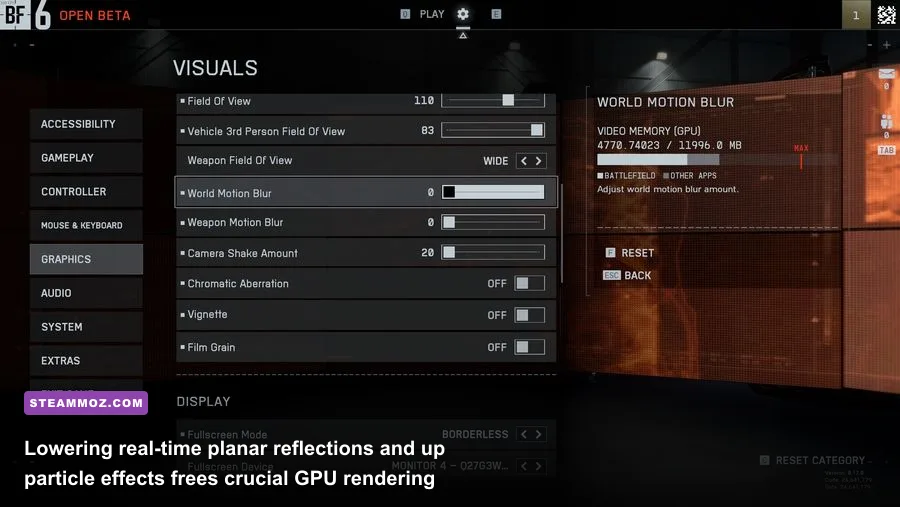
Car Game PC features an array of graphics options, but many sliders inflict massive performance penalties while delivering practically invisible visual gains. The worst offenders are Screen Space Reflections (SSR), Dynamic Planar Mirrors, Particle Density, and Volumetric Fog. When multiple AI vehicles burn rubber at the starting line, particle systems overlap, triggering extreme pixel fill-rate exhaustion that brings even high-end graphics cards to their knees.
Dynamic mirrors are another performance pitfall. If real-time rearview and side mirror calculations are left at Ultra, the engine essentially renders the entire game world two to three extra times from alternative camera angles, slicing your rasterization budget in half. Lowering mirrors to Medium cuts rendering passes while maintaining accurate relative car positions behind you. If you want maximum framerates without muddying track textures or crippling your ability to spot distant brake markers, configure your settings according to the hardware profile below.
| In-Game Setting | Recommended Value | Performance Impact | Visual Impact / Gameplay Note |
|---|---|---|---|
| Resolution Scale | 100% (Native) | Extremely High | Keep native; use DLSS/FSR Quality mode instead of manual sub-sampling. |
| Planar / Mirror Reflections | Medium or Low | High (15–20% FPS) | Drastically reduces secondary scene draw calls without obscuring cars behind you. |
| Shadow Quality | High (Avoid Ultra) | Moderate (8–12% FPS) | Ultra forces soft contact penumbra filtering; High retains crisp track edges. |
| Particle & Smoke Density | Medium | High during drifts | Prevents 30+ FPS frame dips during multi-car burnouts and tire smoke skids. |
| Volumetric Fog / Weather | Low / Medium | Moderate (6–10% FPS) | Volumetrics heavily tax compute shaders; lower values keep rain lines clean. |
| Motion Blur | Disabled | Low (2–4% FPS) | Eliminating blur sharpens apex visibility and eliminates temporal ghosting. |
| Ambient Occlusion | SSAO (High) | Moderate (5% FPS) | Grounds cars to the road visually without the immense overhead of HBAO+. |
| Anisotropic Filtering | 16x | Negligible (<1% FPS) | Keep maxed out to ensure crisp asphalt textures at oblique viewing angles. |
Just like fine-tuning visual fidelity in demanding open-world titles—similar to our benchmarked presets in the Far Cry 6 settings guide for max FPS—balancing shadow cascades against rasterization overhead guarantees consistent rendering times when sweeping through densely decorated track environments.
Fixing Direct3D Device Lost and Instant Desktop Crashes
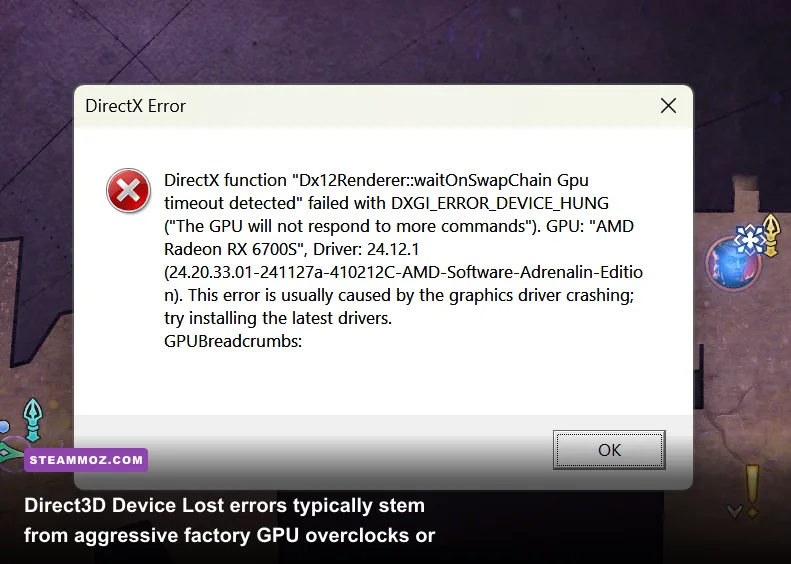
Nothing sours a podium finish faster than an unhandled exception throwing you back to desktop without an error code, or worse, slapping you with the dreaded DXGI_ERROR_DEVICE_REMOVED or DXGI_ERROR_DEVICE_HUNG message. These errors indicate that the Windows graphic subsystem waited for a command buffer response from your GPU, timed out, and forcibly reset the graphics driver.
The primary catalyst for this crash in physics-heavy games is factory GPU overclocks combined with rapid transient power spikes. When transitioning from a static pit-lane menu into an active 24-car race grid, GPU clock states snap from idle down-throttled frequencies directly to boost frequencies within milliseconds. If voltage delivery wobbles slightly, the driver hangs. To test this, launch MSI Afterburner and temporarily apply a modest underclock of -50 MHz to your GPU Core Clock and -100 MHz to your Memory Clock. If your crashes immediately stop, your card was falling victim to transient instability.
You must also ensure your baseline runtime libraries aren't corrupted or incomplete. Many indie vehicle sims utilize legacy DirectX 9 and 11 audio and physics calls alongside modern DirectX 12 renderers. Manually download and run the installer for the Microsoft DirectX End-User Runtimes, followed by installing the latest Visual C++ Redistributable All-in-One packages. Missing .dll dependencies frequently fail silently during dynamic asset loading, crashing your session straight to desktop.
If you're dealing with aggressive driver timeouts, adjust the Windows TDR value via the Registry Editor:
- Press Win + R, type
regedit, and hit Enter. - Navigate to:
HKEY_LOCAL_MACHINE\SYSTEM\CurrentControlSet\Control\GraphicsDrivers - Right-click in the right-hand pane, choose New > DWORD (32-bit) Value, and name it
TdrDelay. - Double-click
TdrDelay, set the base to Decimal, and change the value data to 8 or 10 (default is 2 seconds). - Restart your computer.
This gives your graphics hardware up to ten full seconds to clear massive shader compilation queues before Windows pulls the plug on the display pipeline. If your software still encounters memory faults, clearing out leftover legacy drivers with a clean wipe via Display Driver Uninstaller (DDU) in Windows Safe Mode should be your next play, just as we outlined when isolating stubborn memory crashes in our EscapeVR crashing and low FPS guide.
Eliminating Micro-Stutter: Frame Pacing and Shader Cache Overhauls
A constant 60 FPS can feel shockingly laggy if individual frames arrive at uneven intervals. If frame one takes 16.6 milliseconds to render, frame two takes 33 milliseconds, and frame three takes 5 milliseconds, your display experiences micro-stuttering even though your telemetry overlay reports a clean 60 FPS average. Achieving that locked, butter-smooth feeling requires strict frame pacing control.
First, abandon the game's built-in V-Sync and framerate limiter. In-engine limiters often rely on CPU sleep timers that float wildly between frames. Instead, install RivaTuner Statistics Server (RTSS). Inside RTSS, add the game executable and set the Framerate limit to exactly three frames below your monitor's current refresh rate (e.g., 141 FPS on a 144 Hz display, 162 FPS on a 165 Hz panel, or 59 FPS on standard 60 Hz monitors). In your GPU control panel (NVIDIA Control Panel or AMD Software: Adrenalin Edition), set Vertical sync to On globally, enable G-Sync / FreeSync, and turn on Low Latency Mode (or Radeon Anti-Lag). This configuration enforces flatline frametimes while completely eliminating display tearing and input latency.
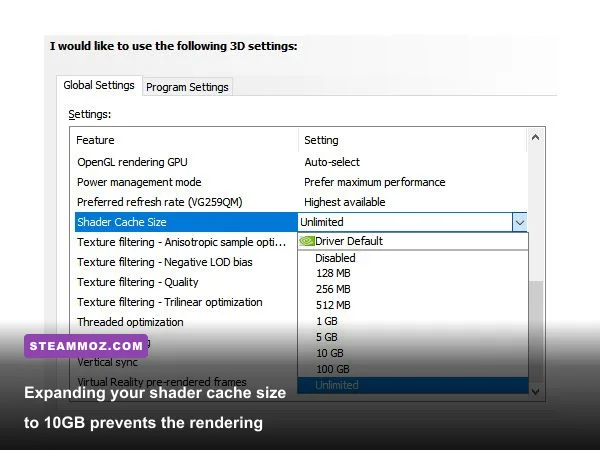
Next, tackle the dreaded shader compilation hitch. As you drift across new asphalt materials, smash into environmental barricades, or kick up dust, the engine compiles shader permutations on the fly. If your driver's cache fills up, it flushes compiled shaders to make room for new ones, causing the same stutters to recur race after race. Here is how you fix it on NVIDIA systems:
- Right-click your desktop and open NVIDIA Control Panel.
- Select Manage 3D settings from the left sidebar.
- Scroll down in Global Settings to Shader Cache Size.
- Change it from "Driver Default" (which often restricts cache to a measly 1GB) to 10 GB or Unlimited.
- Click Apply and restart your system.
For AMD users, open AMD Software, navigate to Gaming > Graphics, scroll to the bottom, expand Advanced, and click Reset Shader Cache to clear any corrupt pre-compiled blobs, allowing the driver to build a clean cache repository. Taking control of refresh syncing and frame limiters mirrors the calibration steps we recommend in our Filament settings for higher FPS walkthrough, keeping latency razor-sharp when quick reflexes matter most.
Hardware & Peripheral Conflicts: Force Feedback, Audio Drivers, and Overlays
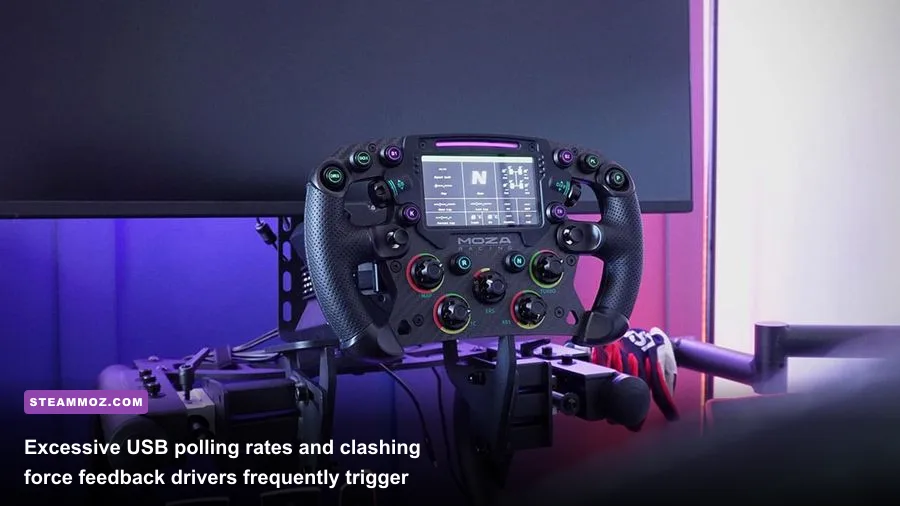
Driving games feature deeper hardware integration than almost any other genre because they talk directly to force feedback (FFB) direct-drive motors, load-cell brake pedals, shifters, and telemetry dashes. When these peripherals suffer from driver mismatches or thread locks, they manifest directly as severe in-game freezing.
One remarkably common and overlooked culprit is Windows Audio service sampling mismatches. If your default playback device in Windows Sound Control Panel is configured to studio-grade 24-bit, 192,000 Hz (Studio Quality), the sound engine of many vehicle simulations will run out of audio buffer space while processing high-channel engine revs, gear shifts, and tire squeals. This causes periodic audio dropouts synchronized with sudden frame drops. To fix this:
- Press Win + R, type
mmsys.cpl, and press Enter. - Right-click your active playback device (speakers or headset) and select Properties.
- Navigate to the Advanced tab.
- Under Default Format, set the dropdown to 24-bit, 48000 Hz (Studio Quality) or 16-bit, 44100 Hz (CD Quality).
- Uncheck Allow hardware acceleration of audio with this device if present, click Apply, and exit.
Third-party software hooks also frequently butcher frame pacing. Discord's in-game overlay, Steam's web helper overlay, GeForce Experience / ShadowPlay HUD notifications, and RivaTuner's on-screen statistics hook into the DirectX presentation layer simultaneously. If you encounter hard lockups when clicking out of menus, disable all background overlays except your primary display monitor. If you suspect missing game files after an abrupt game shutdown, consult Steam Support instructions to verify the integrity of your installed local cache files.
| Hardware Tier | Target Resolution & Refresh | Optimal Configuration Profile | Expected Stable FPS |
|---|---|---|---|
| Budget Rig (GTX 1650 / RX 580, 8GB RAM) | 1080p @ 60 Hz | Medium Textures, Low Shadows, SSAO, SSR Off, FSR Balanced | 55–60 FPS |
| Mid-Range Build (RTX 3060 / RX 6700 XT, 16GB RAM) | 1440p @ 120–144 Hz | High Textures, Medium Shadows, Mirrors Medium, DLSS Quality | 110–130 FPS |
| Enthusiast Rig (RTX 4070 Ti+ / RX 7900 XT, 32GB RAM) | 4K @ 120+ Hz / Triple Screen | Ultra Textures, High Shadows, High Mirrors, DLSS/DLAA Enabled | 120+ FPS Locked |
By enforcing an external framerate cap, dialing down fill-rate-destroying particle emitters, giving your graphics card breathing room on TDR timeouts, and expanding your shader cache ceiling, Car Game PC will transform from a jittery mess into a rock-solid, razor-responsive driving simulator ready for hot-lapping.