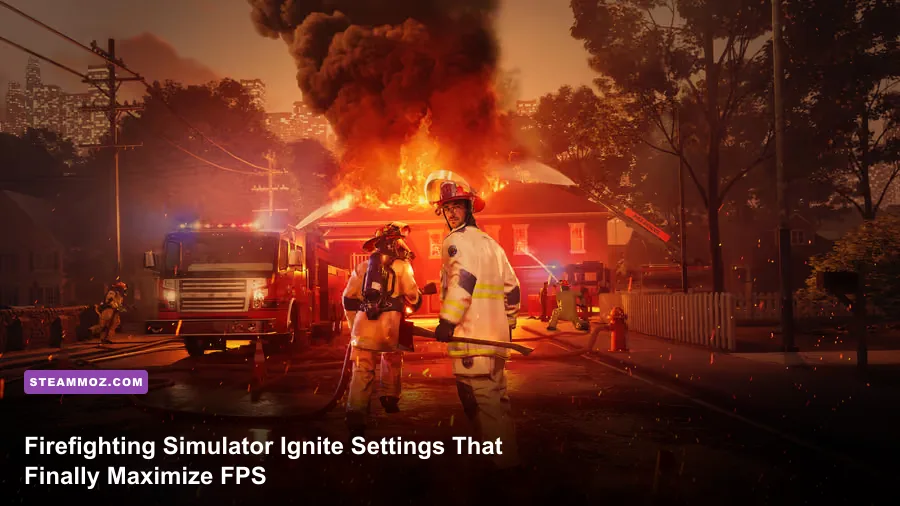
If you want the best graphics settings for Firefighting Simulator: Ignite - 1 Year Edition, start with 1080p, native resolution scaling, High textures, Medium shadows, and Volumetric Effects on Medium. Disable motion blur, keep reflections at Medium, cap the game at a frame rate your PC can actually sustain, and use FSR only when the GPU is the problem. That combination usually delivers the cleanest image without letting smoke, fire, and busy emergency scenes crush performance.
The important detail is that this isn't a twitch shooter where a short 1% low ruins a match. Firefighting Simulator lives or dies by frame pacing. A steady 60 fps feels far better than a headline-grabbing 90 fps that collapses to 35 whenever a warehouse fills with smoke. The 1 Year Edition's added content doesn't fundamentally change the rendering strategy, so these recommendations apply across its campaign, scenarios, and co-op missions.
Before changing anything, check the game's official Steam listing for current patches and system requirements. Updates can alter shader compilation, visual defaults, or performance on specific graphics cards.
Use this balanced preset first
The preset below is the best starting point for most gaming PCs. It favors stable frame delivery rather than maximum screenshot quality. Textures remain High because they mostly consume VRAM, while shadows, volumetric effects, and reflections are reduced because those options hit the GPU repeatedly during active fires.
| Setting | Recommended value | FPS impact | Visual trade-off |
|---|---|---|---|
| Display mode | Fullscreen | Low | Can reduce desktop interference and improve consistency |
| Resolution | Native 1080p or 1440p | Very high | Lowering resolution is the fastest GPU-side performance gain |
| Resolution scale | 100% | High | Preserves sharp hose, vehicle, and UI detail |
| Textures | High | Low to medium | Sharper surfaces; needs adequate VRAM |
| Shadows | Medium | High | Less contact-shadow detail around trucks and buildings |
| Effects | High | Medium | Retains convincing sparks, water, and debris |
| Volumetric effects | Medium | Very high | Smoke becomes slightly less dense and dramatic |
| Reflections | Medium | Medium to high | Wet roads and glass lose some reflected detail |
| Anti-aliasing | High or temporal default | Medium | Controls shimmer on vehicles, ladders, and wires |
| Motion blur | Off | Small | Sharper camera movement and tool handling |
| Depth of field | Off | Small | Cleaner view when searching smoke-filled rooms |
| V-Sync | Off with a VRR display | Low | Use a frame cap to avoid tearing and runaway GPU load |
Do not immediately drop textures to Low. If your graphics card has 8GB or more of VRAM, High textures are usually a sensible choice at 1080p and often 1440p. Texture quality becomes a bad performance lever when the real problem is volumetric smoke or shadow rendering. Lower textures only when you see stutter while turning the camera, blurry surfaces after streaming, or VRAM usage sitting at the limit.

🎮 Firefighting Simulator: Ignite - 1 Year Edition
Looking to experience this game? Grab your digital key directly on our store for $32.99.
View on Steammoz Store →Which settings cost the most FPS?
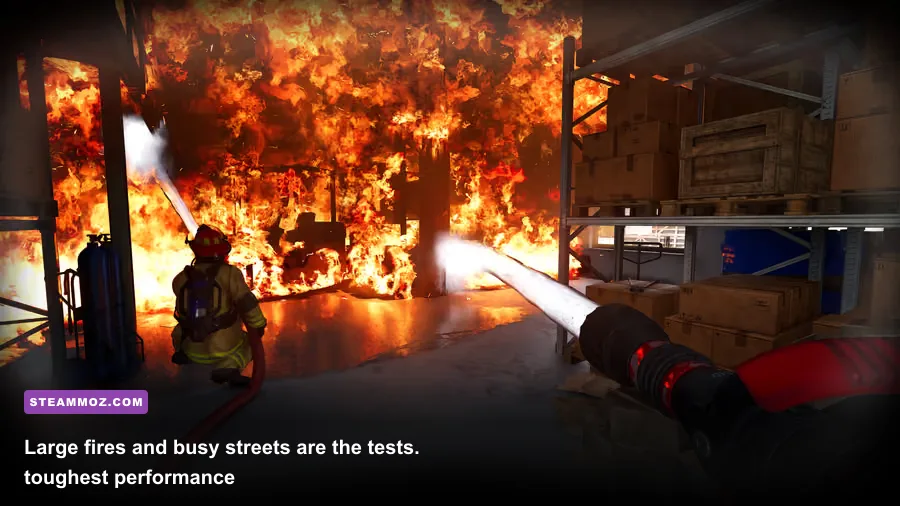
Firefighting Simulator's heaviest moments are easy to identify: a burning multi-floor structure, several visible flame sources, dense smoke, water spray, emergency lights, and AI-controlled crew members all appearing at once. That workload is mostly GPU-bound, but crowded outdoor scenes can also push the CPU. The following order matters because it tells you what to reduce first.
1. Volumetric effects
This is the first setting to lower when smoke-heavy missions cause frame-time spikes. Volumetrics calculate the way light interacts with smoke and airborne particles. High settings look excellent around burning rooms and streetlights, but they can produce a disproportionate hit when the camera sees several smoke volumes at once. Medium usually keeps the atmosphere intact. Low is the emergency option for older GPUs, though smoke can look flatter and less layered.
2. Shadows
Shadows affect buildings, vehicles, firefighters, debris, and the environment around the incident. High or Ultra shadows are rarely worth their cost during a rescue, because you spend more time reading doorways and locating victims than admiring distant shadow maps. Medium is the sweet spot. If you need another 8 to 15 percent of GPU headroom, Low shadows are more tolerable than Low textures.
3. Reflections and effects
Reflections become expensive around wet streets, glass, polished vehicles, and active water streams. Medium preserves the sense of a soaked road without spending the same budget as High. Effects are less straightforward: lowering them can reduce sparks, smoke particles, and water detail. Keep Effects High if your frame rate is stable; drop it to Medium only after volumetrics and shadows have been tuned.
| Performance problem | Change first | Second change | Expected result |
|---|---|---|---|
| GPU usage stays near 99% | Volumetric effects: High to Medium | Shadows: High to Medium | More headroom during dense fires |
| VRAM warning or texture stutter | Textures: High to Medium | Lower resolution one step | Less asset-streaming pressure |
| FPS drops in busy streets | Effects: High to Medium | Reflections: Medium to Low | Reduced particle and surface-rendering cost |
| GPU usage is low but FPS falls | Lower crowd or view-distance option if available | Close overlays and background apps | Helps expose CPU or streaming limits |
| Image looks blurry | Return resolution scale to 100% | Disable aggressive upscaling | Restores readable edges and signage |
Best 1080p, 1440p, and low-end profiles
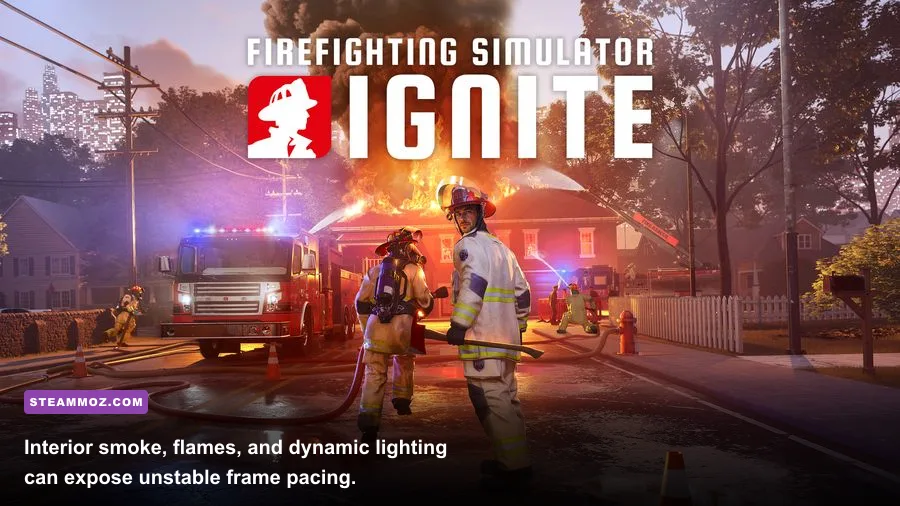
Rather than chasing one magic preset, match settings to your target frame rate. A 60 fps cap is a strong choice for a mid-range machine, while a 30 fps lock can feel perfectly playable on older hardware if frame pacing is consistent. Firefighting Simulator's camera movement and vehicle driving benefit from 60 fps, but the game is not so fast that a locked 45 fps profile is unusable.
| Profile | Resolution and scale | Core settings | Target hardware and FPS |
|---|---|---|---|
| Competitive smooth | 1080p, 100% | Textures High, shadows Medium, volumetrics Low, reflections Low | Modern mid-range GPU; stable 60 to 100 fps depending on scene |
| Balanced 1080p | 1080p, 100% | Textures High, shadows Medium, volumetrics Medium, reflections Medium | GTX 1660-class or RX 5600 XT-class PC; aim for 60 fps |
| Quality 1440p | 1440p, 100% or quality upscaling | Textures High, shadows Medium, volumetrics Medium, effects High | RTX 3060 Ti or RX 6700 XT-class PC; aim for 60 fps |
| Older hardware | 1080p, 80 to 90% | Textures Medium, shadows Low, volumetrics Low, reflections Low | GTX 1060-class or similar; target a locked 30 to 45 fps |
| High-end showcase | 1440p or 4K, native | Textures High, shadows High, volumetrics High, effects High | Recent high-end GPU; use a cap after testing fire scenes |
At 1440p, lowering resolution scale to 90 percent is often a better compromise than dropping every quality option. It preserves the game's lighting and material detail while taking some pressure off the pixel workload. If the available upscaler offers Quality, start there. Avoid the most aggressive Performance mode unless you are genuinely out of GPU headroom; hoses, thin railings, flames, and smoke edges can become visibly unstable.
For a low-end system, don't mix a high frame-rate target with Ultra-style effects. Choose 30 or 45 fps, apply the cap, and tune for consistency. A locked 30 is preferable to a wildly fluctuating 25-to-50 range during a rescue. Our broader PC FPS troubleshooting guide also covers overlays, power plans, and driver cleanup that can help when in-game changes aren't enough.
CPU, VRAM, and stutter fixes
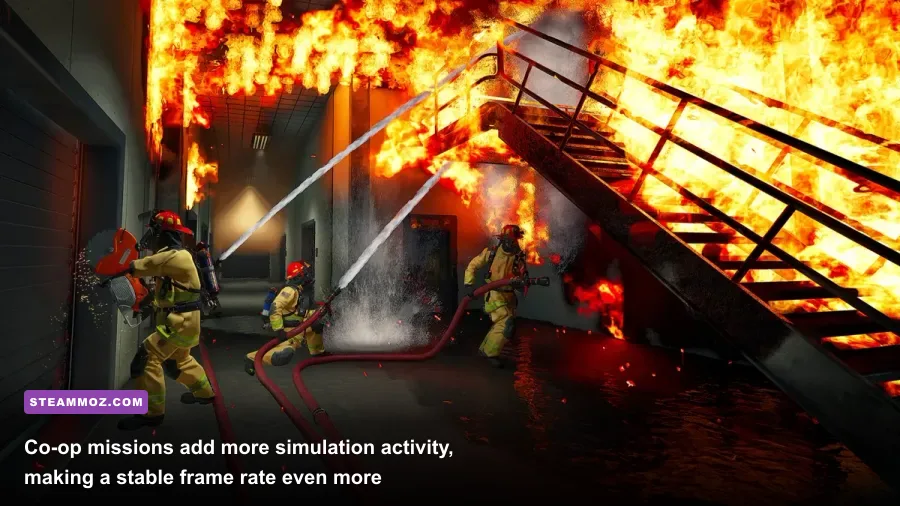
Not every drop is a graphics-quality problem. If GPU usage falls well below full utilization while the frame rate dips in a crowded district, the CPU or asset streaming may be limiting you. Firefighting Simulator has to manage traffic, emergency vehicles, crew behavior, collision checks, fire spread, smoke simulation, and mission logic. Lowering resolution won't fix a CPU bottleneck.
First, close browser tabs, recording tools, RGB utilities, and unnecessary launchers. Then disable Steam Overlay and test again, especially if the game stutters when opening the map or switching windows. Install the current GPU driver, but don't assume the newest driver automatically means better performance; a clean installation can matter more after several major driver upgrades.
Keep the game on an SSD if possible. An SSD won't magically raise average FPS, but it can reduce hitching as buildings, vehicles, and mission assets stream in. Leave free storage space available, too. A nearly full drive can make shader and asset management less predictable.
Watch VRAM rather than system RAM alone. When VRAM is exhausted, the game may repeatedly move texture data between the graphics card and system memory, creating pauses that look like random FPS drops. Lower textures first, then reduce resolution. Don't sacrifice volumetrics to solve a texture-streaming problem.
Use a cap that your worst scene can hold. If your average is 74 fps but major fires fall to 52, a 60 fps cap won't be stable. Try 50 or 45, then raise it only after testing a large interior blaze and a busy outdoor response. With G-SYNC or FreeSync, cap a few frames below your monitor's refresh rate; without VRR, V-Sync can remove tearing but may add latency or expose stutter when the game misses its target.
How to test your settings properly
The menu benchmark is not enough because the demanding workload arrives during gameplay. Use the same repeatable test every time: load a mission with an active structure fire, drive through a populated street, enter the building, look toward the largest flame source, then spray water while turning the camera across smoke and emergency lights. Record the average FPS and, more importantly, the lowest sustained section. A five-second hitch during loading is less important than a 30-second collapse while searching a burning floor.
Test one setting at a time. Change volumetrics, repeat the route, then change shadows, and repeat it again. If you change six options together, you'll never know which one helped or which visual compromise was unnecessary. Keep a simple note of frame rate, GPU utilization, VRAM use, and whether the stutter happened while turning, driving, or entering a new building.
For co-op, test with the same number of players you normally use. More active firefighters, vehicles, extinguishing effects, and mission events can shift the bottleneck toward the CPU. If solo performance is excellent but co-op feels uneven, lower Effects and view-distance-related options before wrecking texture quality.
Players chasing a stable experience may also want to compare the approach used in our Far Cry 6 performance settings guide and Everspace 2 FPS-first fixes. The games are very different, but the testing discipline is the same: identify the bottleneck before lowering image quality.
The final max-FPS recommendation
For most players, use native 1080p, 100 percent resolution scale, High textures, Medium shadows, Medium volumetric effects, Medium reflections, High effects, and motion blur off. Add a 60 fps cap if your worst fire scene can sustain it. At 1440p, use Quality upscaling or a 90 percent scale before dropping textures. On older GPUs, choose Low volumetrics and shadows, then lock the game to 30 or 45 fps rather than allowing unstable performance.
That setup keeps the details that sell the fantasy—fire behavior, wet streets, readable vehicles, and sharp equipment—while cutting the options most likely to punish your frame time. If performance still falls apart, check GPU utilization and VRAM first, then investigate CPU load, overlays, drivers, and storage. The goal isn't the prettiest screenshot from an empty street. It's a smooth response when the alarm sounds, the building is filling with smoke, and every second of your rescue actually counts.
For official patch notes and developer information, follow astragon's Firefighting Simulator page and the game's Steam Community hub. Performance can shift after updates, so revisit the demanding-fire test whenever a major patch lands.