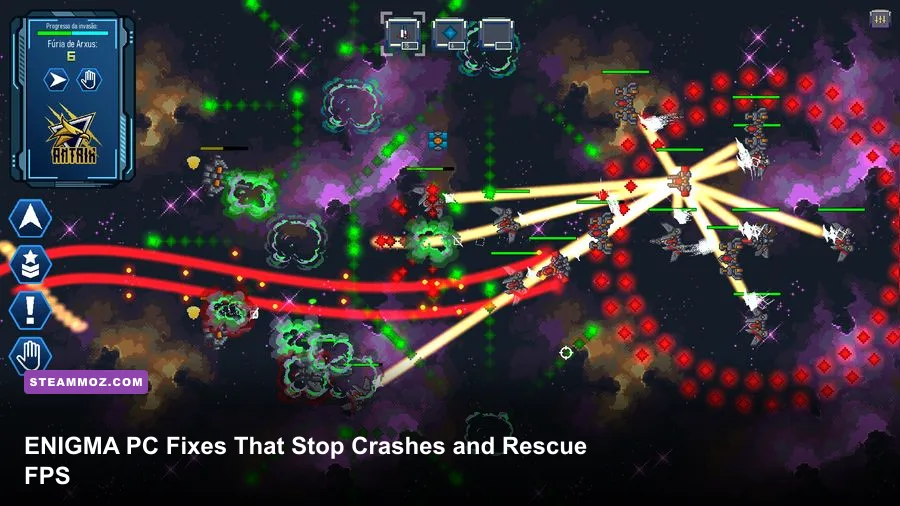
If ENIGMA keeps crashing or crawling at low FPS on PC, start with the boring fixes that matter most: verify the Steam installation, update or clean-install your GPU driver, disable overlays, then use a capped 30 or 60 FPS graphics profile with ray tracing and shadows reduced first. Those steps solve most launch failures, shader stutter, and sudden performance drops without sacrificing the game's core atmosphere.
Don't change ten things at once. ENIGMA's performance problems can come from different layers: corrupted game files, an outdated DirectX shader cache, the wrong GPU being selected on a laptop, or a graphics preset pushing VRAM past its limit. Work through the checklist below in order, testing the game after each major change. That way, you'll know which fix actually worked.
Check ENIGMA's PC baseline before changing settings
First, confirm that Windows is using your dedicated graphics card and that your system isn't quietly running out of memory. Open Task Manager with Ctrl + Shift + Esc, select the Performance tab, and watch CPU, GPU, RAM, and VRAM while ENIGMA is running. A GPU stuck around 20–40% while one CPU thread is maxed usually points to a processor bottleneck, not a graphics setting. Conversely, a GPU locked at 99% means lowering resolution, shadows, or effects should produce an immediate improvement.
On laptops, connect the charger and set Windows to Settings > System > Power & battery > Best performance. Then go to Settings > System > Display > Graphics, add ENIGMA's executable if it isn't listed, choose Options, and select High performance. This prevents Windows from launching the game on an integrated Intel or AMD GPU.
| Component | Practical minimum | Recommended target | What it affects |
|---|---|---|---|
| Operating system | Windows 10 64-bit | Windows 11 64-bit, fully updated | Driver support, DirectX components, shader compilation |
| System memory | 8 GB RAM | 16 GB RAM | Streaming stutter and background-task headroom |
| Graphics memory | 4 GB VRAM | 6–8 GB VRAM | Texture quality, resolution scaling, hitching |
| Storage | SSD strongly preferred | NVMe SSD | Loading pauses and asset streaming |
| Driver | Current stable driver | Clean-installed current driver | Crashes, shader compilation, frame pacing |
For comparison, our ELEX PC fixes guide covers the same pattern of CPU limits, shader caches, and background software. The principle applies here: diagnose the bottleneck before dropping every setting to Low.
🎮 ENIGMA:
Looking to experience this game? Grab your digital key directly on our store for $7.49.
View on Steammoz Store →Stop ENIGMA crashes at launch and during loading
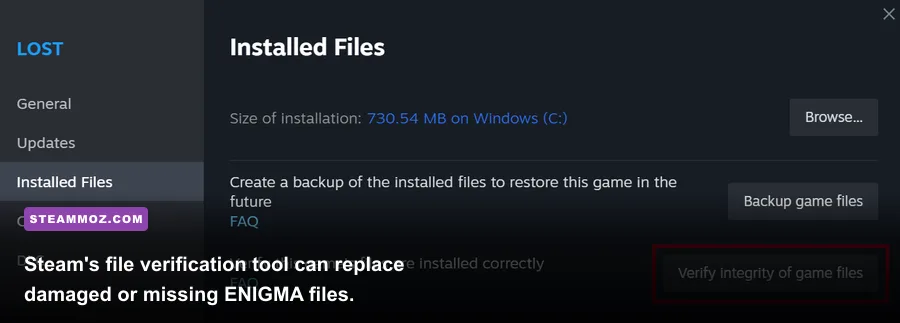
Begin with Steam's repair process. Close ENIGMA, right-click it in your library, choose Properties > Installed Files > Verify integrity of game files, and wait for the scan to finish. Steam may report that one or more files were reacquired; that is normal. Restart Steam afterward rather than launching immediately from the verification window.
Next, remove common overlay conflicts. Turn off Steam Overlay under Properties > General, then temporarily disable Discord Overlay, Xbox Game Bar, NVIDIA App or GeForce Experience overlay, AMD Adrenalin metrics, MSI Afterburner, and RivaTuner Statistics Server. ENIGMA doesn't need all of them running, and injectors can collide with anti-cheat, fullscreen presentation, or graphics APIs.
If the crash happens before the main menu, reset the game's local configuration. Press Win + R, type %localappdata%, and look for a folder named ENIGMA or a folder matching the developer or engine name. Back up the folder first, then rename it to ENIGMA_backup. This forces fresh settings files while preserving your backup. Don't delete save data unless you have confirmed that saves live elsewhere or are protected by Steam Cloud.
For stubborn crashes, repair the Microsoft runtimes from Microsoft's latest Visual C++ Redistributable page. Install both the x64 and x86 packages, reboot, and test again. Also install pending Windows updates, but avoid using optional preview drivers while troubleshooting. A stable WHQL GPU driver is usually a better test baseline than the newest beta package.
Finally, right-click the executable, open Properties > Compatibility, and leave compatibility mode off unless the developer specifically recommends it. You can test Disable fullscreen optimizations, but treat it as a diagnostic switch rather than a guaranteed fix. If the game crashes only after an alt-tab, use borderless windowed mode instead of exclusive fullscreen.
Use this ENIGMA graphics profile for steadier FPS
Don't begin by lowering resolution. A blurry 1280×720 image won't fix a CPU-limited scene, and it makes ENIGMA's visual detail harder to read. Start at your monitor's native resolution, select borderless or fullscreen based on which is more stable on your system, and cap the frame rate to a number your PC can hold consistently. A locked 60 FPS feels substantially better than a wild 45–90 FPS swing.
| Setting | Recommended value | FPS impact | Visual trade-off |
|---|---|---|---|
| Resolution | Native; use 90% render scale if needed | High when reduced | Lower scale softens fine detail |
| Upscaling | Quality first, Balanced for weak GPUs | High positive impact | Balanced can add shimmer or softness |
| Ray tracing | Off while diagnosing | Very high | Less accurate reflections and lighting |
| Shadows | Medium | Medium to high | Shorter shadow distance and softer detail |
| Volumetrics and fog | Low or Medium | Medium to high | Atmospheric depth is reduced |
| Reflections | Medium | Medium | Fewer or lower-quality reflective surfaces |
| Textures | High with 6–8 GB VRAM; Medium with 4 GB | Low average-FPS impact | Lower texture clarity, but less VRAM pressure |
| Motion blur | Off | Small | Cleaner image during movement |
| V-sync | Off with VRR; On if tearing is severe | Low to medium | Can add input latency when capped poorly |
The best first pass is High textures, Medium shadows, Low volumetrics, ray tracing Off, Quality upscaling, and a 60 FPS cap. Textures generally use VRAM rather than raw GPU compute, so lowering them before shadows often gives you a worse-looking game for little performance gain. If you see a repeating hitch whenever you enter a new room or outdoor zone, leave the game running for several minutes; shader compilation and asset streaming can settle after the first pass.
For a weaker system, use 1080p with a 75–85% render scale, Medium textures, Low shadows, and Low effects. For a modern midrange GPU, native 1080p or 1440p with Quality upscaling and a 60 FPS cap is the sweet spot. If you own a high-refresh monitor, don't chase 144 FPS until the game holds 60 without major frame-time spikes.
Fix stutter, overheating, and sudden FPS drops
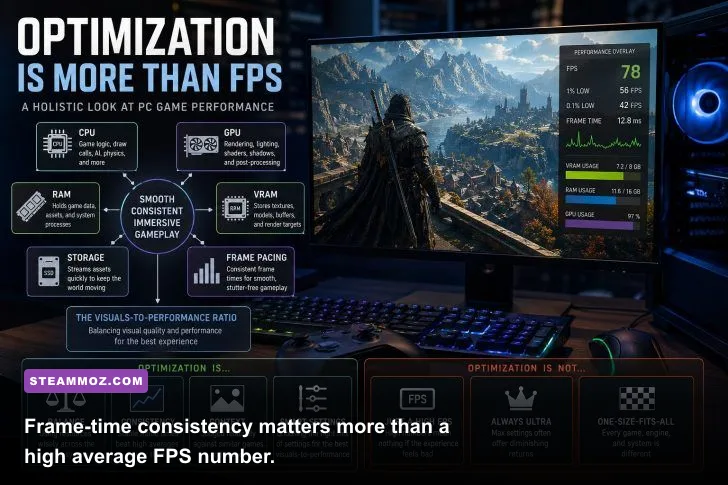
Average FPS can look healthy while ENIGMA still feels awful. Use an overlay such as CapFrameX or the Steam performance display and watch frame time. At 60 FPS, each frame should arrive roughly every 16.7 milliseconds. Spikes to 40, 80, or 150 milliseconds are the stutters you feel as a pause, even if the counter still reports a respectable average.
Cap the game below your monitor's maximum refresh rate when using variable refresh rate. A 60 Hz display should normally use a 60 FPS cap; a 144 Hz display may feel smoother at a stable 72 or 120 FPS than at an unstable 144. If you use G-SYNC or FreeSync, enable it for the display and avoid stacking multiple frame limiters until you know which one behaves best.
Check temperatures with HWiNFO or your GPU manufacturer's software. A GPU approaching its thermal limit may reduce clock speed, while a CPU hitting its power or temperature limit can cause the exact “fine for ten minutes, then terrible” pattern. Clean dust filters, improve case airflow, and close browser tabs using hardware acceleration. Don't run a heavy recording session, browser video, and multiple overlays while benchmarking a crash-prone game.
Windows also has a useful switch under Settings > System > Display > Graphics > Default graphics settings: test Hardware-accelerated GPU scheduling on and off, rebooting after each change. It isn't universally faster, but it can change frame pacing on some driver and GPU combinations. Likewise, disable Xbox Game Bar recording if you never use it.
Advanced fixes when the normal checklist fails
If ENIGMA still crashes after verification and a driver update, perform a genuinely clean driver installation. Download the driver directly from the NVIDIA driver page or AMD support page. Choose the clean-install option where available. For a driver that is clearly corrupted, use Display Driver Uninstaller in Windows Safe Mode, then install only the graphics driver and control panel rather than every optional recording and overlay component.
Clear shader caches after changing drivers, not before every launch. NVIDIA users can clear the DirectX Shader Cache through Windows Settings > System > Storage > Temporary files; AMD users can use the shader-cache reset option in Adrenalin. The first launch afterward may stutter while shaders rebuild. That temporary hitch is expected, so don't mistake it for a failed fix.
Remove overclocks and undervolts while testing, including XMP or EXPO if you suspect system instability. Games often expose marginal memory tuning that benchmarks miss. If ENIGMA crashes with a “device removed,” “out of video memory,” or graphics-device error, lower textures and effects, close GPU-heavy applications, and return the GPU to stock clocks before changing anything else.
For launch arguments, keep the test conservative. Steam's Properties > General > Launch Options field can be cleared completely, especially if you copied old DirectX or Vulkan flags from a forum. An obsolete command can force the wrong renderer or disable a feature the current build expects. Only use a launch option documented by the developer or in the game's official support channel.
There are useful lessons in our EscapeVR crash and low-FPS guide and Everspace 2 FPS-first troubleshooting guide: capture the exact crash timing, reproduce it with overlays off, and change one variable at a time. If the crash survives a clean install, verified files, fresh configuration, and stock hardware, send the developer your crash logs, DxDiag report, GPU model, driver version, RAM amount, resolution, and the exact location or menu where it fails.
The fastest ENIGMA troubleshooting order
For a quick, repeatable fix, follow this order:
- Reboot Windows and close overlays, monitoring tools, browsers, and recording software.
- Verify ENIGMA's files through Steam.
- Update or clean-install the NVIDIA, AMD, or Intel graphics driver.
- Force the dedicated GPU on laptops and switch Windows to Best performance.
- Reset ENIGMA's local configuration after backing up saves.
- Use native resolution, Quality upscaling, Medium shadows, Low volumetrics, and ray tracing Off.
- Cap FPS to a stable 30, 60, or 72 rather than chasing an unstable maximum.
- Check temperatures, VRAM usage, and frame time before attempting advanced launch arguments.
Keep the official ENIGMA Steam listing bookmarked for patch notes and developer updates. If a new update suddenly introduces crashes, don't immediately rebuild your entire PC setup; verify the build, test with default settings, and check whether other players are reporting the same regression. Most importantly, judge the fix by frame-time stability and repeatable launches—not by one lucky FPS reading in an empty room.