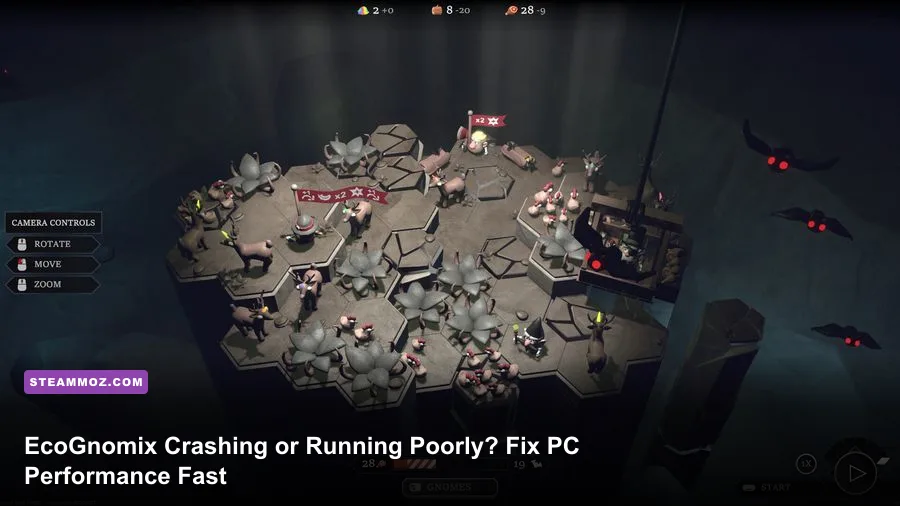
If EcoGnomix keeps crashing or dropping into a stuttery crawl on PC, start with a clean launch, verify the Steam files, update your GPU driver, and lower shadows, effects, foliage, and resolution before touching anything more drastic. The game’s floating-island settlements are deceptively demanding: a small expedition can turn into a crowded simulation full of gnomes, resource objects, buildings, particles, and pathfinding calculations. The fixes below target crashes, freezing, long pauses, low average FPS, and the nastier problem of inconsistent frame times.
EcoGnomix is not a twitch shooter, so a locked 60 frames per second is not mandatory for a good experience. Stable frame pacing matters more. A steady 45 FPS feels far better than a counter that jumps between 70 and 28 whenever you return to a developed settlement. Before changing settings, note where the problem happens: during startup, while loading a save, when entering an expedition, or after your village has grown. That detail usually points to the right fix.
First, identify what is actually failing
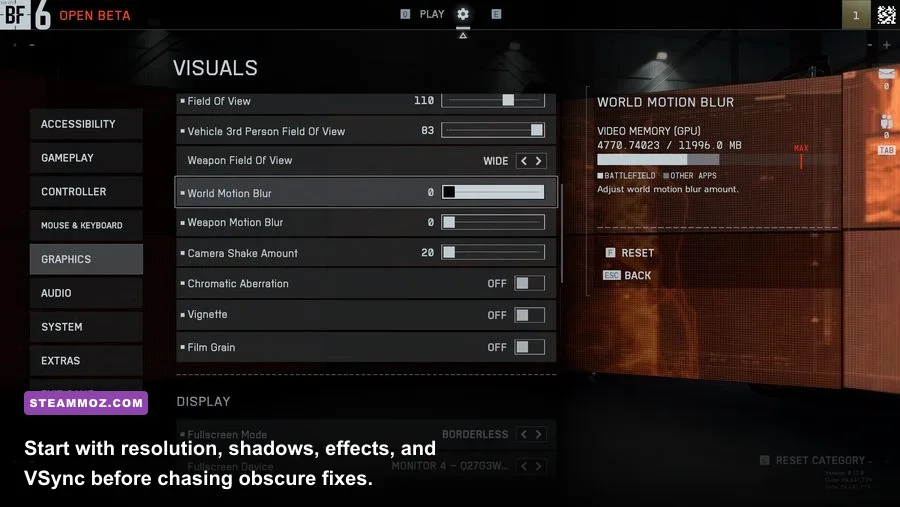
There are three different EcoGnomix performance problems, and treating them as one leads to wasted time. A crash before the main menu usually indicates damaged files, a driver conflict, an overlay problem, or a missing runtime. A crash while loading one particular settlement may involve a corrupted save or a modded configuration. Low FPS in every location usually points to resolution, GPU load, thermal throttling, or an outdated driver. Finally, stutter that appears only when the settlement becomes busy is often CPU- or simulation-limited rather than graphics-limited.
| Symptom | Most Likely Cause | Best First Test | What Success Looks Like |
|---|---|---|---|
| Crash before the menu | Broken files, driver issue, overlay conflict | Verify files, then disable overlays | Game reaches the main menu consistently |
| Crash during a save load | Damaged save, shader cache, memory pressure | Test a new game and back up saves | New game loads without crashing |
| Low FPS everywhere | High resolution, shadows, effects, or GPU limits | Use the performance profile below | Higher and steadier GPU-limited FPS |
| Stutter in large villages | CPU simulation, pathfinding, background tasks | Compare a new game with a developed save | Frame-time spikes become less frequent |
| Brief freezes during transitions | Asset streaming, storage speed, shader compilation | Install on an SSD and allow one clean load | Shorter, less repetitive pauses |
Run one controlled test rather than changing ten options at once. Load the same save, stand in the same spot, and watch GPU usage, CPU usage, RAM, VRAM, temperature, and frame time. If GPU usage sits around 95–99%, reduce resolution, shadows, and effects. If GPU usage is low while one or more CPU cores are heavily loaded, lowering resolution will barely help; you need to reduce simulation pressure and background activity instead.
Also make sure the issue is not broader than EcoGnomix. If other games are crashing, use our Bottle Pilgrim crash and FPS troubleshooting guide as a comparison point. Similar symptoms across several games suggest Windows, drivers, temperatures, or unstable hardware rather than one EcoGnomix installation.

🎮 EcoGnomix
Looking to experience this game? Grab your digital key directly on our store for $7.99.
View on Steammoz Store →Use this EcoGnomix graphics profile first
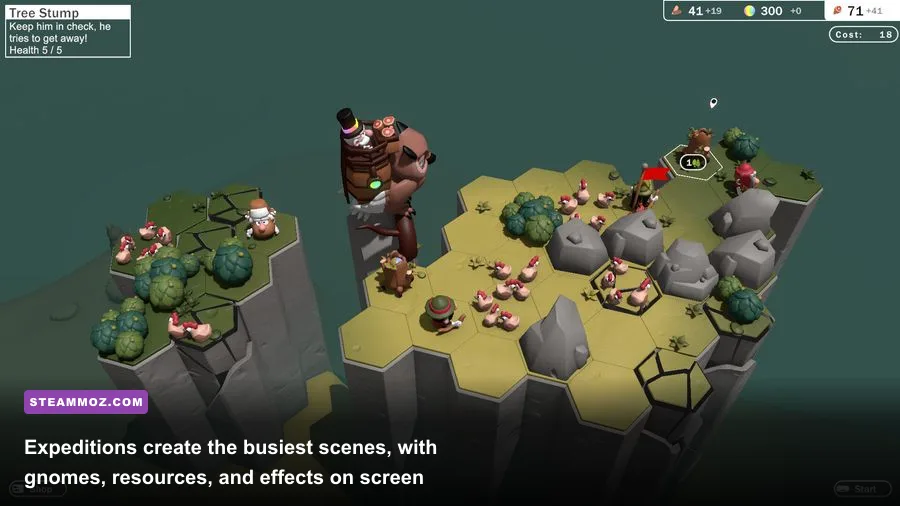
Open EcoGnomix’s video or graphics options and begin with a stable baseline. Use your monitor’s native resolution if the game is already close to your target frame rate. If not, drop from 1440p to 1080p before reducing every quality setting; resolution affects the entire image and gives the GPU a much larger workload reduction. If the game offers a render-scale option, 80–90% is a sensible middle ground, although the exact menu labels can vary by build.
| Setting | Recommended Starting Value | Typical FPS Impact | Visual Trade-Off |
|---|---|---|---|
| Display mode | Exclusive fullscreen or borderless fullscreen | Low | Fullscreen can reduce desktop and overlay interference |
| Resolution | Native; use 1920×1080 for testing | Very high | Lower values look softer but deliver the biggest GPU gain |
| Render scale | 90%; test 80% on older GPUs | High | Fine details lose sharpness first |
| Shadows | Medium | Medium to high | Buildings and terrain shadows become less defined |
| Effects or particles | Medium | Medium | Expedition and environmental effects are less dense |
| Foliage or vegetation | Medium or low | Medium | Worlds look less crowded at a distance |
| View distance | High on modern hardware, medium on older PCs | Medium | Far resources and scenery disappear sooner |
| Ambient occlusion | Low or medium | Low to medium | Contact shading around buildings is reduced |
| Anti-aliasing | Medium or the default temporal option | Low to medium | Lower values introduce more edge shimmer |
| VSync | Off for testing; on if tearing bothers you | Variable | Can add latency or lock FPS to the display refresh rate |
For a modern mid-range PC, try native 1080p or 1440p, medium shadows, medium effects, medium foliage, high view distance, and VSync off while testing. For an older laptop or integrated GPU, use 1080p, 80–90% render scale if available, low shadows, low foliage, medium effects, and a 30 or 45 FPS cap if the game or driver supports one. A cap prevents the system from constantly chasing an unstable maximum and can make camera movement feel considerably smoother.
Shadows are usually the first quality setting worth lowering because they affect many buildings and terrain surfaces at once. Effects matter most during expeditions and visually busy encounters. Foliage tends to be cheaper than shadows on some systems, but it can still cause memory and draw-call pressure when the camera sees a broad island. Change one setting, reload the same area, and record the result. If dropping everything to Low changes almost nothing, you are probably CPU-limited.
Stop crashes with a clean Steam and Windows setup
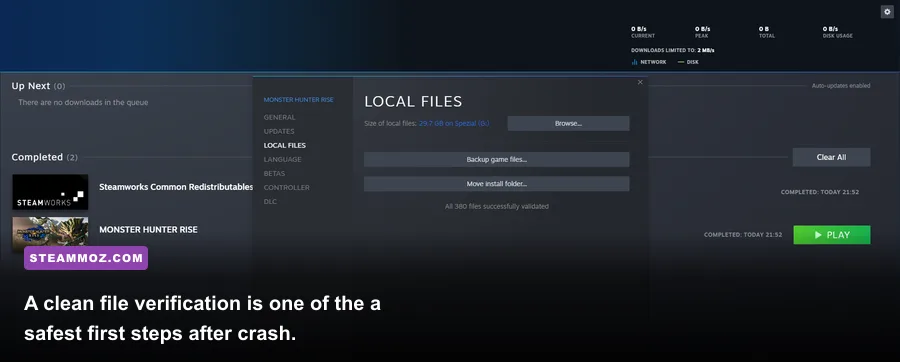
Begin with Steam’s file check. Right-click EcoGnomix in your Library, open Properties, select Installed Files, and choose Verify integrity of game files. This replaces missing or altered files without deleting your saves. It is especially useful after an interrupted update, a forced shutdown, or moving the installation between drives. You can also check the current build and player reports on the official EcoGnomix Steam page.
Next, disable every overlay for one test session. Turn off Steam Overlay, Discord Overlay, Xbox Game Bar, AMD Radeon or NVIDIA recording overlays, MSI Afterburner’s on-screen display, and third-party capture tools. Overlays hook into the rendering pipeline; most work perfectly, but a single driver or game update can make that hook unstable. If EcoGnomix stops crashing, re-enable overlays one at a time until you find the offender.
Update the graphics driver from NVIDIA’s driver page or AMD’s official support page. Choose a clean installation when the installer offers one. Intel Arc and integrated graphics users should use Intel’s current driver package rather than relying exclusively on Windows Update. Restart after installation; do not assume the driver installer’s final screen means every component has reloaded.
Windows should also be fully updated, but avoid stacking major changes on top of a crash without testing. Disable aggressive overclocks and undervolts temporarily, including GPU tuning profiles, XMP or EXPO memory profiles, and laptop manufacturer performance presets. EcoGnomix may be the first game to expose unstable memory even when other titles appear fine. If the crashes vanish at stock settings, the hardware profile needs tuning rather than the game.
Give the game permission to create files. Windows Security’s Controlled Folder Access can block save or configuration writes, while antivirus software may quarantine a file during an update. Add the EcoGnomix executable and its Steam installation folder as exclusions only if you trust the installation, then remove broad exclusions you do not need. Never download random replacement DLL files from unofficial websites.
If the crash continues, open Steam’s launch options only for targeted tests. -windowed can help diagnose fullscreen conflicts, while -screen-width 1920 -screen-height 1080 may provide a safe resolution on a display-mode crash if the build accepts those Unity-style parameters. Do not pile on undocumented commands from old forum posts. A launch option that worked for another Unity game may do nothing—or create a new problem—in EcoGnomix.
Fix save-load crashes and reduce settlement stutter
A game that loads a new settlement but crashes on one established save is telling you something important: the executable is probably fine, while that save, its configuration, or the amount of simulation it triggers deserves attention. Back up your EcoGnomix saves before experimenting. Close the game, copy the relevant save folder to your desktop or another drive, and keep the original untouched. Save locations can vary by Windows account and game build, so use Steam Cloud carefully rather than deleting folders blindly.
Test a new game after verifying files. If the new settlement loads, lower graphics settings before opening the old save, close background applications, and let the system finish any shader or asset work. If the old save still crashes, temporarily disable Steam Cloud, move only the backed-up save out of the active folder, and test whether the game opens normally. Restore files one at a time. This separates a damaged save from a global installation problem and avoids permanently overwriting a recoverable backup.
Large villages can stutter even when the average FPS counter looks healthy. EcoGnomix constantly manages gnome jobs, resource collection, buildings, routes, production, and expedition preparation. Each new structure can add objects for the CPU to track, while a camera sweep across the entire floating island increases the number of visible objects the renderer must process. The fix is not always “lower resolution.” Pause heavy background applications, use the game’s normal speed while measuring, and avoid judging performance during the first moments after loading.
| Scenario | Likely Bottleneck | Useful Adjustment | Do Not Expect |
|---|---|---|---|
| New settlement, low FPS | GPU rendering | Lower resolution, shadows, and effects | CPU tweaks to transform performance |
| Developed settlement, low GPU usage | CPU simulation or draw calls | Reduce view distance and visible clutter; cap FPS | A major gain from lowering resolution alone |
| Stutter after loading | Asset or shader streaming | Install on an SSD and allow a full load cycle | Instantly perfect frame pacing on first load |
| Crash only after long sessions | Heat, memory pressure, or driver instability | Check temperatures, RAM use, and page-file space | A file verification fix every time |
Storage matters more than many players expect. Keep EcoGnomix on an SSD with several gigabytes of free space, especially if the system drive is nearly full. A hard drive may still run the game, but streaming pauses and save operations can become more obvious as the settlement grows. Shut down browsers with dozens of tabs, recording software, and launchers you are not using. On an 8GB RAM machine, background memory pressure can turn a harmless load spike into a crash; 16GB gives Windows and the game much more breathing room.
For more general hardware context, compare the approach in our Children of Morta PC requirements guide and Drox Operative specs breakdown. They reinforce the same rule: minimum specifications describe whether a game can start, not whether a late-game save will feel smooth.
Use a repeatable test plan instead of guessing
Once EcoGnomix launches reliably, build a simple benchmark you can repeat. Use the same save, the same camera position, and the same in-game activity. Record FPS and frame time for at least 60 seconds, then change only one setting. A frame-time graph is more revealing than average FPS: a 22ms average suggests roughly 45 FPS, but repeated 100ms spikes are the stutters you actually feel.
Start with VSync off and an uncapped frame rate so you can see the hardware’s behavior. If the counter swings wildly, cap the game at a number your PC can hold—30, 45, 60, or another stable target. If your monitor supports variable refresh rate, enable FreeSync or G-SYNC at the display and driver level, then keep the cap a few frames below the panel’s maximum refresh rate. Test with overlays disabled first; monitoring tools can be reintroduced after the baseline is stable.
| Test Order | Action | Record | Decision |
|---|---|---|---|
| 1 | Restart Windows and launch EcoGnomix alone | Crash status and load time | Continue only if the result is repeatable |
| 2 | Verify Steam files | Files reacquired and launch result | Retest before changing graphics |
| 3 | Use 1080p, medium quality, overlays off | FPS, frame time, GPU load | Identify GPU or CPU limitation |
| 4 | Load a new and a developed settlement | Performance difference | Separate rendering from simulation pressure |
| 5 | Raise one setting at a time | FPS change per setting | Keep the best visual gain per frame |
If none of these steps changes the crash, collect useful evidence before reporting it. Note your Windows version, GPU model, driver version, system RAM, whether the game is installed on an SSD, the exact moment of failure, and whether a new game behaves differently from an older save. Include the crash text or log path if available. The Irox Games official site is the right place to watch for developer updates, while Steam’s community hub can reveal whether a new patch has introduced a broader issue.
Do not delete saves, reinstall Windows, or buy new hardware as a first response. Most EcoGnomix crashes are better approached with file verification, clean drivers, overlay removal, controlled graphics settings, and a backed-up save. For a wider look at practical PC troubleshooting, our Construction Simulator performance discussion and Death Howl optimization tips take the same evidence-first approach.
The best final profile is the one that stays smooth when your island is busiest, not the one that looks impressive in an empty tutorial area. Keep shadows and effects at the level your GPU can sustain, cap FPS when the simulation becomes CPU-limited, protect your saves, and change settings methodically. With that baseline in place, EcoGnomix’s gnome traffic and expanding floating settlements should feel charmingly hectic rather than like a crash countdown.