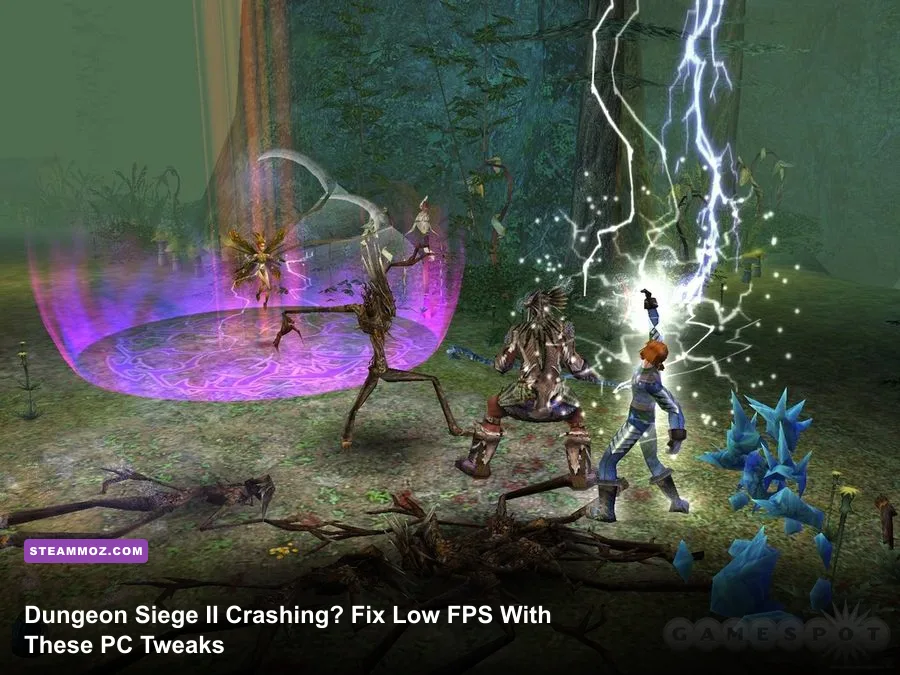
Dungeon Siege II crashing or running at painfully low FPS on a modern PC usually comes down to old DirectX components, fullscreen compatibility, runaway resolution scaling, or a damaged configuration file. Start by verifying the Steam installation, install Microsoft’s legacy DirectX runtime, run DungeonSiege2.exe as administrator with Windows XP SP3 compatibility, then use a 60 FPS cap and lower shadows and spell effects before touching anything more invasive. Those steps solve the majority of launch crashes and stuttering without sacrificing the game’s classic look.
Dungeon Siege II was built for Windows XP-era hardware, not today’s hybrid GPU laptops, ultrawide monitors, and Windows 11 fullscreen compositor. That doesn’t mean it is impossible to run. In fact, the game can be remarkably smooth once you stop forcing a 2005 rendering pipeline to behave like a modern PC title. The key is separating a crash from a genuine performance bottleneck: a missing runtime needs a different fix than a party of six triggering a spell-heavy fight in a crowded outdoor zone.
First, identify what is actually failing
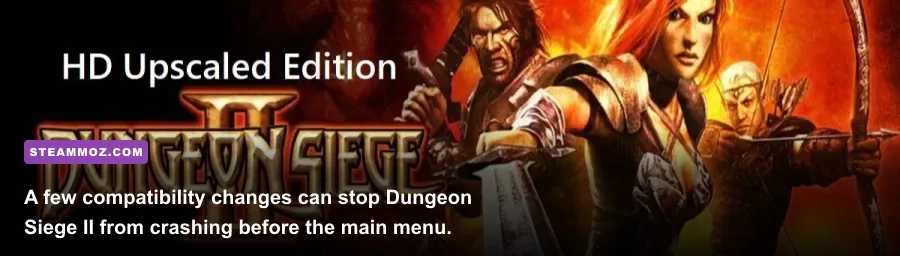
Before changing five settings at once, reproduce the problem and note where it happens. Dungeon Siege II problems tend to fall into four recognizable groups. A crash before the menu points toward missing DirectX 9 files, permissions, or a broken configuration. A crash when loading a save often indicates corrupted user data, a mod mismatch, or a damaged map cache. Constant low FPS everywhere usually means the game is rendering at an unnecessarily high resolution or using a compatibility layer badly. Stutter during large battles is more often a CPU, frame-pacing, or effect-density problem than a lack of GPU power.
| Symptom | Most Likely Cause | Best First Fix |
|---|---|---|
| Crash before the main menu | Missing legacy DirectX files or invalid display settings | Install DirectX End-User Runtime and reset the game configuration |
| Black screen after launching | Fullscreen handshake or unsupported resolution | Use compatibility settings and launch in a windowed mode |
| Crash while loading one save | Damaged save, mod conflict, or Broken World mismatch | Test an older save with all mods disabled |
| 20–30 FPS in every area | Excessive resolution, shadows, or forced driver features | Apply the balanced graphics profile below |
| Short freezes during large fights | CPU draw calls, spell effects, or poor frame pacing | Lower effects, cap the game at 60 FPS, and disable overlays |
Also check whether the issue exists in the base campaign and Broken World. The expansion adds new areas, enemies, and effects, but it should not require a different modern GPU. If only one campaign crashes, avoid reinstalling Windows or replacing drivers immediately. The problem is probably local to that campaign’s files, a mod, or a particular save.
For version history and community-known quirks, the game’s official Steam page is the safest starting point. Don’t download a random “fixed executable” from a file-hosting site just because it promises one-click performance. Old RPG forums are full of useful leads, but unofficial executables can introduce malware or make multiplayer and expansion versions incompatible.

🎮 Dungeon Siege II
Looking to experience this game? Grab your digital key directly on our store for $1.04.
View on Steammoz Store →Stop crashes with a clean compatibility setup
Begin with Steam’s file verification. Right-click Dungeon Siege II in your library, open Properties, select Installed Files, and choose Verify integrity of game files. This restores missing executable and data files, but it won’t necessarily repair a bad user configuration. If you have installed texture packs, widescreen patches, community launchers, or mods, temporarily move them out of the game folder and test an unmodified installation first.
Next, locate the actual game executable through Steam’s Browse local files command. The file is normally named DungeonSiege2.exe. Open its Properties, select the Compatibility tab, and apply these changes:
- Enable Windows XP (Service Pack 3) compatibility.
- Enable Run this program as an administrator if the game cannot save settings or crashes while writing configuration data.
- Enable Disable fullscreen optimizations.
- Open Change high DPI settings, enable the high-DPI override, and let the application control scaling.
XP SP3 compatibility is not magic, and it can occasionally make a modern display behave worse. If the game launches but the image becomes stretched, keep Disable fullscreen optimizations and high-DPI override enabled, then test without XP compatibility. Change one checkbox at a time. The goal is a stable presentation mode, not a ritual list of boxes.
Legacy DirectX support is the next major piece. Dungeon Siege II uses DirectX 9-era components that are not always included in a fresh Windows installation, even when DirectX 12 is installed. Download the official DirectX End-User Runtime Web Installer from Microsoft. It adds the older side-by-side libraries the game expects; it does not replace DirectX 12 or downgrade your graphics API.
Reboot after installation, then launch the game directly from Steam. If you still receive a missing DLL message, write down the exact filename. Do not grab a DLL from a search result and place it in System32. A missing legacy component should be repaired through Microsoft’s runtime package, while a missing game file should be repaired through Steam.
Overlays are another surprisingly common trigger. Disable Steam Overlay, Discord Overlay, GeForce Experience or NVIDIA App overlay, AMD recording overlays, MSI Afterburner’s on-screen display, and third-party reshade injectors for your first clean test. Dungeon Siege II has no reason to need six different hooks in its rendering path, and old DirectX titles are especially sensitive to them.
If the crash happens only after loading a particular save, create a new character and play through the opening area. A fresh game that runs normally proves the executable is healthy. Copy your save folder somewhere safe, then test older saves one by one. Don’t overwrite the only working backup while experimenting with mods or an expansion conversion.
Use this graphics profile for stable 60 FPS
Once the game launches reliably, tune performance from a known baseline. Dungeon Siege II is old enough that a modern graphics card can be underused while the game’s CPU-side scene management becomes the limiting factor. Seeing 30 percent GPU usage does not mean the driver is broken. It often means the game is waiting on draw calls, AI updates, or effects preparation on one busy CPU thread.
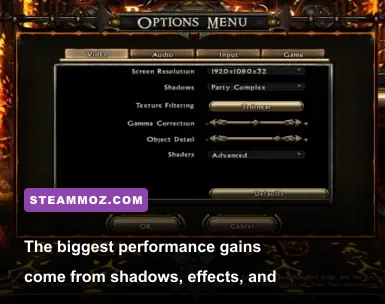
Set the display to your monitor’s native aspect ratio first, but don’t assume the highest available resolution is free. Rendering at 3840×2160 asks the game to push four times as many pixels as 1920×1080. The original textures won’t suddenly become ultra-detailed at 4K, so 1080p or 1440p is usually the smarter compromise. If you use an ultrawide display, test 16:9 windowed mode before relying on an unofficial widescreen patch.
| Setting | Recommended Value | FPS Impact | Visual Trade-Off |
|---|---|---|---|
| Resolution | 1920×1080 or 2560×1440 | High at 4K | Lower resolution softens the image but rarely harms the art style |
| Texture quality | Highest stable option | Low on modern GPUs | Keep it high; textures are not usually the bottleneck |
| Shadow quality | Medium | Medium to high | Less shadow definition, noticeably steadier outdoor performance |
| Particle and spell effects | Medium | High during combat | Fewer bright particles when several casters attack at once |
| Anti-aliasing | Off or driver-controlled low level | Medium | Some jagged edges, but cleaner frame times |
| V-sync | On if capped at 60 FPS | Small | Removes tearing; may add input latency |
| Dynamic lighting | On, then test Off if needed | Low to medium | Turning it off flattens spell and torch lighting |
| Draw distance | High unless outdoor stutter persists | Medium | Lower distance reduces distant scenery and CPU work |
For most systems, the best profile is native 1080p or 1440p, high textures, medium shadows, medium particles, low anti-aliasing, and a 60 FPS cap. That profile preserves Dungeon Siege II’s atmosphere while stopping the worst spikes when multiple fireballs, healing effects, and summoned creatures occupy the same fight.
Use your GPU control panel sparingly. Set the game profile to Prefer maximum performance only if the GPU is repeatedly dropping clocks. Leave forced anti-aliasing, supersampling, sharpening, and ambient occlusion disabled during diagnosis. These features can make a 2005 renderer look marginally cleaner, but they also complicate troubleshooting and can create flickering or a black screen.
Frame caps matter because an uncapped old game can render hundreds of frames in simple menus and then collapse during combat. If the in-game limiter behaves inconsistently, use your driver’s per-application frame-rate limit at 60 FPS. NVIDIA users can set a Max Frame Rate in the Dungeon Siege II profile; AMD users can use the equivalent Radeon frame-rate control. Don’t stack multiple limiters until you know which one is active.
Reset bad settings without losing your characters
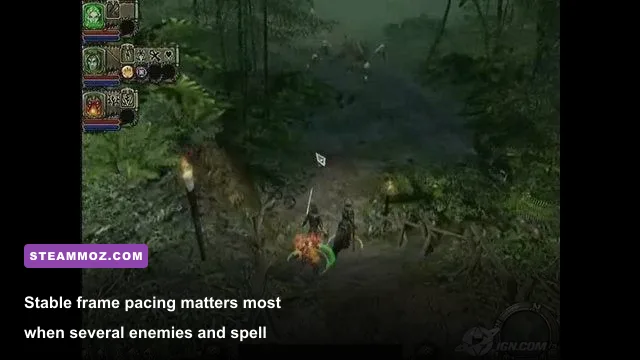
A corrupted configuration is one of the easiest Dungeon Siege II crash causes to miss. The game can remember a resolution or display mode that your current monitor rejects, then crash or show a black screen before you get a chance to change it. Rather than deleting everything immediately, back up the entire Dungeon Siege II folder under your user Documents or Saved Games location.
Look for the game’s user-data folder, commonly stored under Documents\My Games\Dungeon Siege 2. The exact path can vary with Windows language settings, store versions, and compatibility redirects. Search Windows for DungeonSiege2.ini if you cannot find it. Rename the configuration file or the whole settings folder to something like DungeonSiege2-backup, then start the game. Dungeon Siege II should generate fresh defaults.
This is safer than editing random values in an old INI file. If the reset fixes the launch, restore settings manually and test after every change. Put your saves back only after confirming that a new game reaches gameplay. If your saves are stored inside the renamed folder, copy only the save files back—not the old configuration, cache, or mod metadata.
Windows security can also block older games from writing to protected folders. If administrator mode fixes the issue, that tells you the game lacks write access. Keep the fix limited to the executable rather than disabling Windows security globally. Microsoft’s official compatibility guidance is useful when Windows 11’s troubleshooter identifies a different display or permission conflict.
For laptops, force the game onto the dedicated GPU through Windows Graphics settings. Add the executable under Settings > System > Display > Graphics, choose High performance, and relaunch. This is worth checking even when the integrated GPU seems powerful enough: hybrid systems can produce inconsistent clocks, incorrect fullscreen behavior, and stutter when an old title switches adapters.
Keep background tools out of the test. Pause cloud synchronization temporarily, close browser tabs playing video, and disable recording. Dungeon Siege II is not demanding by modern standards, but its main-thread workload is sensitive to interruptions. A stable 60 FPS in a quiet test area followed by drops only while recording points to overhead, not a broken game installation.
Fix stutter, saves, mods, and Broken World problems
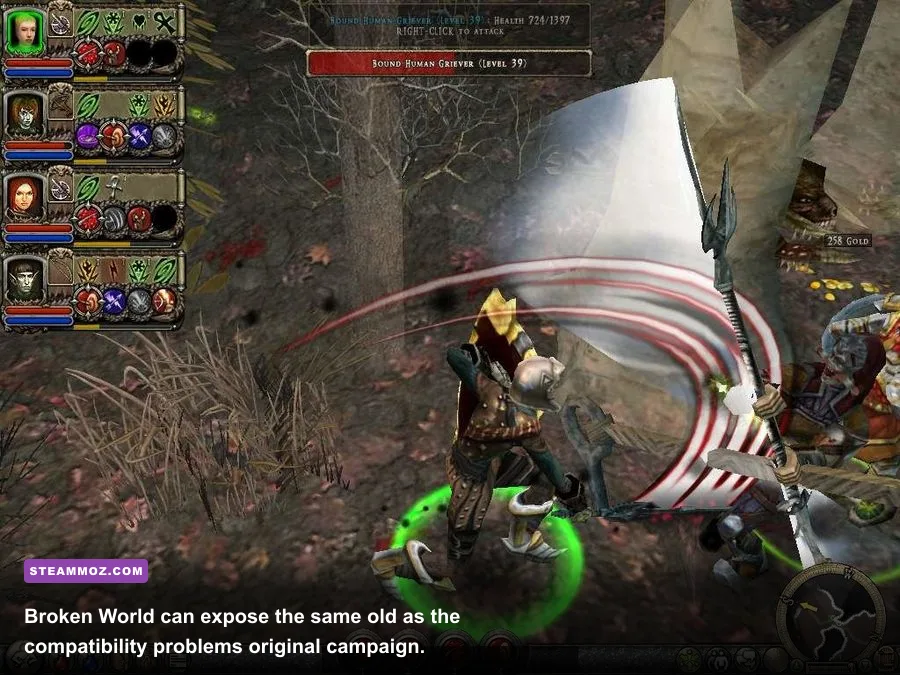
If FPS is high but movement still feels uneven, the issue is frame pacing. A 120 FPS counter can look worse than a locked 60 if frame delivery jumps between 5 ms and 20 ms. Use one frame limiter, enable V-sync if tearing is distracting, and avoid running the game in borderless mode if Windows’ compositor introduces irregular pacing. Exclusive fullscreen compatibility differs across PCs, so compare it with a simple windowed test.
Mods deserve a clean-room test. Dungeon Siege II modifications can alter the executable, resource archives, balance tables, or campaign data. A mod made for the base game may crash Broken World, while a mod expecting a patched executable can fail on the Steam build. Move every mod file out of the installation directory, verify files, and start an unmodified new game. If performance returns, add modifications back one at a time and keep a separate save for each setup.
Large combat scenes are the real stress test. A party containing a fighter, an archer, a combat mage, and a nature mage can generate overlapping attack animations, summons, status effects, and lighting events. Lower particle effects first, not textures. If the slowdown occurs in crowded hubs or wide outdoor views, reduce shadows and draw distance next. Those settings affect the number of scene objects the CPU and renderer must process, while texture quality mostly affects memory use.
| Test Stage | What to Do | What the Result Means | Next Action |
|---|---|---|---|
| Clean launch | New game with overlays and mods disabled | Confirms the core executable works | Restore features one at a time |
| Combat test | Fight a group using several spells and summons | Reveals effect and CPU-related drops | Lower particles and shadows |
| Save test | Load an older save, then the problem save | Separates file corruption from system issues | Use the oldest healthy save or rebuild the mod setup |
| Display test | Compare windowed, fullscreen, and 1080p | Identifies monitor and scaling conflicts | Keep the stable mode and apply a 60 FPS cap |
| Driver test | Remove forced enhancements from the game profile | Exposes driver-injected rendering conflicts | Re-enable only one enhancement if necessary |
Don’t confuse a long area load with a crash immediately. On a first run after resetting settings, the game may take longer while Windows security scans files or the system rebuilds cached data. Give it a minute, but terminate it if CPU and disk activity remain completely idle. Then check Event Viewer for the faulting module. A graphics-driver module suggests a driver or overlay conflict; the game executable points more toward compatibility, data, or save problems.
If you want a second opinion on older PC-game behavior, our guides for ELEX crash and FPS fixes and EscapeVR: The Basement performance problems use the same useful diagnostic principle: establish a clean baseline before layering on patches and tweaks. The details differ, but the workflow saves hours.
The fastest fix order for Dungeon Siege II
Here’s the order I’d use on a fresh Windows 10 or Windows 11 installation:
- Verify the Steam files. This removes damaged or incomplete game data from the equation.
- Install Microsoft’s legacy DirectX runtime. DirectX 12 being present does not guarantee every DirectX 9 component is installed.
- Disable every overlay and injector. Test Steam, Discord, GPU overlays, recording software, reshade, and frame counters separately later.
- Apply executable compatibility settings. Start with disabled fullscreen optimizations and high-DPI override; add XP SP3 compatibility if the launch still fails.
- Reset the user configuration. Rename the settings folder after backing up saves, then let the game generate clean defaults.
- Use 1080p or 1440p with medium shadows and effects. Lock the game to 60 FPS before judging performance.
- Test a new character. Only restore old saves and mods after the clean game survives a dungeon and a large outdoor fight.
Keep the official Microsoft DirectX download center and the Dungeon Siege II Steam listing bookmarked, and avoid “FPS booster” utilities that promise to patch every old game automatically. For graphics-driver troubleshooting, use the official NVIDIA driver page or AMD support page rather than a third-party mirror.
Finally, don’t chase a huge FPS number just because your monitor supports 165 Hz. Dungeon Siege II’s combat feels consistent at a properly paced 60 FPS, and the game’s old simulation loop benefits more from stability than from an uncapped counter. If the title launches, saves correctly, and holds 60 FPS through a spell-heavy fight in Broken World, you’ve solved the problem that matters—not merely made the menu render faster.
For more hands-on PC troubleshooting, see our Filament performance settings guide and Far Cry 6 FPS tuning guide. The same rule applies here: change the smallest number of variables possible, measure in a repeatable scene, and keep a backup before modifying saves or game files.