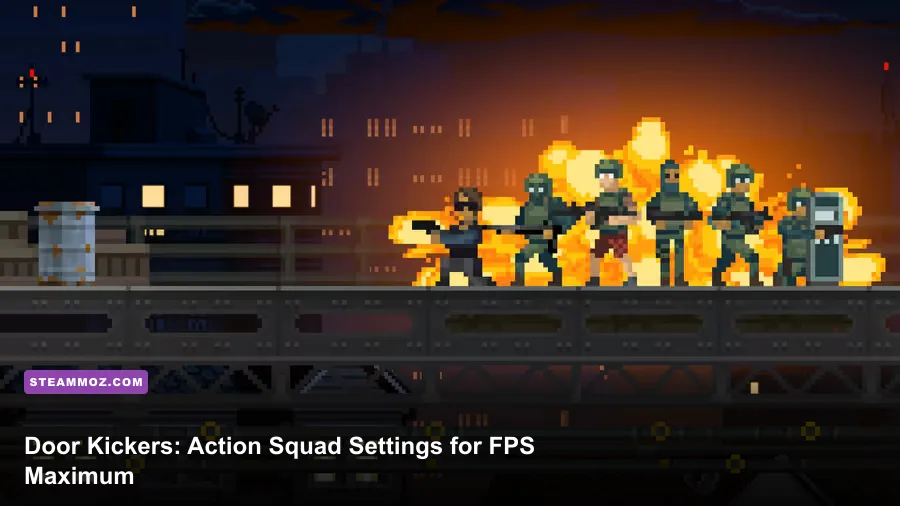
For maximum FPS in Door Kickers: Action Squad, use the game's native resolution, disable VSync if you want the lowest input latency, enable exclusive fullscreen when available, and keep Windows scaling and background overlays out of the way. This is a 2D pixel-art action game, so a modern gaming PC should run it smoothly; if your frame rate dips, the culprit is usually display mode, frame pacing, drivers, overlays, or a laptop power profile rather than raw GPU power.
The important distinction is that high FPS and clean frame pacing aren't always the same thing. Action Squad is built around quick peeks, door breaches, shotgun timing, and rescuing hostages before a room collapses into chaos. A locked 60 FPS with consistent delivery feels better than a wildly fluctuating 200 FPS. Use the profiles below as a starting point, then test them in a crowded mission rather than an empty hallway.
This guide focuses on the Steam PC version. Before changing anything, check the game's current build on the official Steam page and update your graphics driver. For broader PC troubleshooting ideas, our guides to Dungeons 3 low FPS fixes and Food Truck Simulator stutter fixes cover the same Windows-side problems that can affect a lightweight game.
Best Door Kickers: Action Squad graphics settings

Start with a clean baseline. Open the game's video or graphics options from the main menu, select your monitor's native resolution, choose fullscreen, and decide whether VSync matters more to you than latency. Because the game uses deliberately chunky pixel art, lowering resolution doesn't produce the kind of dramatic performance gain you would see in a modern 3D shooter. It can also make sprites and interface text look softer, especially when the selected resolution doesn't scale neatly to your panel.
For most players, the best-looking performance profile is native resolution, fullscreen, VSync enabled, and every optional visual effect left on. If you notice a stubborn cap at 60 FPS, that may simply match the game's presentation and your display's refresh rate. Don't mistake a stable cap for poor performance. The useful test is whether controls feel immediate and whether the frame rate remains consistent when several enemies, particles, doors, and class effects appear at once.
| Setting | Recommended value | FPS impact | Visual or gameplay note |
|---|---|---|---|
| Resolution | Native monitor resolution | Low to medium | Best sprite and UI clarity; lower only for a weak laptop |
| Display mode | Fullscreen | Low | Usually gives cleaner focus and fewer desktop conflicts |
| VSync | On for smoothness, off for lowest latency | None to low | On prevents tearing; off can expose refresh-rate mismatch |
| Pixel filtering or scaling | Nearest or pixel-perfect option | Negligible | Keeps hard pixel edges instead of blurring the art |
| Camera shake | Personal preference | Negligible | Disable it for a calmer view, not for a meaningful FPS boost |
| Particles and effects | High or default | Low on modern hardware | Lower only if explosions create repeatable dips |
| Frame limiter | 60 FPS or monitor refresh rate | Can improve consistency | A sensible cap reduces unnecessary workload and heat |
Some installations may label options differently or expose fewer toggles depending on the platform and build. Don't go hunting for a modern 3D menu full of shadow maps and ambient occlusion sliders; Action Squad doesn't need them. The largest practical decisions are resolution, fullscreen behavior, synchronization, and whether another application is interfering with the window.

🎮 Door Kickers: Action Squad
Looking to experience this game? Grab your digital key directly on our store for $2.79.
View on Steammoz Store →Three performance profiles worth using
Rather than blindly turning everything off, pick a profile based on the problem you're actually seeing. A desktop with a dedicated GPU should use the Quality or Competitive profile. A budget notebook can use the Performance profile, but it should still preserve native resolution if the game remains stable. The Low-Power profile is useful when playing on battery, where a lower cap can prevent thermal throttling and sudden dips.
| Profile | Core settings | Best for | Expected result |
|---|---|---|---|
| Quality | Native resolution, fullscreen, VSync on, effects high | Most desktops and gaming laptops | Sharp pixel art and stable frame pacing |
| Competitive | Native resolution, fullscreen, VSync off, frame cap at display refresh | Players sensitive to input delay | Fastest response, with possible tearing |
| Performance | One step below native resolution, fullscreen, VSync off, effects reduced | Older integrated graphics | More headroom during crowded firefights |
| Low-Power | Native resolution, VSync on, 60 FPS cap, reduced brightness | Battery play and hot laptops | Lower heat, fan noise, and clock fluctuation |
Quality profile: the sensible default
Use this first. Action Squad's pixel art is part of its tactical readability: doors, civilians, enemies, laser sights, and class silhouettes need to remain instantly recognizable. Running below native resolution can make a hostage's outline blend into a background at exactly the wrong moment. VSync is a good choice if your monitor runs at 60 Hz and you see horizontal tearing while panning or aiming.
Competitive profile: response over presentation
Turn VSync off if your priority is the smallest possible delay between a key press and a breach, roll, or weapon action. The trade-off is tearing, particularly when the frame rate doesn't divide cleanly into your monitor refresh rate. If your GPU driver offers a frame limiter, cap the game near your display's refresh rate rather than letting it render hundreds of unnecessary frames. That reduces heat without making the controls feel sluggish.
Performance profile: reduce resolution last, not first
On an older Intel or AMD integrated GPU, first close overlays and switch the laptop to its highest-performance power mode. Only then test a lower resolution. Since this is a sprite-driven game, the gain may be modest, and blurry scaling can hurt more than it helps. If the game is already holding a stable 60 FPS, changing resolution won't improve the actual tactical experience.
How to diagnose FPS drops and stutter
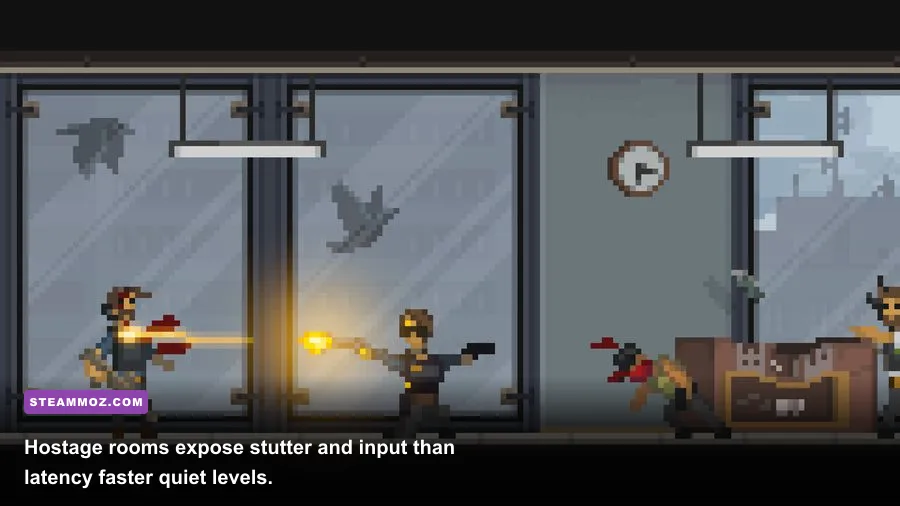
Don't diagnose by staring at the main menu. Load a mission with several rooms, multiple enemies, destructible doors, civilians, and active class abilities. The opening moments of a campaign stage may look perfectly smooth, while a later room triggers a short hitch because the game is drawing more effects or because another process wakes up in the background.
- Confirm the symptom. Is the image tearing, is the whole game slowing down, or is there a brief hitch followed by normal speed? Tearing points toward synchronization. A full slowdown can indicate the system is underpowered or thermally constrained. Repeated hitches often suggest background software, shader compilation, overlays, or a display-mode conflict.
- Test fullscreen and borderless behavior. Use fullscreen first. If it behaves worse, try the alternate windowed mode offered by your build. Windows' fullscreen optimizations can produce different results across systems, so the best mode is the one that gives consistent frame times, not the one that sounds fastest.
- Watch GPU and CPU usage. If both remain low while the game stutters, lowering resolution won't solve it. Check Xbox Game Bar, Discord, Steam Overlay, recording software, RGB utilities, browser tabs, and motherboard monitoring tools. These programs can interrupt a simple 2D game more noticeably than a large 3D title.
- Check laptop power behavior. Plug in the charger, select Best Performance in Windows, and make sure the game is using the intended graphics adapter. A battery-saving profile can reduce clocks so aggressively that a game appears to have random FPS problems.
- Retest the same room. Use one mission and repeat the same sequence. If the hitch happens at the same door or explosion every time, it may be an effect or asset-loading issue. If it moves around, background activity or thermal throttling is more likely.
Steam's overlay is convenient, but it isn't mandatory. Disable it temporarily through the game's Steam properties, then run the same mission. Do the same with Discord overlay and GPU recording. This is a diagnostic step, not a permanent commandment; once you find the offender, you can restore the tools you actually use.
Fixing a game that starts in the wrong resolution
If the image is stretched, cropped, or stuck in an unusable window, quit completely before trying random combinations of settings. Verify the installation through Steam, update the display driver, and remove unusual Windows scaling overrides for the executable. A clean restart after changing display mode matters because some older games don't apply every video setting until the next launch.
Keep your desktop scaling at its normal value while testing. Windows DPI scaling is designed for modern applications, but older pixel-art games can react unpredictably when forced through compatibility settings. Don't stack multiple overrides at once. Change one item, launch the game, and record the result.
Why crowded missions are the real benchmark
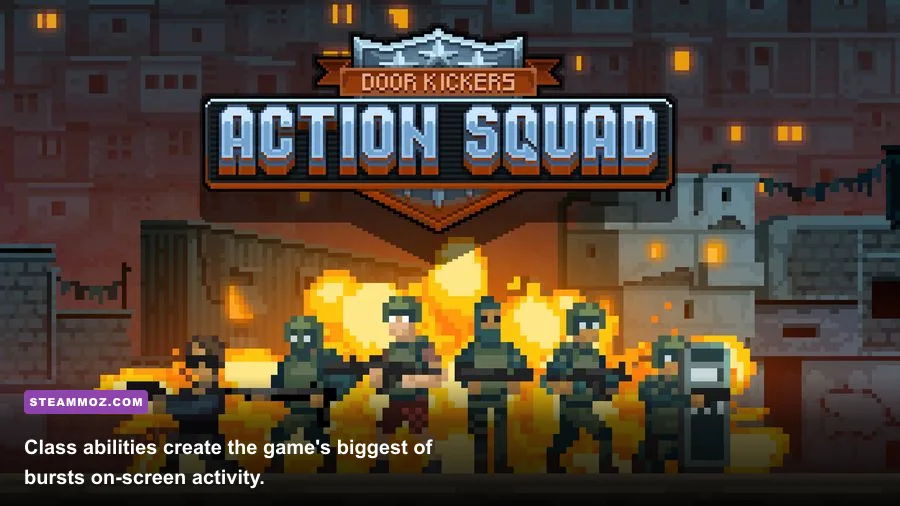
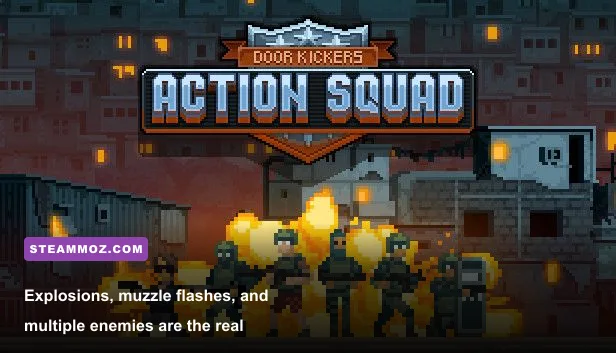
Door Kickers: Action Squad doesn't stress a PC like a modern open-world game. Its demanding moments come from sudden bursts: several enemies firing, doors breaking, muzzle flashes, explosions, hostages moving, and a specialist activating an ability in the same small area. These events matter because they happen during a decision, not during a safe traversal section.
The four playable classes also create different visual and input patterns. The Breacher encourages aggressive door destruction and close-range engagements. The Assault class keeps fights moving with rapid weapon handling. The Supporter brings heavier firepower and can create more screen activity when suppressing rooms. The Pointman is built around deliberate movement and tactical utility. You don't need different graphics settings for each class, but you should benchmark with the class and equipment combination you actually play.
A useful test route is simple: enter a room without firing, repeat it with a door breach, then replay it while enemies and civilians are active. Compare how the camera responds, whether input arrives immediately, and whether the frame rate drops only when effects stack. This approach is more valuable than chasing a maximum number in an empty corridor.
| Test scene | What to watch | Likely cause of problems | Best adjustment |
|---|---|---|---|
| Quiet hallway | Baseline frame rate and input | Display mode or global system issue | Check fullscreen, refresh rate, and power mode |
| Door breach | Short hitch during destruction effect | Effect burst or overlay interruption | Reduce effects only after disabling overlays |
| Hostage room | Control response during crowd movement | Frame pacing or CPU background load | Close background apps and cap FPS |
| Large firefight | Sustained slowdown and tearing | Synchronization, thermal, or power limit | Choose VSync or a sensible frame cap |
| Repeated restart | Stutter at the same moment every time | Asset loading or game-side behavior | Verify files and test another display mode |
For tactical games, frame pacing deserves special attention. A counter reporting 60 FPS can still feel uneven if frames arrive in bursts. VSync often smooths that delivery, while an external limiter can help when VSync introduces too much latency. Try both rather than assuming one is universally superior.
Windows and Steam tweaks that actually help
The game itself is lightweight, so system cleanup can matter more than turning down pixel effects. Start with the basics: update Windows, install a stable graphics driver, close unnecessary launchers, and make sure your antivirus isn't repeatedly scanning the game directory during play. Don't use random registry cleaners or so-called FPS booster programs. They rarely improve a simple 2D game and can create new problems.
- Disable unnecessary overlays: Test Steam Overlay, Discord, Xbox Game Bar, AMD Adrenalin overlay, NVIDIA overlay, and MSI Afterburner one at a time. Keep the tools you need, but identify which one causes the hitch.
- Use the correct refresh rate: In Windows display settings, confirm that your monitor is running at its intended refresh rate. A 144 Hz screen configured at 60 Hz can make motion feel worse even when the game is rendering correctly.
- Choose a stable cap: If you use VSync, match the display's refresh behavior. If you don't, use a driver or in-game limiter near the refresh rate. Unlimited rendering is not automatically better.
- Prevent thermal throttling: Clean blocked laptop vents, avoid soft surfaces, and monitor temperatures. A machine that begins smoothly and deteriorates after ten minutes is telling you more about heat than graphics quality.
- Verify game files: Steam's file verification is worthwhile after a crash, interrupted update, or suspiciously broken setting. It won't fix every performance issue, but it's a safe reset step.
For another example of careful settings work rather than blind quality reduction, see our Everspace stutter settings guide. The hardware is different, but the principle is identical: isolate frame pacing, overlays, thermal limits, and resolution instead of changing everything at once.
Recommended final setup for most PCs
For a typical modern desktop or gaming laptop, I recommend native resolution, fullscreen, pixel-perfect or nearest-neighbor scaling, VSync on, and the default high effects profile. If your monitor is above 60 Hz and you care about immediate aim response, switch VSync off and apply a sensible frame cap. Keep camera shake based on comfort; it has virtually no meaningful FPS impact.
| Component | Minimum practical target | Recommended target | Pro-tuned profile |
|---|---|---|---|
| Resolution | Stable lower-than-native mode | Native resolution | Native resolution with correct pixel scaling |
| Frame rate | Stable 60 FPS | Stable 60 FPS or monitor refresh | Consistent frame times over peak FPS |
| Synchronization | VSync on if tearing appears | VSync on at 60 Hz | VSync off with an external cap for low latency |
| Power mode | Plugged-in balanced mode | High performance | High performance with temperatures monitored |
| Overlays | Only essential overlays | Disabled during testing | Re-enable individually after benchmarking |
On genuinely weak hardware, reduce resolution and effects together, but make changes gradually. If the game already holds 60 FPS, stop tuning. Lowering visual quality beyond that point won't make room entries more tactical, and it may make critical silhouettes harder to read.
Finally, remember that the best Door Kickers: Action Squad graphics settings are the ones that preserve consistency during the messiest room. Test your profile with breach effects, multiple enemies, civilians, and class abilities active. If controls stay immediate and the image remains stable, you've already achieved the performance target that matters. For more focused PC optimization coverage, browse our guide to Hacknet's max-FPS settings, and check the KillHouse Games website for developer news and updates.