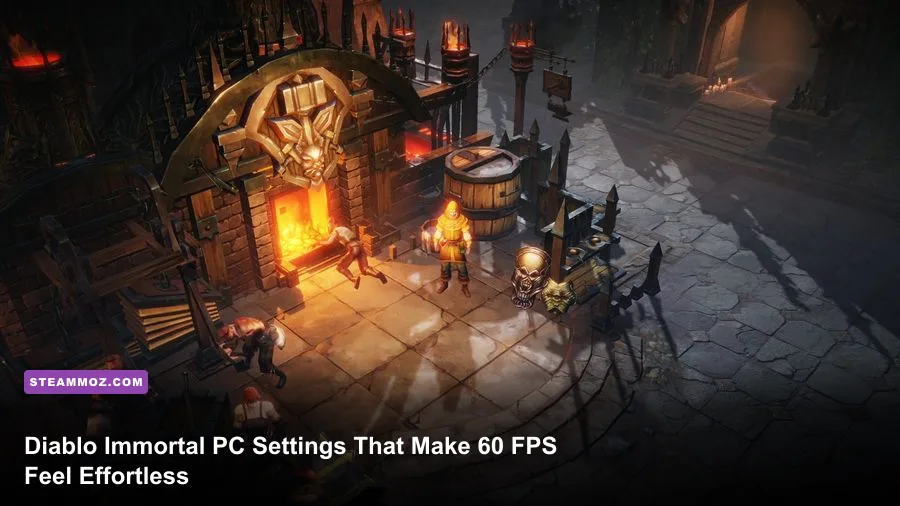
For the best Diablo Immortal PC performance, start with 1080p, a 60 FPS cap, V-Sync off, Anti-Aliasing on, Shadows on Medium, and Effects, Fog, Vegetation, and Post Processing on Low or Medium. That profile preserves Diablo Immortal's crisp character models and readable spell effects while avoiding the sudden frame-time spikes that hit crowded Elder Rifts, Helliquary raids, and Westmarch events. On a mid-range gaming PC, it is a much better starting point than blindly selecting the Ultra preset.
Diablo Immortal is not a demanding game by modern PC standards, but its performance can feel uneven. The average frame rate may look healthy while the game still stutters during a Barbarian's Whirlwind, a Crusader's Consecration, or a Wizard's Ray of Frost slicing through a packed room. The trick is not simply lowering everything. You want to reduce settings that create GPU and particle-load spikes while keeping the options that protect visual clarity.
The best 60 FPS graphics profile for most PCs
Open the settings menu from the top-right icon, select the Graphics tab, and switch away from the automatic preset before making changes. The following profile is tuned for 1080p displays and hardware around Blizzard's recommended PC class. It also works well for laptops that can sustain roughly 45 to 60 frames per second without thermal throttling.
| Setting | Recommended value | FPS impact | Visual trade-off |
|---|---|---|---|
| Resolution | 1920x1080 or native 1080p | High | Best balance of sharpness and GPU load |
| FPS Limit | 60 FPS | Medium | Steadier frame pacing than an unlimited target |
| V-Sync | Off | Low | Lower latency; enable it only if tearing is distracting |
| Image Quality | Custom | Varies | Lets you avoid wasteful Ultra options |
| Anti-Aliasing | On | Low to medium | Smoother character and environment edges |
| Shadows | Medium | Medium to high | Retains depth without expensive soft shadows |
| Effects Detail | Medium | Medium | Preserves readable class abilities |
| Fog Effects | Low | Medium | Less atmospheric haze, especially in dungeons |
| Post Processing | Low | Medium | Cleaner image with fewer glow-related spikes |
| Vegetation Burning Effects | Low | High in outdoor zones | Fire and environmental reactions are simplified |
| Monster Effects | Medium | Medium | Enemy attacks remain easier to read |
| Character Detail | High | Low | Keeps heroes and armor looking sharp |
| Environment Detail | Medium | Medium | Reduces distant geometry and clutter |
Keep Character Detail higher than Environment Detail. Your hero, party members, and enemies occupy the part of the screen that matters during combat, while distant scenery contributes little to a Challenge Rift clear. Likewise, don't immediately disable Anti-Aliasing. Diablo Immortal has a lot of thin weapon silhouettes, fences, rooflines, and enemy outlines; jagged edges can make telegraphs harder to spot even when the frame rate is high.

🎮 FORM
Looking to experience this game? Grab your digital key directly on our store for $14.99.
View on Steammoz Store →Which settings actually cost the most FPS
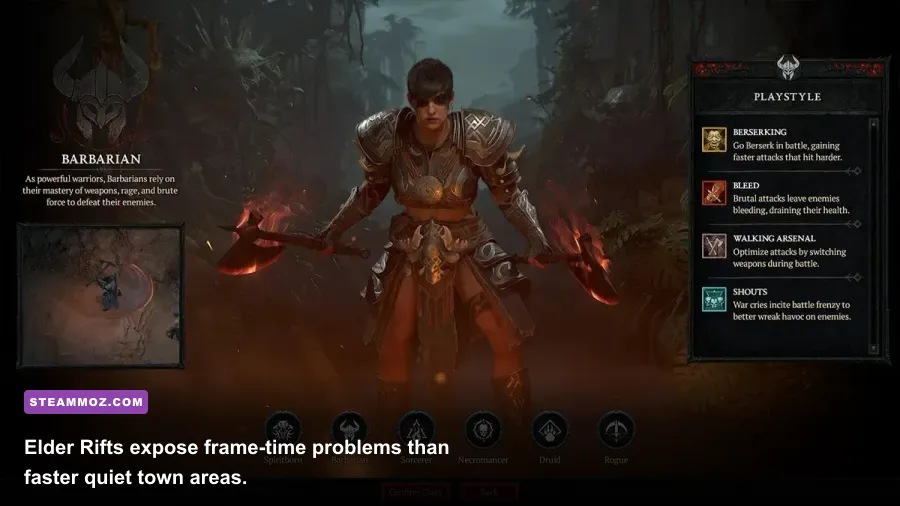
The most expensive options aren't always the ones that look dramatic in the menu. Shadows, environmental burning, fog, and post-processing often create the worst frame-time spikes because they affect many objects simultaneously. A single demon is easy to render. A crowded event in Bilefen with fire, smoke, summoned creatures, and several players is a different story.
Shadows and environmental effects
Shadows are usually the first major cut for a mid-range GPU. Ultra shadows can make Westmarch look richer, but the improvement disappears during a fast dungeon run. Medium is the sweet spot: characters still sit naturally in the scene, and ground shadows help you judge enemy positioning without asking the GPU to render expensive detail everywhere.
Vegetation Burning Effects deserves special attention on older graphics cards. It controls more than pretty fire. Outdoor combat can trigger burning grass, embers, smoke, and animated environmental reactions at once. Set it to Low if your frame rate collapses in Ashwold Cemetery, Dark Wood, or Bilefen. You won't lose important combat information because enemy attack indicators remain separate from those scenery effects.
Effects, fog, and post-processing
Effects Detail is more complicated. Lowering it can reduce the cost of explosions, elemental attacks, and boss abilities, but the lowest setting may make a busy fight visually muddy. Keep it at Medium first, then test a packed Elder Rift. If a party containing a Necromancer, Wizard, and Crusader causes repeated dips, lower Effects Detail to Low and raise Monster Effects to Medium if that option is available in your build.
Fog Effects and Post Processing are safe performance cuts. Fog adds atmosphere to areas such as the Frozen Tundra and Realm of Damnation, but it doesn't improve your damage, loot, or map visibility enough to justify stutter. Post Processing controls visual polish such as glow, bloom, and screen-space touches. Low gives up some cinematic shine while keeping enemies and ground hazards more legible.
| Setting to lower | When to lower it | Expected benefit | What you keep |
|---|---|---|---|
| Shadows | GPU usage stays near 99% or FPS dips in towns | More consistent frame time | Readable characters and attacks |
| Vegetation Burning Effects | Outdoor events stutter during fire effects | Fewer particle and environment spikes | Core combat telegraphs |
| Fog Effects | Dungeon scenes hitch during camera movement | Lower fill-rate demand | Terrain and enemies |
| Post Processing | Brightness and bloom cause inconsistent pacing | Cleaner, steadier image | Gameplay-critical outlines |
| Environment Detail | CPU frametimes rise in Westmarch | Less distant geometry work | Nearby scenery and combat space |
Resolution, refresh rate, and frame pacing
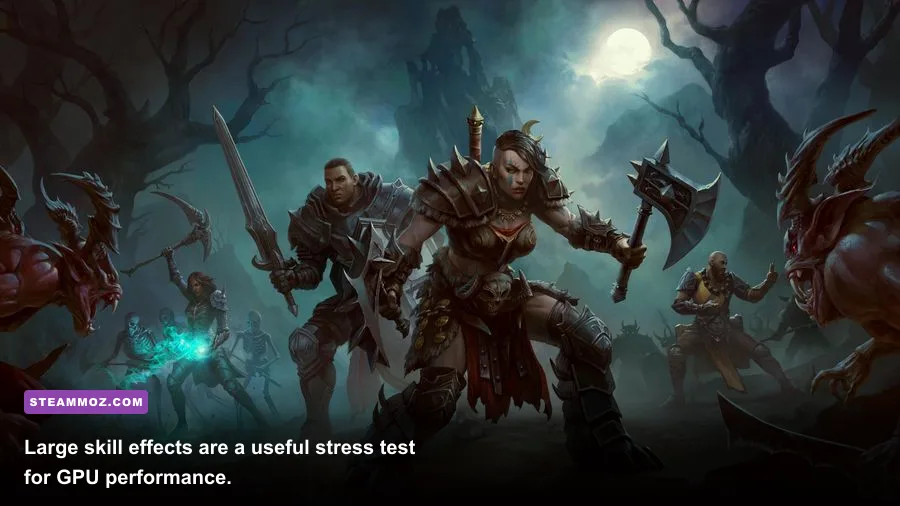
A stable 60 FPS is a better target than an unstable 120 FPS in Diablo Immortal PC. The game is an action RPG rather than a competitive shooter, and consistent input response matters more than chasing a number your laptop can hold for only a few seconds. If your monitor runs at 144Hz, that doesn't mean the game should be forced to render at 144 frames every second.
Start at native 1080p. If your display is 1440p, test native resolution in Westmarch, then run a full Elder Rift with several classes on screen. If performance falls below 60, reduce resolution before gutting every quality option. A slightly softer 1080p image usually looks better than 1440p with Low textures, harsh aliasing, and constant hitching.
Use the in-game FPS limit rather than an unlimited setting. An unlimited target can push your GPU to maximum usage in simple areas, leaving less thermal headroom for sudden combat effects. A 60 FPS cap also helps laptops avoid the heat cycle that causes performance to decline after 15 or 20 minutes. If your system cannot sustain 60, choose 30 only when necessary; 45 FPS is preferable if the game and display combination supports that cap reliably.
V-Sync is best left off when you prioritize input response. Turn it on if horizontal tearing is obvious, especially when panning the camera across Westmarch. Players with G-SYNC or FreeSync should enable variable refresh on the monitor and keep the game capped slightly below the display's maximum refresh rate. That combination generally feels smoother than letting the GPU run unrestricted.
PC hardware and Windows changes that prevent stutter
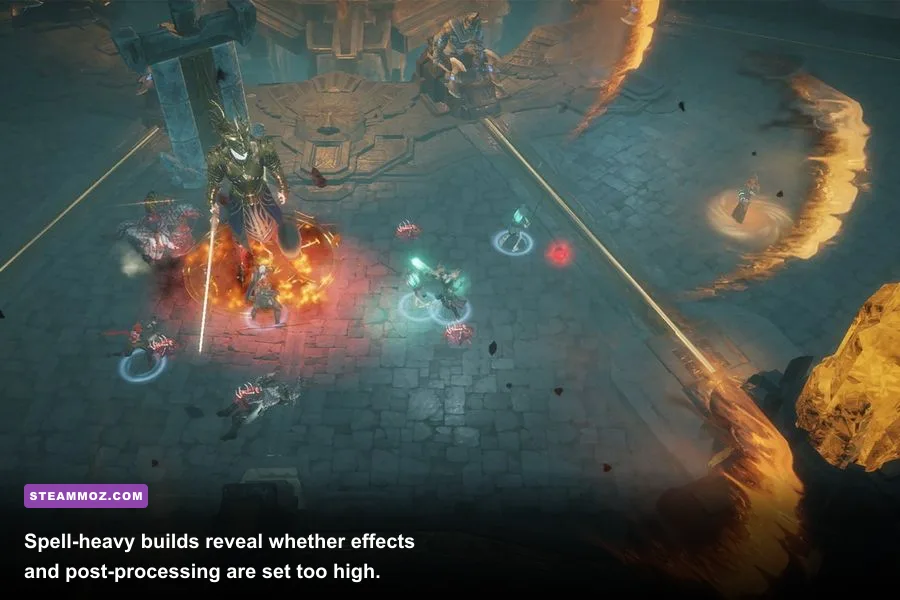
Blizzard's published PC baseline lists a 64-bit Windows installation, an Intel Core i3 or AMD FX-8100-class processor, 4GB of RAM, and graphics hardware around the GeForce GTX 460 or Radeon HD 6850 level, with roughly 5GB of storage. Those specifications describe what can launch the game, not what delivers a smooth 60 FPS in a crowded raid. For a comfortable experience, 8GB of RAM, a modern four- or six-core CPU, and a discrete GPU comparable to a GTX 1060, GTX 1660, RX 580, or newer are much safer targets.
| Component | Published baseline | Practical 60 FPS target | Why it matters |
|---|---|---|---|
| Operating system | 64-bit Windows | Windows 10 or 11 64-bit | Driver support and memory management |
| Processor | Core i3 or AMD FX-8100 class | Modern Core i5 or Ryzen 5 | Player counts, streaming assets, and frame pacing |
| Memory | 4GB RAM | 8GB or more | Reduces paging during zones and background activity |
| Graphics card | GTX 460 or Radeon HD 6850 class | GTX 1060, GTX 1660, RX 580, or newer | Higher settings and steadier effects rendering |
| Storage | About 5GB available | SSD with additional free space | Faster asset streaming and fewer loading pauses |
Install the game on an SSD if possible. Diablo Immortal streams zone assets, character models, and effects as you move between hubs and combat spaces. An old hard drive can turn that streaming into short pauses that look like GPU stutter. Close browser tabs, launchers, RGB utilities, and recording software while testing. If you want to capture gameplay, use hardware encoding in OBS so the CPU isn't competing with the game.
Update the graphics driver, but don't assume a new driver fixes every hitch. Check Windows power mode, set the game to use the dedicated GPU on a laptop, and keep the machine plugged in. Laptop battery profiles routinely cap clock speeds, while heat can force a perfectly capable GPU below its sustained performance level. Steamoz's PC crash and FPS fixes are also useful for the same driver, overlay, and power-plan checks.
Stress-test your settings in the right places
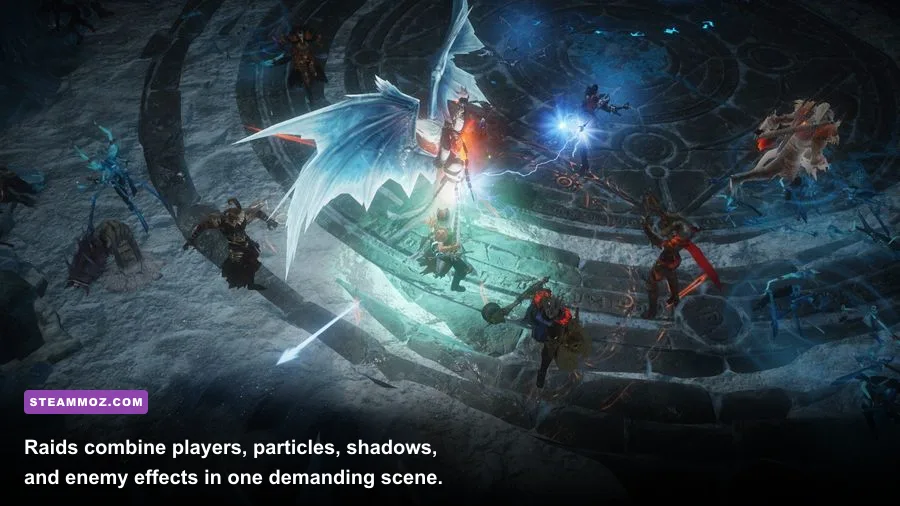
Don't judge a graphics profile while standing alone in Westmarch. Towns can reveal CPU and asset-streaming problems, but they don't represent a full combat load. Use three repeatable tests: run through a crowded Westmarch area, clear an Elder Rift with area-damage skills, and join a Helliquary activity with several players and overlapping effects.
Test one: crowded hub movement
Move through Westmarch near the Elder Rift entrance and the blacksmith while rotating the camera. Watch for hitching when other players appear. If the GPU is under 90 percent but frames still dip, lower Environment Detail or investigate CPU, storage, and background-process limits. If the GPU is pinned at 99 percent, reduce resolution, Shadows, or Post Processing.
Test two: a particle-heavy Elder Rift
Use a class that represents your real playstyle. A Barbarian using Whirlwind stresses particles and enemy density; a Wizard using Disintegrate or Ray of Frost tests beam effects; a Necromancer with multiple summons tests character and monster rendering. Fight a large pack rather than measuring the first empty corridor. Look for the lowest sustained frame rate, not the peak number shown after loading.
Test three: Helliquary and group events
Group content is where an overly ambitious Ultra preset usually falls apart. Helliquary bosses combine player models, summoned minions, ground effects, shadows, and boss telegraphs. If the screen becomes a slideshow when the boss enters a new phase, lower Effects Detail and Monster Effects before lowering Character Detail. You need to see attack zones and your party's position more than you need perfect foliage.
| Test area | What it reveals | First setting to adjust | Good result |
|---|---|---|---|
| Westmarch hub | CPU load and asset streaming | Environment Detail | Camera turns stay smooth around players |
| Elder Rift pack | Particles and class ability load | Effects Detail | No severe dips during area damage |
| Helliquary group fight | Players, telegraphs, and shadows together | Shadows, then Monster Effects | Boss warnings remain readable at 60 FPS |
| Outdoor event | Fire, fog, and vegetation reactions | Vegetation Burning Effects | No hitch when environmental effects trigger |
Three profiles worth saving for Diablo Immortal PC
There isn't one perfect preset for every machine. Save the following profiles mentally, then adjust one setting at a time. Changing six options together makes it impossible to identify the real culprit.
Clean 60 FPS profile
Use 1080p, 60 FPS, V-Sync off, Anti-Aliasing on, Shadows Medium, Effects Medium, Monster Effects Medium, Fog Low, Post Processing Low, Vegetation Burning Low, Character Detail High, and Environment Detail Medium. This is the profile I'd recommend first for most desktop PCs and gaming laptops.
Sharp high-quality profile
Use native 1440p if your GPU has headroom, 60 FPS, V-Sync off with variable refresh, Anti-Aliasing on, Shadows High, Effects High, Fog Medium, Post Processing Medium, Vegetation Burning Medium, Character Detail High, and Environment Detail High. Test it in a Helliquary group fight, not an empty map. If the minimum frame rate drops hard, return Shadows and Effects to Medium before sacrificing resolution.
Older laptop profile
Use 1080p or 1600x900, 30 or 45 FPS depending on stability, V-Sync on if tearing appears, Anti-Aliasing on, Shadows Low, Effects Low, Fog Low, Post Processing Low, Vegetation Burning Low, Monster Effects Low, Character Detail Medium, and Environment Detail Low. Keep the charger connected and use a cooling stand. If the machine still stutters, resolution is the next meaningful cut.
For troubleshooting outside the graphics menu, compare your symptoms with Steamoz's guides for crashes and low FPS, performance-focused settings, and higher-FPS PC tuning. The same fundamentals apply: confirm the active GPU, watch temperatures, eliminate overlays, and test after each change.
For official information, check the official Diablo Immortal site, Blizzard's Diablo Immortal support page, and the game's official news archive. Game updates can add effects or alter performance, so recheck the profile after a major patch.
The short version is simple: cap the frame rate, keep Anti-Aliasing and Character Detail intact, then spend your performance budget on Shadows, Fog, Post Processing, and environmental fire. Diablo Immortal looks best when enemies and telegraphs stay clear, not when every distant wall has maximum detail. A locked 60 FPS through an Elder Rift or Helliquary boss is the upgrade you'll feel in every dodge, channel, and cooldown window.