If Death of the Reprobate keeps crashing or running below a stable frame rate on PC, start with a clean launch, verify the Steam installation, disable overlays, and use a capped 60 fps profile at your monitor’s native resolution. The game’s illustrated Unity presentation is not demanding by modern standards, so repeated crashes usually point to corrupted files, overlay conflicts, outdated drivers, permissions, or a bad configuration rather than weak hardware alone.
That distinction matters. Death of the Reprobate is a compact first-person point-and-click adventure from Joe Richardson and publisher Digerati, not a huge open-world game that should be hammering a current graphics card. Its strange painted landscapes, dense interiors, animated characters, and deliberately old-fashioned interface can still expose problems with fullscreen handling, shader compilation, frame pacing, and third-party software. Work through the fixes below in order; the early steps are quick, while the later ones are aimed at stubborn crashes, black screens, and persistent stutter.
Before changing anything, check the official Steam page for Death of the Reprobate and make sure the game is fully updated. Also note whether the problem happens at startup, while loading a save, after changing resolution, or only in a particular area. That pattern will tell you which branch of this guide is most likely to work.
Start With A Clean Launch And A Stable Baseline
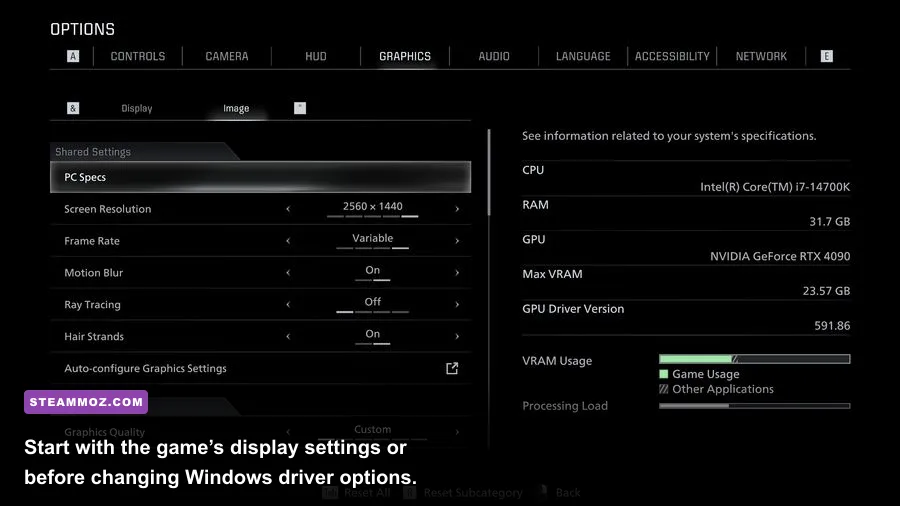
First, restart Windows and launch the game from Steam with every nonessential overlay closed. Don’t test performance while recording video, streaming, monitoring temperatures, or running a browser with hardware acceleration. The goal is to create a baseline that tells you whether Death of the Reprobate itself is failing or another application is hooking into it.
Close Discord’s game overlay, Xbox Game Bar, NVIDIA App or GeForce Experience overlay, AMD Software overlay, MSI Afterburner with RivaTuner Statistics Server, Overwolf, and ReShade. You don’t necessarily need to uninstall these tools. Disable their in-game hooks temporarily, then test the same save and the same camera position. A game that crashes immediately after the first input can be reacting to an overlay injection rather than a graphics setting.
Use Steam’s launch process rather than opening the executable from an old desktop shortcut. If you installed the game on an external drive, a secondary SSD with aggressive sleep settings, or a folder controlled by antivirus software, move it temporarily to a normal internal drive. Keep at least 5 GB free on that drive even though the game’s installation is small; Windows needs room for temporary files, shader caches, and page-file activity.
For a reliable test, load a save in a busy outdoor location, walk for two minutes, enter an interior, and then return outside. Watch for three different symptoms:
- A hard crash to desktop: usually a file, driver, overlay, permission, or configuration problem.
- A black screen with audio continuing: often a fullscreen, resolution, HDR, or display-driver conflict.
- Brief freezes followed by normal motion: commonly shader compilation, background software, asset streaming, or an unstable frame limit.
If the game is merely capped at 30 fps, check V-Sync and your display refresh rate before assuming the PC is underperforming. A 30 fps lock can come from half-refresh synchronization on a 60 Hz display, while an unstable 60 fps result can feel worse than a consistent 30. Don’t judge smoothness from the opening menu; test movement in an actual scene.

🎮 Death of the Reprobate
Looking to experience this game? Grab your digital key directly on our store for $8.44.
View on Steammoz Store →Repair The Installation Before Touching Advanced Settings
Corrupted or partially downloaded files are among the fastest causes of repeatable crashes. Steam can repair the installation without deleting your saves. Open your Library, right-click Death of the Reprobate, choose Properties, select Installed Files, and click Verify integrity of game files. Let the process finish completely, then restart Steam before launching again.
Verification may report that one or more files failed to validate and will be reacquired. That isn’t automatically bad news; Steam often replaces local files changed by an update, a crash, or a modding tool. If the same files fail on every verification, check your drive health and security software. Windows Defender or third-party antivirus can quarantine an executable or block a newly created file while Steam is trying to repair it.
Do not delete your save folder as a first response. Back it up instead. The precise location can vary by Unity title and Windows configuration, so search for Death of the Reprobate inside %USERPROFILE%\AppData\LocalLow, %APPDATA%, and the game’s Steam userdata directory. Copy any folder you find to your desktop, then test with a new game. If a new game works but one particular save crashes during loading, the problem is probably save-specific rather than a graphics failure.
Steam Cloud can restore a problematic save after you remove it locally, so disable synchronization only after making a backup. Right-click the game, open Properties, and temporarily turn off Steam Cloud. Launch a clean new game, quit normally, and then test the backed-up save. If that save remains broken, keep the new save and contact the developer through the official Steam Community discussions with your hardware, Windows version, crash location, and whether a new game works.
| Symptom | Most Likely Cause | First Action | What To Record |
|---|---|---|---|
| Crash before the title screen | Overlay, driver, permissions, or damaged files | Disable overlays and verify files | Whether the window appears at all |
| Crash when loading one save | Damaged or incompatible save data | Test a new game with Steam Cloud off | Location and save slot |
| Black screen with sound | Fullscreen or resolution handshake | Switch to borderless or windowed mode | Monitor, refresh rate, HDR status |
| Stutter during movement | Frame pacing, shaders, overlay capture, or background load | Cap fps and disable capture software | Whether stutter repeats in the same area |
Use A Sensible Graphics Profile For Higher FPS
There’s no reason to chase ultra-high frame rates in a story-driven adventure if the frame delivery is uneven. Begin at your monitor’s native resolution, use borderless or windowed mode if exclusive fullscreen crashes, and cap the frame rate to a number your PC can hold consistently. A stable 60 fps is a better target than a fluctuating 100 fps that drops into hitching whenever you turn the camera.
The useful performance order is resolution first, then shadows, effects, antialiasing, and finally texture quality. Resolution changes every pixel the GPU must draw, while texture quality mostly affects video memory. On a modern gaming PC, lowering textures may do almost nothing; on an older card with 2 GB of VRAM, it can prevent sudden stalls when moving between scenes.
| Setting Or Option | Recommended Starting Value | Expected FPS Impact | Visual Trade-Off |
|---|---|---|---|
| Display resolution | Native resolution | Highest if reduced | Lower values look softer and can blur painted details |
| Display mode | Borderless windowed | Usually minimal | May add a little latency but avoids fullscreen handshakes |
| V-Sync | On if tearing appears; off for testing | Minimal average impact | Can introduce a 30 fps half-refresh lock |
| Quality preset | High, then lower one step if needed | Moderate on older GPUs | Reduces scene detail and effects |
| Shadows | Medium | Moderate to high | Less depth in outdoor areas and interiors |
| Effects or post-processing | Medium or High | Low to moderate | Less bloom, filtering, or atmospheric treatment |
| Anti-aliasing | Default or medium | Low to moderate | More visible jagged edges at lower values |
| Frame limit | 60 fps, or 30 fps on weak hardware | Improves consistency | Caps peak smoothness to reduce spikes and heat |
If the game offers only a small collection of quality controls, use your GPU driver to create a per-game profile rather than forcing global settings. Avoid forcing supersampling, image sharpening, enhanced sync, or experimental low-latency modes until the game is stable. These options can be useful in competitive games, but they add variables to a compact Unity adventure that doesn’t need them.
For NVIDIA users, open NVIDIA Control Panel, choose Manage 3D settings, select Program Settings, and add the game executable if it isn’t listed. Keep the profile conservative: Power management mode can be set to Prefer maximum performance for testing, while shader cache should remain enabled. AMD users can make a similar per-game profile in Adrenalin, but leave Radeon Super Resolution and Anti-Lag disabled during diagnosis.
Fix Crashes Caused By Drivers And Windows
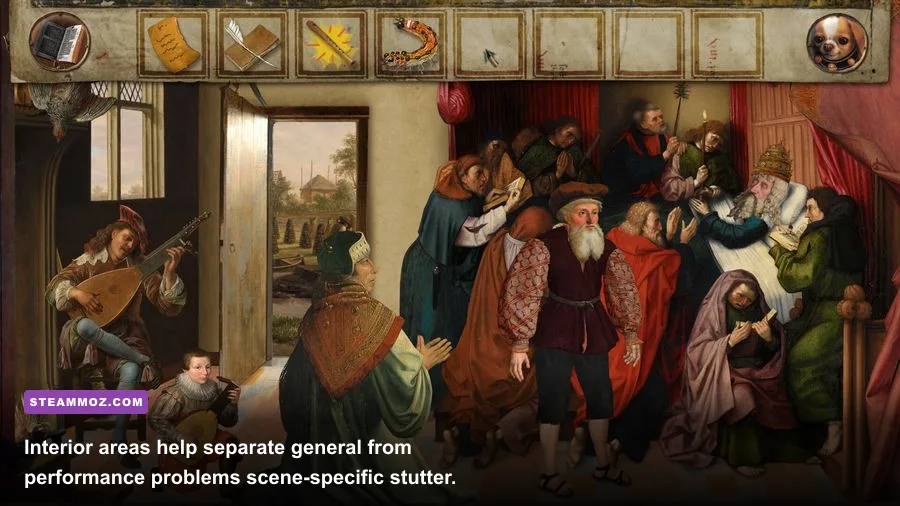
Update your graphics driver from the official NVIDIA driver page or AMD support page, but don’t blindly stack new software on top of a broken installation. If the crashes started immediately after a driver update, roll back to the previous stable driver or perform a clean installation. Intel integrated graphics users should use the latest driver supplied for their processor or laptop model, not an incompatible desktop package.
Windows compatibility options are worth testing when the game refuses to start or closes after switching display modes. Right-click the executable, open Properties, go to Compatibility, and test Disable fullscreen optimizations. If the game is installed under a protected folder and fails to create configuration files, move it to a normal Steam library or check that your Windows account has write access. Don’t run every game as administrator permanently; use that option only as a short diagnostic step.
Turn off Windows Game Bar and background recording under Settings if you’re chasing unexplained hitching. Hardware-accelerated GPU scheduling can also change frame pacing between systems. If performance became worse after a major Windows or driver update, toggle that feature, reboot, and compare the same scene. The reboot matters; Windows does not always apply graphics scheduling changes to an already-running session.
Laptops deserve extra attention. Plug the charger in, set Windows power mode to Best performance, and select the dedicated GPU in Windows Graphics settings. A game that appears to have terrible low fps may simply be running on the integrated graphics chip. Check the GPU engine in Task Manager while the game is active. If the integrated adapter is doing the work, assign the game executable to the high-performance GPU and relaunch.
Finally, remove overclocks and undervolts while troubleshooting. A borderline GPU or memory overclock can survive a demanding benchmark and still crash in a Unity game during a scene transition. Reset the GPU, CPU, and RAM to stock settings, then test again. Once the game is reliable, restore changes one at a time.
Stop Stuttering And Bad Frame Pacing
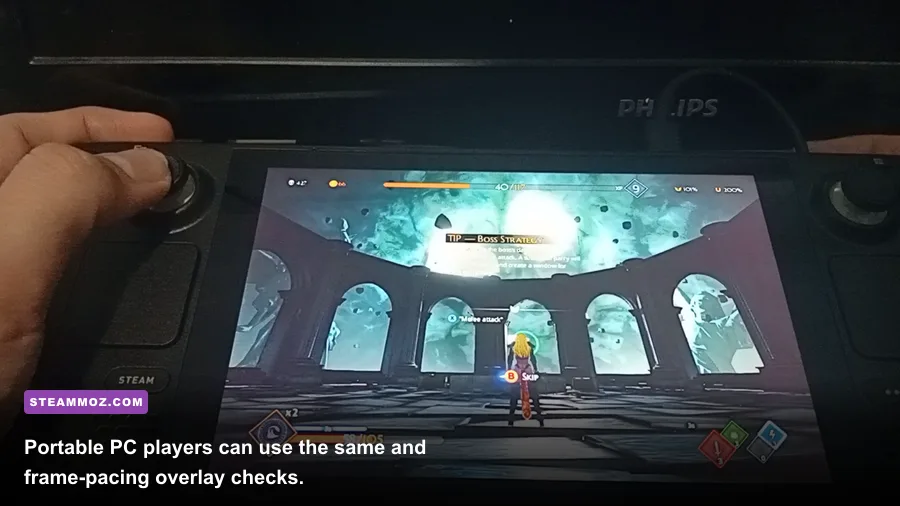
Low average fps and bad frame pacing are different problems. If the counter says 60 but camera movement still feels jerky, the frame times are probably uneven. Cap the game at 60 fps using its own limiter if available. If that limiter produces inconsistent delivery, use the NVIDIA or AMD per-game limiter, or a trusted tool such as RTSS, and set the cap a few frames below your display refresh rate. For a 60 Hz screen, 58 or 59 fps can be a useful test with variable refresh enabled.
Variable refresh rate should be configured carefully. Enable G-SYNC or FreeSync for the correct display, keep V-Sync enabled in the driver if you use the common VRR setup, and avoid running above the monitor’s supported range. If you don’t have VRR, compare V-Sync on and off. Tearing is ugly, but a broken half-refresh lock can feel worse than a little tearing while you diagnose the system.
Shader stutter may happen the first time you enter a scene, rotate toward a new effect, or trigger an animation. Let the game sit at the title screen for a minute after a driver update, then revisit the same area several times. Don’t repeatedly alt-tab during this test. Shader caches are rebuilt after driver changes, and deleting them can make the first run worse rather than better.
Background disk activity can create pauses even when the GPU has headroom. Pause cloud backup, Windows updates, torrent clients, game downloads, RGB suites, and aggressive antivirus scans. If the game is on a mechanical hard drive, moving it to an SSD is the most meaningful storage upgrade. It won’t magically increase the average frame rate, but it can reduce scene-transition stalls and make loading more consistent.
Use an overlay only after stability returns. A lightweight fps and frame-time graph is more useful than a single average number. Track GPU usage, CPU usage, VRAM, system RAM, and temperatures. If GPU usage is near 99 percent, lower resolution or effects. If GPU usage is low while one CPU thread is saturated, lowering resolution won’t help; close background applications and use a stable cap instead.
Recover From Black Screens And Resolution Loops
A black screen after changing resolution usually means the saved display configuration no longer agrees with the monitor. Don’t keep launching and force-closing the game. Open Steam’s Properties, use the game’s launch-options field only if you know the title supports a particular option, and prefer resetting the local configuration manually. Back up the configuration folder first, then remove the display settings file so the game can recreate its defaults on the next launch.
If you can hear menu sounds, press Alt+Enter once to switch between windowed and fullscreen modes. Give it several seconds before pressing anything else. Disconnecting a second monitor, turning off HDR temporarily, and setting Windows scaling to its normal value can also resolve a bad handshake. Test at 1920x1080 windowed mode first, then move back to native resolution and borderless mode once the picture returns.
For a crash that occurs only when loading a particular area, try loading an earlier save and approach the location again without alt-tabbing. Disable screen capture and remove any custom reshade files from the game directory. Don’t download random replacement DLL files from unofficial sites; they can introduce malware and make the original crash impossible to diagnose.
Keep a short troubleshooting log. Write down the GPU model, driver version, Windows build, display resolution, whether HDR is enabled, the exact crash moment, and the result of file verification. That information is far more useful to the developer than saying the game is simply broken. The developer’s official site is also a sensible place to look for support information and updates.
The Best Order For A Full PC Troubleshooting Pass
When nothing has worked, run the fixes in a controlled order instead of changing ten variables at once. Restart Windows, disable overlays, verify the files, launch a new game, and test in borderless mode at native resolution. If it works, restore your overlay software one program at a time. The culprit will reveal itself quickly.
- Update the game and reboot Windows. Confirm Steam has finished downloading and close every launcher that isn’t required.
- Disable overlay and capture hooks. Include Discord, Xbox Game Bar, NVIDIA or AMD overlays, RTSS, Overwolf, and ReShade.
- Verify the Steam installation. Repeat once if Steam reports repairs, then restart the client.
- Test a new save. This separates installation and graphics issues from damaged save data.
- Use borderless mode. Start at native resolution with V-Sync off for diagnosis, then tune synchronization.
- Cap the frame rate. Try 60 fps first; use 30 fps if the system cannot hold 60 without repeated drops.
- Update or roll back the GPU driver. Remove overclocks and use a clean driver installation if the problem began after an update.
- Move the game to an SSD. This is especially important if stutters coincide with disk activity or scene transitions.
- Reset configuration files. Back them up before removal, and keep Steam Cloud disabled while testing.
- Report reproducible failures. Include crash timing, hardware, driver, save location, and every fix already attempted.
| Hardware Profile | Resolution | Quality Profile | Frame Target |
|---|---|---|---|
| Modern dedicated GPU | Native 1080p or 1440p | High, with overlays disabled during testing | 60 fps cap or monitor refresh rate |
| Older dedicated GPU | Native 1080p | Medium shadows and effects | Stable 60 fps if possible |
| Integrated graphics laptop | 1080p, reduce resolution only if needed | Low or Medium, borderless mode | 30 fps cap for consistent pacing |
| Low-power handheld PC | 1280x800 or native handheld resolution | Low or Medium with a conservative power limit | 30 or 40 fps, whichever stays locked |
For additional troubleshooting patterns, our guides to Fear Collection PC fixes, Formido performance fixes, and Knightica crash solutions cover similar overlay, driver, and frame-pacing problems. They’re useful comparisons because the right solution is often less dramatic than reinstalling Windows: repair the files, remove the hook, reset the display mode, and cap the frames.
Death of the Reprobate should not require extreme hardware or aggressive visual compromises. A clean installation, current driver, sensible borderless profile, and stable frame cap usually solve low fps and stutter. If the title still crashes after a verified reinstall and a fresh save, stop changing random settings and document the exact reproduction steps. That gives the developer a clear bug to investigate—and keeps your own troubleshooting from becoming a second, much less entertaining adventure.