Dead Pets: A Punk Rock Slice of Life Sim crashing or running at low FPS on PC usually comes down to three things: damaged or incomplete Steam files, a graphics-driver or overlay conflict, or a frame-pacing problem caused by the game’s display settings. Start by verifying the installation, updating the GPU driver with a clean install, disabling every overlay, and testing a capped 60 FPS profile at 1080p. If that does not work, reset the game’s local configuration and use Windows Event Viewer or the Unity Player.log to identify the failure instead of blindly reinstalling.
That order matters. Reinstalling a game before checking its files and configuration often leaves the same broken settings behind, while stacking random launch commands can create a second problem. Dead Pets is a small, stylized life sim rather than a competitive shooter, so a stable 60 FPS with consistent frame times is a much better target than chasing an unstable 144 FPS. The fixes below are arranged from safest to most invasive, with separate paths for crashes, stutter, low average FPS, and sudden freezes.
Before changing anything, identify the exact failure
“Low FPS” can mean several different problems. A game locked near 30 FPS is often using the wrong refresh-rate or synchronization mode. A game that reports 60 FPS but feels jerky may have uneven frame times. A sharp drop whenever you enter a crowded room points toward CPU or asset-streaming pressure, while a complete desktop crash suggests a driver, overlay, permissions, or corrupted-file issue.
Use Steam’s built-in FPS counter first. Open Steam, select Settings, choose In Game, and enable the performance overlay. You can also use the Xbox Game Bar performance widget with Win+G, although using several monitoring tools at once can introduce its own overlay conflict. Test the same short route in Dead Pets for two minutes: load into the same room, move through the same doorway, interact with the same objects, and then repeat after each change.
| Symptom | Most likely cause | First test | What success looks like |
|---|---|---|---|
| Crash before the main menu | Driver, missing runtime, corrupted file, or incompatible overlay | Verify files and launch with overlays disabled | The game reaches the title screen consistently |
| Crash during loading | Damaged asset, stale configuration, or memory pressure | Reset local settings and lower texture quality | Previously failing save or area loads |
| Low average FPS | Resolution, shadows, effects, or GPU limitation | Use 1080p and lower the expensive settings first | GPU usage and frame rate become stable |
| Micro-stutter at acceptable FPS | Shader compilation, overlays, background apps, or frame pacing | Disable overlays and cap FPS | Frame delivery feels even while moving |
| Brief freeze followed by recovery | Asset streaming, antivirus scanning, or storage delay | Move the game to an SSD and check background scans | Hitches become shorter and less frequent |
Record your hardware before troubleshooting: Windows version, CPU model, GPU model, installed RAM, display resolution, refresh rate, and whether Dead Pets is installed on an SSD or hard drive. Check the game’s current Steam store listing for the developer’s latest system requirements and patch notes, because indie games can change engine builds and minimum specifications after launch.

🎮 Dead Pets: A Punk Rock Slice of Life Sim
Looking to experience this game? Grab your digital key directly on our store for $11.99.
View on Steammoz Store →Fix Dead Pets crashes in the safest order
1. Verify the Steam installation
In Steam, right-click Dead Pets, select Properties, open Installed Files, and choose Verify integrity of game files. Let the process finish completely. Steam may replace one or more files and then report that the download cache needs updating. Restart Steam before launching the game again.
This check does not delete saves, but it can restore an executable or asset that was quarantined, interrupted during download, or damaged on disk. If your antivirus program recently displayed a warning, inspect its quarantine list and add the game’s installation folder as an exception only if you trust the source. Never download replacement DLL files from random websites; that is a common way to turn a game crash into a malware problem.
2. Disable overlays and injectors
Turn off the Steam Overlay for Dead Pets in the game’s Properties menu. Temporarily disable Discord’s overlay, Xbox Game Bar, AMD Software overlay, NVIDIA App overlay, MSI Afterburner and RivaTuner Statistics Server. These tools hook into the rendering pipeline, and a small game can be more sensitive to that hook than a large AAA release.
Do not leave every tool disabled forever. Re-enable them one at a time after Dead Pets becomes stable. That identifies the offender. If the game only crashes when the Steam Overlay is active, keep Steam’s overlay disabled for this title rather than changing global settings for every game.
3. Update the GPU driver, then test a clean installation
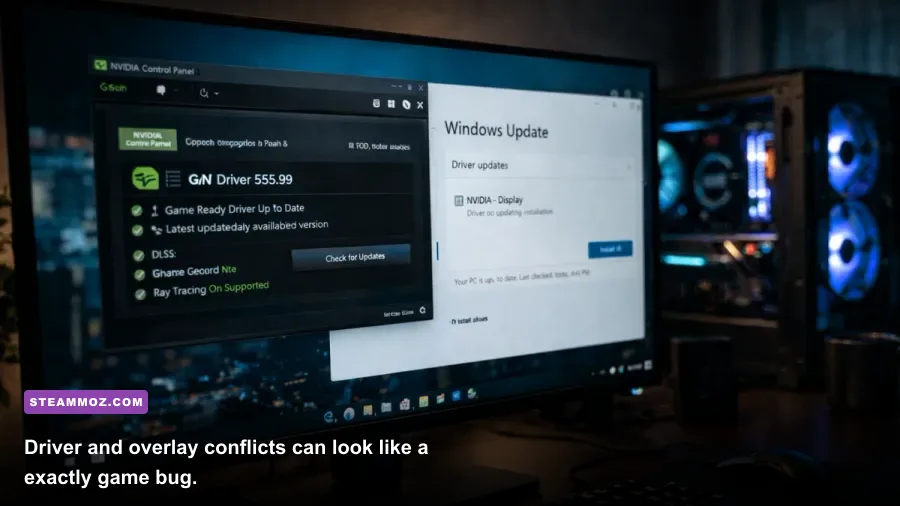
Install the current driver directly from the official NVIDIA driver page or AMD support page. Intel Arc users should use Intel’s official driver assistant or download center. If Dead Pets started crashing immediately after a driver update, try rolling back to the previous stable driver instead.
Choose the clean-install option when the installer provides one. For a stubborn driver conflict, Display Driver Uninstaller can be used in Windows Safe Mode, but that is an advanced step: create a restore point, download the replacement driver first, and do not remove chipset or motherboard drivers by mistake.
4. Repair Windows runtimes and system files
Install or repair the latest Microsoft Visual C++ Redistributable packages from the official Microsoft Visual C++ download page. Install both x64 and x86 packages when available; a 64-bit Windows installation can still need the x86 runtime for a game component.
Open Windows Terminal or Command Prompt as administrator and run sfc /scannow. If Windows reports corruption it cannot repair, run DISM /Online /Cleanup-Image /RestoreHealth, restart the PC, and run the SFC check again. These commands are useful when several games crash, not just Dead Pets.
5. Reset the local configuration
A broken resolution, fullscreen mode, or graphics option can crash before the menu appears. Back up your saves first, then look in %USERPROFILE%\AppData\LocalLow, %APPDATA%, and %LOCALAPPDATA% for a folder named after Dead Pets or its developer. Rename the relevant configuration folder rather than deleting it. A name such as DeadPets_backup lets you restore it later.
Because the exact folder name can vary by engine and release, do not erase unrelated folders. If you cannot find the location, search Windows for files modified on the date the crash began, or check the game’s crash report. The official Steam troubleshooting guidance is also useful for locating installation and launch problems.
Best Dead Pets graphics settings for stable FPS

Once the game launches, avoid changing every setting at once. Begin with a clean 1080p profile, select borderless windowed mode if exclusive fullscreen causes alt-tab crashes, and set the refresh rate to your monitor’s actual value. If the menu offers a frame-rate limit, use 60 FPS on a 60 Hz display or cap slightly below refresh rate, such as 117 FPS on a 120 Hz monitor. A cap reduces wasted GPU work and often smooths a small game’s frame pacing.
| Setting | Recommended value | FPS impact | Visual trade-off |
|---|---|---|---|
| Resolution | 1920×1080 | Very high | Lowering resolution improves GPU load but softens the image |
| Display mode | Borderless windowed for troubleshooting | Low | Usually safer for alt-tab and multi-monitor setups |
| Frame limit | 60 FPS, or monitor refresh minus 3 | Improves consistency | Lower peak frame rate, steadier frame times |
| Shadows | Medium or Low | High | Less contact depth in rooms and outdoor scenes |
| Post-processing | Medium | Medium | Reduces bloom, depth effects, and color processing |
| Ambient occlusion | Low or Off | Medium to high | Corners and object contact look flatter |
| Anti-aliasing | Medium | Medium | Some jagged edges may appear on diagonal shapes |
| Textures | High if VRAM allows | Low on most GPUs | Keep high unless you see texture pop-in or VRAM stutter |
| V-Sync | Off for testing; enable if tearing remains | Variable | Can add latency or lock the frame rate |
Shadows, ambient occlusion, post-processing, and resolution are the first controls to lower. Texture quality is usually a poor first target because it mainly affects VRAM capacity and texture sharpness, not raw shader workload. If lowering textures fixes stutter, your GPU may be running out of VRAM; if lowering shadows fixes it, you were more likely GPU-shader bound.
Test with the same camera route after each adjustment. A setting that raises the counter from 45 to 70 FPS but creates severe flicker is not a real fix. The goal is consistent delivery, especially during room transitions and moments with several characters, pets, lights, and interactable objects on screen.
How to stop stutter, freezes, and sudden frame drops
Stutter is often mistaken for weak hardware. Watch GPU usage while playing. If the GPU sits near 95–99 percent during drops, lower resolution, shadows, and post-processing. If GPU usage falls sharply while the game hitches, the limit may be CPU-side simulation, asset streaming, shader compilation, storage, or a background process.
Use a sensible frame-rate cap
Unlimited FPS can make frame times worse in a small game because the renderer constantly pushes against the GPU limit. Try the in-game limiter first. If it behaves badly, use NVIDIA Control Panel’s per-program Max Frame Rate or AMD Software’s per-game frame limiter. Use only one limiter at a time; combining three caps can create uneven pacing.
Move Dead Pets to an SSD
If the game is installed on a mechanical hard drive, move it through Steam’s Storage settings to an SSD with at least several gigabytes of free space. Keep Windows and the page file on a healthy drive as well. A nearly full SSD can slow temporary-file creation, while a failing hard drive can cause both texture pop-in and crashes.
Reduce background contention
Pause cloud synchronization, browser video, RGB-control utilities, recording software, and large downloads during testing. Windows Security scans can briefly interrupt a small game when it reads many files. Don’t permanently disable antivirus protection; instead, schedule a scan or add a narrowly scoped exception after confirming the installation is legitimate.
Check power and thermal behavior
On a laptop, connect the charger and set Windows power mode to Best performance while testing. Confirm Dead Pets is using the dedicated GPU in Windows Settings under System, Display, and Graphics. Monitor CPU and GPU temperatures. If clocks drop sharply after several minutes, clean blocked vents and check cooling rather than lowering every visual setting.
For more general PC troubleshooting habits, Steamoz’s guide to ELEX crash and FPS fixes covers the same useful principles: isolate overlays, verify files, watch temperatures, and change one variable at a time.
Advanced crash logs, launch tests, and save protection

If the basic fixes fail, collect evidence before escalating. Press Win+R, enter eventvwr.msc, open Windows Logs, then Application, and look for an Error entry at the exact crash time. The useful fields are Faulting application name, Faulting module name, and the exception code. A graphics-driver module points toward driver or rendering issues; a game executable points toward files, configuration, or a game bug.
Unity-based games commonly write a Player.log in %USERPROFILE%\AppData\LocalLow\CompanyName\GameName\Player.log. The company and game folders differ, so search for Player.log. Look at the final 20–40 lines, especially messages containing OutOfMemory, device lost, failed to create graphics device, or a named asset. Do not paste private Windows usernames or full paths into a public support post.
Safe launch experiments
Use launch options only as temporary tests. -windowed can bypass a broken fullscreen configuration, while -screen-width 1920 -screen-height 1080 may help some Unity releases reset an invalid display mode. These commands are engine-dependent, so an option that does nothing is not evidence that the game is broken. Remove launch options after testing, particularly unknown commands copied from unrelated games.
Do not use compatibility mode as a default fix. Right-clicking the executable, opening Properties, choosing Compatibility, and forcing an old Windows mode can disable modern fullscreen behavior or introduce scaling problems. Test Run this program as an administrator only when a permissions error is clearly indicated, and never run every game as administrator without a reason.
Protect saves before deeper repairs
Disable Steam Cloud temporarily only if you suspect it is restoring a damaged configuration or save. Copy the save folder to your desktop first. Keep two backups: one untouched original and one working copy. A clean configuration reset should not require deleting saves, but the locations can overlap in poorly documented indie releases, so caution is worth the extra minute.
If Dead Pets crashes only on one save while a new game works, that points toward save-specific corruption or a bugged state rather than your GPU. Report the exact location, action, and save slot to the developer through the official Steam discussion hub or the developer’s listed support channel. Include your hardware, Windows build, game version, crash-log excerpt, and whether file verification changed anything.
The reliable low-FPS profile and final checklist
For most mid-range PCs, the dependable starting profile is 1920×1080, borderless windowed, shadows on Medium, post-processing on Medium, ambient occlusion Off or Low, textures on High, V-Sync Off during testing, and a 60 FPS cap. On an older laptop, use 1600×900 or 1280×720, shadows Low, post-processing Low, ambient occlusion Off, and a 30 or 45 FPS cap. A locked 30 can feel better than a wildly fluctuating 25–55 FPS.
| Hardware situation | Resolution | Graphics profile | Frame target |
|---|---|---|---|
| Modern gaming desktop | 1080p or native resolution | High textures, Medium-High effects, Medium shadows | 60–120 FPS capped |
| Mainstream laptop GPU | 1920×1080 | High textures, Medium post-processing, Low-Medium shadows | 60 FPS capped |
| Older integrated graphics | 1280×720 or 1600×900 | Low shadows, Low effects, AO Off | 30–45 FPS capped |
| Crashing or unstable system | 1920×1080 windowed | All expensive settings Low for diagnosis | 30 or 60 FPS capped |
- Restart the PC, not just Steam.
- Verify Dead Pets’ files through Steam.
- Disable Steam, Discord, Xbox Game Bar, GPU, and monitoring overlays.
- Update or clean-install the graphics driver.
- Repair Visual C++ runtimes and run SFC if multiple games crash.
- Reset the game’s configuration folder after backing up saves.
- Use 1080p, Medium shadows, Low ambient occlusion, and a 60 FPS cap.
- Move the game to an SSD and test with background apps closed.
- Check Event Viewer and Player.log if the crash continues.
- Report reproducible failures with logs and hardware details.
Dead Pets does not need esports-grade frame rates to feel good. It needs clean frame pacing, a stable display mode, and enough headroom for its busiest rooms. If the game still crashes after a verified install, clean driver test, configuration reset, and overlay-free launch, stop cycling through generic fixes. At that point the evidence belongs with the developer, and a precise crash log is far more valuable than another full reinstall.
For a broader look at diagnosing PC game performance, Steamoz’s Everspace 2 crashing and FPS guide and Harvey’s New Eyes PC requirements breakdown are useful comparisons. The same rule applies here: establish a repeatable test, change one setting, and measure the result.