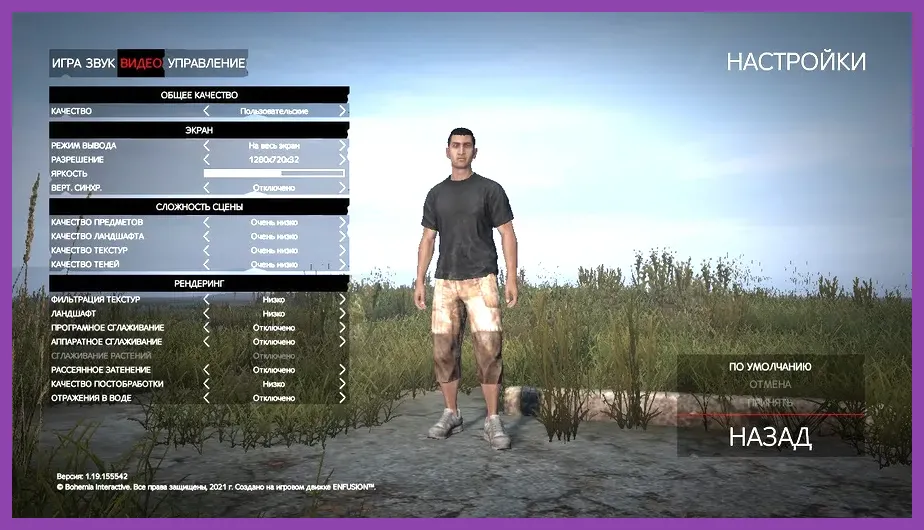
To achieve maximum frame rates and eliminate stuttering during intense PvP gunfights in DayZ, set your overall graphics preset to Custom, lower Object Detail and Shadows to Low or Medium, set Textures to High depending on your VRAM, and completely disable Motion Blur, Ambient Occlusion, and VSync. Bohemia Interactive's Enfusion engine relies heavily on single-core CPU performance, meaning that optimizing rendering parameters is critical for maintaining a stable 144+ FPS in heavy cities like Chernogorsk and Elektro.
Understanding the DayZ Performance Bottleneck
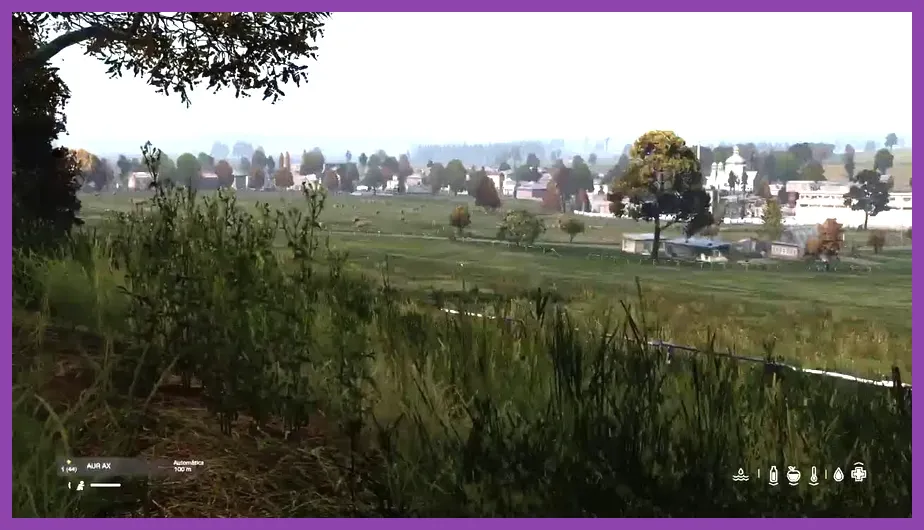
Before diving into specific configuration values, it is vital to understand how DayZ handles resource allocation. Unlike modern titles that rely almost exclusively on the graphics processing unit, DayZ's hybrid engine processes significant world simulation data, zombie pathfinding, server synchronization, and physics calculations directly on your CPU. When you enter densely populated towns or military bases like Tisy or NWAF, your frame rate often drops not because your GPU lacks power, but because your CPU is struggling to process the asset load.
For players exploring hardware upgrades or looking for alternative survival experiences, checking out resources like top free open world games on low-end PC can provide great insight into engine optimization. Similarly, optimizing your system ensures you never experience input lag when looting or managing your gear, which is just as important as mastering movement mechanics found in titles covered in guides like Stalker 2 how to unlock all secret characters or handling intensive shooters similar to top free FPS games on iOS.
Optimal Video Settings Profile for Competitive Play
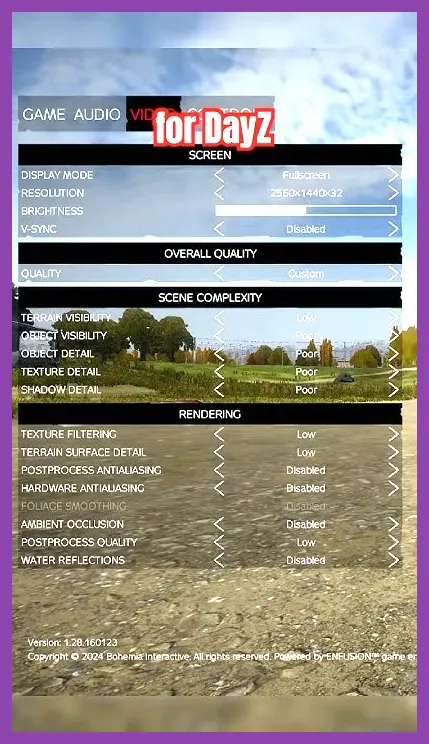
To gain a competitive edge and spot enemy players hiding in tree lines or windows across Chernarus, you must strip away heavy post-processing effects. Here is the exact recommended configuration profile to maximize performance without turning the game into an unplayable pixelated mess:
- Display Mode: Fullscreen (Exclusive Fullscreen minimizes input latency and prevents Windows DWM overhead).
- Resolution: Native monitor resolution (Do not use render resolution scaling unless you are struggling on integrated graphics).
- VSync: Disabled (Enabling VSync introduces noticeable input lag, which is fatal in gunfights).
- Brightness / Gamma: Adjusted to personal preference, but keep default or slightly elevated for night survival if server rules permit.
- Textures Detail: High (If your GPU has 4GB+ VRAM, this has virtually zero impact on frame rates and keeps surfaces crisp).
- Textures Filtering: High or Ultra (Minimal performance cost for cleaner surface textures).
By keeping Textures high while scaling down the heavier rendering engines, you preserve visual clarity on military gear and weapon models. For more strategic depth on tactical management, take a look at The First Descendant best team comp synergy or examine character optimization guides such as The Witcher 3 tier list all characters ranked for 2026 for insight into balancing visual fidelity with high performance.
Advanced Video Settings: What to Turn Off
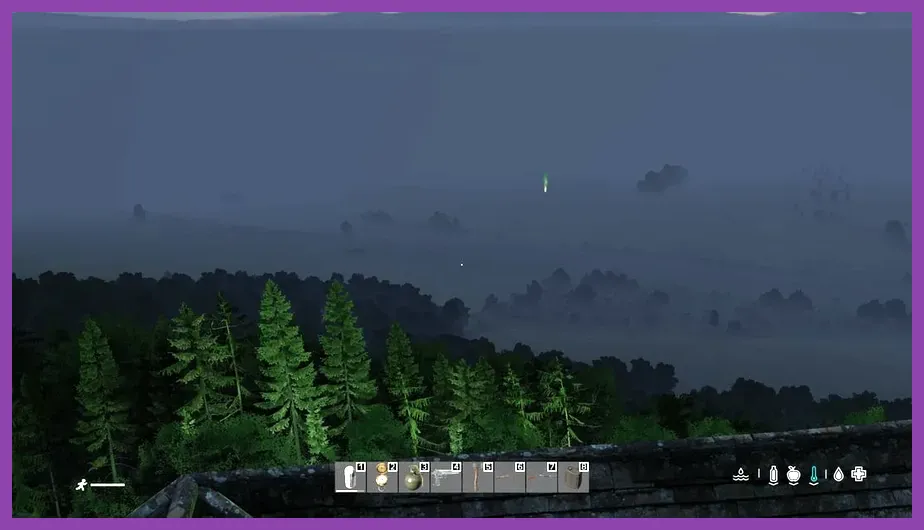
The advanced settings menu is where most frame rate drops originate. Turning down the right sliders will instantly double your performance in congested areas. Refer to the specific parameters below to tweak your Enfusion engine configuration:
- Object Detail: Normal or Low (This setting controls the distance at which complex object geometry renders. Lowering this drastically reduces CPU overhead in towns).
- Lighting Quality: Medium (High lighting introduces complex dynamic light calculations from campfires and vehicle lights that severely tank performance).
- Shadow Quality: Low or Disabled (Shadows are among the most expensive operations in DayZ. Setting shadows to low removes high-resolution cascades while still letting you see player shadow projections).
- Cloud Quality: Disabled or Low (Volumetric clouds drain GPU resources with zero tactical benefit).
- Particle Quality: Low (Reduces the impact of smoke grenades, campfire smoke, and explosion particle effects during combat).
- Scene Complexity: Medium (Works in tandem with Object Detail; keep this on Medium to prevent sudden pop-ins while maintaining high framerates).
Managing system resources effectively is a cornerstone of hardcore survival gaming, a philosophy shared by titles analyzed in Subnautica 2 best early skills to unlock. If you enjoy deep progression mechanics, you might also appreciate checking out Stardew Valley 1.6 how to beat the hardest boss or exploring unique tactical titles like Team Fortress 2 best secret locations guide.
Post-Process Effects and Anti-Aliasing Configuration
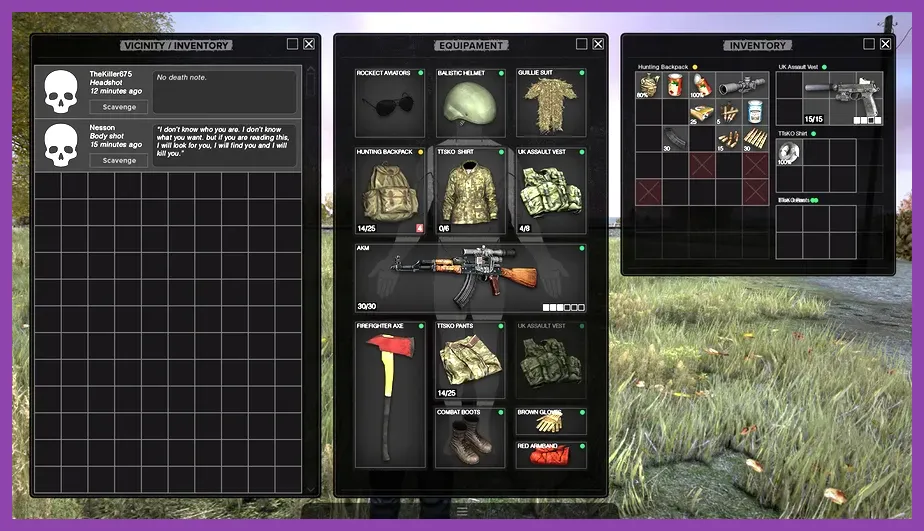
Post-processing features in DayZ are notorious for introducing graphical blur, chromatic aberration, and unnecessary input lag. Disabling these cinematic filters not only boosts your frame rate but also sharpens your overall field of view, making it significantly easier to spot movement at long distances through scopes like the PSO-1 or Hunting Scope.
- Anti-Aliasing (SMAA): High (SMAA provides a clean image without the extreme blur introduced by older FXAA methods).
- Alpha to Coverage: All Trees (Ensures leaves and foliage render cleanly without jagged, shimmering edges).
- Edge Smoothing: Disabled (Prevents unnecessary post-processing blur).
- Ambient Occlusion: Disabled (Removes realistic contact shadows in corners and crevices, freeing up massive GPU headroom).
- PostProcess Anti-Aliasing: Disabled (Stops the game from applying a blurry layer over your entire screen).
- Motion Blur: Disabled (Essential for fast mouse tracking and scanning tree lines during movement).
- HDR: Low or Basic (Higher settings wash out color grading and reduce contrast in dark environments).
- Lens Flare: Disabled (Prevents blinding light effects when looking toward the sun, giving you a clear tactical advantage in open fields).
Configuring Launch Options and Engine Configuration Files
Beyond the in-game menus, you can optimize DayZ further by adjusting your Steam launch parameters and local configuration files. Right-click DayZ in your Steam library, select Properties, and input the following commands into the Launch Options field:
-nosplash -high -maxMem=16384 -threads=8
Note: Replace maxMem with your actual RAM in megabytes (e.g., 16384 for 16GB, 32768 for 32GB) and set threads to match the physical core count of your CPU. This forces Windows to prioritize DayZ processes and allocate adequate memory pooling during heavy server data synchronization.
For additional performance tweaks, you can navigate to your Documents/DayZ folder and open your DayZ_x64.cfg file using Notepad. Locate the lines for sceneComplexity and viewDistance. Lowering sceneComplexity from 150000 to something like 80000 or 100000 will provide an immediate, noticeable jump in minimum frame rates inside major cities. Additionally, ensure your graphics card drivers are fully updated through official portals such as the NVIDIA Official Website or AMD Official Website to guarantee optimal driver-level optimizations for the Enfusion engine.
By implementing these comprehensive video setting adjustments, configuration tweaks, and launch parameters, you will transform DayZ from a stuttering, unpredictable experience into a buttery-smooth tactical survival shooter. Keep your drivers updated, monitor your thermal limits, and enjoy dominating the Chernarus wilderness with absolute visual clarity and maximum responsiveness.