Minimum System Requirements
Clair Obscur Expedition 33 launches with a modest baseline that lets most modern PCs run the game at low settings. The official minimum specification calls for a 64-bit version of Windows 10 (version 1909 or newer), an Intel Core i5-9600K or AMD Ryzen 5 3600 processor, 8 GB of DDR4 RAM, and a graphics card with at least 4 GB of VRAM such as the NVIDIA GeForce GTX 1650 Super or AMD Radeon RX 5500 XT. Storage-wise, the game requires 50 GB of free space on an SSD; using a traditional HDD will increase load times but will not prevent launch. DirectX 12 is mandatory, and the game supports both DLSS 2.0 and FSR 2.1 for upscaling on compatible hardware.
At these minimums, you can expect stable 30 FPS at 720p with all graphics options set to Low, textures at Low, shadows disabled, and anti-aliasing turned off. The game’s world streams in chunks, so an SSD is strongly recommended to avoid stutter when entering new zones. If you only have a HDD, enable the “Streaming Quality” option in the settings menu to Low to mitigate pop‑in.
Recommended System Requirements
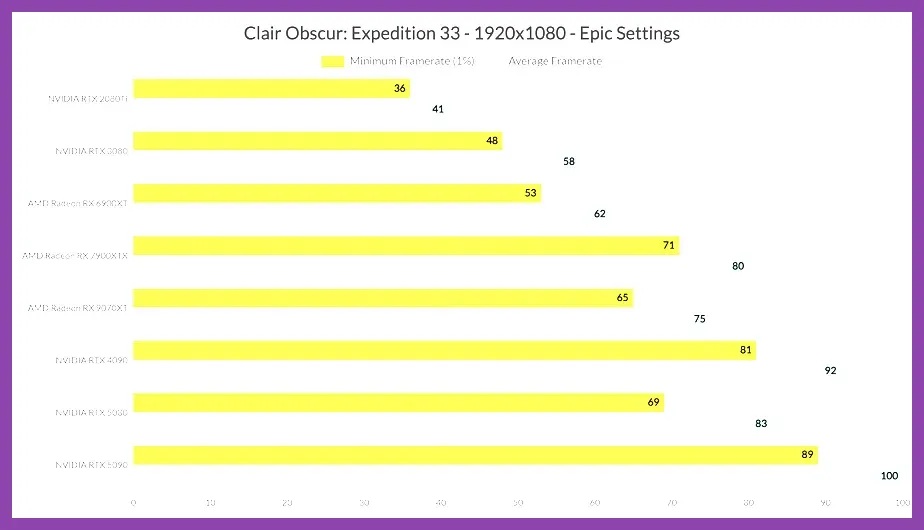
For a smooth experience at 1080p with high visual fidelity, the developers recommend an Intel Core i7-10700K or AMD Ryzen 7 5800X CPU, paired with 16 GB of DDR4 RAM running at 3200 MHz. The GPU should be an NVIDIA GeForce RTX 3060 Ti (8 GB VRAM) or AMD Radeon RX 6700 XT (12 GB VRAM). These cards provide enough ray‑tracing headroom to enable the game’s optional ray‑traced reflections and ambient occlusion at Medium without dropping below 45 FPS. Storage remains 50 GB, but an NVMe SSD is advised for the fastest texture streaming.
With the recommended specs, you can run Clair Obscur Expedition 33 at 1080p, High preset, with textures set to High, shadows at Medium, ambient occlusion on, and DLSS set to Quality. This configuration consistently delivers 60‑70 FPS, and enabling the game’s built‑in FSR 2.1 in Performance mode can push frame rates toward 80 FPS on the same hardware.
Optimal Settings for 1080p 60 FPS
If your goal is a locked 60 FPS at 1080p without sacrificing too much visual quality, start with the following baseline: set the resolution to 1920×1080, enable V‑Sync off, and cap the frame rate at 60 in the NVIDIA Control Panel or AMD Radeon Software. Then adjust the in‑game graphics as follows:
- Texture Quality: High (uses ~4‑5 GB VRAM)
- Shadow Quality: Medium (cascaded shadow maps, 2‑tap PCF)
- Ambient Occlusion: SSAO Medium
- Reflections: Screen Space Reflections Low (or enable ray‑traced reflections at Low if you have an RTX card)
- Anti‑Aliasing: Temporal AA (TAA) – keeps edges clean without excessive blur
- Volumetric Fog: Low
- Depth of Field: Off (saves ~2‑3 FPS)
- Motion Blur: Off
- DLSS: Quality (if you have an RTX 20‑series or newer)
- FSR: Not needed when DLSS is active; set to Off
These settings typically yield an average of 62 FPS on an RTX 3060 Ti, with 1% lows staying above 55 FPS. If you notice dips, lower Shadow Quality to Low or turn off Volumetric Fog. For AMD GPUs, replace DLSS with FSR 2.1 in Quality mode and keep the same texture and shadow settings.
How to Check Your PC Specs
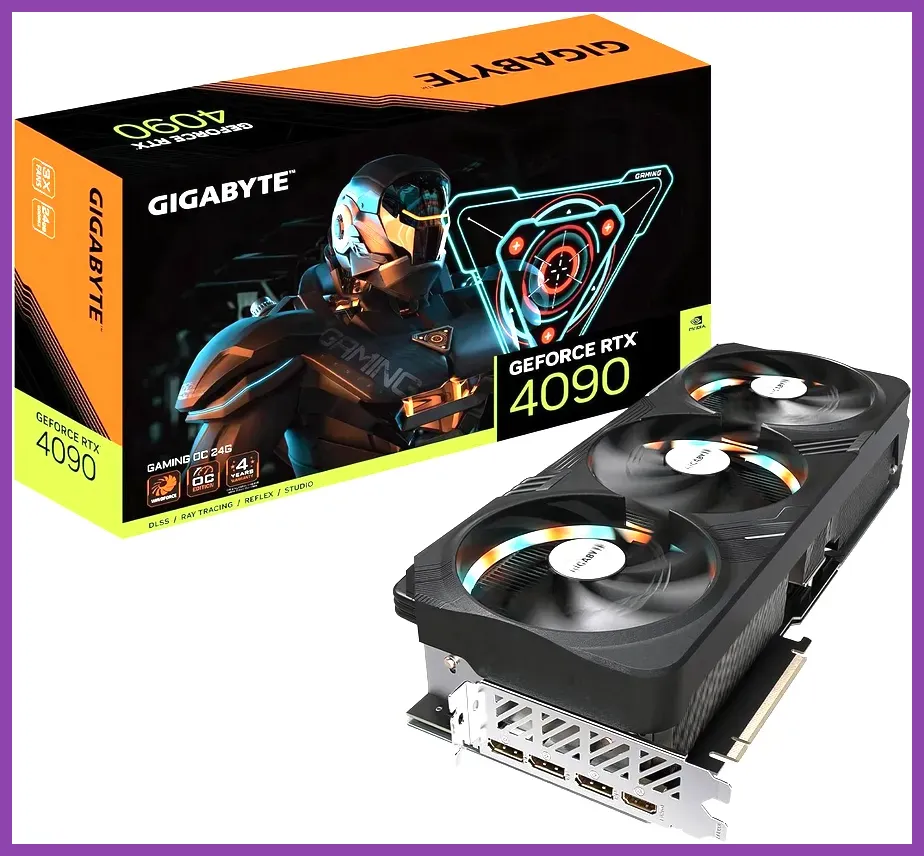
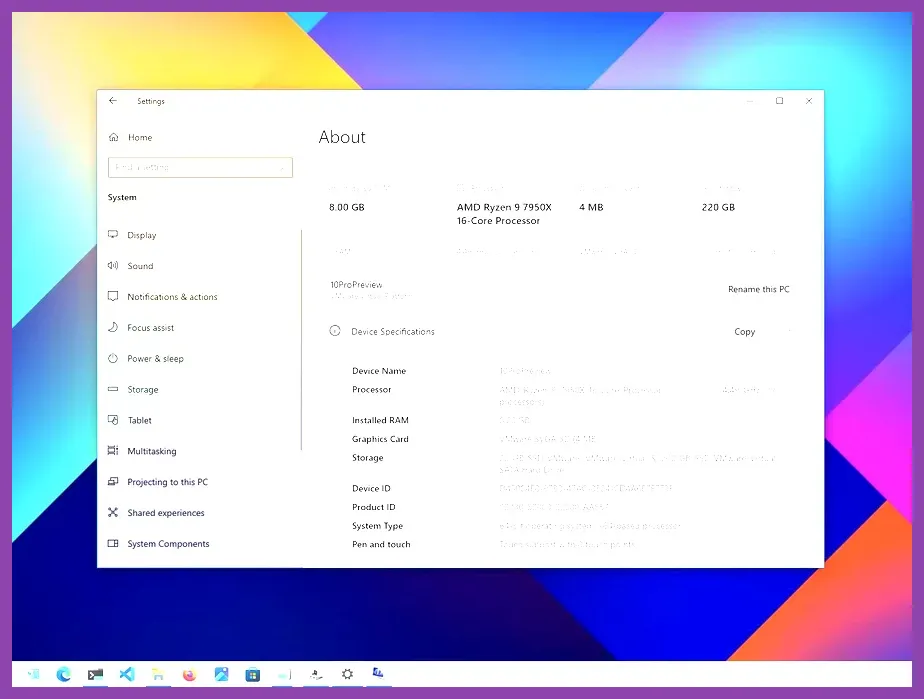
Before purchasing Clair Obscur Expedition 33, verify that your machine meets at least the minimum thresholds. On Windows 10, press Win + Pause/Break to open the System window, which shows your processor and installed RAM. To check your GPU, right‑click the desktop, select Display settings, scroll down to Advanced display settings, and click Display adapter properties for your monitor. The Adapter tab lists the GPU name and dedicated video memory.
For a more detailed overview, download the free utility CPU‑Z (processor and motherboard info) and GPU‑Z (graphics card specifics). Compare the numbers to the requirements listed above. If you are uncertain about your storage type, open This PC, right‑click your C: drive, choose Properties, and look at the Tools tab for the Optimize button—SSDs will show “Solid state drive” under the Media type.
Once you confirm compatibility, you can purchase the game via its Steam store page or the developer’s website clair-obscur.com. The Steam page also provides a “System Requirements” tab that mirrors the data in this guide.
Upgrading Tips for Better Performance
If your current hardware falls short of the recommended spec, prioritize upgrades that give the biggest FPS gains per dollar. The most impactful component is the GPU; moving from a GTX 1650 Super to an RTX 3060 Ti typically raises average frame rates from ~35 FPS (Low, 720p) to >60 FPS (High, 1080p) in Clair Obscur Expedition 33. Look for models with at least 8 GB of VRAM to comfortably handle the game’s texture streaming.
Next, consider RAM. If you are running 8 GB on a single channel, adding a matching 8 GB stick to enable dual‑channel mode can improve minimum frame rates by 5‑10 %. Ensure the new module matches the speed (ideally 3200 MHz) and latency of your existing stick.
Storage upgrades also matter. Switching from a SATA SSD or HDD to an NVMe PCIe 3.0/4.0 drive reduces texture pop‑in and cuts load times by up to 40 %. The game’s streaming system benefits heavily from the higher sequential read speeds of NVMe drives.
Finally, keep your drivers up to date. NVIDIA releases Game Ready drivers that often include specific optimizations for new titles; AMD’s Adrenalin Edition delivers similar gains. After installing a new GPU, perform a clean driver install using Display Driver Uninstaller (DDU) to avoid conflicts.
By following the specifications and settings outlined above, you’ll be able to enjoy Clair Obscur Expedition 33 at a smooth, visually pleasing frame rate whether you’re playing on a budget rig or a high‑end enthusiast machine.