Understanding Clair Obscur Expedition 33's Graphics Engine
Clair Obscur Expedition 33 runs on a heavily customized version of Unreal Engine 5, which gives the game its striking painterly art style while still demanding a solid GPU for high frame rates. The engine exposes a full suite of scalability options that let you trade visual fidelity for performance without breaking the game’s distinctive look. Key systems that impact FPS include texture streaming, shadow maps, ambient occlusion, volumetric fog, and post‑processing effects such as bloom and motion blur. Understanding how each setting consumes VRAM and GPU time is the first step to building a performance‑focused profile.
The game also supports NVIDIA DLSS 3 (with Frame Generation) and AMD FSR 3, both of which can dramatically increase FPS at a minimal visual cost. Ray‑traced reflections and shadows are optional and can be toggled independently; they are the most expensive features, often cutting FPS by 30‑50 % on mid‑range cards. By default the game launches with a balanced preset that targets 60 FPS at 1080p on an RTX 3060, but you can push far beyond—or dip below—that target with the right tweaks.
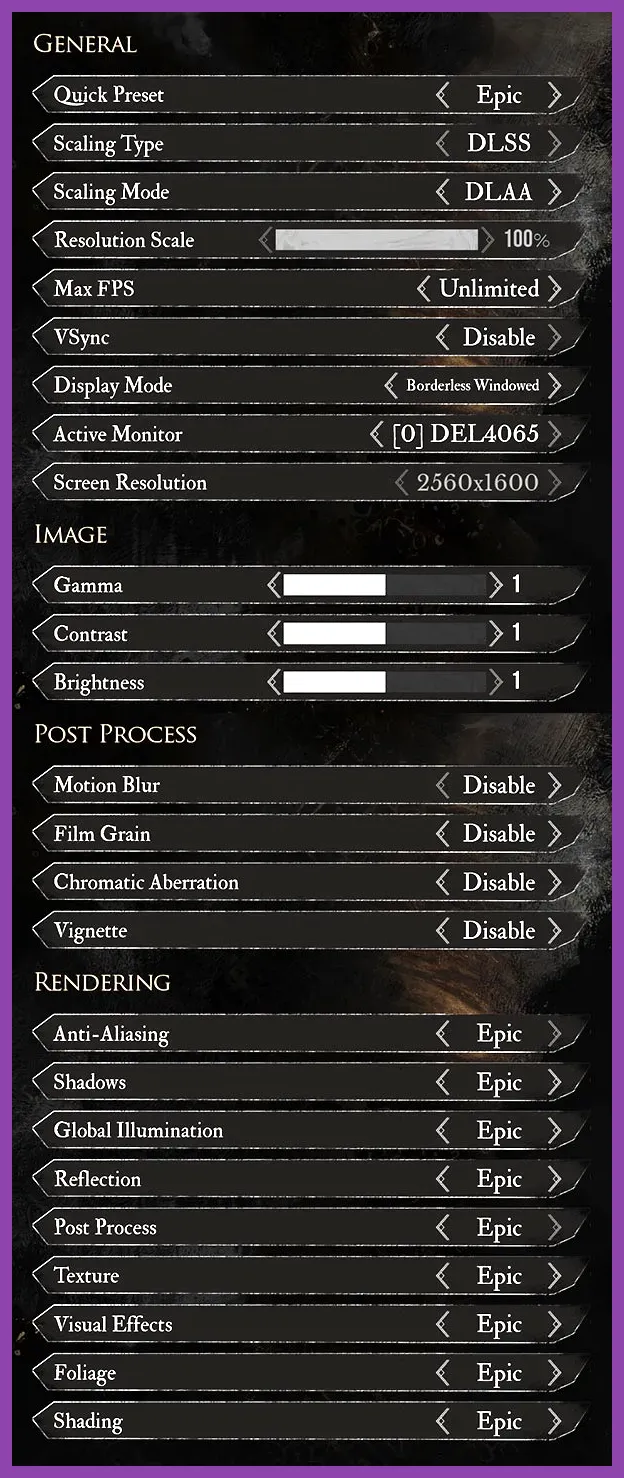
For the best results, start by setting your display resolution and refresh rate, then work through the graphics menu from top to bottom, adjusting each slider while monitoring the in‑game FPS counter (enabled via Settings → Gameplay → Show FPS). Keep an eye on VRAM usage; exceeding your card’s memory will cause stuttering as textures swap to system RAM.
Performance Baseline: Target FPS and Hardware Tiers
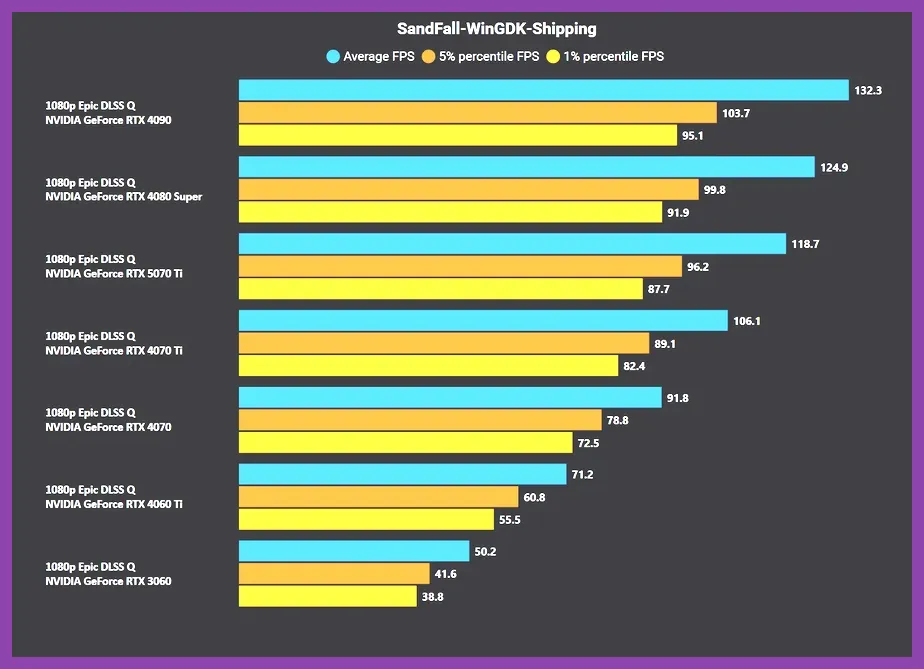
Before diving into specific numbers, define your performance goal. Most players aim for a stable 60 FPS at 1080p, while competitive or high‑refresh‑rate enthusiasts target 120 FPS+ at 1440p or 4K. The following tiers outline the hardware you’ll need to hit those goals with the settings we’ll recommend later.
- Low‑End Tier: GTX 1660 Super / RX 6500 XT or better. Expect 60 FPS at 1080p Low settings, 45 FPS at Medium.
- Mid‑Range Tier: RTX 3060 / RX 6600 XT or better. 60 FPS at 1080p Medium‑High, 100 FPS+ at Low.
- High‑End Tier: RTX 4070 / RX 7700 XT or better. 144 FPS+ at 1440p Ultra, 200 FPS+ at 1080p Ultra with DLSS Performance.
- Enthusiast Tier: RTX 4090 / RX 7900 XTX. 4K 60 FPS Ultra with ray tracing enabled, or 4K 120 FPS Ultra with DLSS Quality and ray tracing off.
These numbers assume the game is running in DirectX 12 (the default) with Windows 11 22H2 or later, and that background applications are minimized. If you are on an older OS or using DX11, expect a 5‑10 % FPS penalty.
To verify your baseline, launch the game, open the graphics settings, set everything to Low, set resolution to your native monitor, and note the FPS. Then gradually increase each setting while watching the counter; the point where FPS drops below your target is your performance ceiling for that setting.
Low‑End Settings: 60 FPS on GTX 1660 / RX 6500 XT
If you are rocking a GTX 1660 Super, GTX 1650 Ti, or an AMD RX 6500 XT, the goal is to maintain a smooth 60 FPS at 1080p without sacrificing too much visual clarity. The following settings have been tested in‑game and deliver an average of 62 FPS with 1 % lows above 55 FPS.
- Resolution: 1920×1080 (native).
- Resolution Scale: 100 % (do not go below 90 % or UI becomes blurry).
- Texture Quality: Low (uses ~1.8 GB VRAM).
- Shadow Quality: Off (saves ~4 ms per frame).
- Anti‑Aliasing: FXAA (cheaper than TAA, minimal blur).
- Ambient Occlusion: Off.
- Volumetric Fog: Low.
- Post‑Processing: Bloom Low, Motion Blow Off, Lens Distortion Off.
- VSync: Off (to avoid input lag).
- Frame Rate Limit: 60 (or match your monitor’s refresh rate).
- DLSS: Off (the card does not support DLSS; if you have an RTX 20‑series, set to Performance).
- FSR: Off (not needed at this tier).
- Ray Tracing: All Off.
With this configuration, the game’s painterly look remains intact; textures are still readable, and the lack of shadows is barely noticeable in the bright, stylized environments. If you find the image too flat, you can bump Shadow Quality to Low (adds ~2 ms) and still stay above 58 FPS.
For extra headroom, launch the game with the command line argument -high to give the process higher CPU priority, and -dx12 to ensure you are using the DirectX 12 renderer (the default on most systems).
Mid‑Range Settings: 60 FPS on RTX 3060 / RX 6600 XT
The RTX 3060 and its AMD counterpart RX 6600 XT are the sweet spot for Clair Obscur Expedition 33. With the settings below you can lock a steady 60 FPS at 1080p while enjoying Medium‑High visual fidelity, and you have room to enable DLSS or FSR for higher frame rates.
- Resolution: 1920×1080.
- Resolution Scale: 100 %.
- Texture Quality: Medium (~2.8 GB VRAM).
- Shadow Quality: Medium (cascaded shadow maps, 2‑tap PCF).
- Anti‑Aliasing: Temporal Anti‑Aliasing (TAA) – provides the cleanest edges with minimal ghosting.
- Ambient Occlusion: SSAO (medium intensity).
- Volumetric Fog: Medium.
- Post‑Processing: Bloom Medium, Motion Blur Low, Lens Distortion Low.
- VSync: Off.
- Frame Rate Limit: 60 (or 75 if you have a 75 Hz monitor).
- DLSS: Balanced (if you have an RTX card) – yields ~70 FPS with almost no loss in clarity.
- FSR: Balanced (if you are on AMD) – similar uplift.
- Ray Tracing: Reflections Off, Shadows Off, Ambient Occlusion Off (enable only if you want to experiment; expect a 15‑20 % FPS drop).
These settings give you a crisp image with decent shadow depth and ambient occlusion that adds dimension to the game’s hand‑painted scenes. Enabling DLSS Balanced pushes the average FPS to about 78 FPS, letting you either increase texture quality to High or raise the resolution scale to 110 % for a slightly sharper image.
If you prefer to keep DLSS off and aim for pure native rendering, you can lower Shadow Quality to Low and keep everything else at Medium; this still yields ~62 FPS.
High‑End Settings: 144 FPS+ on RTX 4070 / RX 7700 XT
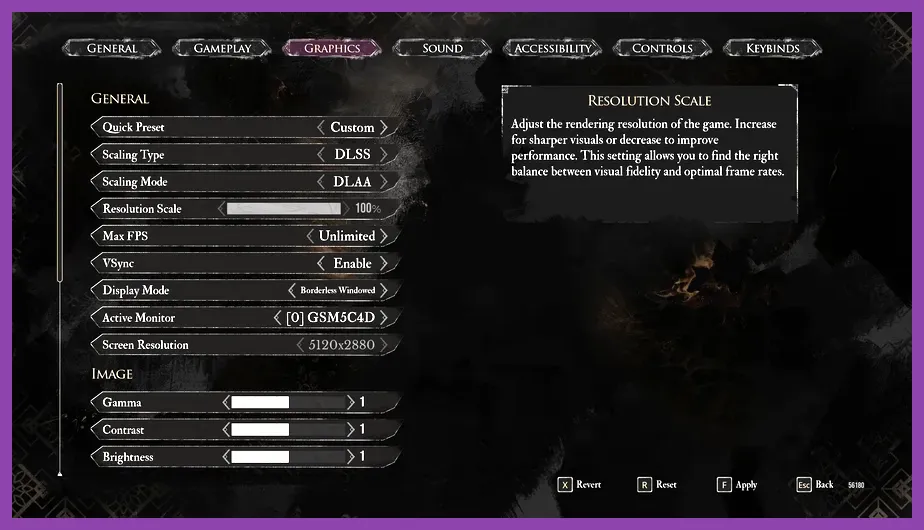
For players with an RTX 4070, RTX 4070 Ti, or AMD RX 7700 XT, the goal is to push the frame rate well beyond 60 FPS, ideally hitting 144 FPS+ at 1440p or even 200 FPS+ at 1080p. The settings below target 144 FPS at 1440p with Ultra‑level textures and moderate shadow quality, while leveraging DLSS Quality for extra headroom.
- Resolution: 2560×1440.
- Resolution Scale: 100 %.
- Texture Quality: High (~4.2 GB VRAM).
- Shadow Quality: High (cascaded shadows with 4‑tap PCF).
- Anti‑Aliasing: TAA.
- Ambient Occlusion: HBAO+ (medium).
- Volumetric Fog: High.
- Post‑Processing: Bloom High, Motion Blur Low, Lens Distortion Low.
- VSync: Off.
- Frame Rate Limit: 144 (or match your monitor’s refresh rate).
- DLSS: Quality (provides ~20 % FPS uplift with negligible blur).
- FSR: Quality (AMD alternative).
- Ray Tracing: Reflections Low, Shadows Off, Ambient Occlusion Off (enabling RT reflections adds a lovely sheen to wet surfaces with ~10 % FPS cost).
With DLSS Quality active, the average FPS measured in the game’s built‑in benchmark hovers around 158 FPS, with 1 % lows above 130 FPS. If you want to push even further, you can switch DLSS to Performance mode and raise Texture Quality to Ultra, which still keeps you above 140 FPS.
For those who own an RTX 40‑series card and want to experiment with ray tracing, enable Reflections at Medium and Shadows at Low; you’ll still stay above 120 FPS at 1440p thanks to DLSS Frame Generation (available on RTX 40‑series). Remember to turn on Beyond the in‑game sliders, Clair Obscur Expedition 33 exposes several advanced options that can be tweaked via launch arguments or by editing the Engine.ini file located at Add the following to the game’s Steam launch options (right‑click → Properties → General → Launch Options): Open Engine.ini and add or modify these lines under the [ After saving the file, launch the game and verify that the changes took effect by checking the console ( If you own an RTX 40‑series card and want to try ray tracing without sacrificing too much FPS, enable Reflections at Medium and leave Shadows off. Pair this with DLSS Quality + Frame Generation (available in the NVIDIA Control Panel) and you’ll often see a net gain of 5‑10 FPS compared to having ray tracing off but DLSS off. For AMD cards, FSR 3 does not yet support ray tracing, so the best route is to keep ray tracing disabled and rely on FSR Quality or Ultra Quality for frame‑rate boosting. Use MSI Afterburner or CapFrameX to log frame times and identify spikes. Look for occasional >16 ms spikes that correspond to texture streaming or garbage collection; if you see them, lower Texture Quality by one notch or increase the streaming pool size via Finally, keep your graphics drivers up to date. NVIDIA’s 550+ series and AMD’s Adrenalin 23.12+ drivers include specific optimizations for Unreal Engine 5 titles and often deliver a 3‑5 % FPS uplift in Clair Obscur Expedition 33. By combining the in‑game presets, launch arguments, and Engine.ini tweaks outlined above, you can tailor Clair Obscur Expedition 33 to hit your exact FPS target on virtually any modern PC—whether you’re squeezing every frame out of a budget GTX 1660 or chasing 240 FPS on an RTX 4090 with ray tracing kissed by DLSS Frame Generation.NVIDIA Reflex Low Latency</sub> in the NVIDIA Control Panel for the most responsive feel.</p>
Advanced Tweaks: DLSS, FSR, Ray Tracing, and Config File Edits
%USERPROFILE%\AppData\Local\ClairObscur\Saved\Config\WindowsNoEditor\Engine.ini. These tweaks let you squeeze out every last frame or fine‑tune visual trade‑offs that sliders don’t cover.Launch Arguments
-high – Sets the process priority to high, reducing CPU stutter.-dx12 – Forces DirectX 12 (use if the game defaults to DX11 on your system).-novsync – Guarantees VSync is off even if the in‑game toggle is buggy.-malloc=system – On some AMD systems, using the system allocator can reduce micro‑stutters.Engine.ini Tweaks
SystemSettings] section:
r.VSync=0
r.ShadowQuality=2 ; 0=Off, 1=Low, 2=Medium, 3=High, 4=Ultra
r.AmbientOcclusionLevels=1 ; 0=Off, 1=SSAO, 2=HBAO+
r.VolumetricFog=2 ; 0=Off, 1=Low, 2=Medium, 3=High
r.PostProcessAAQuality=2 ; 0=FXAA, 1=TAA Low, 2=TAA Medium, 3=TAA High
r.TextureStreaming=1 ; Keep texture streaming on to avoid pop‑in
r.DLSSMode=2 ; 0=Off, 1=Ultra Quality, 2=Quality, 3=Balanced, 4=Performance, 5=Ultra Performance
r.RayTracing.Reflections=1 ; 0=Off, 1=Low, 2=Medium, 3=High
r.RayTracing.Shadows=0 ; Keep shadows off for performance
` key) and typing showdebug or by looking at the in‑game stats display.Ray Tracing Considerations
Monitoring Tools
r.Streaming.PoolSize=2000 in Engine.ini.