For the best City of Gangsters: The Polish Outfit performance, start with 1080p, exclusive fullscreen if available, VSync off, and the lowest shadow or lighting option that still looks clean. This game is not a conventional 3D action title: its hand-drawn city, animated traffic, building layers, UI panels, and simulation updates can create uneven frame times even when average FPS looks high. The strongest profile is therefore not “turn everything to Low.” Keep texture and 2D image quality high, reduce shadows and expensive effects first, cap FPS to your monitor’s refresh rate, and test the same save after your organization has spread across several neighborhoods.
The advice below is aimed at the PC version of City of Gangsters with The Polish Outfit installed. The expansion doesn’t suddenly require a high-end gaming rig, but a larger criminal enterprise puts more moving pieces on screen and more simulation work behind the scenes. If you’re troubleshooting a laptop, a Steam Deck-style handheld, or an older desktop, the order of changes matters. You want to protect the sharpness of the map and readable production icons while removing the settings that waste GPU headroom.
Before changing anything, check the current requirements on the official Steam page for City of Gangsters. Also check the developer’s published game information and the Steam community discussions for version-specific display issues. Menus and driver behavior can change after updates, so use the names visible in your copy rather than forcing a setting that isn’t present.
The Best City of Gangsters Graphics Preset
Use the following as the baseline profile on a desktop or gaming laptop running at 1920x1080. It is deliberately conservative. City of Gangsters is a strategy game, so a perfectly stable 60 FPS feels better than a wildly fluctuating 144 FPS that dives whenever you open a crowded district. If your display is 120Hz or 144Hz, only raise the cap after confirming that the frame-time graph stays smooth during zooming, panning, and end-of-turn processing.
| Setting | Recommended value | FPS impact | Visual note |
|---|---|---|---|
| Resolution | Native display resolution | High when reduced | Native resolution keeps text, icons, and street labels sharp. |
| Display mode | Fullscreen or borderless fullscreen | Low to medium | Use fullscreen if borderless adds stutter or input delay. |
| VSync | Off for testing; on for tearing | Low average, high latency risk | Turn it on only after finding a stable frame rate. |
| Frame-rate limit | 60 FPS on a 60Hz display | Improves consistency | A cap prevents needless GPU load in menus and quiet scenes. |
| Texture or image quality | High | Low on modern GPUs | Preserves map readability and the game’s illustrated look. |
| Shadows | Medium or Low | Medium to high | Usually the safest major cut on weaker graphics hardware. |
| Effects, lighting, or post-processing | Medium | Medium | Lower these before sacrificing resolution. |
| Anti-aliasing | Medium or the first quality option | Low to medium | Useful around building edges, but rarely worth a large performance hit. |
| Ambient occlusion | Off or Low, if available | Medium | One of the first options to disable on integrated graphics. |
That profile should be your control group. Change one item at a time and record the result. If the game’s menu uses a combined quality preset instead of separate controls, select Medium first, restore native resolution, then increase textures or image quality independently. A broad preset can quietly lower resolution scaling, which makes the whole interface look muddy even when the FPS counter improves.
For a 1440p monitor, begin at native 2560x1440 only if your GPU has comfortable headroom. Otherwise, 1920x1080 with a clean integer-like scaling option is preferable to a soft, unstable 1440p presentation. On a 4K screen, 2560x1440 is a practical middle ground. The game’s interface contains small numbers, resource icons, and tooltips; blurry scaling makes management slower, not merely less attractive.

🎮 City of Gangsters: The Polish Outfit
Looking to experience this game? Grab your digital key directly on our store for $0.99.
View on Steammoz Store →Which Settings Cost the Most FPS?
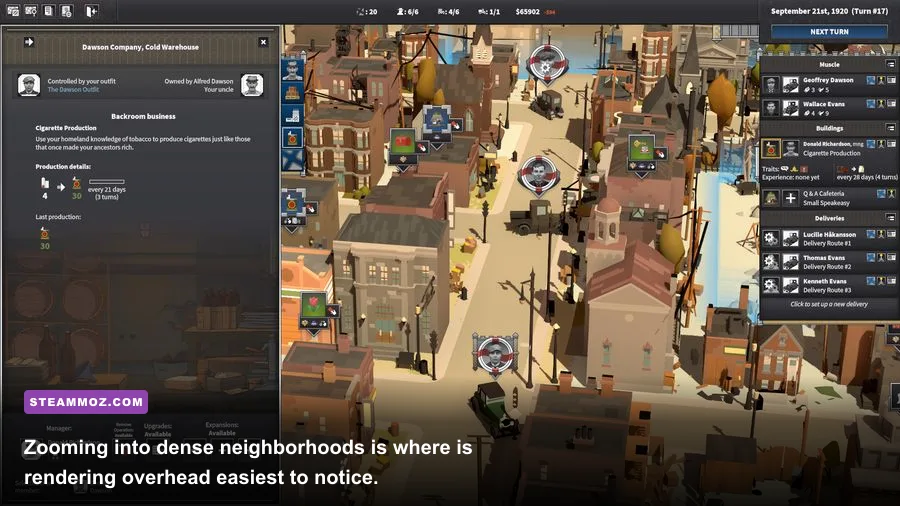
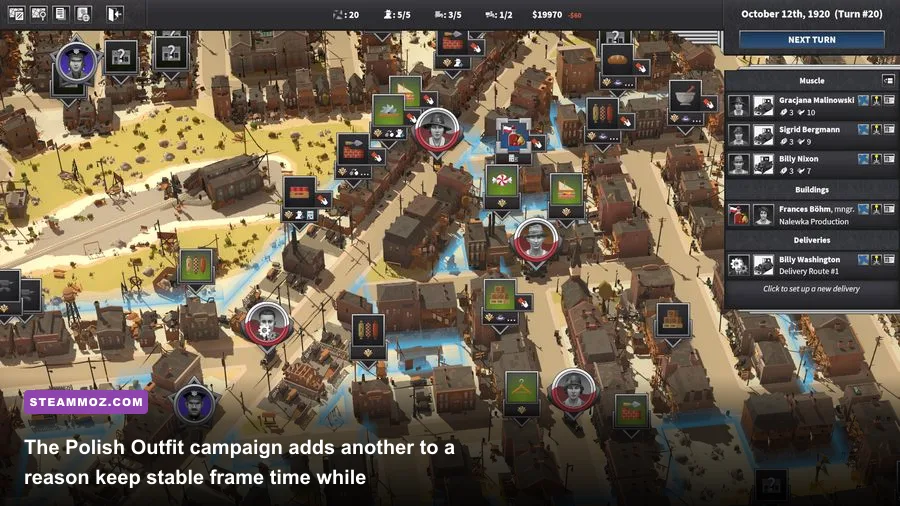
The visual workload in City of Gangsters changes with your camera position. A wide city overview can show a large number of roads, buildings, vehicles, markers, and animated details at once. A close view increases the amount of fine detail being drawn. The game can also feel slower after your organization has accumulated more buildings, businesses, workers, routes, and production relationships. That’s why testing only the opening turns gives a false sense of security.
Shadows are the first place I’d look. They add depth to the illustrated streets, but they don’t improve decision-making nearly as much as a crisp map and readable interface. Drop shadows from High to Medium, then Low, and compare the busiest district. If your GPU utilization falls and frame time becomes steadier, keep the lower setting. If nothing changes, the limitation may be CPU-side simulation rather than rendering.
Resolution is the bluntest performance lever. Reducing it lowers the number of pixels every map layer has to draw, but the cost is obvious: text and icons lose clarity. Don’t reach for it first on a 1080p monitor. Reduce shadows, ambient occlusion, effects, or post-processing before lowering the resolution. This is especially important for players managing the Polish Outfit campaign, where small production details and neighborhood information need to remain readable while you plan several moves ahead.
VSync is about presentation, not raw performance. With it enabled, the game waits for the display’s refresh cycle, which can eliminate tearing but may introduce additional latency or make a sudden drop feel more severe. Disable it while benchmarking. Once you know the system can hold 60 FPS, enable VSync if tearing bothers you. On a variable-refresh monitor, use the monitor’s adaptive-sync feature and cap the game a few frames below the maximum refresh rate when the title allows it.
| Hardware symptom | Likely cause | First change to try | What not to change first |
|---|---|---|---|
| GPU usage stays near 99% | Resolution, shadows, or effects are the bottleneck. | Lower shadows and effects one step. | Don’t immediately lower UI or texture quality. |
| GPU usage is low and FPS still dips | CPU simulation, background apps, or a frame-time spike. | Close overlays and test a quieter save. | Lowering resolution may do almost nothing. |
| Text looks blurry | Resolution scaling or non-native output. | Restore native resolution. | Don’t compensate by sharpening every effect. |
| Tearing during camera movement | VSync is disabled or adaptive sync is not active. | Enable VSync or configure adaptive sync. | Don’t raise quality until motion is stable. |
| Stutter appears after long sessions | Overlays, background tasks, or a large simulation state. | Restart the game and disable overlays. | Don’t assume the GPU is automatically at fault. |
There is also a useful distinction between FPS drops and turn-processing pauses. If the camera pans smoothly but the game hesitates while the calendar advances, graphics settings won’t solve the core problem. That work is tied more closely to simulation and CPU behavior. Lowering visual quality can still help if the GPU is busy at the same time, but don’t expect a miracle from a shadow slider.
Best Profiles for Low-End PCs and Handhelds
On an integrated GPU or an older laptop, target a locked 30 or 40 FPS instead of chasing 60 at all costs. A stable cap makes a management game feel calmer, and the slower pacing gives you plenty of time to read tooltips and inspect routes. Start at 1280x720 or 1600x900 only if native 1080p cannot hold your target. Keep the display mode fullscreen when possible, close browser windows, and connect the laptop to power so its processor doesn’t sit in a battery-saving limit.
Use Low shadows, Low effects, disabled ambient occlusion, and the lowest anti-aliasing mode that keeps building edges acceptable. Keep textures or image quality at Medium if memory allows. In a 2D-heavy title, cutting texture quality can make the city look dramatically worse for a relatively small gain, while shadows and effects are more likely to help the GPU.
For a handheld PC, 40 FPS is a strong compromise at 1280x800 or the device’s native aspect ratio. A 30 FPS cap is better for battery life and quieter fan noise. Avoid uncapped play: a lightweight map can make the hardware race to very high FPS, then become noisy for no useful benefit. Set the operating system’s refresh rate and the game’s cap to matching values when possible.
| Profile | Resolution | Quality choices | Target |
|---|---|---|---|
| Low-end laptop | 1280x720 or 1600x900 | Low shadows, Low effects, AO Off, Medium textures | 30 FPS locked |
| Integrated graphics desktop | 1920x1080 if stable | Low shadows, Medium effects, AO Off, Medium textures | 40 to 60 FPS |
| Handheld PC | Native handheld resolution | Low shadows, Low effects, AO Off, first AA option | 30 or 40 FPS locked |
| Mid-range gaming PC | Native 1080p or 1440p | Medium shadows, High textures, Medium effects | 60 FPS locked |
| Modern gaming PC | Native display resolution | High textures, High effects, Medium or High shadows | 60 FPS with headroom |
Handheld players should also check the device’s per-game power profile. A higher wattage limit may improve camera movement but reduce battery life, while a lower limit can expose CPU-related slowdowns during late-game simulation. If the game feels smooth until you advance the calendar, try a slightly higher performance mode before lowering resolution further.
How to Test FPS in a Real Campaign

Use a repeatable test rather than staring at a counter in the opening tutorial. Load a save with several neighborhoods explored, multiple businesses operating, and a busy network of deliveries or production. Pause on a dense street, zoom from the broadest city view to the closest practical view, pan across the screen for 20 seconds, open a business panel, close it, and advance the calendar by several steps. Repeat that route after every graphics change.
The important number is the one-percent low or frame-time consistency, not the biggest FPS number you see. A profile that reports 120 FPS in an empty corner but plunges to 35 when you move across a packed district is worse than a locked 60. If your monitoring software supports it, watch GPU utilization, CPU utilization, VRAM, and frame time together. High GPU usage points toward resolution or visual effects. Low GPU usage with sharp dips points toward CPU work, overlays, drivers, or the save itself.
Test with Steam, Discord, GeForce Experience, Radeon Software, and recording overlays disabled one at a time. Overlays are convenient, but they can introduce presentation stutter in older or unusual games. Verify the game files through Steam if textures fail to load, settings refuse to stick, or a recent update caused new instability. Keep your graphics driver current, but if the problem began immediately after a driver update, a clean reinstall or rollback is worth considering.
Don’t judge performance while the game is compiling something for the first time, loading a save, or switching between windows. Give the map a few seconds to settle. Also test windowed and fullscreen modes separately. Borderless mode is convenient for checking another application, but exclusive fullscreen can provide cleaner frame pacing on some older systems.
Players who enjoy chasing technical fixes can compare their results with our Ecognomix PC performance troubleshooting guide and FEAR Collection low-FPS fixes. The games differ, but the practical checks—overlays, drivers, file verification, and repeatable testing—transfer well.
Fixes for Stutter, Crashes, and Settings That Won’t Save
If City of Gangsters: The Polish Outfit crashes, begin with the boring fixes because they’re the ones that work most often. Restart Steam, verify the installation, update Windows and your GPU driver, and disable overlays. If you use launch options, remove them temporarily. Then test a new campaign and your main save separately. A problem that exists only in one large save may be tied to its simulation state rather than your graphics preset.
Check that the game is using the dedicated GPU on a laptop. Windows Graphics settings can assign an application to a high-performance GPU, and vendor control panels offer the same choice. Set the game’s power profile to maximum performance only while plugged in; there’s no reason to burn battery power for a title that can usually run efficiently.
If settings revert after every launch, check whether the configuration file or its folder is blocked by Windows permissions, cloud-sync conflicts, antivirus protection, or controlled-folder access. Don’t delete files blindly. Back up the relevant configuration and save folders first, then use Steam Cloud carefully so an older configuration doesn’t overwrite a working local copy.
Avoid unofficial “FPS booster” tools and aggressive process-priority tweaks. They can create more instability than they remove. The reliable path is simple: native resolution, reasonable frame cap, reduced shadows and effects, clean background processes, verified files, and a test save that reflects your actual late-game city.
The Polish Outfit is at its best when the map stays legible and your attention stays on expansion, production, and neighborhood control—not on a stuttering camera. If your system comfortably holds 60 FPS, leave textures and image quality high and spend your remaining headroom on shadows. If it doesn’t, lock 30 or 40 FPS and protect clarity. For broader PC optimization ideas, our guides to checking PC requirements and fixing crashes and low FPS offer useful cross-game troubleshooting steps.
Recommended final profile: native resolution, fullscreen, VSync off while testing, a 60 FPS cap, High textures or image quality, Medium shadows, Medium effects, and ambient occlusion disabled on weaker hardware. After that, tune only one setting at a time. The goal isn’t a flashy benchmark number; it’s a steady city map that remains responsive when your operation finally becomes too big to manage casually.