If Dragon Ball Xenoverse 2 Super Pass is crashing or crawling at low FPS on PC, start by removing every mod, verifying the Steam files, and forcing a stable 60 FPS profile at 1080p. The Super Pass itself usually isn't the performance problem; corrupted DLC data, outdated XV2INS files, broken configuration files, GPU-driver conflicts, and uncapped or badly paced frame rates are the usual culprits.
This matters because Xenoverse 2 is unusually sensitive to changes outside the base game. A cosmetic mod that worked before Extra Pack 2 can still break a Super Pass quest after a game update. The game also feels far worse at an unstable 45 FPS than it does at a locked 30, because its combat timing and animation pacing are built around a console-style frame-rate target. Work through the fixes below in order, testing after each major change.
Check the Super Pass installation before changing graphics
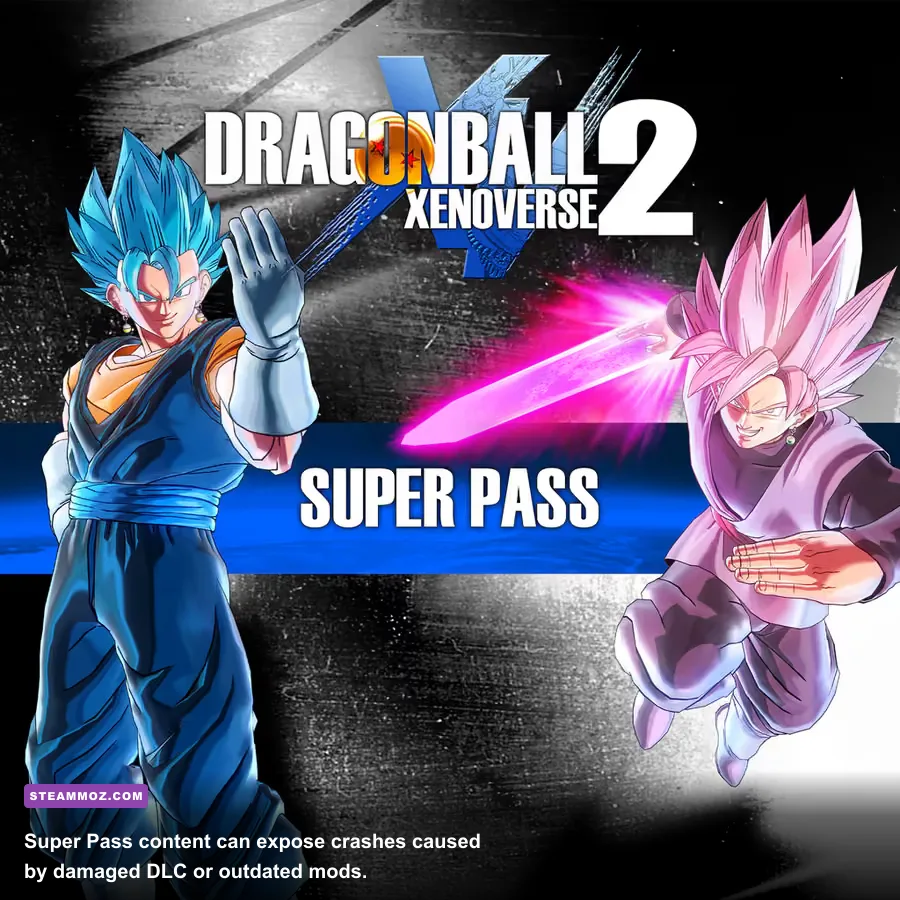
The Super Pass bundles the first four major DLC packs: Super Pack 1 and Super Pack 2, which add content connected to Dragon Ball Super, followed by Extra Pack 1 and Extra Pack 2. That means a crash in a specific Parallel Quest, Expert Mission, or character selection screen can come from one damaged DLC package rather than the entire game.
Open Steam, right-click DRAGON BALL XENOVERSE 2, choose Properties, then open DLC. Confirm that the Super Pass-related entries you own are ticked. Steam may show the pass as owned while an individual downloadable package is not installed correctly. Untick the affected DLC, close Steam, restart it, and tick the package again.
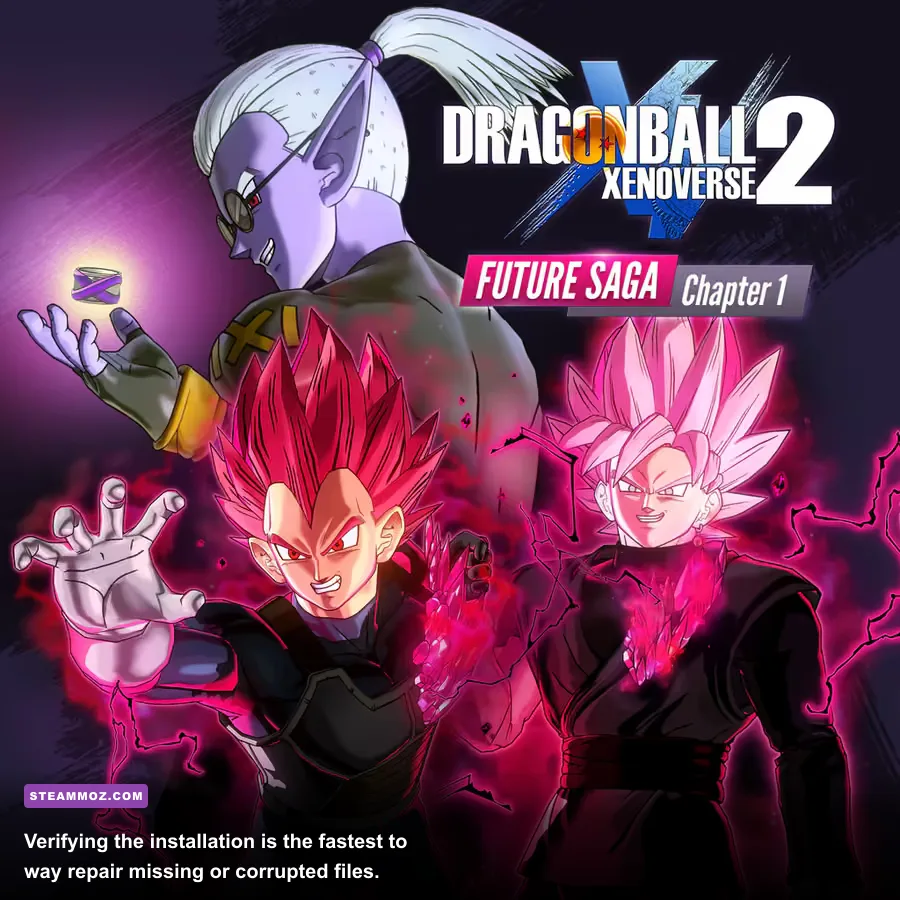
Next, use Installed Files > Verify integrity of game files. Steam will compare the local files against its depot and redownload anything missing. Don't launch the game until that process finishes. If Steam reports repaired files but the same quest still crashes, restart the computer before testing; files held open by a mod loader or overlay can otherwise remain in memory.
For official account and installation help, keep the official Steam page bookmarked. If the issue started immediately after a patch, also check Bandai Namco's Xenoverse 2 page for current notices.
| Symptom | Most likely cause | First repair |
|---|---|---|
| Crash when loading a Super Pass quest | Damaged DLC or incompatible quest mod | Verify files, then test without mods |
| DLC characters missing | Individual DLC package not installed | Re-enable the DLC in Steam Properties |
| Crash after pressing Play | Mod loader, overlay, or bad config | Use a clean launch and reset settings |
| Sudden stutter in Conton City | Shader compilation, background apps, or driver issue | Close overlays and install a clean GPU driver |

🎮 DRAGON BALL XENOVERSE 2 Super Pass
Looking to experience this game? Grab your digital key directly on our store for $14.99.
View on Steammoz Store →Clean out mods and reset Xenoverse 2 configuration
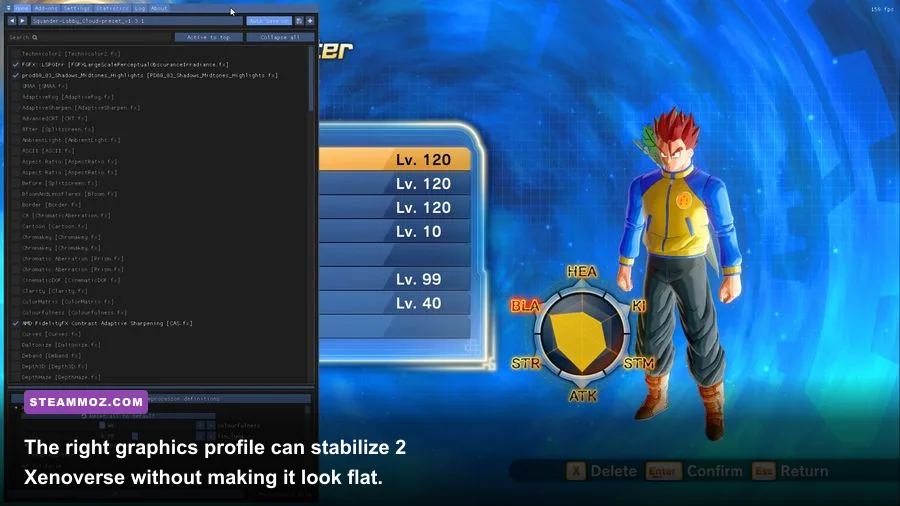
If you have ever installed XV2INS, an installer, a custom skill pack, a character bundle, or a reshade preset, test the game in an untouched state. The Super Pass can be perfectly installed and still crash because a mod references an old character ID, skill slot, costume, or quest file. This is especially common after a Xenoverse 2 executable update.
Back up your save before touching anything. The usual save location is Documents\My Games\DRAGON BALL XENOVERSE 2\. Copy the folder to your desktop. Don't delete your save while troubleshooting; the goal is to isolate the installation, not erase your Time Patroller.
In the Steam installation folder, move third-party files and folders to a temporary backup location. Look for mod-loader files, custom DLLs, patched executables, and folders added by XV2INS or Eternity tools. If you're unsure whether a file is official, verify the installation after moving it instead of guessing. A clean install should launch through Steam without a mod loader window or extra splash screen.
Now reset the configuration. Rename the Xenoverse 2 settings folder in Documents to something like DRAGON BALL XENOVERSE 2_backup, then launch the game. Xenoverse 2 will create fresh configuration files. This clears a damaged resolution, fullscreen mode, or graphics value that can cause a black screen or crash before the main menu.
Once the unmodded game works, add mods back one at a time. Test the base game, then the Super Pass quests, then each mod. Reinstalling every mod at once only recreates the mystery. For broader PC troubleshooting habits, Steamoz's guide to crashes and low FPS on PC covers the same clean-install logic in another game.
Use a stable 60 FPS graphics profile
Xenoverse 2 doesn't need extreme hardware to look good, but it rewards consistency. Start at 1920x1080, use exclusive fullscreen if available, and target a locked 60 FPS. If your GPU cannot hold 60 in Conton City or during effects-heavy Ultimate attacks, a locked 30 FPS is preferable to a constantly swinging 38-60 FPS.
Set resolution first, then adjust anti-aliasing and shadows. The biggest visual trap is chasing maximum quality while leaving frame pacing unstable. Super Saiyan transformations, Super Attacks, destructible environments, and crowded hub areas can all produce short GPU spikes. Lowering shadows and post-processing usually fixes those spikes with less visual damage than dropping resolution.
| Setting | Recommended value | FPS impact | Visual trade-off |
|---|---|---|---|
| Resolution | 1920x1080 | High if reduced | Keep native resolution whenever possible |
| Display mode | Fullscreen | Low to medium | Often improves frame pacing over borderless |
| V-Sync | On for 60 Hz displays | Low | Removes tearing; may add slight input delay |
| Anti-aliasing | Medium or high | Medium | Lower only if GPU usage is near 100 percent |
| Shadow quality | Medium | Medium to high | Best first cut for crowded areas |
| Texture quality | High if VRAM allows | Low | Preserves character and costume detail |
| Post-processing | Medium | Medium | Reduces bloom and effect-heavy spikes |
| Frame limit | 60 FPS | Stability gain | Matches the game's intended PC target |
Don't stack multiple frame limiters without a reason. If the game has V-Sync enabled, let the display handle the 60 FPS ceiling first. If you use NVIDIA Control Panel or AMD Software, create a profile for the Xenoverse 2 executable and cap it at 60. A 59 or 60 FPS cap can work, but the important part is avoiding an uncapped GPU that bounces between 100 and 300 FPS in menus and then dives during combat.
Fix drivers, overlays, and Windows conflicts
Disable Steam Overlay, Discord Overlay, Xbox Game Bar, AMD Radeon Overlay, NVIDIA App overlay, and MSI Afterburner or RivaTuner temporarily. These tools are useful, but each injects into the rendering pipeline. If the game only crashes when loading a Super Pass character or returning to Conton City, overlay injection is a much stronger suspect than raw GPU power.
Update your graphics driver from NVIDIA's official driver page or AMD's official support page. If Xenoverse 2 started crashing after a driver update, use the installer’s clean-install option or roll back to the previous stable driver. Laptop players should also force the game to use the dedicated GPU in Windows Graphics settings rather than integrated Intel graphics.
Right-click the game executable, choose Properties, open Compatibility, and test Disable fullscreen optimizations. Don't enable random compatibility modes unless a specific Windows issue demands it. Also remove any forced compatibility setting you may have added for an old mod loader; those settings can create a black screen in the current Steam build.
Check Windows Security only as a targeted test. Controlled Folder Access can block the game from writing its Documents configuration or save files. Add the official executable as an allowed app instead of turning off antivirus protection entirely. Never download replacement DLL files from random “fix” sites. They can introduce malware and rarely solve the actual cause.
Read the symptom to find the real bottleneck
Use Steam's FPS counter or a trusted monitoring tool and watch GPU usage, CPU usage, temperatures, and VRAM during the exact moment the slowdown happens. The numbers tell you whether a graphics tweak can help. If GPU usage is 98-100 percent, lower resolution, anti-aliasing, shadows, or post-processing. If GPU usage is low while one CPU core is overloaded, lowering visual quality won't fix the hitch.
| Observed behavior | Likely bottleneck | Action | Expected result |
|---|---|---|---|
| GPU at 99 percent during Ultimates | Rendering load | Lower shadows and post-processing | Fewer effect-related drops |
| GPU below 70 percent, one CPU core maxed | CPU or background process | Close browsers, launchers, and recording tools | Better frame-time consistency |
| FPS drops only in Conton City | Streaming and NPC load | Use medium shadows and a 60 FPS cap | More stable hub performance |
| Stutter every few seconds | Overlay, shader, or storage activity | Disable overlays and install on an SSD | Shorter frame-time spikes |
| Crash after alt-tabbing | Fullscreen or overlay conflict | Try borderless and disable overlays | Safer window switching |
Install the game on an SSD if possible. Xenoverse 2 is not a huge modern open-world title, but loading character assets, quest data, and hub content from a slow mechanical drive can create hitching that feels like low FPS. Keep at least 10 GB of free space on the game drive and close disk-heavy downloads while playing.
For a useful baseline, the official PC requirements are modest: a 64-bit Windows system, an Intel Core i3-class processor or better, 4 GB of RAM, DirectX 11 support, and a GTX 660-class GPU are around the game's minimum tier. In practice, 8 GB of RAM, a modern quad-core CPU, and a GTX 1060, RX 580, or newer GPU provide a much more comfortable 1080p experience. Requirements don't guarantee a locked frame rate when mods, overlays, or driver problems are involved.
Reinstall properly if the crashes survive every fix
If a verified, unmodded installation still crashes, perform a clean reinstall instead of simply pressing Uninstall and immediately reinstalling. First back up your save folder. Uninstall Xenoverse 2 through Steam, then check the old Steam library folder and remove any leftover mod files. Rename or remove the Documents configuration folder after confirming your backup is safe.
Restart Windows, reinstall the game to an SSD, and launch it once before enabling the Super Pass. Test the tutorial or a base-game Parallel Quest. Then enable the DLC and test one Super Pass quest at a time. This sequence identifies whether the base executable, configuration, or DLC package is responsible.
Don't restore old configuration files or mod loaders until the clean Super Pass build has survived several fights. If the game works until one specific DLC entry is enabled, capture the exact DLC name, quest number, character, and crash timing. That information is far more useful to Bandai Namco support than simply reporting that the game “doesn't work.”
Finally, keep expectations realistic. Xenoverse 2 is an older PC port with console-oriented limits, so a flawless 144 FPS experience isn't the right target for every system. A clean installation, 1080p resolution, medium shadows, disabled overlays, and a locked 60 FPS profile deliver the best balance. If you're tuning another demanding PC game, Steamoz's FPS settings guide for Ankora has a similar visual-quality-first approach.
The winning order is simple: verify the Super Pass, remove mods, reset the configuration, disable overlays, update or roll back the GPU driver, and only then reinstall. That process fixes the overwhelming majority of Xenoverse 2 crashing and low-FPS problems without sacrificing your save or turning every character model into a blurry mess.