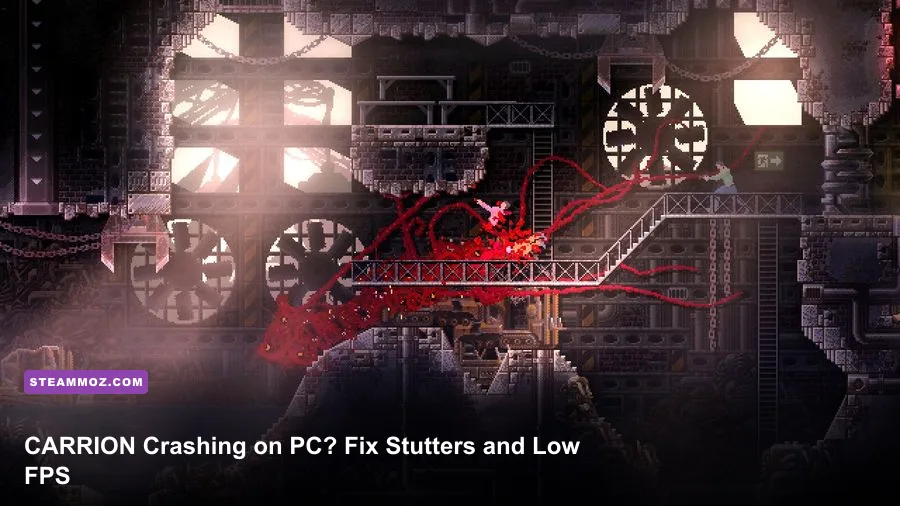
If CARRION crashes, freezes, or runs below a stable 60 FPS on your PC, start with the fixes that target Unity compatibility: verify the Steam installation, disable overlays, reset CARRION’s local settings, update your GPU driver, and test a conservative 1080p profile with VSync enabled. CARRION is a lightweight 2D game, so severe performance problems usually point to a corrupted config, scaling conflict, background software, driver issue, or frame-pacing problem rather than weak hardware.
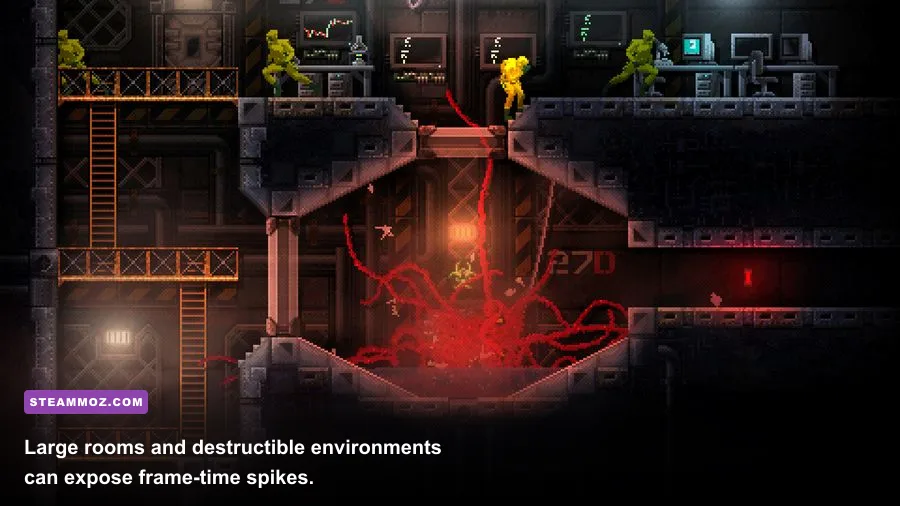
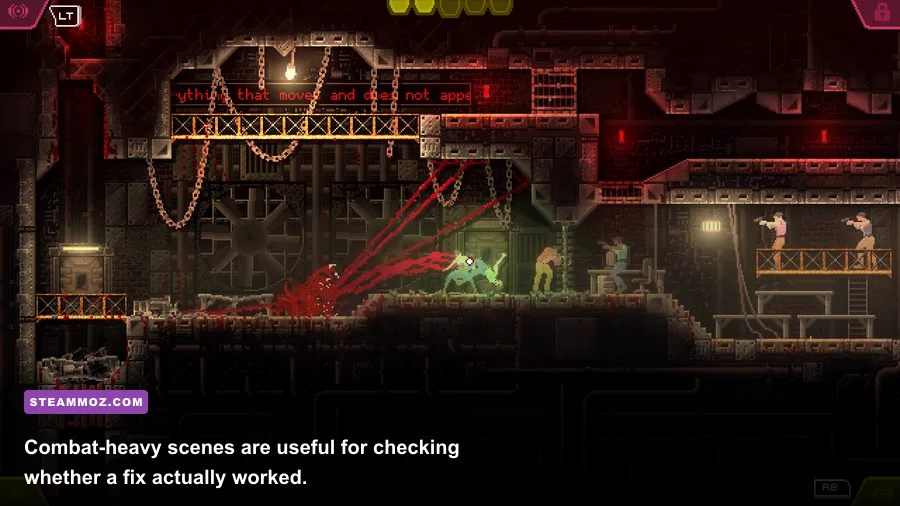
The game’s pixel-art presentation can be deceptive. CARRION may look simple, but it streams rooms, animates a creature made of dozens of moving tendrils, handles destructible scenery, and draws lots of particles during alarms and combat. That means a PC can show high average FPS while still feeling rough because of short frame-time spikes. The steps below separate crashes from stuttering, so you won’t waste time lowering every setting when the real culprit is an overlay or broken save/config file.
Check the PC basics before changing CARRION
First, confirm that your machine is running a supported 64-bit Windows installation and that CARRION is installed on a drive with several gigabytes of free space. The official CARRION Steam page lists a modest minimum specification, including 2 GB of RAM and a DirectX 10-capable graphics card. Meeting the minimum does not guarantee perfect frame pacing on a modern high-refresh monitor, though. Integrated graphics, laptop power-saving modes, and aggressive Windows scaling can still cause trouble.
Before troubleshooting, close browsers with video tabs, recording software, RGB utilities, hardware monitors, and mod loaders. Then reboot the PC. A full restart clears a stuck graphics process and matters more than repeatedly relaunching a game after a driver timeout.
| Check | What to confirm | Why it matters |
|---|---|---|
| Operating system | 64-bit Windows with current updates | Older compatibility layers can trigger startup crashes |
| GPU driver | Current NVIDIA, AMD, or Intel driver | Fixes DirectX and display initialization problems |
| Storage | At least 2–5 GB free on the game drive | Prevents failed updates and temporary-file errors |
| Power mode | Best performance while plugged in | Stops laptops from downclocking the GPU |

🎮 CARRION
Looking to experience this game? Grab your digital key directly on our store for $3.99.
View on Steammoz Store →Repair Steam files and reset the local configuration
Verify the installation first
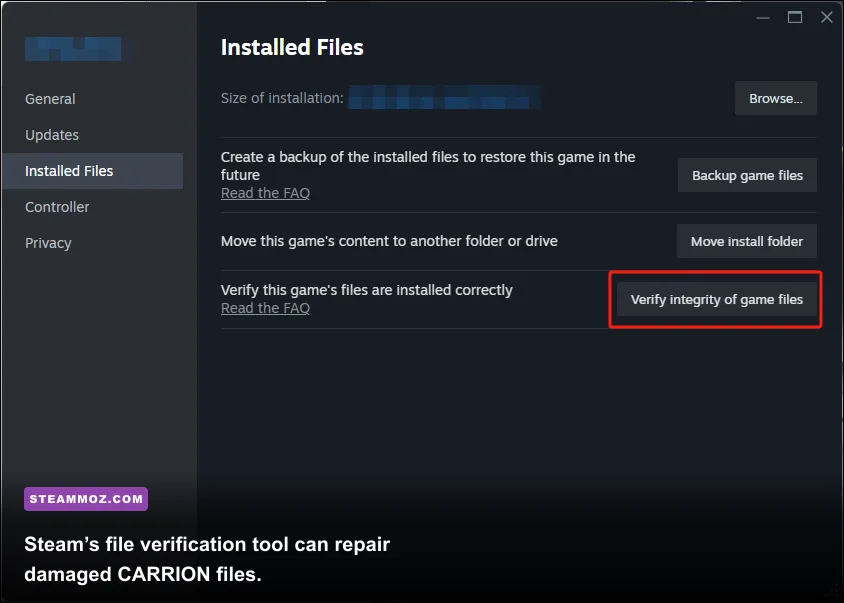
In Steam, open Library, right-click CARRION, choose Properties, select Installed Files, and click Verify integrity of game files. Let the scan finish completely. If Steam downloads replacement files, launch the game again before changing anything else. A crash that appeared after an update, forced shutdown, or interrupted download often disappears here.
Verification does not always repair a damaged local configuration. If CARRION crashes immediately after the splash screen, back up your save and reset the game’s settings rather than deleting files blindly. Steam Cloud can restore progress, but it can also re-download a broken save or configuration. Disable Cloud temporarily from the game’s Properties menu, launch once, and re-enable it after confirming the game reaches the title screen.
Look for CARRION’s local files through Windows search or the AppData folders, but make a backup copy before removing anything. The exact folder can vary with the Windows install and game version. Search for a folder named CARRION inside %USERPROFILE%\AppData\LocalLow and %APPDATA%. Move the suspected settings folder to your desktop, launch the game, and test a new configuration. If the crash vanishes, restore files one at a time to identify whether the save or settings file caused it.
Don’t delete your only save as a first resort. CARRION’s campaign progress includes unlocked abilities and exploration state, so a clean configuration test is safer than wiping the entire directory.
Use a stable CARRION graphics profile for low FPS
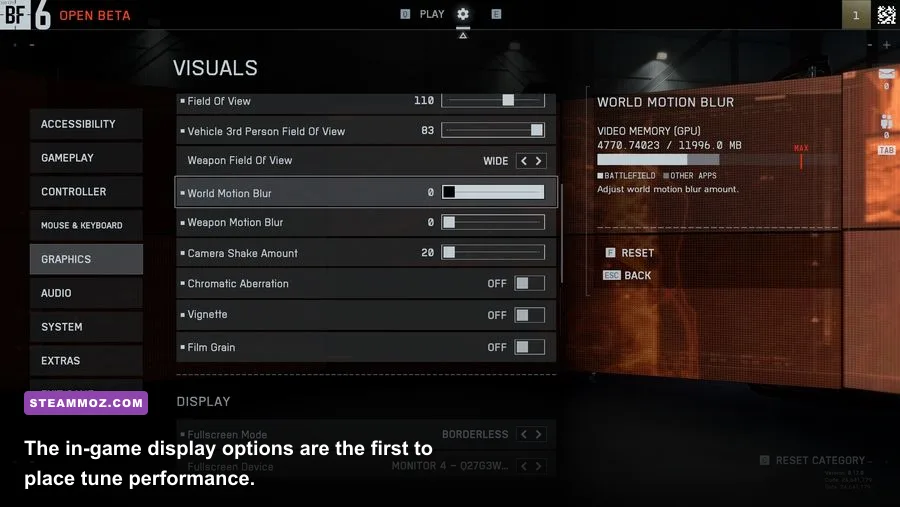
CARRION does not need a powerful GPU, but high-resolution scaling can still make a difference on a 4K monitor. Start at your display’s native 1920×1080 resolution, use exclusive fullscreen if the game offers it, and enable VSync while testing. VSync is especially useful when the game’s frame rate is already high but movement feels uneven because frames arrive at inconsistent intervals.
If your monitor is 120 Hz or 144 Hz, don’t assume CARRION will automatically feel better at the panel’s maximum refresh rate. A lightweight Unity game can produce uneven delivery when its internal timing and the display refresh do not line up. Test a locked 60 FPS experience first. If the game feels smooth, try borderless mode and a higher refresh rate afterward.
| Setting | Recommended test value | FPS impact | Visual note |
|---|---|---|---|
| Resolution | 1920×1080 | Low to medium | Best baseline for 1440p and 4K displays |
| Display mode | Fullscreen | Low | Usually reduces desktop-compositor interference |
| VSync | On for testing | May cap output | Improves tearing and frame pacing |
| Screen effects | Off or lowest available | Low to medium | Can reduce spikes during combat and alarms |
| CRT or visual filter | Off | Low | Removes an unnecessary post-processing pass |
| Windows scaling | 100% for testing | Low | Rules out DPI and resolution-scaling conflicts |
Some CARRION versions expose fewer graphics controls than modern 3D games. That’s fine. Don’t go hunting for nonexistent texture-quality sliders or community “ultra” presets. Resolution, fullscreen behavior, VSync, visual filters, and the Windows display scale are the meaningful controls. If your copy only offers a resolution and fullscreen toggle, use those two to create a clean baseline.
When VSync helps and when it hurts
VSync can hide tearing and stabilize a 60 FPS presentation, but it may add a little input latency and can produce a noticeable drop if your PC cannot hold the refresh target. If performance falls from 60 to 30 FPS whenever a room gets busy, turn VSync off and compare frame pacing. On a variable-refresh monitor, use FreeSync or G-SYNC and cap the game slightly below the display’s maximum refresh rate through the driver panel.
Fix CARRION crashes at launch and during loading
Disable overlays and injectors
Steam Overlay, Discord Overlay, Xbox Game Bar, NVIDIA ShadowPlay, AMD recording tools, MSI Afterburner’s RivaTuner overlay, and ReShade can all hook into a game. Most work perfectly, but a crash that appears only on startup or when switching windows is a strong sign of an overlay conflict.
Disable Steam Overlay from CARRION’s Properties, then turn off Discord’s game overlay and background recording in Windows Settings. Close Afterburner and RivaTuner completely for one test. If the crash stops, re-enable tools individually. This identifies the offender without permanently sacrificing screenshots or performance monitoring.
Update or clean-install the graphics driver
Install the latest stable driver for your GPU directly from the official NVIDIA driver page, AMD support, or Intel Download Center. Choose a clean installation when the installer provides that option. This is more useful than repeatedly reinstalling CARRION when several Unity games crash in similar ways.
If the problem began immediately after a driver update, rolling back to the previous stable driver is worth testing. Laptop owners should also check whether Windows is launching CARRION on the integrated GPU. In Windows Graphics settings, add the game executable and select High performance. On NVIDIA hardware, the equivalent setting is found in Manage 3D Settings under Program Settings.
Test administrator and compatibility options carefully
Run Steam normally first. Administrator mode is not a universal performance fix and can create permission mismatches with Steam Cloud. If CARRION still refuses to start, test Windows compatibility settings one at a time, beginning with Windows 7 compatibility mode. Keep a note of each change, because compatibility flags can fix one machine while introducing alt-tab or fullscreen problems on another.
Stop stuttering, hitching, and sudden FPS drops
Watch frame time, not just the FPS counter. A stable 60 FPS frame time is about 16.7 milliseconds. If the counter says 100 FPS but frame time repeatedly jumps to 40–80 ms, you’ll feel a hitch whenever the creature enters a new room or a large fight begins. Use Steam’s performance overlay or a tool such as PresentMon for diagnosis, then change one variable at a time.
Start by moving CARRION to an SSD if it currently lives on a nearly full hard drive. The game is small, but room transitions and asset reads can still hitch when the drive is busy. Pause cloud-sync utilities and avoid playing while Windows is installing updates or indexing a large library.
Next, cap the frame rate. A 60 FPS cap is usually the cleanest target for CARRION. If you’re using a 144 Hz display and the game is stable, try 120 FPS, but don’t chase a high number if frame pacing gets worse. A lower, consistent cap feels better than 200 FPS followed by repeated spikes.
| Symptom | Likely cause | Best first test | Expected result |
|---|---|---|---|
| Crash before the menu | Overlay, driver, or damaged config | Disable overlays and reset settings | Game reaches the title screen |
| Crash after loading a save | Corrupted save or Cloud conflict | Back up saves and test a new game | Separates save damage from engine issues |
| Brief hitch entering rooms | Storage access or background task | Use SSD and close sync software | Shorter, less frequent spikes |
| Uneven movement at high FPS | Refresh mismatch | Enable VSync or cap at 60 FPS | Smoother frame delivery |
| Slowdown during alarms | Effects, scaling, or GPU driver | Lower resolution and disable filters | Fewer combat-time drops |
Use Windows and GPU settings that actually help
Set Windows power mode to Best performance while plugged in, especially on a laptop. Turn off Battery Saver, connect the charger, and check the manufacturer’s control panel for a silent or eco profile. CARRION’s minimum requirements are low, but an aggressively limited CPU can still create poor frame pacing when enemies, particles, and destruction trigger together.
Disable forced image sharpening, driver-level supersampling, and enhanced anti-aliasing profiles for CARRION. Those features are designed for 3D workloads and can add processing without improving the game’s intentionally pixelated art. Leave texture filtering at its default and avoid forcing a custom resolution through the GPU panel until the game itself works correctly.
Windows 10 and 11 users can test Hardware-accelerated GPU scheduling by switching it off, rebooting, and comparing results. It isn’t a guaranteed fix, but it’s a useful A/B test when several Unity games stutter. Likewise, disable fullscreen optimizations on the executable only if fullscreen mode is flickering, minimizing incorrectly, or producing inconsistent frame delivery.
For more PC troubleshooting patterns, compare the approach in our Formido crash and FPS fixes, Knightica performance guide, and Grow: Song of the Evertree settings guide. The exact settings differ, but the diagnostic method is the same: reproduce the problem, change one thing, and measure the result.
Last-resort fixes for persistent CARRION problems
If nothing above works, uninstall CARRION, restart Windows, and reinstall it to a different library folder. Avoid restoring old configuration files until the clean installation has passed a new-game test. Also check Windows Event Viewer under Windows Logs and Application for the crash module name. A fault mentioning a GPU driver, overlay DLL, or audio component points away from the game’s core files.
Install or repair the Microsoft Visual C++ Redistributables and DirectX runtime components if other older PC games are crashing too. Don’t download random DLL files from third-party sites. Use Microsoft’s official installers or the redistributables included with trusted game installations.
Finally, report reproducible crashes through the developer’s official Phobia Game Studio site or the game’s Steam discussion hub. Include your GPU, CPU, Windows version, display resolution, whether the crash happens at launch or in a specific room, and the last change you made. The official Devolver Digital CARRION page is also a useful source for current support links.
The fastest reliable path is still the simple one: verify files, reset local settings, disable every overlay, update or roll back the GPU driver, then test 1080p fullscreen at a locked 60 FPS. Once that baseline is stable, re-enable VSync, overlays, higher resolution, and recording tools one by one. That turns CARRION’s crashes and low-FPS mystery into a clear compatibility check—and gets the monster back to shredding laboratories instead of your desktop.
If you’re looking for another performance-focused read afterward, Steamoz’s Architect Life crashing and low-FPS guide covers the same kind of step-by-step isolation for a very different PC workload.