If Candy Crush Saga stutters, drops frames, or crashes on PC, start by identifying the client you use: browser, Microsoft Store app, or Android emulator. Update that client, enable hardware acceleration, close video-heavy tabs, repair the Windows app if necessary, and cap background load. Candy Crush does not offer a conventional PC graphics menu, so smooth performance comes from fixing the layer running the game rather than lowering texture quality or shadows.
That distinction matters. A basic Candy Crush board is not remotely demanding for a modern desktop, yet animated cascades, boosters, advertisements, browser rendering, synchronization, and emulator overhead can create surprisingly ugly hitching. The fix is usually quick once you stop treating this like a traditional 3D game.
First, find the source of Candy Crush stutter
There are three common PC versions. You may be playing through the official web game in Chrome or Edge, the Candy Crush Saga app downloaded through the Microsoft Store, or an Android emulator such as BlueStacks. Each has a different failure pattern.
| PC version | Most common problem | Best first fix | Performance ceiling |
|---|---|---|---|
| Chrome or Edge browser | Tab overload, GPU acceleration conflicts, blocked or corrupted site data | Toggle hardware acceleration, restart the browser, clear site data | Usually tied to browser refresh and display timing |
| Microsoft Store app | Damaged app package, outdated Windows component, Store cache errors | Repair the app, update Windows, then reset only if needed | Typically smooth on integrated graphics |
| Android emulator | Virtualization, renderer, RAM allocation, or emulator background services | Enable virtualization and test DirectX/OpenGL renderers | Depends on emulator configuration, not Candy Crush alone |
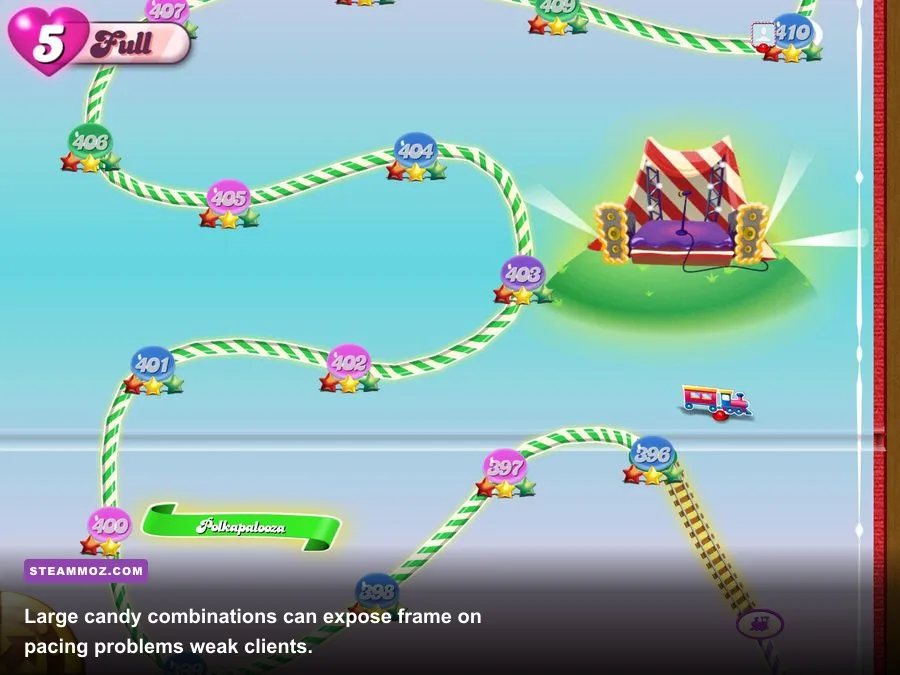
Watch what happens during a problem. If the entire browser freezes, the issue is probably the browser or GPU driver. If only Candy Crush disappears, suspect the app package, account sync, or an emulator process. If the game runs smoothly until a Color Bomb triggers a large chain reaction, you are dealing with frame pacing or a renderer that struggles with many animated effects at once.
Before changing anything, sign in and confirm your progress is synchronized. King’s official Candy Crush Saga page and King community are useful places to verify the current supported client. Never uninstall an app while playing as a guest unless you are certain your progress is linked to a King account, Facebook, or another supported sign-in.

🎮 RUSH
Looking to experience this game? Grab your digital key directly on our store for $4.99.
View on Steammoz Store →Fix browser stuttering and sudden frame drops
1. Test hardware acceleration instead of assuming it helps
In Chrome, open Settings > System and find Use graphics acceleration when available. In Edge, the equivalent setting sits under System and performance. Toggle it, restart the browser completely, and test the same Candy Crush level again. Hardware acceleration normally improves animation smoothness, but a buggy Intel, AMD, or Nvidia driver can make the accelerated path worse. If the game stutters with acceleration enabled, turn it off for a controlled test.
Do not judge the result from the first board alone. Play through several cascades, trigger a Striped Candy combination, and watch a level with frequent falling pieces. The useful test is whether the hitch repeats during effects, not whether the opening board feels responsive.
2. Clear Candy Crush site data, not your whole browser
Corrupted cookies or cached game files can cause long pauses, failed asset loading, and crashes after an update. In Chrome or Edge, open the site permissions or privacy panel for the Candy Crush page and delete its stored data. Restart the browser, sign in again, and let the game finish loading before opening additional tabs.
Keep the test clean. Close YouTube, Twitch, cloud-streaming tabs, animated dashboards, and web apps using WebGL. A browser can show low CPU usage while its GPU process is busy compositing several tabs. Disable unnecessary extensions temporarily, especially ad blockers, screen recorders, shopping overlays, and browser game enhancers. If stuttering disappears, re-enable extensions one at a time to find the offender.
3. Stop background power and refresh problems
Plug in a laptop and switch Windows to Best performance while testing. Battery saver modes can reduce CPU wake frequency, which feels like uneven animation even when the average frame rate looks acceptable. Also check whether the browser is sleeping or throttling background tabs; keep Candy Crush in the active foreground tab during testing.
If browser scrolling and Candy Crush both hitch, update the graphics driver from your GPU manufacturer. For integrated Intel graphics, use Intel’s official driver support; for GeForce or Radeon hardware, use Nvidia or AMD’s official updater. Avoid random driver-download sites. After updating, reboot instead of merely closing the browser.
Repair the Microsoft Store version without losing progress
The Windows app has no meaningful texture, shadow, anti-aliasing, or resolution options to lower. That means traditional “low settings” advice misses the point. Repair the package and its supporting services instead.
Use Repair first, Reset second
Open Settings > Apps > Installed apps, find Candy Crush Saga, select the three-dot menu, choose Advanced options, and press Repair. This checks the installation without deliberately deleting local app data. Launch the game and test two or three levels.
If it still crashes, return to the same screen and choose Reset. Reset can remove local settings and cached sign-in information, so make sure your progress is synchronized first. Afterward, launch Candy Crush, sign in, and allow the game time to restore progress before starting a level. Microsoft’s official Windows app repair guidance explains the same repair-versus-reset distinction.
Refresh Microsoft Store services
Press Windows + R, type wsreset.exe, and press Enter. A blank command window may appear briefly; wait for it to close and for the Microsoft Store to open. Then visit Library and select Get updates. Update Candy Crush, Microsoft Store, Xbox components, and Gaming Services if they appear.
Also install pending Windows updates and restart. The Store client can crash because its framework is newer than an outdated Windows build, not because the game itself suddenly became too demanding. If the app closes during synchronization, temporarily disable third-party overlays such as Discord, MSI Afterburner, Xbox Game Bar, or recording software and test again.
| Symptom | Likely layer | Action | Risk to local data |
|---|---|---|---|
| Game opens, then closes immediately | App package or Store dependency | Repair, update Store, reboot | Low |
| Board loads but progress is missing | Account synchronization | Stop playing, verify the correct sign-in | Medium if you reset while unsynced |
| Animation hitches during cascades | GPU driver, overlay, or power mode | Disable overlays and test the graphics driver | None |
| App crashes after an update | Cached package data | Repair, then Reset only after confirming sync | Medium |
Best Windows settings for stable Candy Crush FPS
Because Candy Crush is a 2D puzzle game, the goal is consistent frame pacing rather than chasing a high number on an FPS counter. A 60 Hz monitor cannot display more than 60 refreshes per second, and the game client may internally animate at a different cadence. A counter showing 144 FPS does not guarantee smoother candy movement if frames arrive unevenly.
| Setting or component | Recommended value | FPS or stability impact | Why it matters |
|---|---|---|---|
| Windows power mode | Best performance while testing | Low to medium | Prevents aggressive laptop CPU throttling |
| GPU assignment | High performance GPU for a discrete-GPU PC | Low, but useful for hybrid laptops | Stops Windows from selecting an inefficient graphics path |
| Xbox Game Bar | Off for troubleshooting | Low | Removes capture and overlay hooks |
| Discord or recorder overlay | Off during testing | Low to medium | Overlays can interfere with browser or Store rendering |
| Display scaling | Use the Windows recommended value | Usually negligible | Avoids unusual compositor scaling behavior |
| Browser tabs | Close video and WebGL-heavy tabs | Medium to high in browsers | Frees GPU memory and compositor time |
To assign the Windows client, open Settings > System > Display > Graphics, locate Candy Crush Saga, choose Options, and select High performance if your PC has a discrete GPU. This is more useful on laptops with switchable Intel-and-Nvidia or Intel-and-AMD graphics than on a desktop with one GPU.
Do not disable vertical synchronization globally just to fix Candy Crush. Global driver overrides can create tearing, alter browser behavior, and complicate diagnosis. Likewise, do not force a custom frame limit through an overlay before you know which client is failing. First establish a stable baseline with overlays disabled and Windows at its normal recommended display settings.
Stop crashes caused by emulators and virtual machines
Android emulators are the most likely route to poor Candy Crush performance because they add a virtual Android device between the game and Windows. If you use BlueStacks or another emulator, enable CPU virtualization in your BIOS or UEFI. In Windows, check Task Manager > Performance > CPU; the Virtualization line should say Enabled.
Give the emulator enough resources, but don't throw your entire PC at it. For a single Candy Crush instance, four CPU cores and roughly 4 GB of RAM are a sensible starting point on a PC with at least 8 GB total memory. Leave Windows breathing room. Over-allocating RAM can make the host system page to disk, producing worse stutter than a conservative profile.
Test the emulator’s graphics renderer one choice at a time. DirectX may behave better on one driver while OpenGL is smoother on another. Restart the emulator after changing it, then replay a level containing several cascades. Keep resolution around 1280x720 or 1920x1080 and avoid running multiple emulator instances. Disable emulator notifications, ad panels, and high-FPS modes during diagnosis; Candy Crush gains little from them.
| Emulator profile | CPU allocation | RAM allocation | Use case |
|---|---|---|---|
| Lightweight | 2 cores | 2 GB | Older PC, one game instance, lowest background load |
| Balanced | 4 cores | 4 GB | Most modern 8 GB systems |
| Heavy multitasking | 4 to 6 cores | 4 to 6 GB | Only on systems with 16 GB or more |
If only the emulator crashes while other PC games are stable, create a fresh emulator instance and install Candy Crush again after confirming account sync. A damaged virtual device is often faster to replace than to repair. For broader troubleshooting habits, Steamoz’s guide to crashes and low FPS in EscapeVR covers the same useful order: isolate overlays, verify drivers, then repair the installation.
Diagnose the final stubborn stutters
Use Task Manager while Candy Crush is running. Check CPU, memory, GPU, and disk columns rather than relying only on an FPS overlay. CPU usage jumping whenever an advertisement loads points toward browser or Store services. Memory approaching 90 percent suggests background applications are forcing Windows to compress or page data. A disk pinned near 100 percent can make a perfectly capable GPU appear guilty.
Run a clean test: reboot, open only the chosen Candy Crush client, disable overlays, and play for ten minutes. If the problem vanishes, add your normal tools back individually. This is much faster than changing ten settings and forgetting which one helped.
For a browser client, try the other supported browser as a diagnostic, not necessarily as a permanent migration. For the Store client, test a new Windows user profile if the app crashes only under one account. For an emulator, compare a fresh instance with the old one and record which renderer is active. A short note containing the client, Windows version, GPU driver, and exact crash moment will also make a King support request far more useful.
If Candy Crush remains unstable after these steps, repair Windows system files with Microsoft’s documented System File Checker and Deployment Image Servicing tools, then reboot. Don't jump straight to reinstalling Windows or buying a new GPU: Candy Crush’s workload is tiny, and persistent failure nearly always points to the client, driver, Store services, account data, or emulator layer.
The fastest fix order for your next session
Use this sequence and stop as soon as the game becomes stable:
- Confirm whether you use a browser, Microsoft Store app, or Android emulator.
- Reboot Windows and close video tabs, overlays, recorders, and unnecessary launchers.
- Update Windows, the Store or browser, Candy Crush, and the graphics driver.
- For browsers, toggle hardware acceleration and clear only Candy Crush site data.
- For the Store app, choose Repair, run wsreset.exe, then update Store services.
- For emulators, confirm virtualization, test DirectX and OpenGL, and avoid over-allocating RAM.
- Verify account synchronization before using Reset, uninstalling, or creating a fresh instance.
Candy Crush Saga should run smoothly on nearly any reasonably maintained PC. When it doesn't, the winning move isn't lowering nonexistent graphics presets; it's finding the exact wrapper around the game and removing the bottleneck. Once hardware acceleration, app data, overlays, power management, and synchronization are checked in that order, stuttering and crashes usually stop being mysterious.
For more PC troubleshooting workflows, see Steamoz’s ELEX crash and FPS fixes, Filament performance settings, and Far Cry 6 PC settings guide. The games are far more demanding, but the troubleshooting logic—clean baseline, isolate the client, then change one variable—transfers perfectly.