Short answer: yes, almost any reasonably modern Windows PC can access and download games listed through Pc Game Supply, but Pc Game Supply itself isn't a game with one set of system requirements. The honest compatibility check has to happen title by title. Compare your processor, graphics card, RAM, operating system, and storage against the specific game's requirements, then verify performance with a real benchmark rather than trusting a vague “can I run it?” label.
That distinction matters because a lightweight indie game and a ray-traced open-world release can appear in the same PC catalog while demanding completely different hardware. A Core i5-8400 with 16GB of memory may cruise through a 1080p pixel-art game, yet struggle badly with a recent Unreal Engine 5 title using Lumen and Nanite. There is no universal Pc Game Supply benchmark, and anyone promising one is skipping the most important detail: the game you actually want to play.
Pc Game Supply Has No Single Hardware Target
Think of Pc Game Supply as a distribution source or game catalog, not a single executable with fixed requirements. The installer, launcher, or storefront may run on modest hardware, but the software you launch afterward determines whether your system delivers 30fps, 60fps, or an unpleasant slideshow.
Start with the individual product page. On Steam, the system requirement panel usually separates minimum and recommended hardware, although those labels are not performance guarantees. A “minimum” GPU often means the game can start at low settings and a reduced resolution. “Recommended” may target 1080p at 60fps, but developers don't always state the preset, upscaling mode, or whether the test assumes a busy late-game scene.
Use the official Steam store listing as your first reference, then check the developer's support page for patches and known hardware issues. Microsoft’s Windows 11 requirements are also useful for confirming operating-system compatibility. Those sources are more reliable than a retailer badge that simply says “PC compatible.”
| Hardware Area | Practical Minimum | Comfortable Target | Why It Matters |
|---|---|---|---|
| Operating system | Windows 10 64-bit | Windows 11 64-bit | Newer APIs, driver support, and security features increasingly assume 64-bit Windows. |
| CPU | 4 modern cores | 6 to 8 modern cores | Open worlds, simulation, and background streaming can punish older quad-core chips. |
| Memory | 8GB RAM | 16GB RAM | 16GB reduces asset-streaming stutter and leaves room for browsers and launchers. |
| GPU | GTX 1650 or RX 570 class | RTX 3060, RX 6600 XT, or better | The graphics card controls resolution, texture quality, effects, and ray tracing headroom. |
| Storage | SSD strongly preferred | NVMe SSD | Fast storage improves loading and can reduce traversal hitching in streaming-heavy games. |
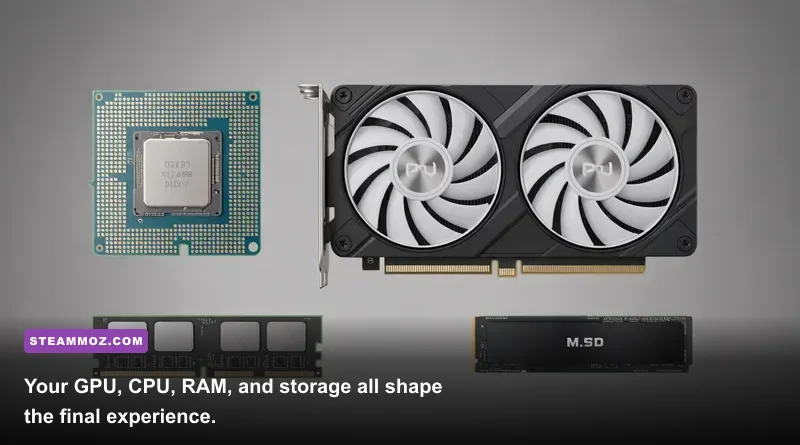
These are not official requirements for every title. They are a sensible starting point for modern PC gaming. An older GTX 1060 6GB can still be useful at 1080p, while an RTX 4090 cannot rescue a game that is bottlenecked by a weak CPU or badly optimized engine.
How to Read Minimum and Recommended Specs
Minimum specifications are often misunderstood. If a listing names a GTX 960, that does not mean the card will produce a locked 60fps at 1080p. It may be based on 720p, Low settings, a 30fps target, or an early build before the game received heavier content. Treat minimum hardware as the line for launching and playing acceptably, not as the line for a smooth premium experience.
Recommended specifications are more useful, but still incomplete. Look for the target resolution and frame rate. A game recommending an RTX 2070 could mean native 1440p at 60fps, or it could mean 1080p with DLSS enabled. Ray tracing can completely change the equation: the same card that handles rasterized Ultra settings comfortably may need a Performance upscaling mode once reflections and global illumination are enabled.
VRAM deserves special attention. A 6GB graphics card may run a game at Low or Medium, but high-resolution textures, a large open world, and 1440p rendering can push memory usage past that limit. When VRAM fills, performance may not simply drop by a few frames; you can see texture pop-in, hitching, delayed asset loading, and sudden frametime spikes.
| Target Experience | Suggested Hardware Class | Typical Resolution | Realistic Settings |
|---|---|---|---|
| Playable budget | GTX 1650 / RX 570, Core i5-8400 class | 1080p | Low to Medium, 30-60fps depending on the engine |
| Balanced gaming | RTX 3060 / RX 6600 XT, Ryzen 5 5600 class | 1080p or 1440p | High settings, 60fps in many rasterized games |
| High-refresh 1440p | RTX 4070 / RX 7800 XT, Ryzen 7 7700 class | 1440p | High to Ultra, 90-165fps with sensible upscaling |
| 4K and ray tracing | RTX 4080 Super / RX 7900 XTX class | 4K | High settings, upscaling recommended, ray tracing varies widely |
Those tiers describe a broad expectation, not a promise. Engine behavior matters. A competitive shooter may deliver more than 200fps on modest hardware, while a dense city-builder can become CPU-limited even with a powerful graphics card.
Real Benchmark Truth: FPS Is Only Half the Story
A trustworthy Pc Game Supply performance test needs more than one average-FPS number. Record the average, the 1% low, and the 0.1% low, then watch the frametime graph. Average FPS tells you the general speed. The 1% low exposes recurring dips. The 0.1% low catches the ugly hitches you feel when entering a new district, loading a combat arena, or turning quickly in a crowded scene.
For a repeatable test, update the GPU driver, reboot the PC, close browsers and overlays, and let the game finish shader compilation. Use the same save file and repeat the same 60-to-90-second route. Test a quiet scene and a demanding scene; a corridor benchmark can make a poorly optimized open world look fantastic.
Cap your frame rate when necessary. If your monitor is 60Hz, a stable 60fps often feels better than a wildly fluctuating 85fps. With a 144Hz display, a 90fps lock with clean frametimes can be preferable to bouncing between 70 and 130fps. Enable V-Sync only when appropriate, and use FreeSync or G-Sync when your display supports adaptive synchronization.
Tools such as CapFrameX, PresentMon, MSI Afterburner, and the in-game performance overlay can reveal the bottleneck. If GPU usage sits near 98-99% while the CPU has room, lower resolution or effects first. If one CPU core is pinned and GPU usage falls to 70%, lowering graphics quality won't solve the problem; you need a faster processor, a frame cap, or less demanding simulation settings.
| Symptom | Likely Bottleneck | First Test | Best Fix |
|---|---|---|---|
| GPU usage stays at 98-99% | Graphics card or resolution limit | Lower resolution scale by 10% | Use DLSS, FSR, lower shadows, or reduce ray tracing. |
| GPU usage drops during crowds | CPU or game-thread limit | Lower crowd and simulation settings | Reduce NPC density, cap FPS, or upgrade the CPU. |
| Textures pop in and hitch | VRAM or storage streaming | Lower texture quality and monitor VRAM | Install on an SSD and keep texture memory below the card's limit. |
| Average FPS looks fine but play feels uneven | Frame pacing or shader compilation | Check 1% lows and frametime spikes | Complete shader caching, cap FPS, and update the game. |
For comparison, a 60fps average with a 48fps 1% low is a very different experience from 60fps average with a 58fps 1% low. That is the benchmark truth most quick compatibility calculators leave out.
Best Settings for a Pc Game Supply Download
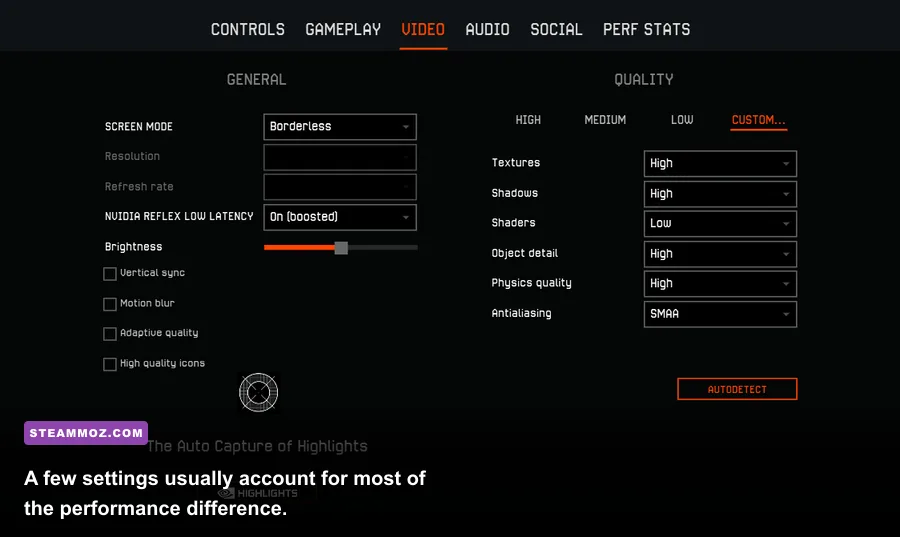
Once you've installed a game, don't immediately select Ultra. Ultra presets often spend huge performance budgets on effects that are difficult to notice during play. Start with High, then adjust the settings that produce the biggest gains.
Shadows are usually a strong first target. Moving from Ultra to High can recover meaningful GPU time with only a modest change in contact detail. Volumetric fog, screen-space reflections, ambient occlusion, and ray-traced lighting are also expensive. Textures are different: keep them high if VRAM allows, because texture quality usually affects memory capacity more than raw shader performance.
Upscaling is not automatically a quality sacrifice. DLSS on compatible Nvidia cards and FSR on a wider range of GPUs can preserve a surprisingly sharp image while reducing the internal render cost. At 1080p, Quality mode is generally the sensible starting point; at 1440p, Quality or Balanced can work; at 4K, Balanced or Performance may be necessary for heavy ray tracing.
Use frame generation carefully. It can make camera motion look smoother when the base frame rate is already reasonably stable, but it doesn't remove input latency from the underlying frames. If your native performance is 35fps, generated frames won't make the controls feel like genuine 70fps. Aim for a stable base rate first, then add frame generation if the game and GPU support it.
For games with severe traversal stutter, installing to an NVMe SSD and allowing the first-run shader compilation to finish can help more than dropping every visual setting to Low. Also check the game's patch notes. Recent releases sometimes gain double-digit improvements from shader, streaming, or CPU-threading fixes.
The Verdict on Can Your PC Run Pc Game Supply?
Your PC can probably run the Pc Game Supply storefront, launcher, or catalog interface, but that answer says almost nothing about the games inside it. The correct verdict comes from the individual title's requirements, your actual component model, and a controlled benchmark using the settings you intend to play.
For a safe modern baseline, target a 6-core processor, 16GB of RAM, a dedicated GPU with at least 8GB of VRAM, and an SSD. That won't guarantee Ultra settings in every new release, but it gives you sensible 1080p and 1440p flexibility. If your machine is older, don't assume defeat: reduce ray tracing first, use a reasonable upscaler, keep textures within your VRAM budget, and monitor 1% lows rather than chasing a peak number.
Before downloading, confirm the exact game page, operating-system requirement, storage space, and controller or launcher dependencies. If crashes are the problem rather than low FPS, our ELEX PC fixes guide covers the same driver, configuration, and compatibility checks. For older hardware, the Far Cry 2 PC requirements breakdown shows why legacy games can still need careful setup.
And if a game is technically playable but looks rough, compare targeted adjustments rather than blindly selecting Low. Our Filament settings guide and EscapeVR performance fixes follow that same principle: identify the bottleneck, change the setting tied to it, and verify the result with frametime data.
That is the real Pc Game Supply compatibility test. Not a one-click badge, not an optimistic minimum requirement, and not a single average-FPS screenshot—just the exact game, the exact settings, and a benchmark that reflects how you'll actually play.