Short answer: there is no single game or specification called “MSI PC” that has one universal system requirement. MSI makes gaming desktops and laptops, so whether your PC can run a game depends on the exact CPU, graphics card, RAM, storage, resolution, and cooling profile—not the MSI logo on the case. A recent MSI system with a Ryzen 5 5600, Core i5-12400F, RTX 3060, RX 6600, or better is still a strong 1080p gaming machine; an older GT 1030 or integrated-graphics model is a very different story.
That distinction matters because many search results treat “MSI PC requirements” like a normal game-spec question. It isn't. MSI sells everything from compact office PCs to RTX 4090-equipped towers. This guide breaks down the hardware tiers, gives realistic 1080p and 1440p expectations, explains what the benchmark numbers actually mean, and shows how to test your own machine without trusting a vague “recommended PC” label.
MSI PC Does Not Mean One Performance Level
The first step is identifying the exact MSI product and configuration. A MAG Infinite S with an RTX 4060, an Aegis RS with an RTX 4080 Super, and a Katana gaming laptop may all be marketed as MSI gaming PCs, yet their frame rates can be separated by more than 200 percent. Even the same model name can ship with different processors, memory capacities, power supplies, and GPUs depending on the region or retailer.
Look for the full specification line in Windows by opening Settings > System > About, then check the GPU in Task Manager > Performance. For a desktop, the graphics card is the component that usually decides your average FPS at 1080p and above. The CPU becomes more important in competitive games, simulation-heavy titles, open-world hubs, and situations where you want 144Hz or higher.
RAM and storage affect the experience in less obvious ways. Sixteen gigabytes remains the practical baseline for modern gaming, while 32GB is safer if you stream, browse with many tabs open, or play demanding games that compile shaders and stream large worlds. An NVMe SSD won't magically double FPS, but it can slash loading times and reduce the texture-streaming hitching that makes an otherwise fast PC feel broken.
| MSI Hardware Tier | Typical Components | Target Resolution | Realistic Experience |
|---|---|---|---|
| Entry level | Core i3/Ryzen 3, GTX 1650, RTX 3050, 8-16GB RAM | 1080p Low/Medium | Playable in lighter games; compromises required in new releases |
| Mainstream | Core i5-12400F/Ryzen 5 5600, RTX 3060, RTX 4060, RX 6600 | 1080p High | Best value tier, usually 60-120 FPS depending on the game |
| Performance | Core i5-13600K/Ryzen 7 7800X3D, RTX 4070 Super, RX 7800 XT | 1440p High | High-refresh gaming with sensible ray tracing settings |
| Enthusiast | Core i7/i9, Ryzen 9, RTX 4080 Super or RTX 4090 | 1440p Ultra or 4K | Excellent headroom, but CPU limits still appear at very high FPS |
The Specs That Actually Decide Your FPS
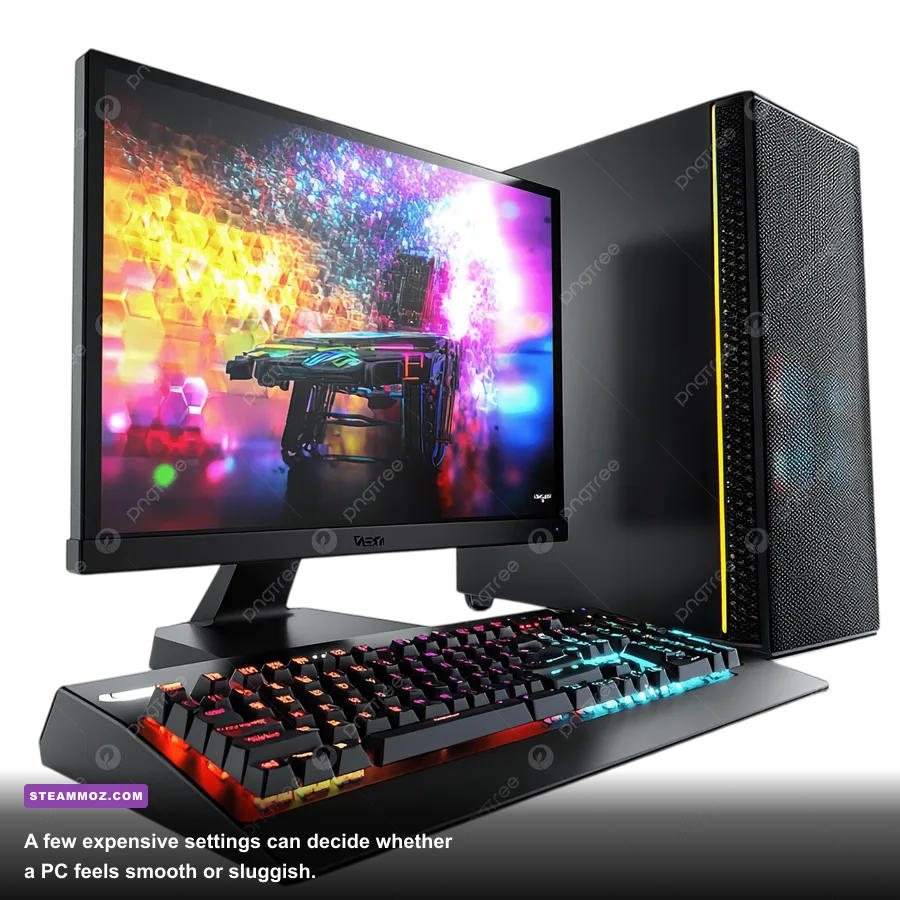
GPU: your graphics card controls resolution, texture quality, shadows, ray tracing, and most visual effects. An RTX 4060 is a capable 1080p card with DLSS support, while an RTX 4070 Super is far more comfortable at 1440p. AMD's RX 6600 and RX 7600 remain competitive in rasterized games, although Nvidia usually has the stronger ray-tracing and frame-generation feature set.
CPU: the processor feeds the GPU with game logic, draw calls, physics, and simulation work. A six-core Ryzen 5 5600 or Core i5-12400F is enough for most single-player gaming. Competitive players chasing 200 FPS should look higher, especially in Counter-Strike 2, Fortnite Performance Mode, Microsoft Flight Simulator, and large multiplayer battles. A powerful GPU cannot repair a CPU that is already maxed out.
Memory: dual-channel RAM is important. One 16GB stick can leave performance on the table because it cuts memory bandwidth, producing lower minimum FPS and worse frame pacing. The ideal mainstream setup is two 8GB sticks for a 16GB total, or two 16GB sticks for 32GB. Check the motherboard's supported speed rather than buying the fastest kit blindly.
Power and thermals: prebuilt MSI desktops generally match their power supply to the installed hardware, but upgrades deserve caution. A higher-end GPU may need additional PCIe power connectors and a larger PSU. On laptops, sustained temperatures can cause the CPU and GPU to reduce clock speeds. The first five minutes of a benchmark may look fantastic; the result after 30 minutes is the number that represents an actual gaming session.
For a second opinion on the difference between listed requirements and practical performance, compare this approach with Steamoz's Far Cry 2 PC requirements breakdown. Older games are often GPU-light but can still expose CPU, driver, or compatibility problems.
| Component | Minimum Sensible Target | Recommended Target | What It Changes |
|---|---|---|---|
| CPU | 4 cores / 8 threads, such as Ryzen 3 3100 | 6 cores / 12 threads, such as Ryzen 5 5600 | Minimum FPS, simulation, streaming, high-refresh play |
| GPU | GTX 1650 or RX 570 | RTX 4060 or RX 7600 | Resolution, effects, ray tracing, texture quality |
| RAM | 16GB dual-channel | 32GB dual-channel | Stutter resistance, multitasking, open-world streaming |
| Storage | SATA SSD | NVMe PCIe SSD | Loading and asset streaming, not average FPS |
| Operating system | Windows 10 64-bit | Windows 11 64-bit with current drivers | Compatibility, scheduling, DirectX and feature support |
Realistic Benchmark Expectations by MSI GPU Tier
The figures below are practical ranges, not promises from MSI. They assume a reasonably modern six-core CPU, 16GB dual-channel memory, current drivers, an SSD, and a desktop GPU running at stock settings. Results vary with patches, maps, ray tracing, and whether a game is CPU-limited. Still, these ranges are much more useful than an inflated average from a quiet test scene.
| GPU Class | 1080p High Raster | 1440p High Raster | Ray Tracing Reality |
|---|---|---|---|
| GTX 1650 / RX 570 | 45-75 FPS | 30-50 FPS | Usually disable RT; use Low or Medium settings |
| RTX 3060 / RX 6600 | 70-120 FPS | 50-85 FPS | Playable with upscaling and selective RT |
| RTX 4060 / RX 7600 | 80-140 FPS | 55-95 FPS | DLSS or FSR recommended; RT varies heavily |
| RTX 4070 Super / RX 7800 XT | 120-200 FPS | 85-150 FPS | Strong 1440p RT performance with upscaling |
| RTX 4080 Super / RTX 4090 | 160 FPS+ | 120 FPS+ | Best choice for 4K, RT, and demanding frame generation |
In practical terms, an MSI desktop with an RTX 3060 should handle games such as Apex Legends, Rainbow Six Siege, Valorant, and Destiny 2 at high frame rates. A demanding title with heavy ray tracing, dense crowds, or an enormous open world can fall below 60 FPS even on much more expensive hardware. Don't confuse a 120-FPS esports result with a 120-FPS result in a cinematic single-player game.
Average FPS is only half the story. The more revealing numbers are the one-percent lows and frame-time graph. A game reporting 90 FPS average but dropping to 28 FPS whenever a new area loads will feel worse than a locked 60 FPS with stable frame times. MSI Afterburner and RivaTuner Statistics Server can display GPU usage, CPU usage, temperatures, VRAM, RAM, average FPS, and one-percent lows while you play.
Graphics Settings That Give the Biggest Wins
Don't start by dropping texture quality. Textures mainly consume VRAM, and lowering them often makes a game look noticeably muddy without producing a major FPS gain. First target volumetric fog, global illumination, screen-space reflections, shadows, foliage density, and ray-traced effects. These settings can be brutally expensive because they calculate lighting, reflections, or objects across a large portion of the scene.
Upscaling is the next major lever. DLSS works on RTX cards, while FSR supports a wider range of GPUs. At 1080p, Ultra Quality or Quality mode usually preserves a cleaner image than Performance mode. At 1440p, Quality or Balanced can be a good compromise. Frame generation can increase the displayed frame rate, but it doesn't remove the input latency of the underlying rendered frames, so it works best when the native FPS is already around 55-60 or higher.
| Setting | Recommended Value | Typical FPS Impact | Visual Trade-Off |
|---|---|---|---|
| Ray tracing | Off or Medium | High, often 20-45% | Reflections and lighting lose accuracy, but motion remains smoother |
| Volumetric fog | Medium | Medium to high | Less dense light shafts and atmospheric haze |
| Shadows | Medium or High | Medium | Smaller shadows and reduced contact detail |
| Textures | High if VRAM allows | Low unless VRAM is full | Keep high for sharper surfaces and objects |
| Reflections | Medium | Medium | Less accurate glossy surfaces and water |
| Foliage and crowd density | Medium | Medium to high CPU impact | Fewer distant objects and NPCs |
| DLSS/FSR | Quality at 1080p, Quality/Balanced at 1440p | Medium to very high gain | Slight softness or reconstruction artifacts |
For a laptop, use the manufacturer's performance mode only when the system is plugged in. MSI Center's User Scenario profiles can change fan curves and power limits, but the loudest mode is not automatically the fastest in every game. If temperatures are already causing throttling, an aggressive fan curve may restore performance; if the laptop is cool and GPU-limited, the difference may be tiny.
How to Benchmark Your Own MSI PC Properly

Before deciding that your MSI PC cannot run a game, test it consistently. Update the GPU driver, restart Windows, close browsers and launchers you don't need, and let the game finish shader compilation. Run the same built-in benchmark three times, discard the first run if assets were still caching, and compare the average plus one-percent-low result. A single chaotic gameplay clip isn't a reliable benchmark.
Watch the hardware counters while testing. If GPU usage sits at 95-99 percent and the CPU has spare capacity, lower resolution or visual settings to gain FPS. If GPU usage stays around 60-80 percent while one or two CPU threads are saturated, lowering graphics quality won't help much. Reduce crowd density, view distance, simulation detail, or background processes instead.
- Record the baseline: note resolution, preset, upscaling mode, driver version, average FPS, one-percent lows, GPU temperature, and VRAM usage.
- Change one setting: don't switch from Ultra to Low and then guess which option helped. Test shadows, volumetrics, RT, and upscaling separately.
- Check sustained performance: play for at least 20-30 minutes, especially on an MSI laptop. Heat soak can reduce clock speeds after the opening benchmark.
- Find the limit: identify whether the GPU, CPU, VRAM, system RAM, or storage is responsible for the hitching.
- Set a frame cap: cap a 120-FPS display to 117 FPS, or a 60Hz display to 60 FPS, to improve consistency and avoid unnecessary power draw.
Use the official MSI Afterburner page for the monitoring utility, and verify drivers through the MSI Support portal when you need chipset, firmware, or laptop-specific packages. For games, always cross-check the developer's Steam listing rather than trusting a third-party requirements checker.
Common MSI PC Problems That Masquerade as Weak Hardware
A surprising number of “my MSI PC can't run this” complaints are configuration problems. On a desktop, make sure the monitor cable is plugged into the dedicated graphics card, not the motherboard's video output. The game may otherwise use integrated graphics or fail to use the intended GPU. In Windows Graphics settings, add the game's executable and select the high-performance GPU if the system has more than one graphics processor.
Thermal throttling is another major culprit. A desktop with blocked intake vents, a dusty filter, or a tired CPU cooler can lose clock speed under load. A gaming laptop can do the same if it is used on a bed or soft surface. Keep vents clear, elevate the rear slightly, and inspect temperatures rather than assuming a fan's noise means the system is cooling effectively.
Outdated BIOS or chipset drivers can create inconsistent performance, but don't flash firmware casually. Read MSI's exact model instructions and keep the system connected to reliable power. If crashes rather than low FPS are the problem, test RAM, verify game files, disable unstable overclocks, and check Windows Event Viewer. Steamoz's ELEX crash and FPS fixes and EscapeVR troubleshooting guide cover the same diagnostic principles in game-specific detail.
Background recording can also steal performance. Xbox Game Bar, Discord overlays, browser video playback, RGB utilities, and third-party antivirus scans may create spikes rather than a constant FPS reduction. Disable them temporarily during testing. If the result improves, re-enable features one at a time until you identify the offender.
| Symptom | Likely Limit | What to Check | Best First Fix |
|---|---|---|---|
| GPU at 99%, steady frame rate | Graphics card | Resolution, RT, VRAM | Lower RT or use DLSS/FSR |
| GPU below 80%, one CPU core maxed | Processor or game engine | CPU clocks, crowd density, background apps | Reduce CPU-heavy settings and cap FPS |
| FPS falls after 20 minutes | Thermal throttling | CPU/GPU temperature and clock speed | Improve airflow or use a stronger fan profile |
| Brief freezes while moving through areas | Shader or asset streaming | SSD health, RAM, shader compilation | Use an SSD and allow shaders to compile |
| Low FPS despite a strong GPU | Wrong GPU or power mode | Monitor cable, Windows GPU assignment, laptop profile | Select the dedicated GPU and plugged-in performance mode |
The Verdict on “Can Your PC Run MSI PC?”
If you mean an MSI gaming computer, the answer depends entirely on its parts. A six-core CPU, 16GB of dual-channel RAM, an SSD, and an RTX 3060-class GPU remain a sensible 1080p combination. For 1440p High, target an RTX 4070 Super or RX 7800 XT-class card. For 4K with ray tracing, you need a much stronger GPU and should plan around upscaling rather than native resolution alone.
The honest benchmark truth is less glamorous than a simple yes or no. No MSI badge guarantees a frame rate, and no “recommended” label tells you whether a game will hold stable one-percent lows. Identify the exact model, monitor the real bottleneck, test sustained performance, and tune the expensive settings first. If your PC misses the target by a small margin, sensible settings can rescue the experience. If it has an entry-level GPU, no graphics preset can turn it into a 1440p powerhouse—but lowering resolution and using a stable frame cap can still make it enjoyable.
For more hardware-focused comparisons, see Steamoz's Far Cry 6 performance settings guide. The same rule applies everywhere: benchmark the demanding section, prioritize frame-time stability, and judge the machine by what it sustains—not by the logo printed on the front.