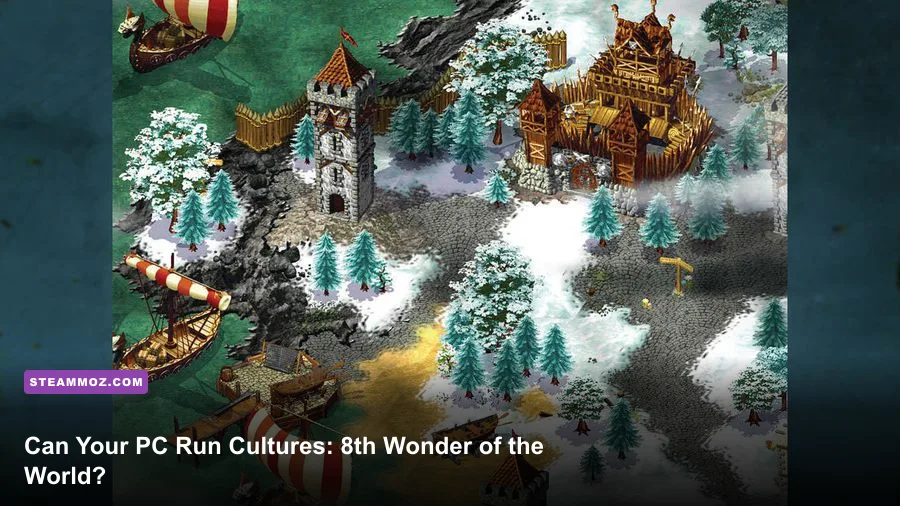
Cultures: 8th Wonder of the World has exceptionally modest PC requirements by modern standards. The Steam-era minimum target is roughly a 1 GHz processor, 256 MB of RAM, a DirectX 9-compatible graphics card with 32 MB of video memory, and about 2 GB of storage. For a smoother modern setup, aim for Windows 10 or 11, 2 GB or more of RAM, an integrated GPU from the last decade, and a little extra disk space for compatibility files and saves. The real challenge isn't raw power; it's getting an older Windows strategy game to behave properly on a contemporary display.
That distinction matters. A current office laptop can outperform the original recommended computer by several hundred times, yet you may still encounter odd resolution scaling, a black screen, slow alt-tab behavior, or mouse movement that feels wrong at 4K. Cultures is a settlement-building RTS with a small engine footprint, not a modern 3D stress test. Once the game launches correctly, even entry-level hardware should have plenty of headroom.
This guide separates the published baseline from the practical modern target, explains what each component actually affects, and gives you a sensible settings profile. If you enjoy older PC strategy games, our Dungeon Siege classic RPG review covers another era where compatibility often matters more than horsepower.
Cultures: 8th Wonder of the World minimum requirements
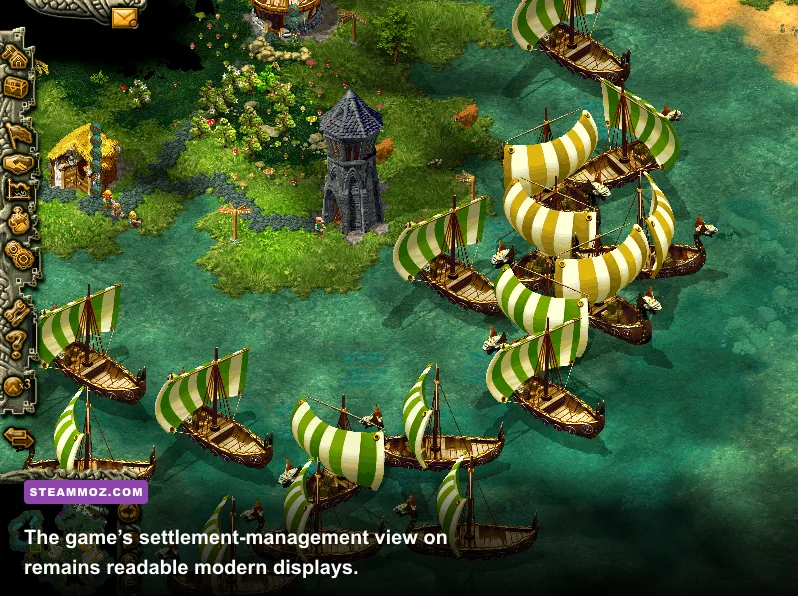
The minimum specification is low enough that almost any functioning Windows PC can clear it. The important caveat is that these figures describe the game’s original software environment, not a guarantee that every modern Windows configuration will launch it perfectly. The processor requirement is around 1 GHz, with 256 MB of system memory and a 32 MB DirectX 9-capable 3D accelerator. Storage requirements sit at approximately 2 GB.
Those numbers are useful for context, but they should not be treated as a shopping list in 2026. No one should search for a 32 MB graphics card to play Cultures. Integrated Intel UHD, Iris Xe, AMD Radeon integrated graphics, and modest Nvidia laptop GPUs are all vastly beyond that baseline. The game’s limiting factor is usually old API behavior, display scaling, or driver compatibility rather than rendering capacity.
| Component | Original minimum target | What you should use today | Why it matters |
|---|---|---|---|
| Operating system | Original Windows-era release environment | Windows 10 or Windows 11, fully updated | Modern Windows provides the best driver and compatibility support. |
| Processor | Approximately 1 GHz CPU | Any recent dual-core Intel or AMD processor | The simulation is light, but faster CPUs reduce background stutter. |
| Memory | 256 MB RAM | 4 GB total system RAM or more | Extra memory prevents Windows from paging while the game runs. |
| Graphics | 32 MB DirectX 9-compatible 3D card | Modern integrated graphics or better | GPU power is not a meaningful bottleneck for this game. |
| Storage | About 2 GB available space | 4 GB free on an SSD | Leaves room for saves, installers, and troubleshooting backups. |
The 256 MB RAM figure is the one most likely to be misunderstood. It reflects what the game itself needed, not what the operating system needs. Current Windows installations can consume several gigabytes before you open Steam, a browser, or a voice client. A computer with only 2 GB total memory may technically exceed the game’s requirement while still feeling sluggish. That is why 4 GB is a sensible floor for the whole PC, and 8 GB is preferable if you multitask.
Likewise, the original graphics requirement does not mean the game benefits from a powerful modern card. Cultures uses a comparatively simple visual design: terrain, buildings, characters, effects, and interface elements. An integrated GPU can render it easily. If you are comparing hardware for several older games, our Far Cry 2 PC requirements guide is a useful reminder that age alone doesn't always predict compatibility.

🎮 Cultures: 8th Wonder of the World
Looking to experience this game? Grab your digital key directly on our store for $0.54.
View on Steammoz Store →Recommended PC specs for a smooth modern setup
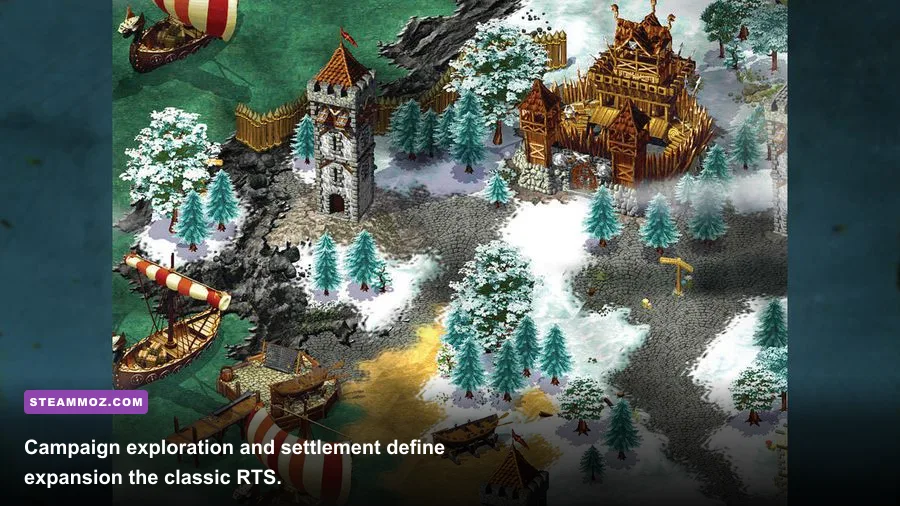
There is no dramatic official recommended tier that suddenly unlocks higher-quality textures or advanced lighting. Cultures: 8th Wonder of the World was designed around fixed-era PC hardware, so a practical recommendation is about stability, resolution, and convenience. A modern dual-core processor, 4 GB of RAM, integrated graphics, and an SSD are already more than enough for the game itself.
My preferred target is a Windows 10 or 11 machine with a recent Core i3, Ryzen 3, or equivalent processor, 8 GB of system memory, any DirectX-compatible integrated GPU released during the last decade, and at least 4 GB of free SSD space. That setup is deliberately conservative. It gives Windows breathing room, keeps loading snappy, and leaves capacity for recording software or a browser without turning the settlement simulation into a background-task lottery.
| Component | Recommended target | Comfortable enthusiast target | Expected benefit |
|---|---|---|---|
| CPU | Recent Core i3 or Ryzen 3 | Any modern Core i5 or Ryzen 5 | Fast turns, responsive menus, and better multitasking. |
| RAM | 4 GB total | 8 GB or more | Reduces paging and makes alt-tab behavior less disruptive. |
| GPU | Intel UHD, Radeon integrated graphics, or equivalent | Any current discrete GPU | Enough performance for high resolution without meaningful load. |
| Display | 1080p monitor | 1440p with integer-style scaling where possible | Improves map visibility while avoiding awkward ultra-wide stretching. |
| Storage | 4 GB free SSD space | 8 GB free SSD space | Quick startup and room for backups or compatibility tools. |
Don't buy a gaming laptop specifically for this title. If you already own a Chromebook, Steam Deck, or very old Windows notebook, check the operating-system situation before assuming the game will work. The Steam listing is the safest first stop for the current store build; consult the official Cultures Steam page for the platform’s latest requirement text and user reports.
On a modern desktop, frame rate is rarely the concern. The more noticeable performance issue can appear when a large settlement fills the map with villagers, animals, production buildings, and moving resources. That is simulation activity rather than demanding graphics rendering. A faster CPU helps more than upgrading from integrated graphics to a high-end GPU, although the difference is still minor on current hardware.
What actually affects performance in Cultures

Cultures has two distinct workloads: drawing the world and updating the settlement. Early missions with a few buildings are trivial for modern PCs. Later scenarios can place more pressure on the CPU as the game tracks workers, inventories, routes, construction, needs, and combat units. That is why a visually simple scene can occasionally feel less responsive than a busy-looking opening map.
The simulation also rewards patience. Villagers don't simply teleport resources from one building to another. They walk, collect, process, and deliver goods through production chains. A poorly organized settlement creates longer travel paths, which increases the amount of activity the game must manage and slows your economy even if your computer is powerful. Place storage and production buildings close to the relevant resource, then use roads and compact districts rather than scattering every structure across the map.
| Setting or situation | Recommended choice | CPU impact | Visual or gameplay note |
|---|---|---|---|
| Screen resolution | Native 1080p first | Very low | Best balance for readable interface elements. |
| Large settlement | Keep production districts compact | Moderate simulation impact | Shorter routes improve logistics and responsiveness. |
| Background applications | Close browsers and launchers | Can be noticeable on low-RAM PCs | Prevents paging and inconsistent input response. |
| V-sync or driver forcing | Leave default initially | Low | Forced modern profiles can create odd frame pacing. |
| Window mode | Use the mode that avoids stretching | Negligible | Borderless or windowed may behave better on multi-monitor setups. |
There is no reason to chase a specific 144 Hz frame-rate target here. The game’s strategic information is more important than ultra-low input latency, and the interface was built for older refresh rates. A stable presentation with correct scaling beats a forced high-refresh profile that introduces tearing, flicker, or stretched menus.
For a broader look at tuning an older title, see our guide to ELEX PC fixes and FPS troubleshooting. The games are very different, but the lesson carries over: establish a clean baseline before piling on compatibility tweaks.
Best graphics and compatibility settings
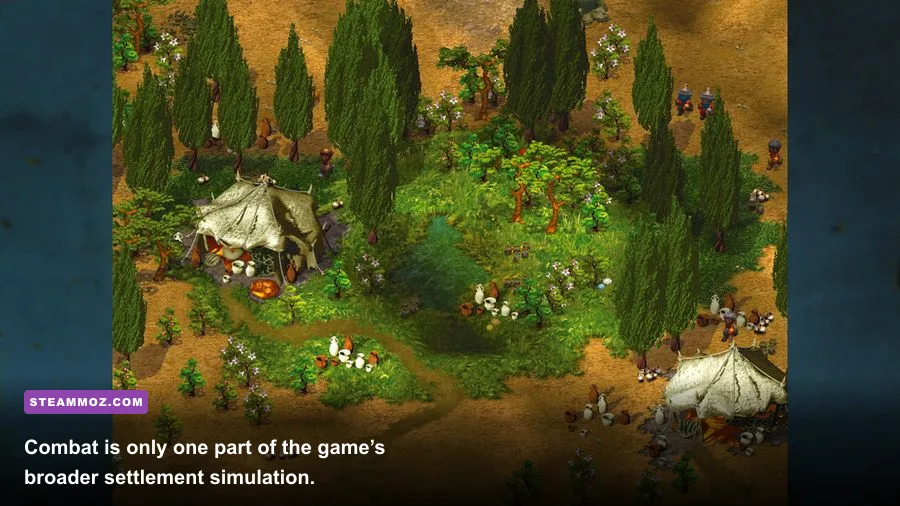
Start with the game at its default configuration. That sounds basic, but it prevents a common mistake: changing several variables at once and then not knowing which one caused the problem. Confirm that the title launches, loads a campaign, and saves correctly before experimenting with resolution or compatibility modes.
For most systems, 1920x1080 is the best first choice if the game offers it cleanly. On a 1440p or 4K monitor, Windows scaling may make the interface appear small or soft. In that case, try windowed mode, disable aggressive GPU scaling, and test the monitor’s aspect-ratio controls. If the game only exposes older 4:3 resolutions, preserve the aspect ratio rather than stretching the image across a widescreen panel.
A sensible profile for modern PCs
- Resolution: Native 1080p, or the highest stable option with correct aspect ratio.
- Texture and terrain quality: High or maximum if available; modern GPUs have enormous headroom.
- Shadows and effects: High, lowering them only if an old integrated GPU shows visual glitches.
- Anti-aliasing: Use the game’s default first. Driver-forced anti-aliasing can cause artifacts in older engines.
- Frame synchronization: Test default, then enable a single sync method if tearing appears.
- Display scaling: Keep aspect ratio and avoid forced full-screen stretching.
- Compatibility mode: Try it only after confirming the normal executable behavior.
If you see a black screen, start by switching resolution and display mode rather than reinstalling Windows components at random. If the game launches but the mouse feels offset, Windows display scaling is a prime suspect. Test 100% scaling temporarily, then relaunch. Multi-monitor users should also try making the game display on the primary monitor and closing overlays from Discord, GeForce Experience, Xbox Game Bar, or screen-recording software.
Keep a backup of your save folder before changing compatibility settings. Older games sometimes write saves to a location that is not obvious, and permissions can become confusing when the executable is run as administrator. The official Steam support resources can help with installation and file-verification steps, but don't assume verifying files will fix a scaling problem; those are separate issues.
Will Cultures run on your laptop or Steam Deck?

If your laptop was released in the last ten years and runs a supported Windows version, the answer is almost certainly yes from a hardware perspective. An Intel Celeron, Pentium Silver, Core i3, Ryzen 3, or newer mobile chip should have enough CPU capacity, provided the system is not heavily throttling. Plug the laptop into power, select a balanced or performance profile, and avoid running the game while Windows is installing updates in the background.
Steam Deck hardware is also far beyond the original requirements, but compatibility is not guaranteed by raw performance. The game predates modern Linux gaming infrastructure, so the important variable is the Proton version and how the interface handles its display mode. Try the default Proton recommendation first, then test a recent Proton release if you encounter a startup or input issue. A community control layout can help because the game was designed around a mouse and keyboard, not a gamepad.
| Device type | Hardware outlook | Likely concern | Best first move |
|---|---|---|---|
| Modern desktop | Far above requirements | Scaling or overlays | Run native resolution with overlays disabled. |
| Budget Windows laptop | Usually sufficient | Thermal throttling and low RAM | Close background apps and use a stable power profile. |
| Older Windows PC | May meet original target | Drivers and unsupported OS behavior | Use a clean install and back up saves before tweaks. |
| Steam Deck | More than enough performance | Proton, controls, and aspect ratio | Test Proton versions and use a mouse for complex management. |
The game’s biggest practical requirement is still your willingness to manage an older interface. Cultures: 8th Wonder of the World asks you to think about workers, materials, settlement layout, and campaign objectives—not GPU ray tracing or benchmark numbers. Once the display and input behave, the experience is wonderfully lightweight.
That makes it a good companion to other classic strategy titles. If you want another settlement-focused recommendation, our Empires of the Undergrowth leveling guide explores a much newer game with very different hardware demands and progression systems.
The final verdict on Cultures PC requirements
On paper, Cultures: 8th Wonder of the World can run on hardware that is now museum material: approximately a 1 GHz CPU, 256 MB of RAM, a 32 MB DirectX 9 graphics card, and around 2 GB of storage. In practice, a Windows 10 or 11 PC with 4 GB of RAM, integrated graphics, and an SSD is the sensible minimum modern target. An 8 GB machine with a recent Core i3 or Ryzen 3 gives you more than enough room for smooth play and background applications.
Don't spend money on a dedicated GPU for this game. Put that budget toward an SSD, extra system memory, or a comfortable mouse. Keep the resolution sensible, preserve the correct aspect ratio, disable overlays when troubleshooting, and test one compatibility change at a time. The settlement simulation may become busier in later scenarios, but any current mainstream PC should handle it comfortably.
In short, the answer to Cultures: 8th Wonder of the World system requirements is reassuring: nearly every modern Windows gaming PC clears the hardware bar. The only real hurdles are an old engine, modern display scaling, and the occasional quirk of running a classic strategy game on hardware it was never designed to recognize.