If Blackguards: Untold Legends keeps crashing, stuttering, or dropping below a playable frame rate on PC, start with Steam file verification, a clean 1080p windowed or borderless profile, and a compatibility check for the game executable. Then disable overlays, reset the Unity configuration files, cap the frame rate, and test an older GPU driver if the problem began after an update. These fixes target the title's most common issues without sacrificing the tactical clarity that makes every turn matter.
Blackguards is an older, Unity-based turn-based RPG from Daedalic Entertainment, built around party battles rather than twitch combat. That matters when troubleshooting: a sudden 20 FPS reading is annoying, but inconsistent frame pacing, shader compilation, corrupted settings, and overlay conflicts are usually more important than chasing a very high refresh rate. The steps below are aimed at the Steam PC release and apply to modern Windows 10 and Windows 11 systems.
Start with the fixes that stop most crashes
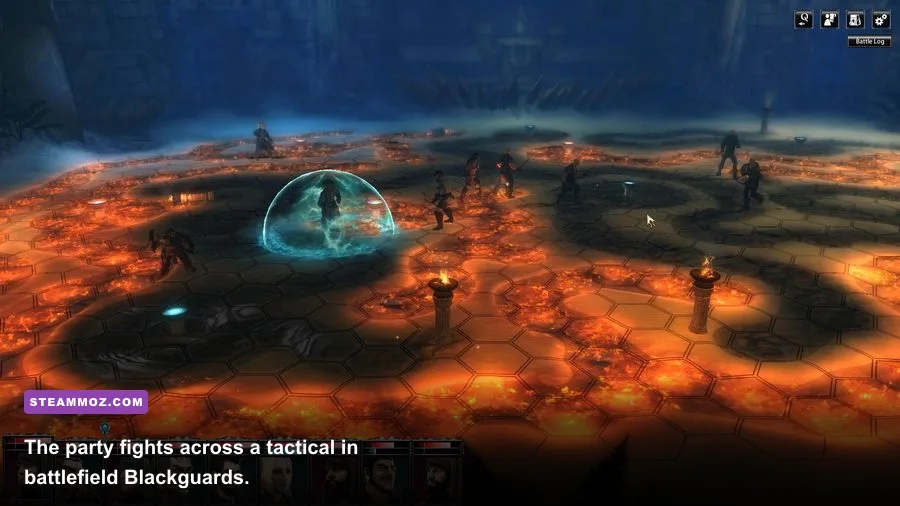
Before changing drivers or editing files, isolate whether the failure happens at launch, during a loading transition, or inside a particular battle. A crash only when loading a save often points to a damaged file or configuration problem; a crash before the main menu is more commonly caused by permissions, overlays, compatibility, or a broken installation.
- Verify the installation. In Steam, right-click Blackguards, choose Properties, open Installed Files, and select Verify integrity of game files. Let Steam replace every damaged or missing file, then restart Windows.
- Run Steam and the game normally first. If the game is installed inside a protected folder such as
Program Files, test launching Steam as administrator once. Don't permanently stack administrator mode onto every launcher unless it actually solves the issue. - Disable overlays. Turn off Steam Overlay, Discord Overlay, GeForce Experience or AMD overlay, MSI Afterburner’s on-screen display, and any recording hook. Older Unity games can fail when several programs inject into the same render process.
- Reset the local configuration. Close the game and Steam. Back up the Blackguards folder in
%USERPROFILE%\Documentsand any related folder in%APPDATA%or%LOCALAPPDATA%, then rename the configuration folder rather than deleting it. Relaunching forces fresh display and input settings.
That last step is particularly useful after switching from an old monitor to a 1440p or ultrawide panel. A saved resolution, fullscreen flag, or unsupported refresh rate can make the game crash before you ever reach the options menu. Rename folders first so your saves remain recoverable; never wipe a directory blindly.
| Symptom | Most likely cause | Best first action |
|---|---|---|
| Crash before menu | Bad display configuration or overlay hook | Rename config folder and disable overlays |
| Crash while loading a save | Damaged installation or specific save | Verify files, then test an earlier save |
| Black screen with audio | Fullscreen or unsupported resolution | Launch windowed and select 1920×1080 |
| Random desktop crash | Driver conflict, heat, or background software | Clean driver install and close monitoring tools |

🎮 Blackguards: Untold Legends
Looking to experience this game? Grab your digital key directly on our store for $0.50.
View on Steammoz Store →Fix Windows compatibility without breaking saves
Blackguards was designed for a much older Windows and driver environment. On Windows 11, right-click the game executable, open Properties, select Compatibility, and test Windows 7 compatibility mode. Also try Disable fullscreen optimizations. Don't enable every checkbox at once: change one setting, launch the game, and record the result.
If the game refuses to start, open Steam's Browse local files command and locate the main executable. The exact filename can vary by build, so use the file with the Blackguards icon rather than guessing. In Properties → Compatibility → High DPI settings, test Override high DPI scaling behavior with Application. This is worth trying on a 125% or 150% Windows desktop scale, where older interfaces can render incorrectly.
Keep Windows Defender and your graphics driver active, but add the game folder as an exclusion only for a short diagnostic test if antivirus is quarantining files. A cleaner and safer approach is checking the antivirus history first. For broader Windows troubleshooting, Steamoz's Cthuloot crash-fix guide covers the same overlay and configuration principles for another older PC release.
Also install or repair the Microsoft Visual C++ redistributables offered by Microsoft, especially the x86 package. A 64-bit version of Windows can still require 32-bit runtime files for an older 32-bit game. Download them from the official Microsoft Visual C++ downloads page, not from a random DLL site.
Use this low-FPS profile before lowering everything
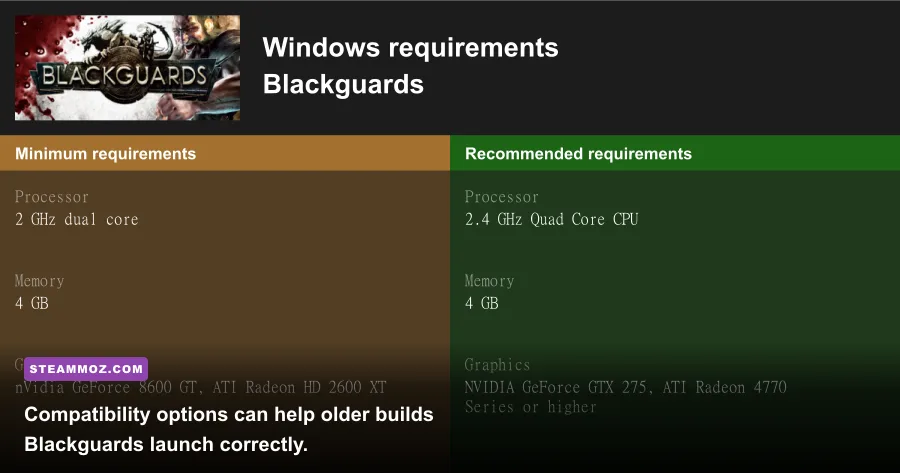
Blackguards is not graphically demanding by modern standards, so poor performance usually comes from a bad fullscreen mode, driver behavior, background capture, or uneven frame delivery rather than raw GPU limitations. Start with a stable 60 FPS target. Since combat is turn-based, a locked and consistent 60 feels better than a fluctuating 120-to-45 FPS range.
| Setting | Recommended value | FPS impact | Visual trade-off |
|---|---|---|---|
| Resolution | 1920×1080 | High on integrated GPUs | Sharper than 720p while remaining light |
| Display mode | Borderless or windowed | Low to medium | May reduce exclusive-fullscreen conflicts |
| Anti-aliasing | Off or lowest option | Medium | More jagged edges, especially on arena props |
| Shadows | Low or medium | Medium | Less depth under characters and objects |
| Effects and particles | Medium | Medium in busy encounters | Spell and impact effects look simpler |
| Texture quality | High if VRAM allows | Low | Usually the safest setting to keep high |
| V-sync | On for tearing, off for testing | Variable | Can add latency or expose uneven frame pacing |
Use 1280×720 as a diagnostic resolution, not necessarily a permanent fix. If performance barely improves after dropping from 1080p, the GPU is probably not the bottleneck. In that case, close browser video tabs, disable Xbox Game Bar recording, stop cloud-sync scans temporarily, and check Task Manager for CPU usage spikes. Laptop users should select the dedicated NVIDIA or AMD GPU in Windows Graphics settings and play while connected to AC power.
For comparison, Steamoz's Cthuloot graphics settings guide explains why shadows and anti-aliasing often cost more than texture quality. The same rule applies here: lower expensive lighting and edge smoothing first, then leave textures alone unless memory usage is actually high.
Driver, refresh-rate, and frame-pacing fixes
Don't assume the newest GPU driver is automatically the best match for an older Unity title. If Blackguards worked last month and began crashing after a driver update, use the GPU manufacturer's clean-install option or roll back to the previous stable driver. Avoid unofficial driver packages. After installation, reboot before testing.
Set your desktop and game refresh rate to a standard value such as 60 Hz while troubleshooting. A 144 Hz display can expose timing behavior that never appeared on a 60 Hz monitor. If the game offers no frame limiter, use NVIDIA Control Panel or AMD Software to cap the executable at 60 FPS. Apply the limit per game rather than globally so it doesn't affect newer titles.
V-sync deserves a controlled test. Start with it off to determine the game's actual performance. If the frame rate is stable but the camera or menus tear, turn it on. If V-sync causes noticeable hitching, use a driver-level cap slightly below the monitor refresh rate where supported. The goal is consistent frame delivery, not a benchmark number the game cannot use.
Recover after a crash and protect your campaign
Blackguards' campaign progress is more valuable than a few extra frames. Back up your saves before changing compatibility settings, deleting configuration folders, or reinstalling. Copy the relevant save directory to a separate folder on the desktop and label it with the date. Steam Cloud can help, but it isn't a substitute for a manual backup when a save appears to trigger a crash.
If one save crashes while an earlier save loads normally, verify files and replay from the earlier point rather than repeatedly forcing the damaged file. Turn-based battles can produce unusually large or state-heavy saves after many encounters, and a corrupted transition may be tied to one particular file. If every save fails, the installation or configuration is the stronger suspect.
For official troubleshooting and installation details, check the Blackguards Steam page, the Steam community discussions, and Daedalic Entertainment's official site. Those sources are especially useful when a patch-specific issue affects a particular Windows build.
Finally, don't confuse a tactical camera pause with a performance freeze. Blackguards spends plenty of time waiting for input, animating turn transitions, and resolving effects. Test in a busy combat scene, rotate the camera, open menus, and watch frame-time behavior with your overlay disabled. If verification, a reset configuration, borderless 1080p, a 60 FPS cap, and overlay removal solve the problem, you've found the practical fix—not just another setting to toggle.
For more demanding PC troubleshooting, Steamoz's guides to Epic Mickey: Rebrushed 60 FPS settings and Dragon Ball Z: Kakarot performance tuning offer useful cross-game advice on frame caps, resolution scaling, and driver testing.