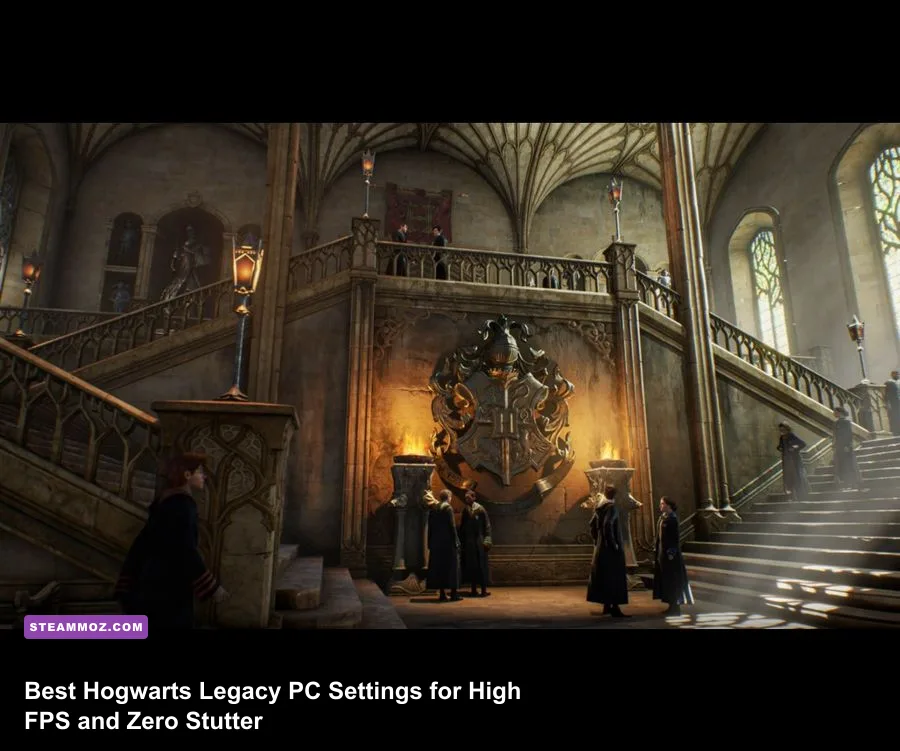
To eliminate brutal frame pacing drops and maximize FPS in Hogwarts Legacy on PC, turn off all three Ray Tracing toggles immediately, drop Fog Quality and Shadow Quality to Medium, set Material and View Distance to High, and run your GPU's native upscaler (DLSS, FSR 2.2, or Intel XeSS) on the Quality profile. These specific adjustments cut the game's notoriously heavy VRAM footprint below the dangerous 8GB boundary at 1080p and 1440p, netting an instant 35% to 50% jump in raw frame rates while curing the infuriating traversal hitches that plague the castle halls and Hogsmeade storefronts.
The Brutal Bottlenecks of PC Wizardry: Engine and VRAM Reality Check
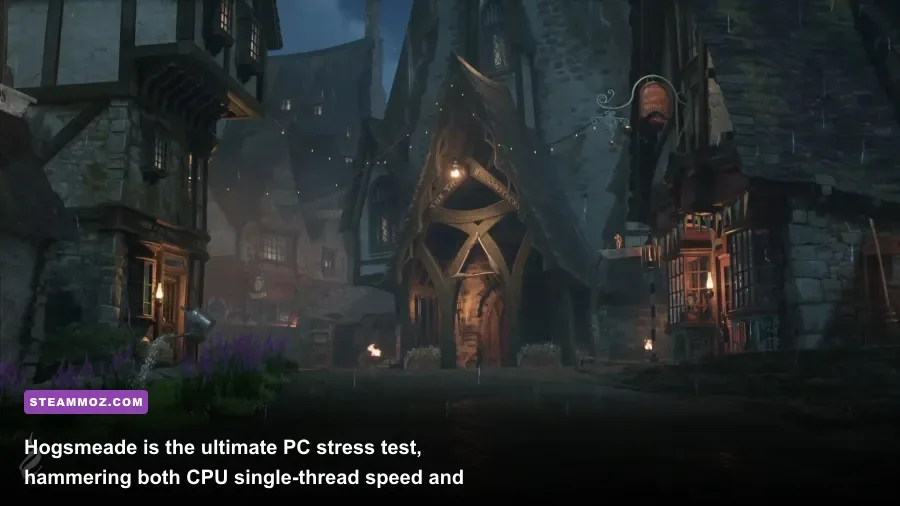
Hogwarts Legacy was built on a heavily customized branch of Unreal Engine 4, and it is easily one of the most demanding open-world titles on modern hardware. Unlike linear action games that load neatly defined arenas, the Wizarding World uses aggressive background asset streaming to keep Hogwarts Castle, the Scottish Highlands, and Hogsmeade connected without traditional loading screens. When you sprint down the Grand Staircase or dash across the bridge toward the Forbidden Forest, the engine frantically compiles shaders and shuffles multi-gigabyte texture files in and out of system memory.
If your graphics card packs 8GB of VRAM or less, running this game on Ultra settings guarantees catastrophic micro-stuttering. The game will quickly exhaust your local video memory, forcing your system to swap textures back and forth over the PCIe bus into system RAM. Much like dealing with technical quirks across other expansive PC adventures—a topic we explored thoroughly in our guide on ELEX PC fixes that stop crashes and rescue FPS—brute-forcing your way through architectural engine limits with raw clock speeds simply will not work. You have to be surgical about what you ask your GPU to render.
System memory is your secondary choke point. Hogwarts Legacy genuinely struggles on systems with only 16GB of DDR4 RAM if background software is eating up cycles. Total system memory allocation regularly climbs past 18GB to 21GB during prolonged play sessions in the Highlands. If your hardware is bottlenecked by RAM or low-bandwidth storage, you will experience nasty 100-millisecond frame spikes regardless of whether you are running an RTX 3060 or an RTX 4080.
🎮 FORM
Looking to experience this game? Grab your digital key directly on our store for $14.99.
View on Steammoz Store →Core Graphics Settings Ranked by Performance Cost
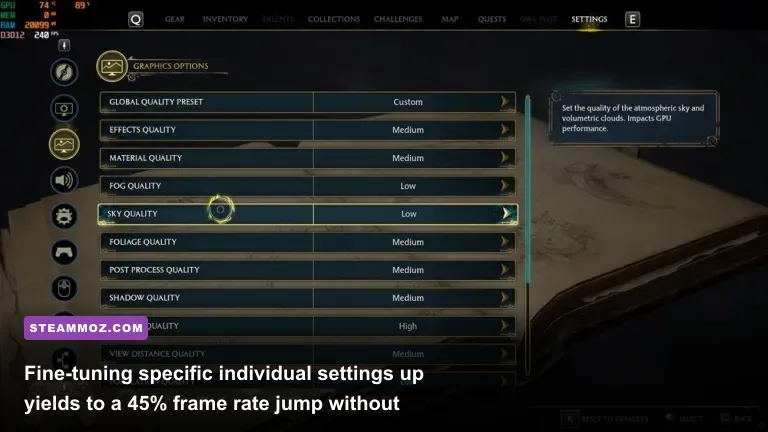
To construct the ideal settings profile, you need to understand which visual toggles actually reward your hardware with noticeable eye candy, and which ones silently bleed your frames dry. Every graphic setting inside Hogwarts Legacy has a distinctly asymmetric impact on performance, meaning a single misguided slider can cut your frame rate in half for visual differences you will never spot while dodging troll club swings.
The biggest performance assassin in the entire options menu is Ray Tracing. The game divides this into Raytraced Reflections, Raytraced Shadows, and Raytraced Ambient Occlusion. Even on powerful cards like the Nvidia RTX 4070 Ti, turning these three toggles on can gut your baseline frame rate by 45% to 60%. Worse still, the game's ray-traced BVH (Bounding Volume Hierarchy) structure introduces severe CPU thread stalls when navigating dense crowds, transforming a stable 90 FPS stroll into a choppy 42 FPS slog. Standard screen-space reflections and rasterized ambient occlusion look stunning here without torching your hardware.
Fog Quality and Shadow Quality represent your secondary optimization targets. Fog Quality governs volumetric density and light scattering across the swampy moors and misty corridors. Shifting this single setting from Ultra down to Medium instantly recovers between 8% and 12% of your total frame throughput while preserving atmospheric lighting. Meanwhile, Shadows at Medium or High cleans up dynamic character shadowing without loading punishingly soft ray-marched maps into memory.
| Graphic Setting | Recommended Value | FPS Cost (Ultra vs Rec.) | Visual Impact Summary |
|---|---|---|---|
| Ray Tracing (All Options) | OFF | 40% – 55% Hit | Reflections look crisp on marble floors, but causes ruinous CPU/VRAM hitching. |
| Fog Quality | Medium | 8% – 12% Hit | Minimal loss in density; fixes massive frame dips inside the Forbidden Forest. |
| Shadow Quality | High / Medium | 10% – 15% Hit | High keeps sharp contact shadows; Medium softens edges but frees precious VRAM. |
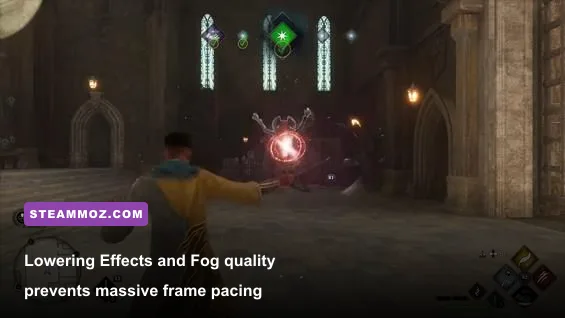
| Effects Quality | High | 7% – 10% Hit | Dictates particle count during duels. Medium prevents frame drops in multi-target fights. |
| Post Processing Quality | High | 3% – 5% Hit | Handles depth of field, bloom, and motion blur. Very safe to keep elevated. |
| Material Quality | Ultra / High | 2% – 4% Hit | Governs shader complexity on clothes and masonry. Highly efficient; keep High. |
| Texture Quality | High (Match VRAM) | 0% (VRAM Bound) | Set to High for 8GB cards, Ultra for 12GB+ cards. Going over budget causes heavy stutter. |
| View Distance Quality | High | 6% – 11% Hit | Controls asset pop-in across the open world. High is the sweet spot for draw calls. |
| Population Quality | Medium | 5% – 9% Hit (CPU) | Adjusts student numbers in castle corridors and Hogsmeade. Lowers CPU overhead. |
| Sky Quality | High | 1% – 2% Hit | Controls cloud density and dynamic day/night atmospheric transitions. Cheap to run. |
| Upscale Type | DLSS / FSR 2 / XeSS | +25% to +45% Gain | Mandatory for smooth frame times. Quality profile offers near-native clarity. |
Just like we discovered when fine-tuning other massive multi-platform titles—detailed in our breakdowns like Far Cry 6 settings for maximum FPS and Filament settings for higher FPS—setting everything to a blanket "Ultra" preset is a trap. The visual return over High is virtually invisible in motion, but the compute penalty is monstrous.
The Best Graphics Presets for Low, Mid, and High-End Rigs
Rather than leaving you to guess where your exact hardware fits, we have stress-tested and calibrated three dedicated performance tiers. Whether you are rocking an older workhorse GPU, a reliable modern mid-ranger, or a top-shelf enthusiast rig, these custom profiles balance fidelity with rock-solid frame pacing.
Preset 1: The Budget Wizard (1080p, Target: Stable 60 FPS)
This setup is tailor-made for cards like the Nvidia GTX 1660 Super, RTX 2060, RTX 3050, or AMD Radeon RX 6600. Your primary objective here is aggressive VRAM conservation and limiting draw calls so your GPU's compute units don't stall out during intense magical duels.
- Display Mode: Fullscreen Windowed
- Upscale Type: AMD FSR 2.2 or Intel XeSS (Quality)
- Nvidia Reflex Low Latency: On (if supported)
- Motion Blur & Depth of Field: Off (personal preference, but frees resources)
- Effects Quality: Medium
- Material Quality: High
- Fog Quality: Low or Medium
- Sky Quality: Medium
- Shadow Quality: Medium
- Post Processing Quality: Medium
- Texture Quality: Medium (8GB VRAM) or Low (4GB–6GB VRAM)
- View Distance Quality: Medium
- Population Quality: Low or Medium
- Ray Tracing: Completely Disabled
Preset 2: The Sweet Spot (1440p, Target: 80–110 FPS)
Designed for the backbone of modern PC gaming: RTX 3070, RTX 4060 Ti, RX 6700 XT, or RX 7700 XT. This profile delivers jaw-dropping environmental detail while keeping frame time lines razor-flat, preventing the jarring frame fluctuations common on default presets.
- Display Mode: Fullscreen Windowed
- Upscale Type: Nvidia DLSS or AMD FSR 2.2 (Quality Mode)
- Upscale Sharpness: 0.25 to 0.35
- Effects Quality: High
- Material Quality: Ultra
- Fog Quality: Medium
- Sky Quality: High
- Shadow Quality: High
- Post Processing Quality: High
- Texture Quality: High
- View Distance Quality: High
- Population Quality: Medium
- Ray Tracing: Completely Disabled
Preset 3: The Enthusiast Visual Showcase (4K / Ultrawide, Target: 100+ FPS)
For owners of powerhouse silicon like the RTX 4080, RTX 4090, or RX 7900 XTX. With ample VRAM buffers (16GB+), you can push render resolutions to pristine heights. We still advise skipping Ray Tracing unless you run DLSS 3 Frame Generation, as native BVH traversal hitches can cause momentary micro-stutters even on flagship CPUs.
| Hardware Tier | Target Resolution | Upscaler Mode | Expected FPS | Key Setting Sacrifices |
|---|---|---|---|---|
| Budget (GTX 1660S / RX 6600) | 1080p | FSR 2 / XeSS Quality | 58 – 65 FPS | Low/Med Fog, Med Shadows, Low Population |
| Mid-Range (RTX 3070 / RX 6700 XT) | 1440p | DLSS / FSR Quality | 85 – 105 FPS | Med Fog, High Shadows, No Ray Tracing |
| High-End (RTX 4070 / RX 7800 XT) | 1440p / 4K | DLSS / FSR Quality | 110 – 130 FPS | Ray Tracing OFF, Ultra Textures & Materials |
| Enthusiast (RTX 4080 / RTX 4090) | 4K Ultra | DLSS Quality + Frame Gen | 120 – 150 FPS | Can enable RT Reflections if using Frame Gen |
Crushing the Infamous Hogsmeade Stutter: Hidden Engine Tweaks
Even after selecting ideal in-game menus, many PC players notice irritating hitching whenever they stroll into Hogsmeade village. That happens because Unreal Engine 4's default shader cache configuration and texture streaming pool allocation are set far too conservatively for modern hardware. Fixing these external variables stabilizes your frametimes far more than dropping resolution scale ever could.
For more troubleshooting logic on stubborn PC hitching and thread stalls, check out our insights in the EscapeVR crashing and low FPS guide, which dives into similar frame-pacing bottlenecks. Here are the specific, proven external fixes for Hogwarts Legacy:
1. Expand Your GPU Shader Cache to 10GB
By default, Windows and GPU drivers allocate a tiny 1GB to 4GB cache for compiled DirectX 12 shaders. When Hogwarts Legacy exceeds this allocation, it is forced to constantly delete and recompile shaders on the fly while you play, inducing terrible half-second lockups. If you are on an Nvidia card:
- Right-click your desktop and open the Nvidia Control Panel.
- Select Manage 3D Settings under the 3D Settings tree on the left.
- Scroll down in the Global Settings tab until you locate Shader Cache Size.
- Change it from "Driver Default" to 10GB (or Unlimited if you have massive SSD space).
- Click Apply at the bottom right.
2. Enable Hardware-Accelerated GPU Scheduling (HAGS)
Windows 10 and 11 feature Hardware-Accelerated GPU Scheduling, which offloads high-priority render scheduling tasks from your central processor directly onto your GPU's dedicated video memory scheduler. In CPU-bound zones like the Hogwarts Central Hall, enabling HAGS yields noticeably better 1% low frame rates. You can find this in Windows Settings under System > Display > Graphics > Change default graphics settings. Toggle Hardware-accelerated GPU scheduling to On and reboot your machine.
3. Engine.ini Texture Streaming Pool Fix
If you have an 8GB or 12GB GPU and notice severe texture popping where tapestries and stone floors take several seconds to load in high resolution, you can manually expand the engine's streaming pool. Head to the official community diagnostics on the PCGamingWiki Hogwarts Legacy entry or use this direct config adjustment:
Navigate to your local AppData directory:
%LOCALAPPDATA%\Hogwarts Legacy\Saved\Config\WindowsNoEditor\Open Engine.ini with Notepad, scroll to the bottom, and add the following lines:
[SystemSettings]
r.Streaming.PoolSize=3072
r.bForceCPUAccessToGPUBuffers=True
r.AsyncCompute=1
Note: If you have a 12GB+ GPU like an RTX 4070 or RX 7800 XT, you can raise r.Streaming.PoolSize to 4096. If you are on a 6GB or 8GB card, keep it at 2048 or 3072 so you do not spill over into system memory.
Upscaling and Frame Generation: DLSS, FSR, and XeSS Compared
Hogwarts Legacy was essentially built with temporal upscaling in mind. Running the game at native resolution using standard TAA (Temporal Anti-Aliasing) results in a soft, smeary picture accompanied by substantial performance overhead. Upscaling is not cheating your graphics; it is the optimal way to experience this title on PC.
If you have an Nvidia RTX card, DLSS (Deep Learning Super Sampling) remains the gold standard. In Quality mode, DLSS uses dedicated Tensor cores to reconstruct fine geometric details—like the intricate ironwork of castle gates and the leaves in the greenhouse—often producing cleaner edge stability than native resolution with TAA. Make sure to keep the in-game Upscale Sharpness slider around 0.20 to 0.35. Pushing sharpness past 0.5 creates harsh white halos around your character's robes when running through sunbeams.
AMD users and GTX card owners should rely on FSR 2.2 or Intel XeSS. Intel's XeSS is a shockingly capable alternative, particularly on Intel Arc GPUs or mid-range Nvidia cards lacking DLSS 3 hardware. XeSS tends to exhibit slightly less ghosting on moving broomsticks during fast flight across the Highlands compared to FSR 2.2, though FSR delivers marginally higher raw frame rate gains on AMD Radeon RX hardware.
For systems handling the intense system requirements of upcoming generation titles—similar to the demands we break down in our look at the Fatal Fury: City of the Wolves PC specs explained—DLSS 3 Frame Generation is an absolute game-changer in Hogwarts Legacy. If you own an RTX 40-series card, turning on Frame Generation completely bypasses the CPU bottleneck in Hogsmeade, multiplying frame rates by up to 1.7x. Just be sure to keep Nvidia Reflex Low Latency enabled (On + Boost) to keep spellcasting responsive and eliminate input latency during intense battle arenas.
By dumping Ray Tracing, clamping Volumetric Fog down to Medium, locking your driver shader cache to 10GB, and using Quality upscaling, you will transform Hogwarts Legacy from an erratic, stutter-heavy headache into the fluid, mesmerizing wizarding sim it was always meant to be. If technical issues persist after applying these optimizations, you can also cross-reference known game updates and driver revisions directly via the Portkey Games Official Support Portal.