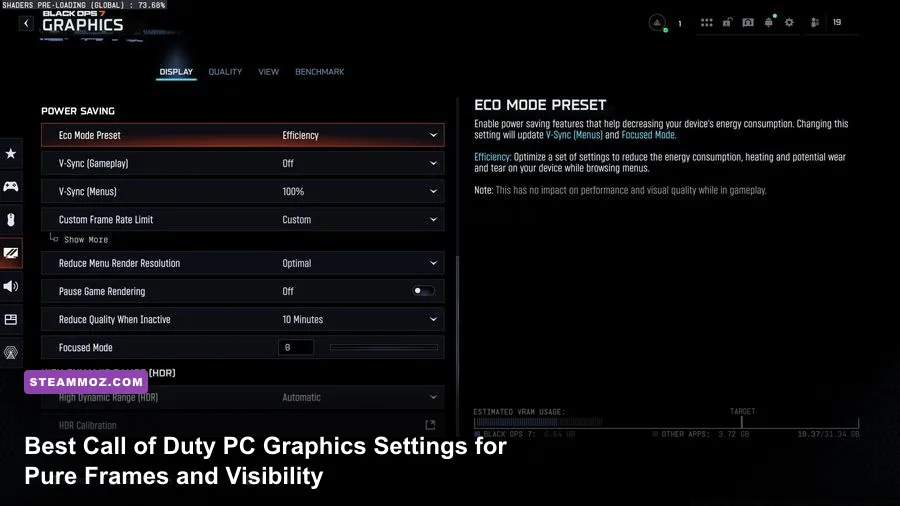
If you want to instantly hike your frame rates and strip away the visual clutter that costs you gunfights in Call of Duty on PC, switch your display to Exclusive Fullscreen, cap your VRAM Scale Target to 70% or 80%, disable every form of motion blur, and swap your upscaler to FidelityFX CAS at 75% strength. Modern Call of Duty releases—from Warzone to Multiplayer—are notoriously resource-hungry engines that love to swallow VRAM whole and hide enemy operators behind cinematic visual noise. By trimming the volumetric fat and reining in ambient occlusion, you can unlock between 35% and 60% higher frame rates while turning murky corners into crystal-clear shooting lanes.
Display Settings That Squeeze Out Input Latency
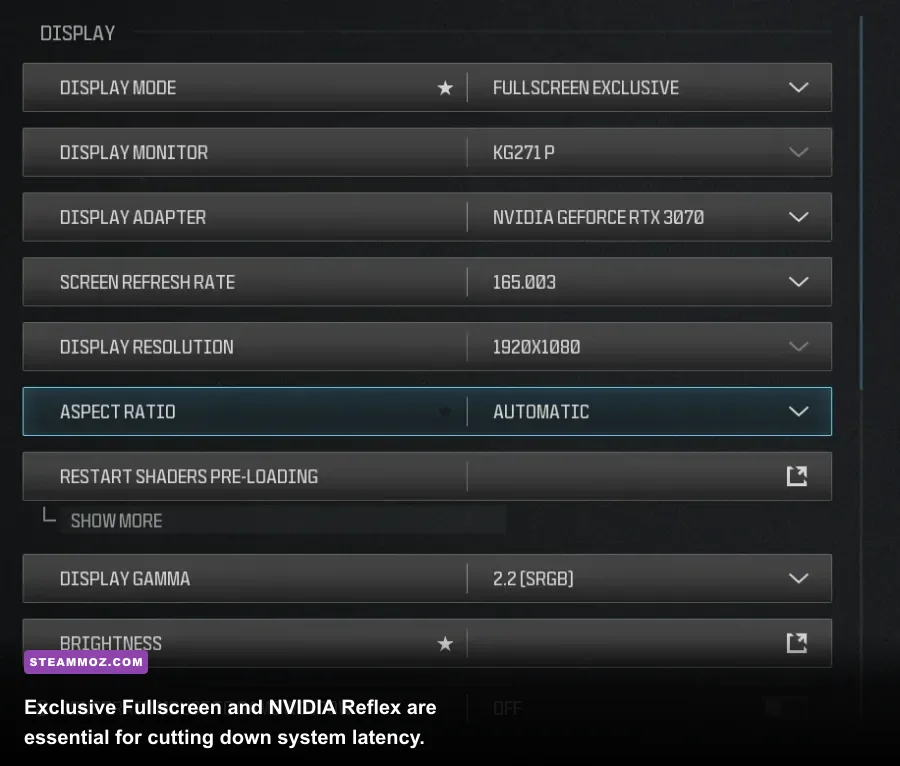
Before you touch a single texture toggle, your foundation has to be rock solid. Display settings govern not just how smooth the game looks on your monitor, but the raw milliseconds between your mouse click and your weapon discharging. If you leave your client in Borderless Windowed mode, Windows forces the Desktop Window Manager (DWM) to mediate your frame presentation, introducing micro-stutters and input lag that kill close-quarters tracking.
Lock your Display Mode into Exclusive Fullscreen. This hands direct control of the display hardware to the game engine. Next, verify that your Screen Refresh Rate matches your monitor's maximum native spec (such as 144Hz, 240Hz, or 360Hz)—it is shockingly common for driver updates to secretly reset this value to 60Hz. Just as we explored in our breakdown of tuning PC performance for modern engines, matching your display pipeline to your panel's true refresh rate is step zero.
Set your Render Resolution to 100. Dropping this below 100 renders the internal image at a lower resolution and blurs reticles, while pushing it above 100 supersamples the scene and murders your GPU. For V-Sync, turn both Gameplay and Menus Off. V-Sync introduces massive frame buffering latency; instead, manage screen tearing via your driver or monitor G-Sync/FreeSync settings with an in-game frame rate cap placed 3-4 frames below your refresh ceiling.
| Display Setting | Recommended Value | Input Latency Impact | Operational Purpose |
|---|---|---|---|
| Display Mode | Exclusive Fullscreen | Lowest latency | Bypasses Windows Desktop Window Manager composition buffer. |
| Dynamic Resolution | Off | Prevents frame pacing spikes | Eliminates jarring mid-match resolution scaling shifts. |
| V-Sync (Gameplay) | Off | Eliminates 15-30ms input lag | Prevents hardware backpressure on your render queue. |
| Custom Frame Rate Limit | Custom (Monitor Hz - 3) | Minimal / Smooth pacing | Keeps GPU usage around 97% to avoid queue saturation. |
| NVIDIA Reflex Low Latency | On + Boost | Substantial reduction | Clears GPU render queue and keeps CPU/GPU clock cycles peaked. |
Turn NVIDIA Reflex Low Latency to On + Boost if you're running an GeForce GTX 900 series card or newer. Boost prevents the GPU clock from down-throttling during CPU-intensive moments, ensuring frame times stay flat when explosions and killstreaks clutter your screen. You can review NVIDIA's official Reflex architectural deep-dive to see how this eliminates the render queue pipeline.

🎮 FORM
Looking to experience this game? Grab your digital key directly on our store for $14.99.
View on Steammoz Store →Quality Presets Demystified: The Heavy Hitters That Kill Frames
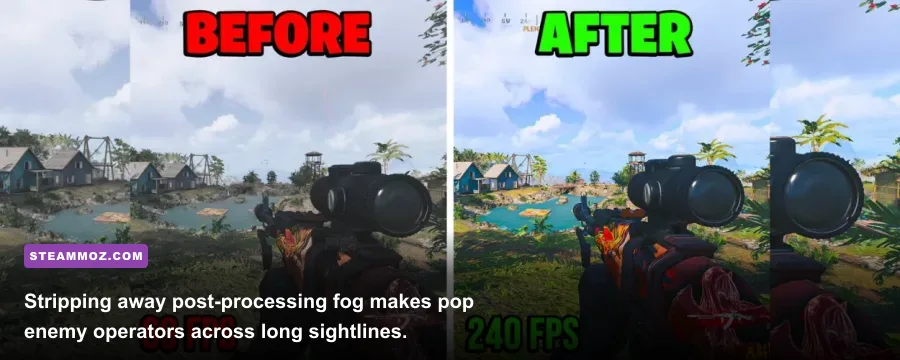
The Quality tab is where most players destroy their frame rates by chasing cinematic eye candy. Call of Duty's unified engine leans heavily on compute shaders for lighting, volumetric fog, and ambient shadows. These effects look gorgeous in campaign cutscenes, but in Warzone or ranked multiplayer, they actively mask enemy silhouettes and drag a 140 FPS rig down into the double digits.
Start with Texture Resolution. If you have an 8GB VRAM card or higher, you can safely leave this on Normal without an FPS penalty. Dropping to Low saves video memory but barely impacts frame output on modern architectures. However, set Texture Filter Anisotropic to Normal or Low, and immediately drop Volumetric Quality to Low. Volumetrics govern how sunlight scatters through smoke, dust, and particulate clouds. On High, volumetric passes eat 8% to 12% of your GPU budget just to blind you when a grenade pops across a lane.
Next up is the cinematic sabotage suite: Depth of Field, World Motion Blur, Weapon Motion Blur, and Film Grain. Turn every single one of these Off (and drag Film Grain to 0.00). Motion blur smears temporal samples across your panel whenever you flick your crosshair, tanking your ability to spot head-glitches. Similar to our frame-pacing tips in our guide on optimizing graphic passes for smooth performance, stripping out artificial post-processing cleans up internal frame times instantly.
Pay close attention to the Target VRAM Scale slider. The default is often 90%, which sounds safe, but Call of Duty frequently shares video memory with Windows background tasks and recording software like OBS. When VRAM allocates past 85%, the engine begins aggressively dumping texture pages into system RAM, resulting in horrific half-second hitching mid-firefight. Drag this slider down to 70% or 80% to build a stable buffer, an approach that mirrors stabilizing runaway memory spikes detailed in our PC crash and performance rescue guide.
Master Settings Matrix: Optimal Values for Competitive Play
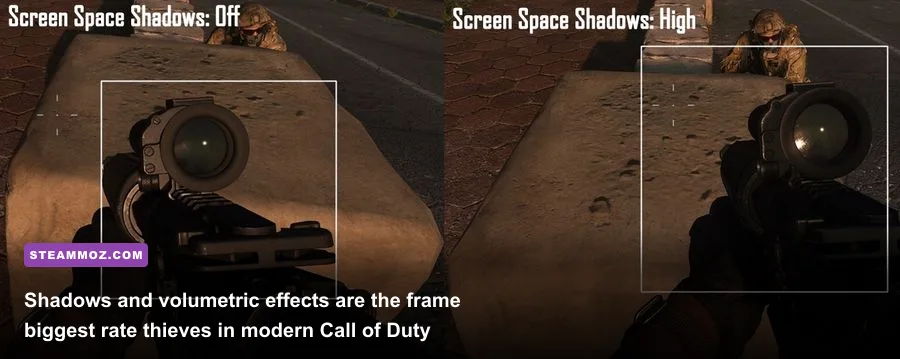
Below is the complete profile engineered for maximum frame rate headroom, minimal frame time variance (1% lows), and pristine visual target acquisition across both standard multiplayer maps and massive battle royale terrain.
| Graphic Setting | Recommended Value | FPS Gain vs Ultra | Competitive Impact & Visual Clarity |
|---|---|---|---|
| Texture Resolution | Normal (Low for <6GB VRAM) | 1 - 2% | Keeps player skins and sights crisp without VRAM overflow. |
| Texture Filter Anisotropic | Normal | 0% | Negligible performance cost; keeps floor markings readable. |
| Depth of Field | Off | 3 - 5% | Crucial: Stops your screen from blurring when aiming down sights. |
| Detail Quality Level | Low | 4 - 6% | Removes non-essential debris, trash, and extraneous ground clutter. |
| Particle Resolution | Very Low | 6 - 9% | Keeps FPS stable when thermites, smokes, and streaks detonate. |
| Bullet Impacts & Sprays | On | <1% | Vital tactical info; lets you read where enemy fire originated. |
| Persistent Damage Layers | Off | 1 - 2% | Prevents memory bloat across prolonged multiplayer matches. |
| Shader Quality | Low | 5 - 8% | Flattens micro-surface lighting; boosts target contrast in dark rooms. |
| On-Demand Texture Streaming | Off / Allocated Minimal | Varies (Stops Stutters) | Prevents in-game internet bandwidth use from causing hitching. |
| Shadow Map Resolution | Very Low | 8 - 14% | Massive frame saver; removes soft shadows that chew GPU cycles. |
| Screen Space Shadows | Off | 4 - 6% | Eliminates complex geometry shading that obscures campers. |
| Ambient Occlusion | Off | 6 - 10% | Brightens dark corners inside buildings and stairwells dramatically. |
| Screen Space Reflections | Off | 5 - 7% | Eliminates realistic puddle reflections that murder performance. |
| Static Reflection Quality | Low | 2 - 3% | Simplifies pre-baked environment cube-maps. |
| Tessellation | Off | 2 - 4% | Disables extra geometric displacement on rocks and terrain. |
| Volumetric Quality | Low | 7 - 11% | Clears atmospheric haze across long-distance sniper sightlines. |
| Deferred Physics Quality | Off | 2 - 3% | Reduces CPU thread strain during water and destruction physics. |
| Weather Grid Volumes | Off / Low | 3 - 5% | Disables complex rain and wind simulation grids. |
| Water Quality | Wave Wetness (or Off) | 3 - 6% | Stops water caustics from dragging down frame rates near rivers. |
By applying this matrix, you eradicate the GPU overhead that causes performance valleys during heavy firefights. Running into crashing issues while adjusting these settings on unstable hardware? Check our troubleshooting walkthrough for resolving graphics-related hardware crashes.
Upscaling and Sharpening: FidelityFX CAS vs DLSS vs FSR
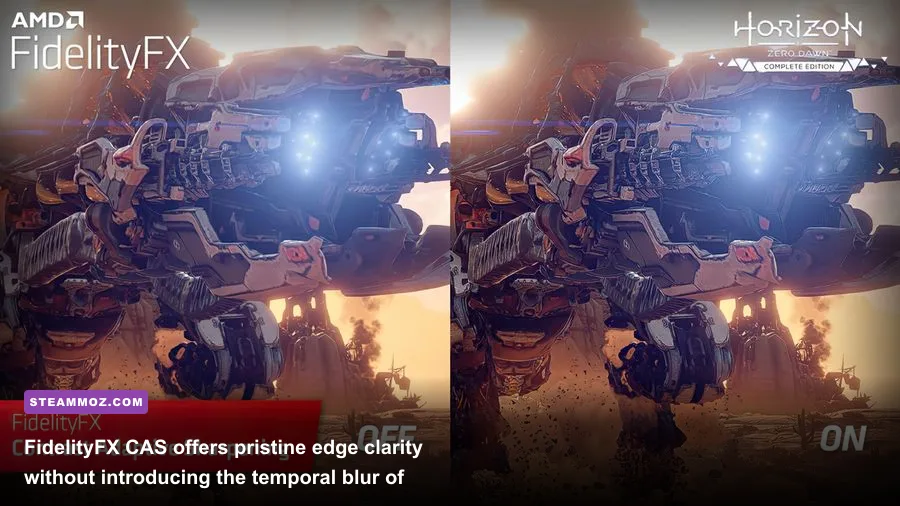
Upscaling is where most competitive players make a tactical error. Modern iterations of Call of Duty support NVIDIA DLSS, AMD FSR, Intel XeSS, and AMD FidelityFX CAS. While DLSS and FSR render the game at a lower base resolution and reconstruct it using temporal data or AI, they introduce noticeable ghosting around thin optics, crosshairs, and moving enemy hitboxes at medium-to-long ranges.
Unless your graphics card is severely struggling to hit your monitor's baseline refresh rate at 1440p or 4K, do not use DLSS or FSR for Call of Duty. Instead, choose FidelityFX CAS (Contrast Adaptive Sharpening). Unlike reconstruction filters, CAS runs at 100% native render resolution and applies an intelligent dynamic spatial sharpening pass across high-frequency edges without touching uniform textures.
Set your FidelityFX CAS Strength between 70 and 85. At this level, the typical muddy temporal anti-aliasing (SMAA T2X) built into the game's engine is completely countered. Window borders, iron sights, and distant operators stand out razor-sharp against background geometry, letting you acquire targets milliseconds faster. If you must use DLSS because you are running a mid-tier card on an ultrawide or 4K panel, stick strictly to DLSS Quality, and verify that DLSS Frame Generation is turned OFF. Frame Generation inserts interpolated, fake frames into your pipeline; while it raises your counter, it inflates total system latency significantly—a fatal trade-off in competitive shooters.
Check the official Call of Duty Steam client hub for updates whenever a seasonal patch drops, as major content updates frequently overwrite custom upscaling profiles back to default engine presets.
Config File Tweaks and Windows Optimization
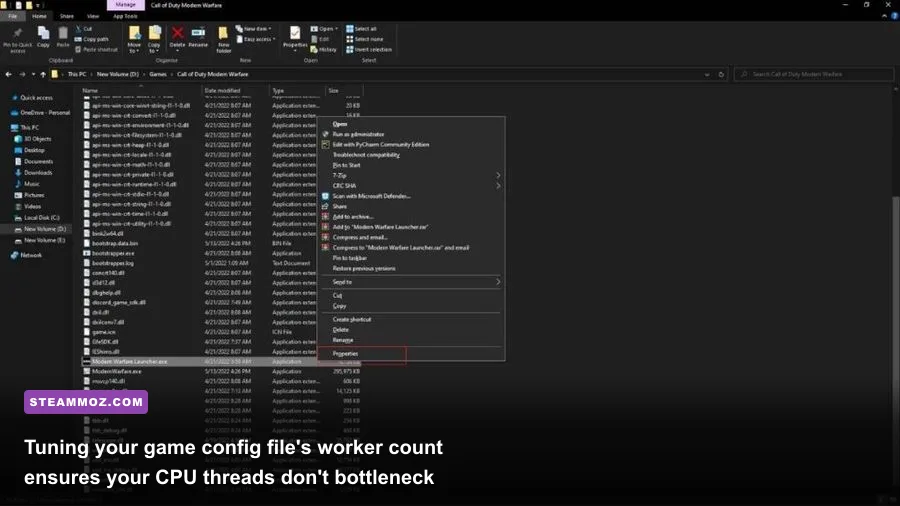
Even with optimized in-game settings, Call of Duty frequently stutters on PC because of an old engine quirk: improper CPU core allocation. When the game boots, it attempts to detect your CPU topology and writes an assigned worker thread value to an internal configuration text file. Unfortunately, it often assigns too many or too few threads, choking the engine's render pipeline.
To fix this manually:
- Close Call of Duty and navigate to your documents folder:
Documents\Call of Duty\players. - Open the file named
options.4.cod23.cst(or the corresponding file for your version, such asoptions.3.cod22.cst) using Notepad. - Press
Ctrl + Fand search forRendererWorkerCount. - You will see a line that looks like:
RendererWorkerCount:0.0 = "X".
The optimal value for RendererWorkerCount should match your CPU's physical high-performance cores, NOT its logical threads. For example, if you run an AMD Ryzen 7 7800X3D (8 cores, 16 threads), set this value to "8" or "7". If you run an Intel Core i7-13700K (8 Performance cores, 8 Efficient cores), set it to "8" so the game engine does not attempt to distribute heavy render routines onto the low-clocked E-cores. Save the file, right-click it, select Properties, and tick Read-only so the game cannot reset it on boot.
Finally, optimize your Windows environment. Open Windows Settings, navigate to Gaming > Game Mode, and verify it is toggled On. In the same menu, click Graphics, select Change default graphics settings, and turn on Hardware-Accelerated GPU Scheduling (HAGS). HAGS allows your dedicated video card to manage its own memory allocations directly rather than routing them through the CPU interrupt stack, substantially leveling out 1% low frame time dips during chaotic multi-team engagements.
If you experience sudden crashes after modifying your config or running long gaming sessions, inspect your system's thermals and driver integrity, utilizing the steps outlined in our guide to frame stabilization and crash mitigation. For official server status and known engine bugs, reference the official Activision Support Portal.
With these display parameters locked down, heavy post-processing gutted, FidelityFX CAS sharpening dialed, and your CPU worker threads matched to your physical cores, your PC is fully tuned to deliver maximum frame rates and butter-smooth frame pacing in every lobby you drop into.