Jumping into Star Wars PC games means contending with over thirty years of disparate engine architectures, broken modern graphics drivers, and aggressive background DRM wrappers. If you boot up a vintage classic like Star Wars: Knights of the Old Republic or modern heavyweights like Star Wars Jedi: Survivor straight out of the box without tweaking your display refresh rates, engine configuration files, or memory limits, you are almost guaranteed to hit frozen characters, hard crashes to desktop, or gut-wrenching stutter. Getting these games running smoothly requires understanding how legacy BioWare scripts desync above 60Hz, how Unreal Engine compilation stalls ruin modern lightsaber duels, and why community patches are mandatory before you touch a lightsaber.
The Modern Port Problem: Stutter Struggles in Jedi: Survivor and Fallen Order
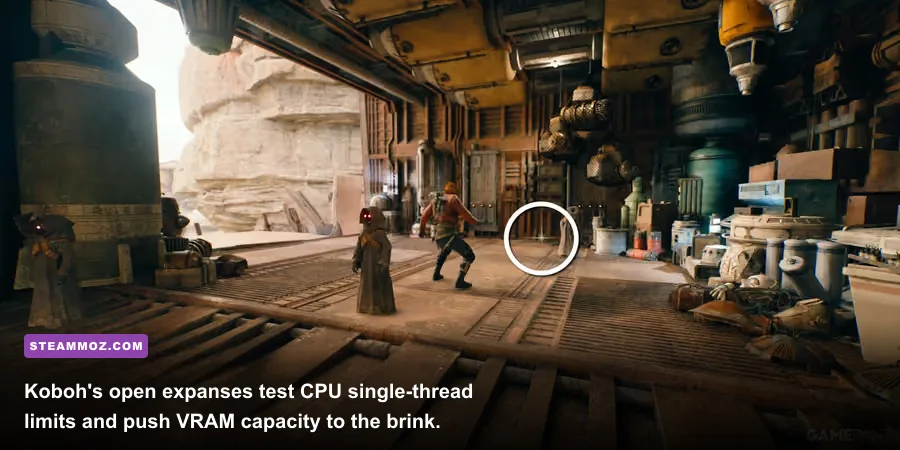
Modern Star Wars releases look breathtaking on paper, but under the hood, they struggle with severe port optimization issues that can turn top-tier gaming rigs into stuttering messes. When Respawn shipped Star Wars Jedi: Fallen Order and its sequel Star Wars Jedi: Survivor on modified Unreal Engine 4 pipelines, they created games notorious for traversal hitching and CPU core underutilization. If you enter wide-open zones like Koboh's Rambler's Reach Outpost in Survivor, your frame rate can plummet from 110 FPS down to the mid-40s regardless of whether you pack an RTX 4080 or a mid-range card. The bottleneck stems from shader compilation queues and thread-locking logic on the main render thread.
To wrangle decent frame delivery out of modern entries, you must adjust specific graphics settings rather than blindly clicking the "Epic" preset. Much like discovering that troubleshooting frame rate bottlenecks requires tackling background draw calls, fixing Survivor means keeping Ray Tracing Ambient Occlusion firmly turned off. Ray tracing in Survivor eats upwards of 4GB of dedicated VRAM purely for BVH structure tables, causing severe memory spilling on 8GB and 12GB graphics cards. Furthermore, modern Star Wars titles run alongside the EA App wrapper, which injects an overlay that constantly hooks into the game's DirectX 12 render pipeline.
Always go into your EA App settings, click the application tab, and toggle off the "In-Game Overlay." Pair that with capping your display rate via the NVIDIA Control Panel or AMD Software Adrenalin Edition to match a cleanly divisible refresh rate. For stubborn micro-stutters, forcing Resizable BAR (ReBAR) support through GPU utility profiles stabilizes frame times when Cal leaps across high-velocity grapple points. If you have fine-tuned titles by tweaking settings for max FPS, you know that keeping rendering buffers lean is the only reliable way to prevent shader stutters from ruining precision parry timings.
Restoring the Classics: Engine Caps, Widescreen Hacks, and Physics Breaks
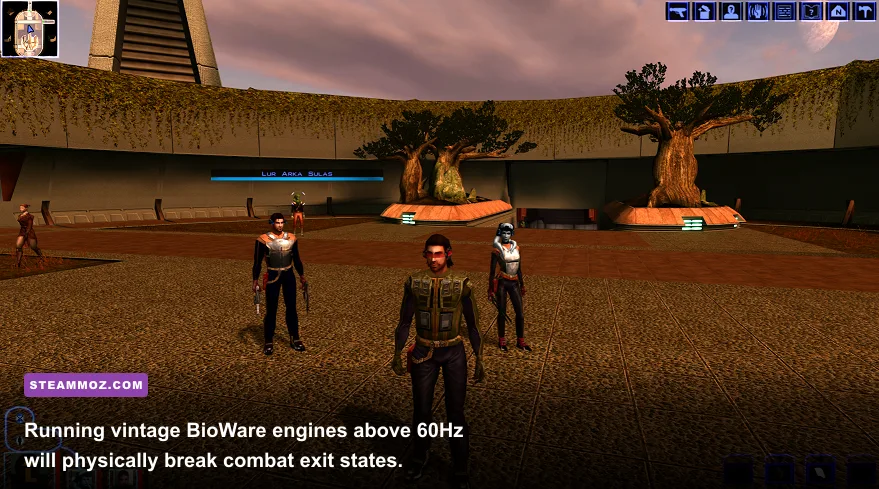
If you pivot to the golden era of early 2000s Star Wars gaming, you will hit a completely different wall: legacy game engines tied directly to display hardware refresh rates. Take Star Wars: Knights of the Old Republic (2003) and its sequel. Both run on BioWare's Odyssey Engine, which synchronizes character animation states to an internal 60Hz tick rate. If you boot KOTOR on a modern 144Hz, 165Hz, or 240Hz monitor with VSync disabled, you will encounter the infamous post-combat paralysis bug. Your player character will defeat a Sith trooper or Sand Person, and the moment combat ends, your character will be completely frozen in place, unable to move while the rest of your squad wanders around freely.
This bug happens because the engine fails to register the transition out of tactical combat when the display refresh rate outpaces the internal script loop. The definitive fix is straightforward: navigate to your graphics driver settings, force a hard frame rate cap of 60 FPS on swkotor.exe, and ensure VSync is set to "Driver Controlled - Always On." Inside the game's root directory, open swkotor.ini in Notepad, scroll down to the [Graphics Options] header, and add the line RefreshRate=60 alongside Width=1920 and Height=1080 after applying an external UniWS (Universal Widescreen) patch.
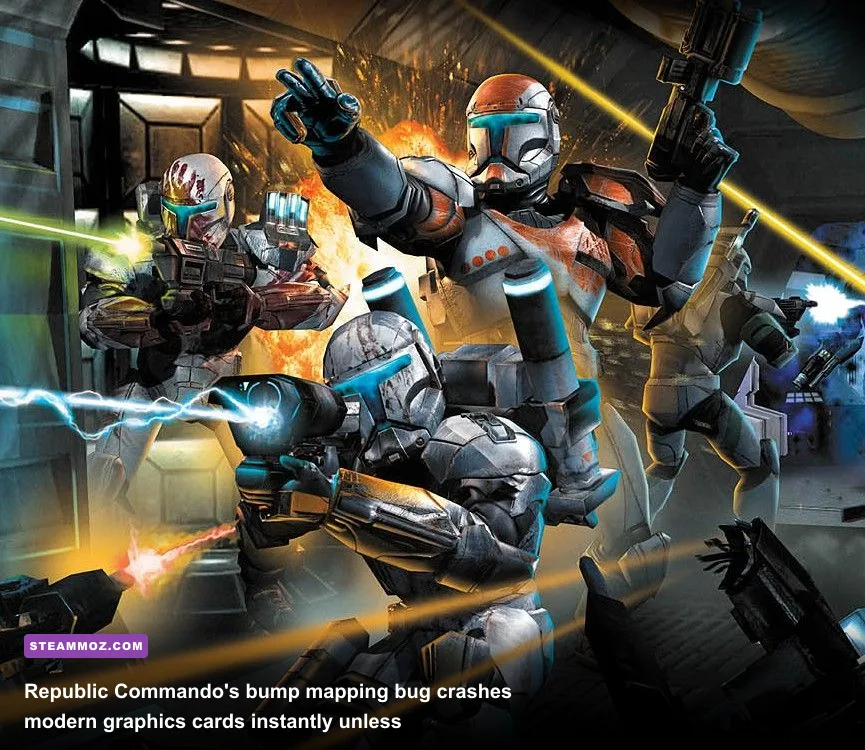
Vintage mechanics do not stop misbehaving there. Star Wars: Republic Commando suffers from a catastrophic bug on modern NVIDIA GeForce and AMD Radeon hardware: entering the Geonosis campaign causes an instant crash to desktop within minutes. The game relies on deprecated DirectX 8/9 vertex shader calls for its bump mapping effects. Setting bump mapping to "High" in the native graphics menu guarantees a memory corruption error. To solve this without butchering visual fidelity, grab community fixes from PCGamingWiki's Republic Commando guide, which wraps calls through modern DirectX translations.
Even later games like Star Wars: The Force Unleashed - Ultimate Sith Edition hide frustrating engine locks. The game shipped with a hard-coded 30 FPS cap. While community patches allow you to uncap the frame rate to 60 FPS, taking it higher will completely destroy the internal Havok physics engine. At 120 FPS, Starkiller's Force Grip launches stormtroopers at supersonic speeds out of bounds, heavy blast doors bounce shut instantly, and environmental puzzles break completely. Keep your physics-based Star Wars classics locked tightly at 60 FPS.
| Game Title | Native Engine Flaw | Direct Symptom | Required Modern Fix |
|---|---|---|---|
| Star Wars: KOTOR 1 & 2 | Odyssey Engine >60Hz logic desync | Characters freeze in place immediately after combat | Lock GPU driver to 60 FPS; enable VSync in swkotor.ini |
| Star Wars: Republic Commando | Deprecated DX8/9 bump mapping calls | Instant Crash to Desktop on Geonosis maps | Install community Bump Mapping Fix dll or set bump maps to Low |
| The Force Unleashed (USE) | Havok physics tied to tick rate | Force Grip objects clip out of bounds; doors glitch | Apply 60 FPS engine patch; never uncap to 120Hz/144Hz |
| Jedi Knight II: Jedi Outcast | id Tech 3 4:3 default resolution limit | Horrendously stretched visuals on 16:9 and 21:9 monitors | Use OpenJK engine source port; adjust cg_fov to 95 |
| Star Wars: Battlefront II (2005) | DirectSound 3D audio layer collapse | Micro-stutters and crashes during thermal detonator spam | Switch audio to Software mix or drop OpenAL wrapper dll into root |
The Essential Modding Ecosystem: Turning Broken Ports into Masterpieces
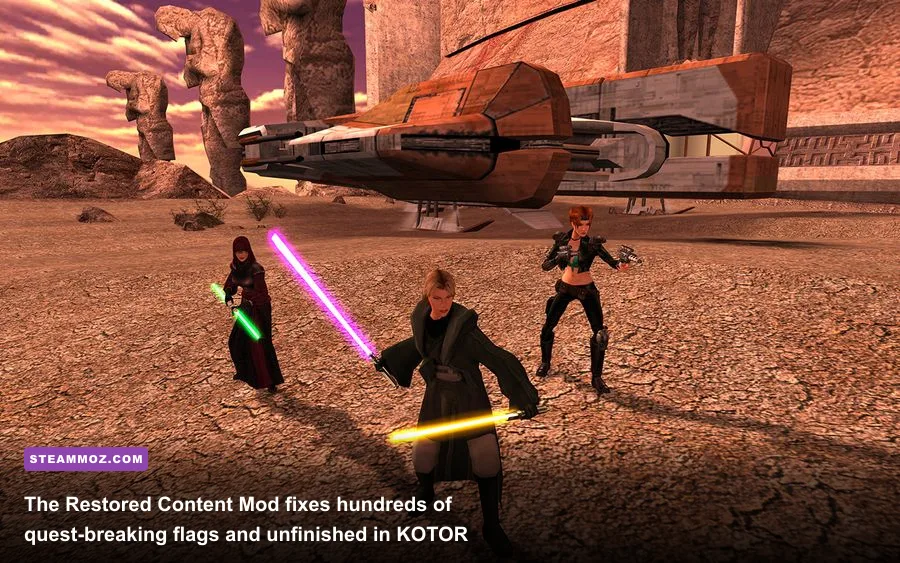
You should never play certain Star Wars PC games completely vanilla. The most critical example in the entire catalog is Obsidian Entertainment's Star Wars: Knights of the Old Republic II: The Sith Lords. Rushed to retail for the 2004 holiday season, Obsidian was forced to cut massive chunks of dialogue, entire droid factories, character influence resolutions, and the overarching planetary narrative for the endgame planet Malachor V. Playing vanilla KOTOR II leaves you with gaping plot holes and quest chains that simply terminate with no resolution.
The solution is installing The Sith Lords Restored Content Modification (TSLRCM), maintained and polished on DeadlyStream and available through the Steam Workshop. TSLRCM restores thousands of lines of voiced dialogue, re-integrates the HK-50 production factory on Telos, repairs broken influence triggers for companion characters like Visas Marr, Handmaiden, and Hanharr, and rebuilds the fractured finale. If you run the game on Steam, subscribing to TSLRCM takes one click. If you run the GOG release, use the standalone installer to avoid directory path mismatches that corrupt save files.
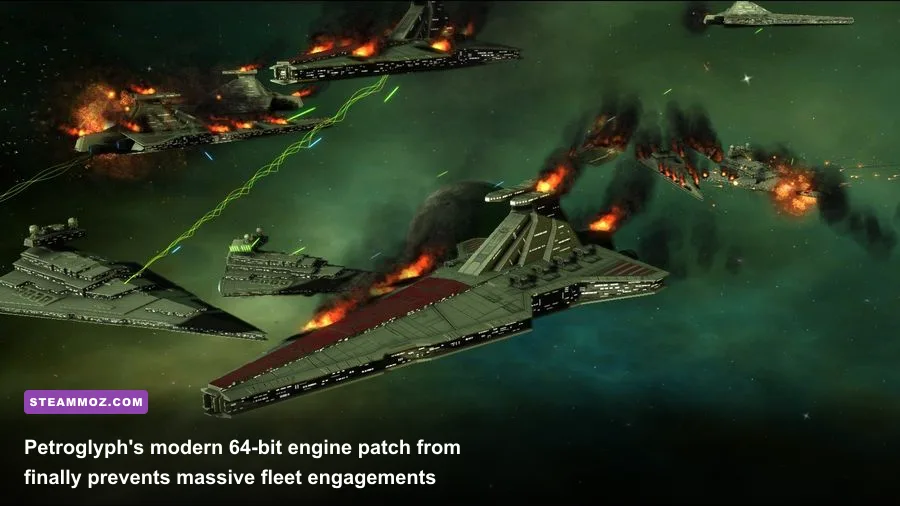
Meanwhile, real-time strategy titan Star Wars: Empire at War experienced a modern revival thanks to its active developer support. For over a decade, massive fleet battles in popular mods like Thrawn's Revenge or Fall of the Republic would crash due to the game's old 32-bit memory limit, which capped addressable RAM at under 3.5GB. Late in 2023, original developer Petroglyph issued an official 64-bit executable update for the Steam version. This update lifted the memory ceiling, meaning you can now wage sprawling space wars with hundreds of custom capital ships, fighters, and planetary garrisons without fearing a Sudden Memory Out-of-Bounds crash.
Classic first-person shooters like Star Wars Jedi Knight: Jedi Academy and Jedi Outcast run on id Software's legendary id Tech 3 engine. Rather than messing around with primitive resolution flags in your configuration files, the standard approach today is downloading OpenJK. This open-source community port fixes native widescreen distortion, repairs high-DPI mouse polling jitters, patches ancient security vulnerabilities in multiplayer code, and introduces true raw mouse input. If you have spent time stopping random crash loops in temperamental PC games, you will appreciate how community wrappers transform an unplayable vintage title into a butter-smooth modern experience.
Flight Sim Peripherals and Keybinding Nightmares
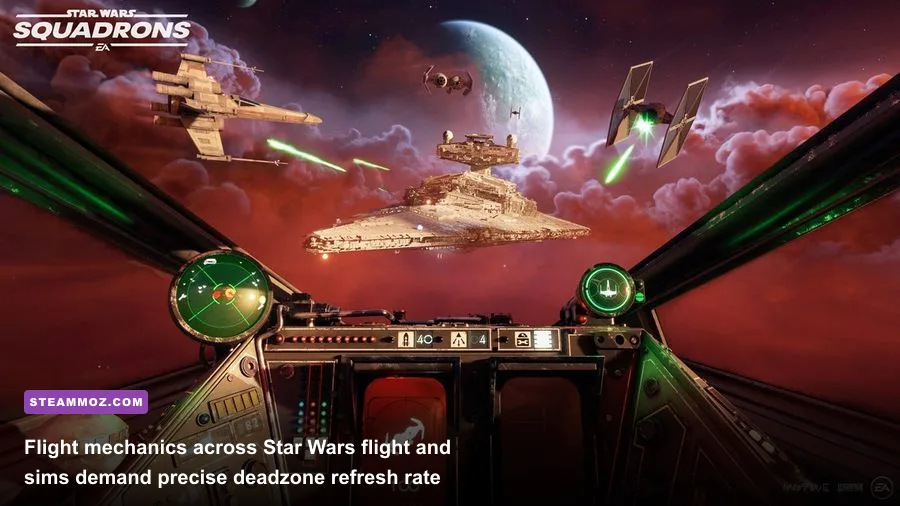
Star Wars has always had a rich legacy of dedicated flight sims, ranging from legendary nineties milestones like Star Wars: TIE Fighter and X-Wing Alliance to modern space combat in Star Wars: Squadrons. However, playing flight combat games on PC introduces major input hurdles. In Star Wars: Squadrons, the Frostbite engine initially launched with a bizarre 60Hz physics tick rate lock inside a high-refresh display container. Even if your GPU pumped out 144 FPS, starfighters traveling across your canopy updated their positional vectors at 60 FPS, creating horrific visual ghosting during dogfights. While patches helped resolve this issue, you must still configure display settings carefully.
If you use a HOTAS (Hands-On Throttle-and-Stick) setup or an Xbox/PlayStation controller, Squadrons and vintage space titles require extensive calibration. The default controller profile for Squadrons features an aggressive 20% central stick deadzone that ruins fine micro-aiming during high-speed drifts behind an enemy TIE Interceptor. You need to drop flight stick deadzones down to 2% or 4% in the controls menu, then switch pitch/roll axes to suit your preferred cockpit muscle memory.
For retro flight sims like Star Wars: X-Wing Alliance, a standard mouse-and-keyboard setup is practically unplayable due to how DOS-era and early Windows DirectInput libraries translate flight axes. To experience retro space flight properly on modern hardware, pick up the monumental fan-built X-Wing Alliance Upgrade (XWAU) and the TIE Fighter Total Conversion (TFTC). These packages modernize the entire game with dynamic cockpit cockpits, modern controller axis mapping, VR headset compatibility, and updated graphical assets. Just keep in mind that much like mastering deep tactical loadouts when exploring weapons worth your credits in spaceship shooters, piloting an authentic snubfighter demands complete mastery over your power-diverter keybindings: quickly shifting reactor output between shields, lasers, and sublight engines mid-dogfight.
Graphics Settings and Performance Tuning Matrix
Balancing high visual fidelity and rock-solid stability across Star Wars PC games requires a targeted setup. Whether you are tweaking modern graphical suites or fixing config text files for retro games, applying the right settings saves you hours of trial and error. Modern releases like Jedi: Survivor suffer heavily from shader caching stutters, while older titles crash if your graphics drivers try to force anti-aliasing modes their engines cannot interpret.
In modern DirectX 12 games, setting shadow resolution to "Epic" triggers intense BVH rebuilds on your processor every time dynamic lights move across foliage. Lowering shadows to "High" dramatically reduces traversal hitches with barely any noticeable visual downgrade. Similarly, running native resolutions without Temporal Super Resolution (TSR), DLSS, or FSR 2/3 will needlessly cripple your 1% low frame rates during chaotic lightsaber duels. If you have spent time dialing in settings for higher FPS in other demanding titles, apply that same disciplined approach here: lower high-cost volumetric fog and disable hardware ray tracing before sacrificing native rendering scales.
| Target Game / Engine | Critical Setting | Optimal Configuration | Performance / Stability Impact |
|---|---|---|---|
| Jedi: Survivor (DX12) | Ray Tracing | Disabled | Saves 3.5GB–4.2GB VRAM; prevents Koboh Hub crashes |
| Jedi: Survivor (DX12) | Visual Effects / Foliage | High (Drop from Epic) | Improves 1% low frame times by 18% during combat |
| KOTOR 1 & 2 (Odyssey) | Soft Shadows & Frame Buffer | Turn Off in swkotor.ini | Prevents instant CTD on modern AMD and NVIDIA drivers |
| Battlefront II (Frostbite) | DirectX 12 Toggle | Switch to DirectX 11 | Eliminates massive shader caching stutters on map load |
| Republic Commando (UE2) | Bump Mapping Quality | Low (or use community DLL) | Bypasses driver instruction crash on modern architectures |
| Empire at War (Petroglyph) | Hardware Mouse Cursor | Enabled | Eliminates UI polling lag across high-density space battles |
Storefront Pitfalls: Steam vs. GOG vs. EA App Versions
Where you purchase your Star Wars games on PC plays a massive role in how much setup hassle you will face. While modern gamers default to purchasing everything through Valve's storefront, the digital distribution of legacy Star Wars releases is anything but uniform. For games released prior to 2006—such as Star Wars: Dark Forces, Jedi Knight: Dark Forces II, X-Wing vs. TIE Fighter, and Star Wars: Shadows of the Empire—the versions hosted on GOG are almost always superior to their Steam counterparts out of the box.
GOG pre-packages these retro games with custom DOSBox environments, Glide wrappers, and community-tested configuration files designed to make old 16-bit and early 32-bit applications run on 64-bit Windows 10 and 11. The Steam versions of these exact same classics are often bare-bones dumps of the original retail CD-ROM files, completely lacking modern display wrappers. If you buy Dark Forces on Steam, you often have to manually configure DOSBox bindings or install community source ports like The Force Engine just to get basic mouselook and modern resolutions running.
On the other hand, the Steam platform is the clear winner for games like Star Wars: Knights of the Old Republic II and Star Wars: Empire at War. Thanks to Steam Workshop integration, modding KOTOR II with TSLRCM or updating Empire at War with massive modern fleet overhauls is as easy as clicking a single button. If you buy the GOG version of Empire at War, you will have to manually manage file paths, unzip massive multi-gigabyte zip archives into your installation directories, and configure custom launch arguments just to get those same mods working.
Finally, brace yourself for modern EA releases like Star Wars Battlefront II (2017) and Star Wars Jedi: Survivor on Steam: they still require the EA App to launch in the background. If you suffer from unexpected disconnects or sudden launch failures, verifying your file integrity on Steam will not fix issues caused by an out-of-date EA App installer. Take the time to clear the EA App's cache via its App Recovery utility whenever an update causes launch problems. Taking a few proactive steps before you start playing ensures that technical headaches will not pull you out of your journey through the galaxy.