If Bear and Breakfast keeps crashing or running at a miserable frame rate, start with a clean file check, update your GPU driver, disable overlays, and lower resolution, shadows, and effects before touching advanced Windows tweaks. The game is a Unity-built management sim, so its worst problems often come from corrupted local files, overlay conflicts, unstable fullscreen behavior, or crowded lodges rather than a genuinely weak graphics card.
Work through the fixes below in order. Test after each major change, especially when loading Timber Crossing, opening the build menu, or entering a lodge packed with furniture and guests. That makes it much easier to identify whether you fixed the cause or simply changed several variables at once.
Check the game, Windows, and GPU basics first
Before cutting visual quality, confirm that your PC is actually meeting the game’s published baseline. The official Steam page lists Windows 7 or newer, 4 GB of memory, and a DirectX 11-capable graphics card around the GeForce GTX 660 or Radeon HD 7870 class as the minimum target. That doesn’t guarantee a locked 60 FPS: simulation load, resolution, background apps, and driver behavior still matter.
| Component | Published minimum target | Practical recommendation | Why it matters |
|---|---|---|---|
| Operating system | Windows 7 or newer | Fully updated Windows 10 or 11 | Older system components can create compatibility and driver problems. |
| Processor | Core i5-2300 or AMD FX-6300 class | Modern four-core CPU or better | Lodge simulation and loading can produce CPU-side frame dips. |
| Memory | 4 GB RAM | 8 GB or more | Leaves room for Steam, browsers, overlays, and Windows services. |
| Graphics | GTX 660 2 GB or Radeon HD 7870 2 GB class | Modern DX11 GPU with current drivers | Helps maintain frame pacing at 1080p. |
| Storage | At least 2 GB free | SSD with additional free space | Reduces loading delays and prevents an almost-full drive from misbehaving. |
Verify the installation through Steam
Close the game, open Steam, right-click Bear and Breakfast, choose Properties, then Installed Files and Verify integrity of game files. This replaces missing or damaged files without deleting your saves. If a crash began immediately after an update, this is the highest-value first step.
Do not delete the local save folder as a first reaction. Back up your saves before experimenting, particularly if the game crashes while loading one specific lodge. A damaged save and a damaged installation can look identical from the desktop. If every new game works but one established file crashes, the save or a particular lodge state is the stronger suspect.
Update the driver, then remove common conflicts
Install the latest stable NVIDIA, AMD, or Intel graphics driver from the manufacturer rather than relying only on Windows Update. Reboot after installation. Then turn off Steam Overlay, Discord Overlay, Xbox Game Bar, GeForce Experience or AMD recording tools, MSI Afterburner’s overlay, and RGB monitoring utilities for one test session. Unity games can crash when multiple programs hook into rendering or input at the same time.
Also add the game’s executable to your antivirus exclusions only if your security software is clearly quarantining or delaying it. Don’t download replacement DLL files from random “fix” sites. That’s a fast route to malware, and it rarely fixes a genuine Bear and Breakfast crash.

🎮 Bear and Breakfast
Looking to experience this game? Grab your digital key directly on our store for $6.99.
View on Steammoz Store →Use a stable FPS profile instead of chasing 60
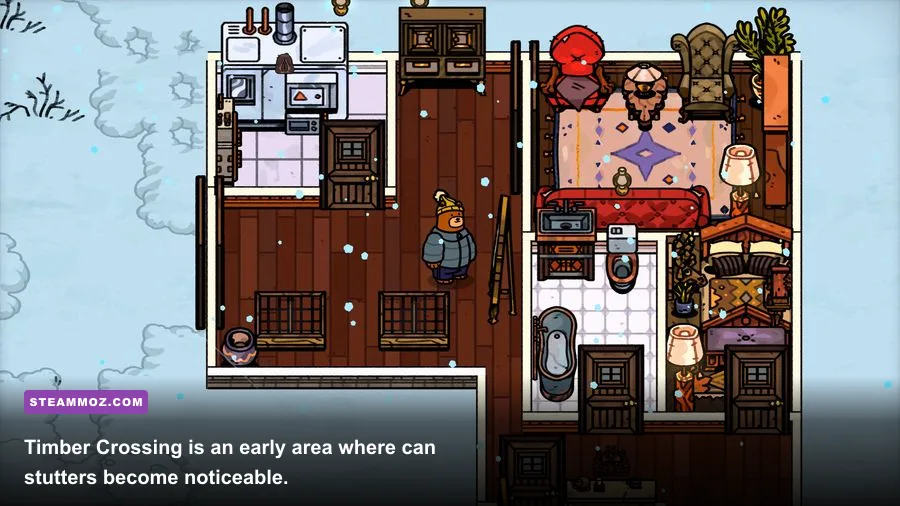
Launch the game and start with a conservative profile at your monitor’s native resolution. If you’re on a 1440p or 4K display, test 1920×1080 first. Rendering four times as many pixels at 4K can overwhelm an entry-level GPU even when the game’s art style looks simple. A consistent 30 or 45 FPS feels much better than a wildly bouncing 25–60 FPS during lodge management.
| Setting | Recommended starting value | FPS impact | Visual trade-off |
|---|---|---|---|
| Resolution | 1920×1080; native resolution if stable | Very high | Lower values look softer, but this is the fastest GPU-side test. |
| Display mode | Fullscreen; try borderless if alt-tab causes crashes | Low to medium | Borderless is convenient but can add desktop compositor overhead. |
| VSync | On for tearing; off for diagnosis | Low | On can smooth output but may expose uneven frame pacing. |
| Quality preset | Medium, then raise individual options | Medium to high | Finds the expensive setting faster than changing everything randomly. |
| Shadows | Low or medium | Medium to high | Less shadow detail; usually a worthwhile cut in busy lodges. |
| Effects and post-processing | Low or medium | Medium | Reduces visual flourish while preserving the readable art style. |
| Frame-rate limit | 30 or 60 FPS, if the option exists | Improves consistency | A cap prevents the GPU from oscillating between workloads. |
Apply one change at a time and inspect the same location. Timber Crossing is a good early test because it combines outdoor scenery, roads, buildings, NPC activity, and decoration. Later areas such as Winterberry and Pinefall can stress the system more heavily, so a profile that looks fine in an empty room may still stutter in a busy resort.
If the game has no working frame limiter on your setup, use the NVIDIA Control Panel or AMD Software to cap the executable at 30 or 60 FPS. Use the per-game profile, not a global cap. Pairing a cap with VSync can eliminate tearing, but if input feels delayed, test VSync off and keep only the frame cap.
Fix crashes tied to loading, fullscreen, or saves
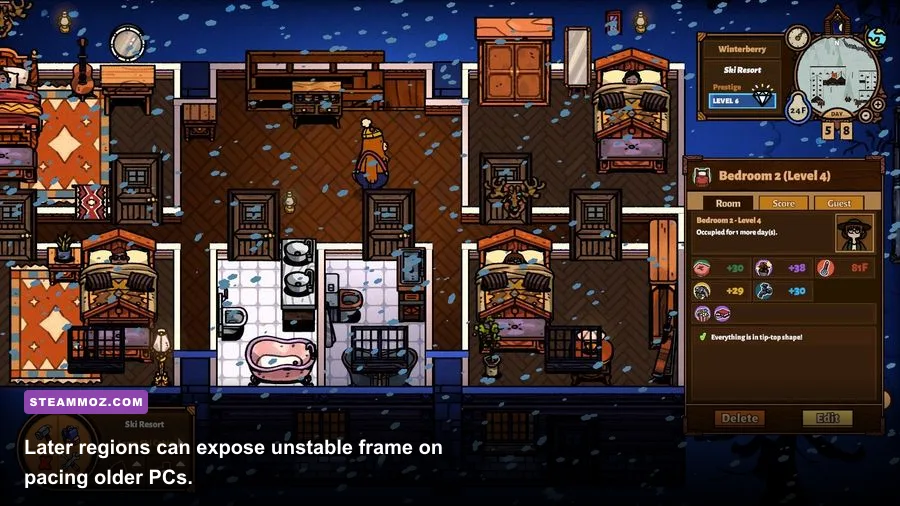
A crash during startup usually points to files, permissions, overlays, or incompatible display settings. A crash while loading one lodge suggests a save-state issue or an asset the game cannot stream correctly. The timing matters, so don’t treat every crash as a graphics problem.
Reset fullscreen and launch behavior
Press Alt+Enter once after launch to switch between windowed and fullscreen modes. If fullscreen crashes but windowed mode works, use borderless or windowed mode temporarily and lower the resolution. Right-click the game executable, open Properties, select Compatibility, and avoid forcing old compatibility modes unless Windows reports a specific problem. Forced Windows 7 compatibility, DPI overrides, or administrator mode can sometimes create new issues instead of solving them.
Check the save-specific pattern
Back up your saves, then test a new game. If the new file runs normally, load the affected save and move away from the lodge or region where the crash occurs if you can. Remove recent furniture or decorations before saving again, and avoid repeatedly saving while the game is visibly hitching. If every save crashes, return to file verification and driver or overlay troubleshooting rather than deleting progress.
For reproducible crashes, note the exact action: opening the build menu, entering a named region, accepting a quest, or loading a particular lodge. Send that information through the Armor Games Studios support channels or the game’s Steam discussion area. Include your GPU, driver version, Windows version, resolution, whether overlays were enabled, and the crash location. “It crashes” gives developers almost nothing to work with; “it crashes when loading Winterberry after placing a specific room” is useful evidence.
For broader PC troubleshooting, Steamoz’s ELEX crash and FPS guide covers the same driver, overlay, and configuration logic, while the EscapeVR performance fixes are useful if several Unity games fail on the same machine.
Stop stutter caused by CPU load and background apps
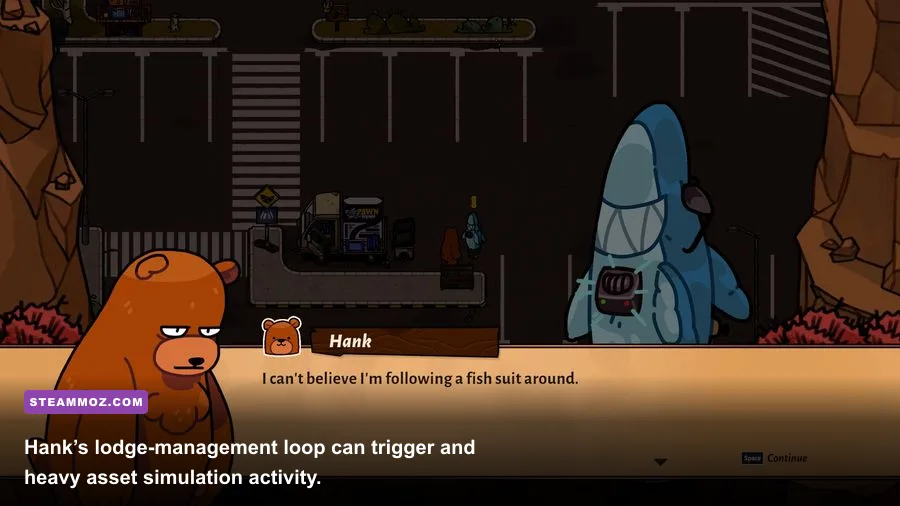
Low FPS in Bear and Breakfast isn’t always a GPU problem. The game constantly tracks guests, room facilities, staff, resources, pathing, and lodge visuals. A heavily decorated resort can therefore produce short CPU-side spikes even when average GPU usage is low. That’s why dropping resolution may barely change the hitching.
Open Task Manager with Ctrl+Shift+Esc and close browsers with many tabs, launchers, recording software, cloud-sync clients, and hardware-monitoring tools. Check the Performance tab while the game is stuttering: GPU usage near 95–100% indicates a rendering limit, while a busy CPU core and low GPU usage points toward simulation, loading, or another process.
| Symptom | Likely bottleneck | Best first fix | What not to do |
|---|---|---|---|
| FPS improves dramatically at 1080p | GPU or resolution scaling | Keep 1080p and lower shadows or effects | Don’t raise resolution again before checking frame pacing. |
| GPU usage stays low during stutters | CPU simulation, asset loading, or background task | Close background apps and cap FPS | Don’t assume a more powerful GPU will solve it. |
| Crashes only after alt-tabbing | Fullscreen or overlay conflict | Use borderless and disable overlays | Don’t stack multiple overlay injectors. |
| One lodge crashes while new games work | Save or lodge-state issue | Back up saves and report the reproducible location | Don’t erase all saves without a backup. |
| Stutter appears after long sessions | Memory pressure, heat, or background services | Restart the game, check temperatures, and trim apps | Don’t use aggressive overclocks while diagnosing. |
Keep decorations purposeful while testing. Huge quantities of furniture, signs, plants, and room objects make a lodge harder to diagnose because the game must draw and manage more assets. You don’t need to play with an empty resort; simply test a smaller copy or temporarily remove the most elaborate areas. If performance improves, your hardware may be fine and the resort has become the workload.
For laptops, plug in the charger and set Windows to Best performance. In NVIDIA Control Panel or AMD Software, assign the high-performance GPU to the game. Avoid forcing maximum performance globally, since that adds heat and fan noise without helping a CPU-limited scene. If temperatures climb into thermal-throttling territory, clean vents and let the machine cool before judging the game’s real performance.
When the fixes fail, collect useful evidence
If verification, driver updates, overlay removal, and a 1080p medium profile don’t help, stop cycling through random registry edits. The next move is a clean diagnosis. Record whether the crash happens at startup, during a specific load, after alt-tabbing, or only in a particular lodge. Note whether a new game runs, and capture your average FPS plus the worst stutter location.
Use the Gummy Cat official site for developer information and the official Bear and Breakfast Steam listing for current patches and system requirements. Patch notes matter here because a crash that begins after an update may need a developer-side fix rather than another local tweak.
Keep a backup of your saves before reinstalling. If you do reinstall, uninstall through Steam, restart Windows, install again to an SSD with free space, and verify the new installation before launching. A reinstall is worth trying only after the less destructive steps above; it won’t repair a thermal problem, an overlay conflict, or a corrupted save by itself.
Most players can get Bear and Breakfast running smoothly by using 1080p, medium quality, reduced shadows, a sensible 30 or 60 FPS cap, current drivers, and no overlays. If the game still crashes only in one lodge, preserve that save and report the exact reproduction path. That evidence is far more valuable than repeatedly reinstalling the game—and it protects the resort you’ve spent hours building.
For more targeted PC troubleshooting, compare these Steamoz guides on Dungeons 3 crashes and low FPS, Far Cry 6 performance settings, and checking PC requirements before upgrading.