If Batman: Arkham Knight keeps crashing or crawling below 60 FPS on PC, start with a clean file verification, updated GPU driver, disabled overlays, and a capped frame rate. Then lower Interactive Smoke/Fog, NVIDIA PhysX, shadows, and screen-space reflections before touching resolution. Those steps solve most launch crashes, sudden desktop exits, Batmobile stutter, and ugly frame-time spikes without making Gotham look like a PS2 game.
The PC version has improved substantially since its troubled 2015 launch, but it remains unusually sensitive to overlays, corrupted configuration files, background capture tools, and a few expensive effects. The goal is not simply to chase a large FPS number. Arkham Knight feels best when frame pacing is stable during gliding, combat, and high-speed Batmobile turns.
Check Your PC Before Changing Arkham Knight Settings
First, compare your hardware with the original PC requirements listed on the official Steam page. The minimum specification calls for an Intel Core i5-750 or AMD Phenom II X4 965, 6 GB of RAM, and a GeForce GTX 660 2 GB or Radeon HD 7870 2 GB. The recommended target is an Intel Core i7-3770 or AMD FX-8350, 8 GB of RAM, and a GeForce GTX 760 3 GB or Radeon R9 290X 2 GB.
Those figures are old, but they still tell you something useful: Arkham Knight is more CPU-heavy than its gloomy streets suggest. The Batmobile, streaming Gotham, volumetric effects, and crowds can hit the processor hard. A modern graphics card will not rescue a weak or thermally throttled CPU during a fast drive through Miagani Island.
| Hardware or condition | Practical target | What to expect |
|---|---|---|
| Minimum-class PC | 720p to 1080p, Low preset, 30 FPS cap | Playable, but Batmobile scenes may dip |
| Recommended-class PC | 1080p, Medium to High mix, 60 FPS cap | Stable combat with selective effect cuts |
| Modern mid-range PC | 1080p or 1440p, High mix, 60 FPS cap | Usually smooth after tuning PhysX and reflections |
| High-end GPU and CPU | 1440p or 4K, High mix, 60 FPS cap | Higher resolution is safer than maxing every effect |
Install the game on an SSD if possible. It will not magically increase average FPS, but it can reduce texture-streaming pauses and shorten the ugly hitch when the Batmobile enters a new district. Also check temperatures with a tool such as MSI Afterburner. If the GPU or CPU is throttling, software tweaks only hide the real problem.

🎮 Batman: Arkham Knight
Looking to experience this game? Grab your digital key directly on our store for $3.99.
View on Steammoz Store →Fix Batman: Arkham Knight Crashes Before Launch
1. Verify the game files
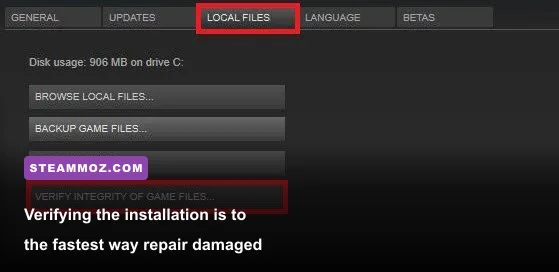
In Steam, right-click Batman: Arkham Knight, choose Properties, open Installed Files, and select Verify integrity of game files. This replaces missing or damaged archives, which are common causes of crashes after a mod removal, interrupted update, or failed disk write. Let Steam finish completely, then restart Windows before launching again.
2. Disable overlays and capture hooks
Turn off the Steam Overlay, Discord overlay, GeForce Experience or NVIDIA App overlay, AMD recording overlay, Xbox Game Bar, MSI Afterburner OSD, and ReShade temporarily. These programs inject themselves into the rendering pipeline. Arkham Knight may launch normally but crash when the first menu video, shader, or Batmobile sequence appears.
For a clean test, close every monitoring and recording program, not merely its visible window. If the crash disappears, re-enable tools one at a time. Keep the overlay you actually need and leave the rest disabled. This same isolation method is useful for other demanding PC games, including the crash and FPS fixes we used for Intergalactic Fishing.
3. Repair drivers and runtime files
Install the latest stable driver directly from the official NVIDIA driver page or AMD support page. If Arkham Knight began crashing immediately after a driver update, use a clean installation or roll back to the previous stable driver. Do not install beta drivers while troubleshooting.
Repair the Microsoft Visual C++ Redistributables supplied with the game, and install current DirectX legacy components from Microsoft's official DirectX End-User Runtime page. Modern Windows already includes newer DirectX files, but older games can still need legacy components such as XAudio or D3DX libraries.
4. Reset damaged configuration files
Back up your save files first, then close Steam. Arkham Knight stores configuration data under its BmGame configuration folder, while some user settings can also appear in your Documents or AppData folders depending on the installation and Windows version. Search for BmSystemSettings.ini and rename it to BmSystemSettings.old rather than deleting it. Steam will recreate a clean configuration on the next launch.
This reset is especially helpful after changing resolution, switching from integrated graphics to a dedicated GPU, or forcing unusual launch parameters. Avoid downloading random replacement INI files from file-sharing sites. A bad tweak can disable effects, create infinite loading, or make troubleshooting much harder.
5. Remove compatibility conflicts
Right-click the game's executable, open Properties, and test Disable fullscreen optimizations if Windows is introducing alt-tab crashes or incorrect fullscreen behavior. Do not stack compatibility modes, administrator mode, old Windows versions, and random launch commands all at once. Change one item, test one complete mission, and record the result.
If the title crashes only after loading a save, test an earlier save or start a temporary new game. A damaged save is uncommon, but it can happen. The official Warner Bros. Games support hub is the right place to report repeatable crashes that survive verification and a clean driver install.
Use These Settings to Stop Low FPS and Stutter
Launch the game, open the PC options, and begin with a controlled profile instead of blindly selecting Ultra. Set your monitor's native resolution, choose Exclusive Fullscreen if it behaves correctly on your system, and cap the game at 60 FPS. If your system cannot hold 60, a firm 30 FPS cap is often smoother than an uncapped range that jumps from 42 to 67.
| Setting | Recommended value | FPS impact | Visual trade-off |
|---|---|---|---|
| Resolution | Native 1080p; lower only as a last resort | Very high | Lower resolution softens the entire image |
| Texture Quality | High if VRAM allows; Medium below 3 GB | Low to medium | Mostly affects surface detail and memory use |
| Shadow Quality | Medium or High | Medium to high | Lower settings reduce rooftop shadow detail |
| Level of Detail | High, then Medium for CPU limits | Medium | Changes distant geometry and pop-in |
| Screen Space Reflections | Normal or Off for weak GPUs | Medium | Wet streets and glass lose reflected detail |
| Interactive Smoke/Fog | Off unless you have plenty of GPU headroom | Very high | Smoke becomes simpler but combat remains readable |
| NVIDIA PhysX Effects | Normal or Off on non-NVIDIA hardware | High on supported scenes | Less debris, fog, and cloth interaction |
| Rain Effects | On; turn off only when chasing stability | Low to medium | Rain and surface splashes are reduced |
| Motion Blur | Off | Small | Sharper image during gliding and driving |
Interactive Smoke/Fog is the first major cut because it can create huge frame-time spikes during explosions, predator rooms, and street battles. Screen-space reflections are next. They are attractive in rainy Gotham, but they cost more than their visual contribution suggests. Keep textures higher if your VRAM permits; reducing textures often makes the game look worse while saving less performance than cutting smoke or reflections.
NVIDIA PhysX deserves special caution. Extra fog, paper, debris, and cloth simulation can be expensive, particularly in scenes with smoke grenades and multiple enemies. It is not a universal FPS boost to enable PhysX just because you own an NVIDIA card. Use Normal first, then compare the same combat encounter with it Off.
Build a Stable 30 or 60 FPS Profile
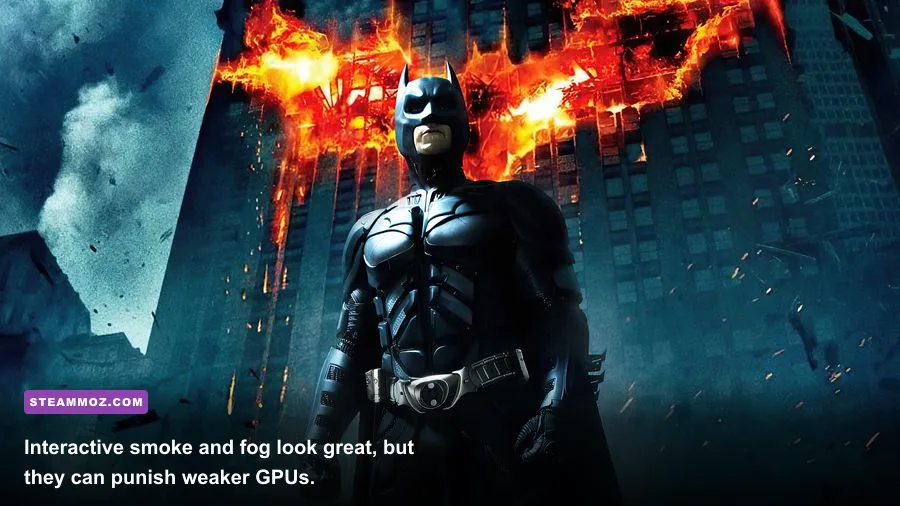
The balanced 60 FPS profile
For a PC around the recommended specification, use 1080p, High textures, Medium shadows, High level of detail, Normal reflections, Rain On, Motion Blur Off, Interactive Smoke/Fog Off, and PhysX Normal or Off. Cap at 60 FPS through the NVIDIA Control Panel, AMD Adrenalin, or RTSS. A frame limiter is preferable to unlimited rendering because it reduces unnecessary GPU spikes and keeps fan noise under control.
The reliable 30 FPS profile
For a minimum-class computer, use 1080p Low or 900p Low, Medium textures if VRAM allows, Low shadows, Medium level of detail, reflections Off, Smoke/Fog Off, PhysX Off, and a 30 FPS cap. The game is built around deliberate melee timing, so consistent 30 FPS feels far better than unstable 45 FPS with frequent stutters. If camera movement feels uneven, use the same cap method everywhere rather than combining multiple limiters.
| Profile | Core settings | Target hardware | Expected result |
|---|---|---|---|
| Competitive smooth | 1080p, Medium shadows, effects Off, 60 FPS cap | Modern 4-core CPU and mid-range GPU | Responsive combat and low distraction |
| Visual balance | 1080p, High textures, Medium shadows, Normal PhysX | Recommended specification or better | Good Gotham detail with controlled dips |
| Stability first | 900p or 1080p Low, effects Off, 30 FPS cap | Older CPU or 2 GB GPU | Consistent play with reduced spectacle |
Do not use V-Sync and an external limiter without testing frame pacing. Some systems feel smoother with in-game V-Sync, while others respond better to driver-level V-Sync and RTSS. Test in the same demanding location, such as a Batmobile run through Founders' Island, rather than judging performance inside the empty main menu.
Fix Batmobile Drops, Shader Stutter, and Texture Hitches
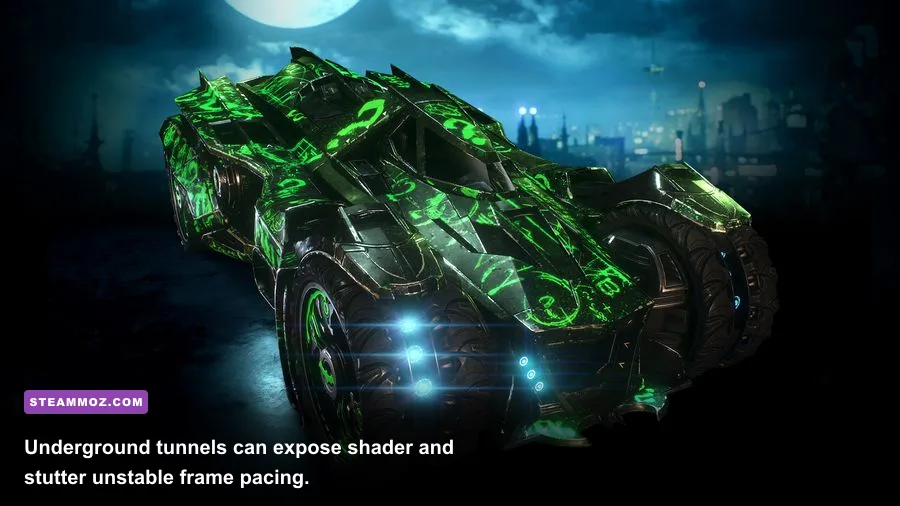
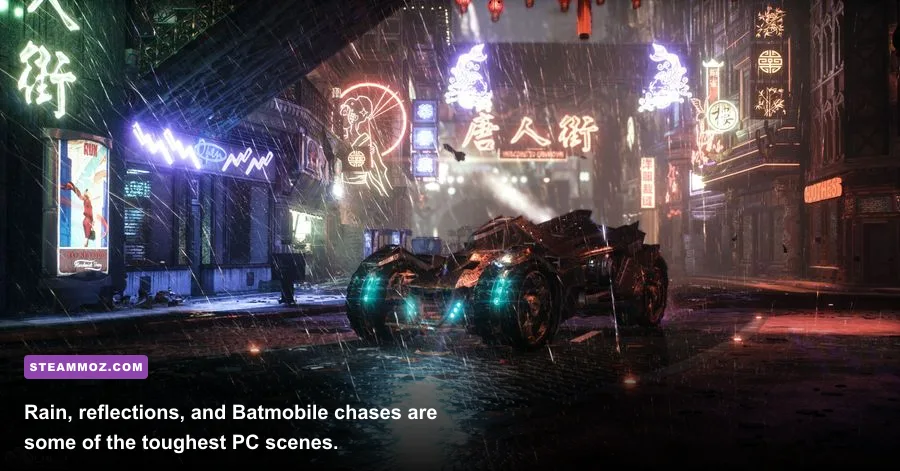
Batmobile sequences expose problems that ordinary rooftop combat can hide. Gotham streams new geometry quickly, the vehicle adds physics and effects, and reflections become more visible on wet roads. If FPS collapses only during driving, lower shadows, level of detail, reflections, and effects before reducing resolution. Also check whether your CPU is hitting 100 percent on one or more cores; that points to a processor or background-task limit rather than a GPU problem.
Shader stutter often happens the first time you enter a district, fire the Batmobile's Vulcan gun, or trigger a large explosion. Let the game build its caches by playing for several minutes after a driver change. Avoid repeatedly quitting during the first traversal and do not run a browser video, recording session, and file scan in the background.
Install on an SSD, keep at least 15 percent free space on the drive, and set Windows to High performance only if your temperatures remain safe. On laptops, plug in the charger and assign the dedicated GPU through Windows Graphics settings. Confirm that the game is using the NVIDIA or AMD card instead of Intel integrated graphics.
If stutter appears after installing a texture pack, ReShade preset, or community fix, remove the modification and verify files. Mods can be useful, but troubleshooting a modified install wastes time. Restore the vanilla game first, then add one mod at a time. For broader PC performance habits, our guide to stable settings in Hunt: Showdown covers the same frame-time discipline.
Final Troubleshooting Order for Arkham Knight
Use this order so you do not change ten variables and lose track of the real fix:
- Restart Windows and close overlays, recording tools, RGB utilities, and browsers.
- Verify Batman: Arkham Knight's Steam files.
- Update or clean-install the GPU driver.
- Reset BmSystemSettings.ini after backing up saves and settings.
- Confirm the dedicated GPU, plugged-in laptop power, and safe temperatures.
- Set 1080p, a 60 FPS cap, Smoke/Fog Off, PhysX Normal or Off, and Medium shadows.
- Test a demanding Batmobile route and a large combat encounter.
- Lower reflections, level of detail, and resolution only if the frame-time graph still spikes.
That sequence separates crashes from performance problems. A game that exits to desktop needs file, driver, overlay, runtime, or configuration troubleshooting. A game that stays open but stutters needs frame pacing, effects, streaming, thermals, or CPU analysis. Treating both symptoms as a simple graphics preset problem is why many Arkham Knight fixes fail.
Once the game is stable, you can safely restore visual features one by one. Turn on Rain, then reflections, then higher shadows, testing each change for a full patrol. Leave Interactive Smoke/Fog and high PhysX for last. Gotham's atmosphere is worth preserving, but a clean counter, a smooth cape glide, and a Batmobile chase without hitching are the upgrades you'll notice every minute.
If you enjoy tuning older PC releases, Steamoz also has practical guides for Aliens vs. Predator survival play and Katana ZERO's fast combat. For Arkham Knight specifically, though, the winning formula is simple: verify the install, remove injection-heavy overlays, cap the frame rate, and cut the expensive fog and PhysX effects before sacrificing resolution.