If you want maximum FPS in Barotrauma - Supporter Edition, start with 1080p fullscreen, V-Sync off, a 120 FPS cap, medium lighting, low particles, low post-processing, and high textures. That profile keeps the game readable without wasting GPU power on effects that barely help you spot a leak, crawler, or hostile submarine. On older PCs, lower lighting and particles first; texture quality is usually the last setting worth sacrificing.
The Supporter Edition does not turn Barotrauma into a fundamentally heavier game. It bundles the base game with supporter-focused extras, including additional cosmetic content, so your performance target is governed by the same submarine simulation, lighting system, particle effects, resolution, and multiplayer activity as the standard PC release. The real challenge is not finding a magic “Supporter Edition” switch. It is building a sensible profile for Europa’s dark environments, where a firefight, flooding room, fire, water pressure, and several active crew jobs can hit performance at the same time.

The Best Barotrauma FPS Profile to Use First
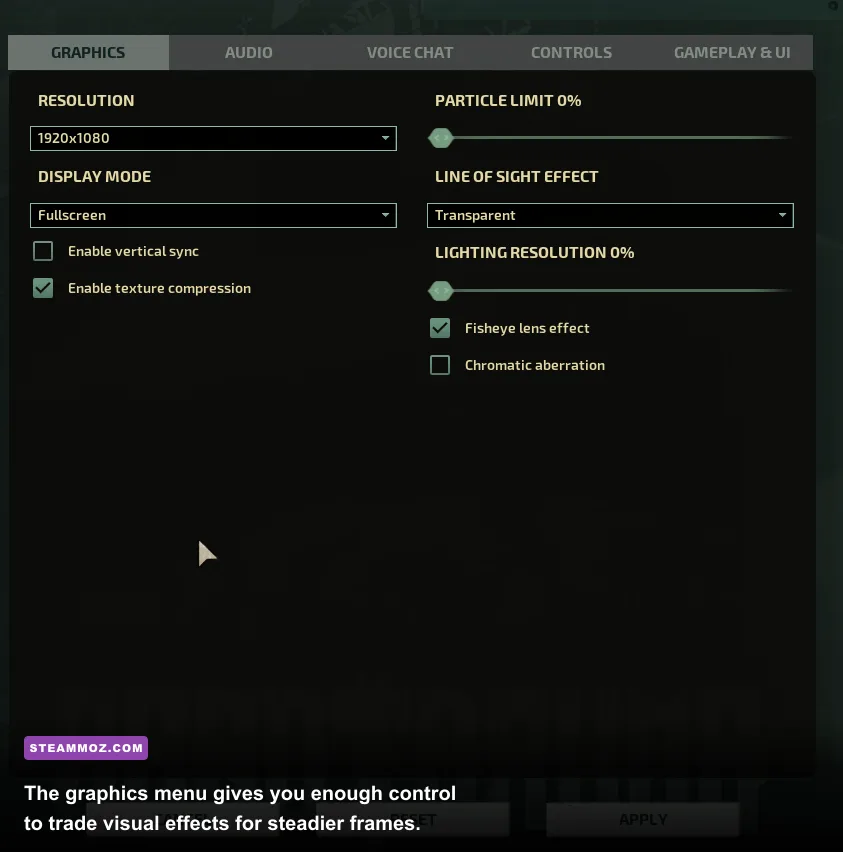
Before changing individual options, apply this balanced preset. It is aimed at a mid-range gaming PC with a dedicated GPU and 16GB of RAM, but it also gives older hardware a useful starting point. Barotrauma is a 2D game, yet that does not mean every setting is free. Fullscreen effects, dynamic lighting, particles, and post-processing can become surprisingly expensive when the screen fills with water, flame, smoke, alien creatures, and electrical damage.
| Setting | Recommended Value | FPS Impact | Visual Note |
|---|---|---|---|
| Resolution | Native 1080p | High | Use 1600×900 or 1280×720 only if GPU usage stays high. |
| Display Mode | Fullscreen | Low | Usually reduces desktop compositor interference. |
| V-Sync | Off | Low to medium | Removes synchronization delay; cap FPS separately. |
| Framerate Limit | 120 FPS | Medium | Use 60 FPS for a cooler, quieter system. |
| Texture Quality | High | Low | Keep high unless VRAM is limited or stuttering appears. |
| Lighting Quality | Medium | High | The best major cut for GPU-heavy scenes. |
| Particle Quality | Low | Medium to high | Reduces smoke, sparks, debris, and combat clutter. |
| Post Processing | Low or Off | Medium | Improves clarity and reduces extra screen effects. |
| Model Detail | High | Low to medium | Lower it only when crowded scenes cause dips. |
| Ragdolls and cosmetic effects | Low or medium | Low to medium | Useful cuts for weaker CPUs and busy multiplayer rooms. |
There is an important distinction between average FPS and useful FPS in Barotrauma. A counter showing 144 FPS while the submarine is calm does not tell you much. The meaningful test is a stressful moment: the reactor is damaged, two rooms are flooding, a swarm is attacking the hull, and your mechanic is dragging a welding tool through a corridor full of smoke. If the game remains above your monitor’s refresh target during that event, the profile is doing its job.
For a 60Hz monitor, a locked 60 FPS is often better than an unstable 100 to 140 FPS. It reduces heat, fan noise, and unnecessary GPU workload while keeping the cursor and menus consistent. If you use a 120Hz or 144Hz display, a 120 FPS cap is a sensible target. Avoid unlimited FPS unless you are benchmarking; a frame cap stops Barotrauma from driving the GPU at full power while the game is paused or showing a simple interior.

🎮 Barotrauma - Supporter Edition
Looking to experience this game? Grab your digital key directly on our store for $20.39.
View on Steammoz Store →Which Settings Hurt FPS the Most?
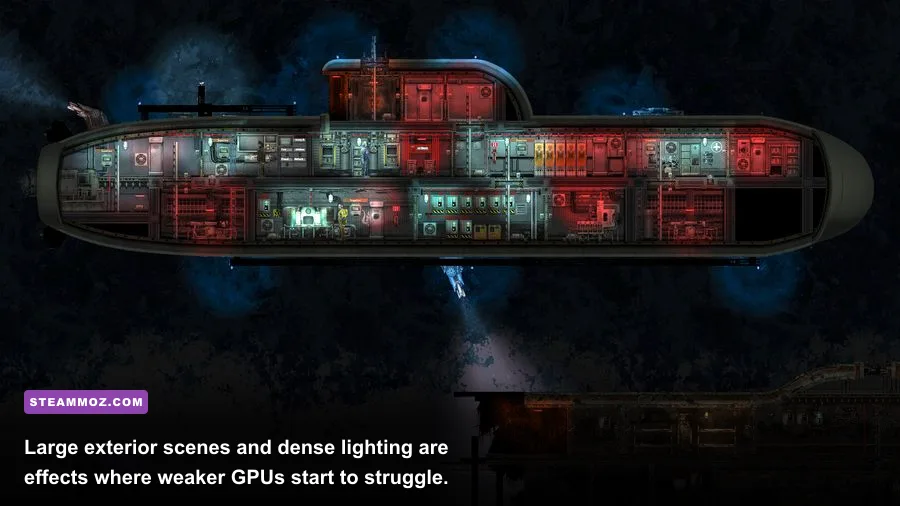
Lighting Quality is usually the first setting to adjust. Barotrauma’s atmosphere depends on darkness, colored illumination, emergency lights, and visibility changes, but higher lighting quality asks the GPU to process more of those effects. The impact is most obvious outside the submarine, around wrecks, in alien biome encounters, and during emergencies with multiple light sources. Moving from high to medium generally preserves the visual identity of the game. Going from medium to low creates a bigger visual compromise, but it can rescue frame-time spikes on entry-level GPUs.
Particle Quality is next. Water spray, steam, fire, sparks, smoke, debris, blood, and creature effects can all accumulate during a chaotic mission. The setting is particularly valuable in multiplayer because several players can trigger tools, weapons, repairs, and explosions at once. Low particles may make a reactor fire look less dramatic, but it also makes the screen easier to read. That is a good trade when you are trying to find the exact room that is filling with water.
Post Processing is a smaller but worthwhile cut. The option controls extra image treatment rather than the core submarine artwork. Turning it down can make the picture look flatter, but it often improves clarity in dark passages and removes visual noise around effects. If you play on a laptop, integrated graphics system, or older GTX-class card, set it to low or off before reducing textures.
| Performance Tier | Graphics Profile | Expected Use | Main Trade-Off |
|---|---|---|---|
| Competitive stability | 1080p, low lighting, low particles, post-processing off | Highest and most consistent FPS | Less atmospheric lighting and combat spectacle |
| Balanced | 1080p, medium lighting, low particles, high textures | Best choice for most gaming PCs | Small dips can remain during large emergencies |
| Visual quality | Native resolution, high lighting, medium particles, high textures | Modern mid-range and high-end GPUs | More frame-time spikes in exterior zones |
| Low-end rescue | 900p or 720p, low lighting, low particles, post-processing off | Older laptops and integrated graphics | Sharper details and lighting atmosphere are reduced |
Texture Quality behaves differently. Textures mostly affect VRAM capacity rather than raw GPU shader workload. If you have adequate VRAM, dropping from high to medium may produce almost no meaningful FPS gain. It can, however, reduce memory pressure and hitching on systems with limited graphics memory. Keep textures high while testing. If frame pacing is smooth but the game stutters when entering a new room or loading a new area, try medium textures and restart the game.
Model Detail is generally a secondary adjustment. Lowering it can help when many characters, creatures, items, and submarine objects occupy the screen, but the gain is commonly smaller than reducing lighting or particles. Keep it high on a modern desktop. On a CPU-limited machine, especially one with an older four-core processor, medium model detail combined with a 60 FPS cap can produce more consistent frame times.
Resolution, V-Sync, and Frame Pacing
Resolution is still the biggest blunt instrument. At 1080p, the GPU renders roughly twice as many pixels as 720p. If your GPU sits near 99 percent usage and FPS falls during effects-heavy scenes, test 1600×900 before jumping all the way to 1280×720. That intermediate step often keeps text, wiring, instruments, and item icons readable while recovering performance. Barotrauma’s interface contains vital information, so an overly soft resolution can slow you down even when the frame counter looks excellent.
Use exclusive fullscreen if the game and your operating system present that option cleanly. Borderless windowed mode is convenient for alt-tabbing, but desktop compositing and background applications can introduce small frame-time irregularities. Those irregularities matter more than the average number when you are aiming for a smooth 60 FPS. Close browsers with video tabs, launchers, RGB utilities, and hardware monitoring overlays you do not need.
V-Sync is a personal choice, but the performance profile is straightforward. With V-Sync enabled, the game synchronizes completed frames to your display refresh. That can eliminate tearing, but it may add input latency and create larger drops when the system misses a refresh window. With V-Sync disabled, you get the lowest latency and can control the cap through the game or GPU driver. If tearing bothers you, pair a stable cap with adaptive sync such as FreeSync or G-SYNC when your monitor supports it.
Do not chase a frame rate your hardware cannot sustain. If the game fluctuates between 58 and 90 FPS on a 60Hz display, the experience may feel less consistent than a fixed 60. Conversely, if your system can hold 120 FPS through a full flooding-and-fire emergency, that cap will make mouse movement and camera scrolling feel excellent. Test in a real campaign or multiplayer server rather than judging the menu.
Windows power settings can also undermine your results. Use a performance-oriented power mode while plugged in, make sure the dedicated GPU is selected for the game on a laptop, and update the graphics driver if Barotrauma recently began stuttering. These changes are more useful than random configuration-file edits. For broader troubleshooting, Steamoz’s PC low-FPS fixes and performance rescue guide cover the same driver, background-process, and thermal checks.
CPU Bottlenecks, Multiplayer, and Simulation Load
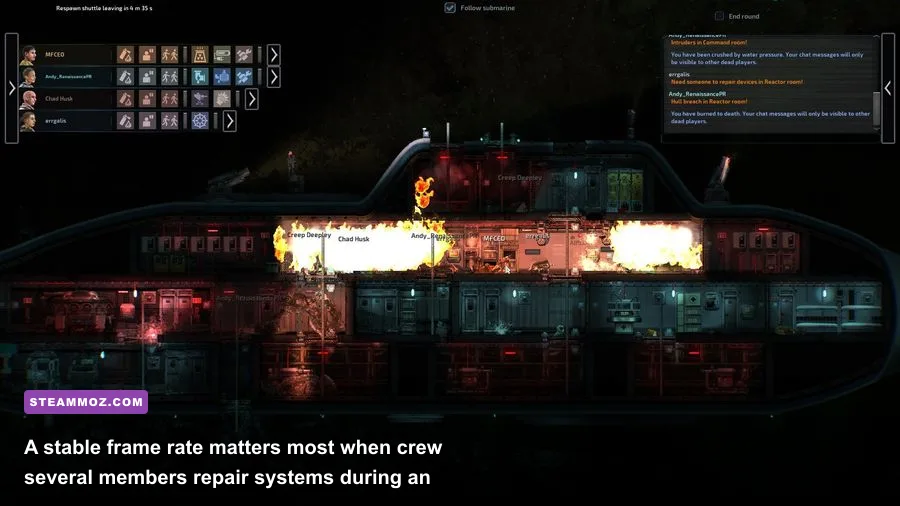
Not every Barotrauma slowdown is a graphics problem. The game simulates crew behavior, jobs, items, creatures, wiring, pumps, doors, reactors, weapons, water pressure, fires, and damage systems. A crowded submarine with a large crew can become CPU-limited even when your GPU is barely working. If lowering resolution does almost nothing, watch CPU and GPU usage separately. High GPU usage points toward resolution, lighting, particles, or post-processing. Low GPU usage alongside poor FPS usually points toward simulation load, background software, server activity, or a CPU bottleneck.
Multiplayer can make this feel inconsistent. In a busy session, the server and network connection affect how responsive movement and interactions feel, while your local PC still renders effects and simulates visual activity. A mission with several human players, bots, pets, wrecks, and hostile creatures can produce heavier spikes than a quiet single-player route. You cannot fix server simulation with a graphics slider, but lowering particle effects and setting a sensible frame cap makes local frame-time spikes less distracting.
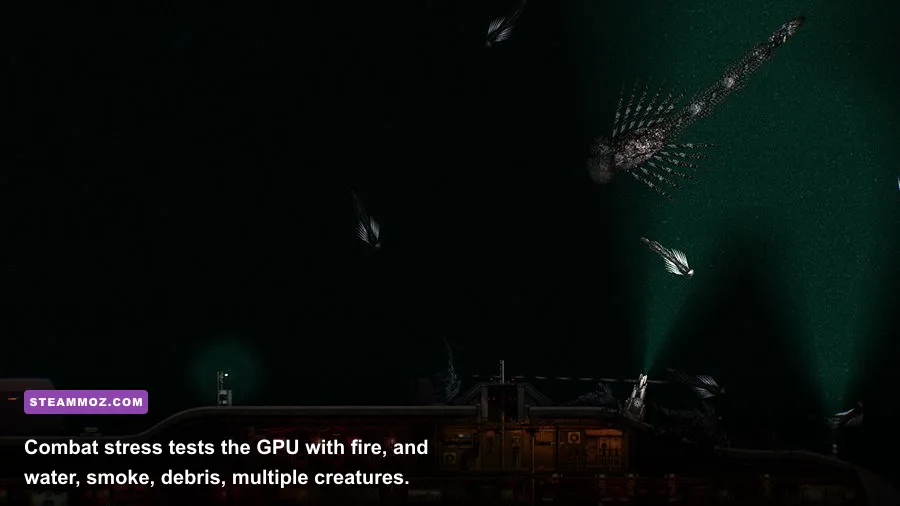
Barotrauma’s built-in gameplay systems also create visual stress in predictable ways. A flooded room adds animated water and changing visibility. Fires add light and particles. Electrical damage adds sparks. A creature attack adds movement, damage effects, and often frantic crew activity. Test your settings during these events, not only while piloting through an empty stretch of the Europa ocean.
| Symptom | Likely Limit | First Adjustment | What Not to Blame First |
|---|---|---|---|
| GPU usage near 100% | Graphics workload | Lower resolution, lighting, then particles | Texture quality alone |
| GPU usage low, one CPU core busy | Simulation or CPU limit | Cap FPS and lower model detail | Lowering resolution dramatically |
| Short freezes when entering areas | Asset or memory streaming | Test medium textures and close background apps | V-Sync as a universal fix |
| Only multiplayer feels delayed | Network or server load | Test another server and monitor latency | Assuming the GPU is failing |
| FPS worsens after long sessions | Thermal throttling or memory pressure | Check temperatures, fans, and VRAM | Increasing the FPS cap |
Large custom submarines can matter too. A detailed vessel with many rooms, doors, decorative lights, machinery, and interactive objects gives the game more to draw and simulate. If your frame rate is excellent on the Dugong but falls on a heavily customized multiplayer submarine, the ship layout may be part of the workload. That is not necessarily a bug. It is a useful clue that your system is hitting scene complexity rather than a universal graphics limit.
Keep mods in the performance investigation. Disable visual overhaul mods, reshade-style tools, high-detail texture packs, and large content collections temporarily. Test the vanilla game through the official Barotrauma Steam page installation. If the stutter disappears, re-enable modifications one at a time. The Steamoz settings guide for higher FPS also explains why isolating mods and testing one variable at a time is more reliable than changing everything together.
Low-End PCs, Steam Deck, and Final Tuning
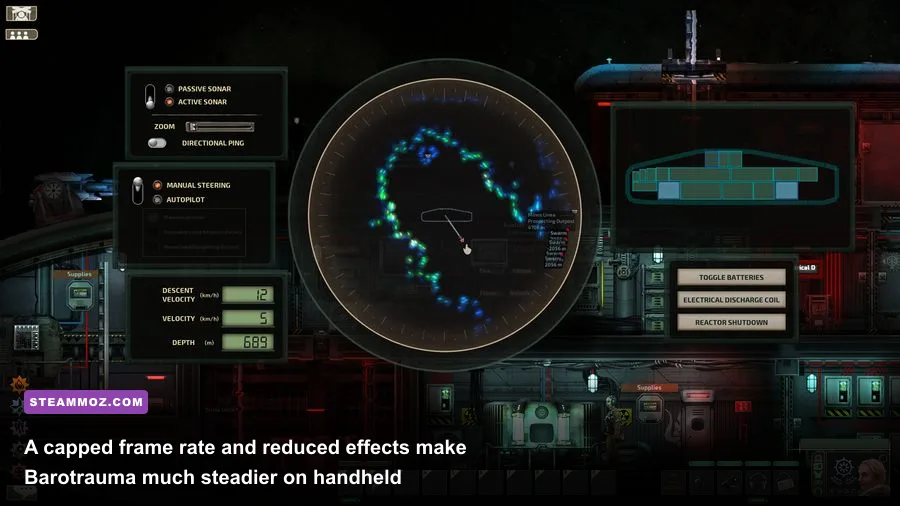
For an older laptop or integrated GPU, begin at 1280×720 or 1600×900, fullscreen, low lighting, low particles, post-processing off, medium textures, and medium model detail. Cap the game at 60 FPS. If it still dips during a fire or creature attack, reduce the cap to 45 FPS rather than letting frame time swing wildly. A locked 45 can feel surprisingly playable in a tactical submarine simulator, especially if it prevents the game from bouncing between 30 and 70.
On Steam Deck, prioritize stable frame pacing and battery life over a high counter. Use the native display resolution, a 60 FPS cap if the system holds it, or 40 FPS with a 40Hz display mode for a smoother low-power target. Low lighting, low particles, and post-processing off are the sensible cuts. Keep textures at medium or high if memory behavior is stable, since textures are less likely to deliver a large FPS improvement than lighting. If a long mission causes hitching, test medium textures and close other applications.
Steam Deck and laptop users should also watch temperature and power behavior. A handheld running at its thermal ceiling may start strongly and slow down later. The result can look like a graphics-setting problem even though the system is throttling. Use the device’s performance overlay, test a 40 or 45 FPS cap, and avoid unlimited frame rates. Barotrauma does not need a huge GPU workload to look good; it needs consistent motion and readable UI elements.
| Hardware Situation | Resolution | Lighting / Particles | Cap | Texture Target |
|---|---|---|---|---|
| Modern mid-range desktop | 1080p | Medium / Low | 120 FPS | High |
| Older gaming desktop | 1080p or 900p | Low / Low | 60 FPS | Medium or high |
| Entry-level laptop | 900p or 720p | Low / Low | 45–60 FPS | Medium |
| Steam Deck | Native display resolution | Low / Low | 40 or 60 FPS | Medium, then high if smooth |
| High-end desktop | Native monitor resolution | High / Medium | 120–144 FPS | High |
Once the profile is stable, change only one option at a time. Raise particles from low to medium and repeat the flooding test. Then try lighting. This tells you exactly where the frame-time cost comes from. If performance collapses only when lighting rises, leave particles higher for better combat readability and keep lighting medium. If you are CPU-limited, visual changes may barely matter; keep the cap conservative and focus on temperatures, background tasks, mods, and server conditions.
Make sure your PC meets the current requirements shown by Steam’s official listing, and use the official Barotrauma website for news and support information. The official community wiki is useful for gameplay systems, but it will not replace a proper performance test on your own hardware.
The short version is simple: keep textures high, cut lighting and particles first, disable post-processing when necessary, use fullscreen, and cap FPS to a number your PC can actually sustain during disasters. That combination preserves Barotrauma’s excellent submarine interiors and keeps emergency repairs responsive. If you still see crashes or severe instability after tuning, check Steamoz’s crash and FPS troubleshooting advice before blaming the Supporter Edition. In most cases, the best Barotrauma performance comes from a calm, repeatable profile rather than blindly setting every option to low.