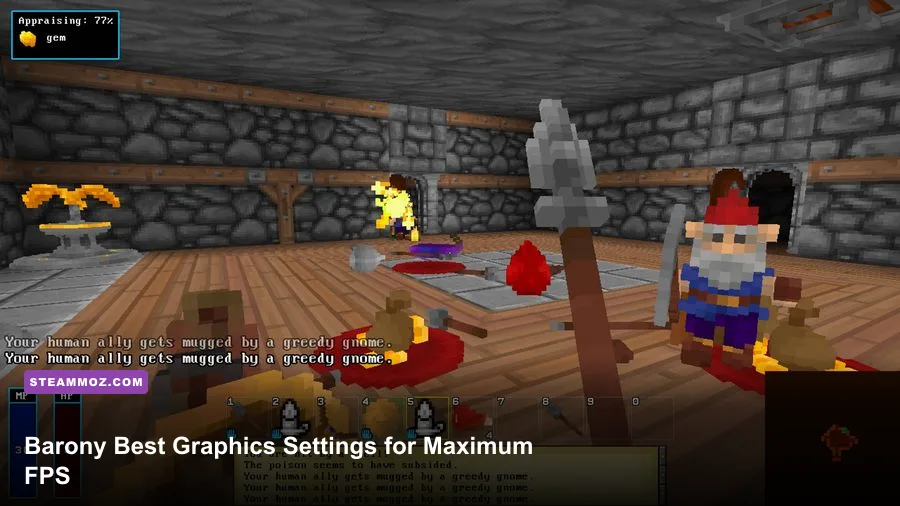
For the highest FPS in Barony, keep your native resolution, disable V-Sync and expensive post-processing first, then lower shadows, view distance, and effects before touching textures. The best all-round profile is native 1080p, exclusive fullscreen if available, V-Sync off, anti-aliasing on a low setting, shadows low, ambient occlusion off, bloom off, and effects on low or medium. That combination preserves Barony's readable pixel-art-inspired world while cutting the settings most likely to cause dips in crowded rooms.
Barony is not a modern cinematic showcase, but its first-person dungeon simulation can still punish an older CPU or integrated GPU. Multiple monsters, thrown items, fire, projectiles, particles, dynamic lights, physics interactions, and multiplayer players can all arrive at once. A stable frame time matters more than a giant average-FPS number here: a hitch during a Mimic ambush or a chaotic Minotaur chase can cost a run.
Before changing anything, check the official Barony Steam page for current system requirements and updates. Option names can shift slightly between builds, so treat this guide as a performance framework rather than a promise that every menu uses identical wording.

Start With the Right Barony FPS Target
Pick a target before you start lowering sliders. At 60Hz, a locked 60 FPS gives you a 16.7-millisecond frame budget. At 120Hz, 120 FPS leaves only 8.3 milliseconds, which is much harder for a CPU-heavy dungeon simulation to maintain. Barony feels responsive at 60 FPS, and a consistent cap is usually preferable to bouncing between 90 and 150 FPS with frequent one-frame stalls.
Use a short, repeatable test instead of judging performance in an empty hallway. Load the same save or seed, visit a room with several enemies, open doors, throw a few objects, and watch the frame-time graph while fire or magical effects are active. A quiet corridor mostly measures your graphics card. A packed combat space tells you whether the processor, simulation, or effects pipeline is actually holding you back.
| Hardware Situation | Practical Target | Starting Resolution | Recommended Cap |
|---|---|---|---|
| Modern gaming PC | 60-144 FPS | 1080p or 1440p native | Match monitor refresh when stable |
| Older quad-core PC | 60 FPS with dips avoided | 1080p native | 60 FPS |
| Integrated graphics laptop | 40-60 FPS | 900p or 720p | 40, 45, or 60 FPS |
| Steam Deck-class hardware | 40-60 FPS | 800p native | 40 FPS for battery, 60 FPS for responsiveness |
If your GPU usage stays below roughly 80 percent while FPS collapses in a busy room, lowering resolution will not solve the root problem. That pattern points toward CPU or simulation limits. Close overlays, browser tabs, capture software, and unnecessary background apps first. If GPU usage is pinned near 99 percent, resolution, shadows, ambient occlusion, and effects are the levers that matter.
🎮 Barony
Looking to experience this game? Grab your digital key directly on our store for $4.99.
View on Steammoz Store →The Best Barony Graphics Settings for Max FPS
Make changes in this order: display mode, V-Sync, resolution scale, shadows, ambient occlusion, effects, anti-aliasing, view distance, then textures. Textures are usually the last thing worth lowering because Barony's blocky surfaces do not consume nearly as much performance as dynamic lighting and screen effects. Turning textures down can also make item labels, dungeon surfaces, and distant props look needlessly muddy.
| Setting | Max-FPS Value | Approximate FPS Impact | Visual Trade-Off |
|---|---|---|---|
| Resolution | Native first; 900p or 720p if GPU-limited | High | Lower image clarity and smaller HUD detail |
| Fullscreen | Exclusive fullscreen, if offered | Low to medium | Can reduce compositor overhead and improve consistency |
| V-Sync | Off for maximum FPS | Low | May introduce tearing; use a cap if needed |
| Shadows | Low | Medium to high | Soft or distant shadows lose definition |
| Ambient Occlusion | Off | Medium | Less contact shading around walls and objects |
| Bloom and post-processing | Off | Low to medium | Torches, magic, and bright effects look flatter |
| Effects or particles | Low | Medium to high in combat | Fire, spells, smoke, and impact effects become simpler |
| Anti-aliasing | Low or FXAA, if available | Low to medium | More jagged edges at a distance |
| View distance | Medium | Medium on CPU-limited systems | Farther geometry and props appear later |
| Textures | High or medium | Low unless VRAM is tight | Lower detail on walls, items, and enemies |
| Particle lighting | Low or off, if available | Medium | Dynamic lights affect fewer particles |
Start with the low profile above, then restore quality one option at a time. Raise textures first, then anti-aliasing, and finally shadows. Do not raise every slider simultaneously: you want to know which change caused a bad frame-time spike. If Barony exposes a resolution scale option, 90 percent at 1080p is a useful compromise; 90 percent renders at about 1728 by 972 before scaling back to the display.
Why shadows and effects deserve priority
Shadows and effects become expensive exactly when the game is busiest. A torch-lit chamber with several enemies can add multiple visible lights, shadow casters, particles, and animated objects to a single frame. Medium textures won't rescue that situation, but low shadows and reduced effects can. Ambient occlusion is also easy to sacrifice: it adds depth around corners, yet turning it off rarely harms gameplay readability.
Anti-aliasing is more subjective. Barony's deliberately chunky visuals can look perfectly good with low AA at 1080p. At 720p, however, disabling it entirely may make weapon edges, railings, and distant enemies shimmer. Keep the cheapest AA mode enabled unless you are fighting for the last few frames.
Three Tested-Style Profiles for Different PCs
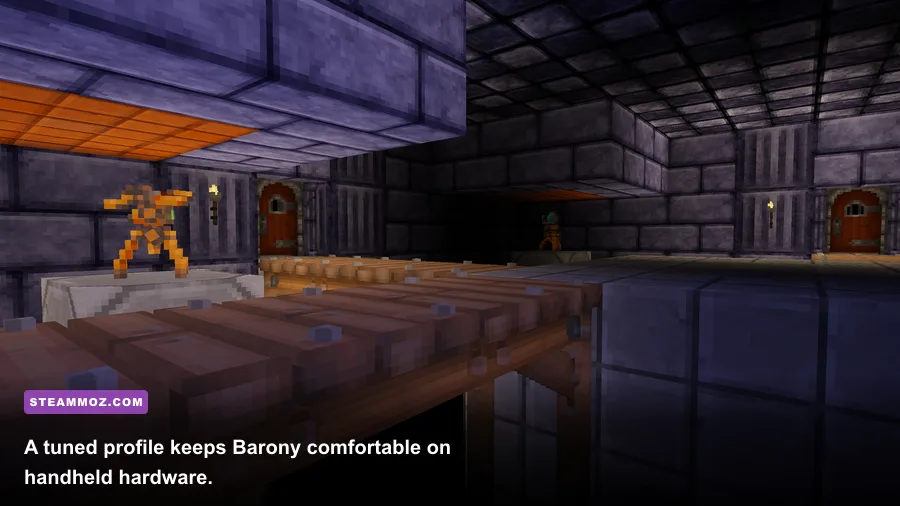
These profiles are designed around the way Barony's workload behaves, not around arbitrary “low, medium, high” labels. The competitive profile prioritizes consistent combat visibility and frame time. The balanced profile keeps the game's moody lighting intact. The visual profile is for systems with enough GPU headroom to enjoy the dungeon atmosphere without turning every effect to maximum.
| Profile | Core Settings | Best For | What to Expect |
|---|---|---|---|
| Maximum FPS | Native or 900p, V-Sync off, shadows low, AO off, effects low, AA low, view distance medium | Older PCs and high-refresh play | Best combat consistency; flatter lighting |
| Balanced 60 FPS | Native 1080p, V-Sync off or 60 cap, shadows medium, AO off, effects medium, AA low | Most dedicated GPUs and gaming laptops | Strong clarity with restrained dips |
| Atmosphere First | Native resolution, shadows high, AO medium, effects medium, AA medium, textures high | Modern GPUs with spare headroom | Better lighting; busy rooms still need testing |
For a 60 FPS target, use V-Sync only if tearing bothers you and the game can hold 60. Otherwise, cap FPS through your GPU driver or a reliable external limiter just below the refresh rate. A cap at 58 or 59 FPS on a 60Hz display can smooth delivery, while a 40 FPS cap is a sensible Steam Deck compromise because it divides evenly into the handheld's 60Hz refresh.
Steam Deck users should begin at the native 1280x800 display resolution, 40 FPS, 40Hz refresh, shadows low, ambient occlusion off, and effects low. If the frame graph remains clean through combat, raise textures or shadows—not both. Battery life usually suffers more from uncapped FPS than from a modest texture upgrade.
How to Fix Stutter That Settings Cannot Cure
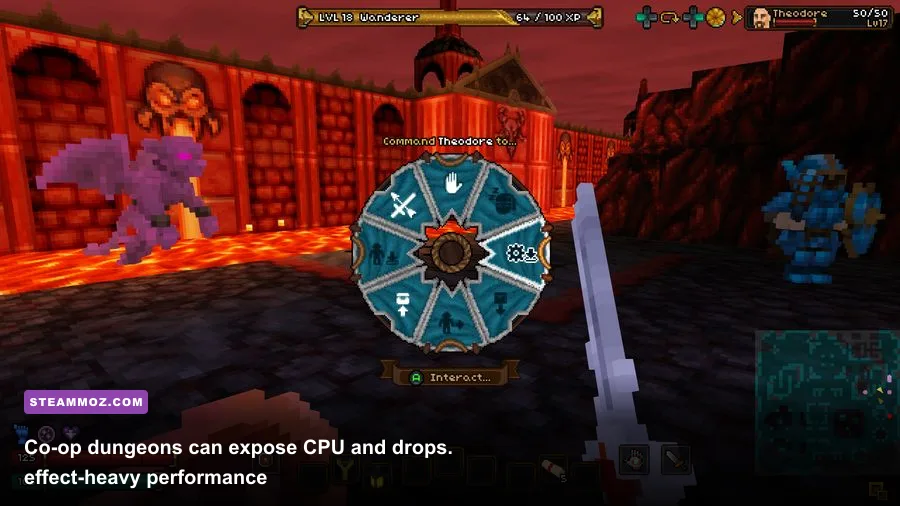
Not every hitch is a graphics problem. Barony uses procedural dungeon generation and a busy simulation, so a sudden drop when entering a new area can be related to asset loading, shader compilation, CPU scheduling, or background software. If the average FPS looks excellent but frame time spikes whenever you open a door, lower view distance and effects, then test with overlays disabled.
- Confirm the bottleneck. Watch GPU utilization, CPU utilization, VRAM, and frame time. A full GPU means lower resolution and shadows. A low GPU reading with one CPU core heavily loaded points to simulation overhead.
- Use a stable cap. Uncapped rendering can make the processor work harder for frames you cannot see. Try 60, 90, or 120 FPS depending on your display, then choose the highest cap that survives combat.
- Disable overlays temporarily. Steam Overlay, Discord, recording tools, RGB utilities, and aggressive antivirus scans can create intermittent spikes. Re-enable them one by one after testing.
- Keep drivers and the game current. Install the latest stable graphics driver and verify files through Steam if textures, effects, or menus behave strangely. Check Barony's official Steam discussions for build-specific reports.
- Test multiplayer separately. Co-op adds network traffic and more active entities. If solo performance is smooth but co-op stutters, reduce effects and view distance before dropping resolution.
Do not chase a benchmark number in an empty starting area. The meaningful test is a dangerous room: several enemies, active fire, doors opening, items moving, and your character turning quickly. Barony's combat rewards consistent input, and a stable 50 FPS can feel better than an unstable 90.
For broader PC troubleshooting, our guides on Filament's best settings and Dungeons 3 PC performance cover the same useful process of separating GPU limits from CPU and frame-time problems.
Keep Barony Sharp Without Sacrificing Performance
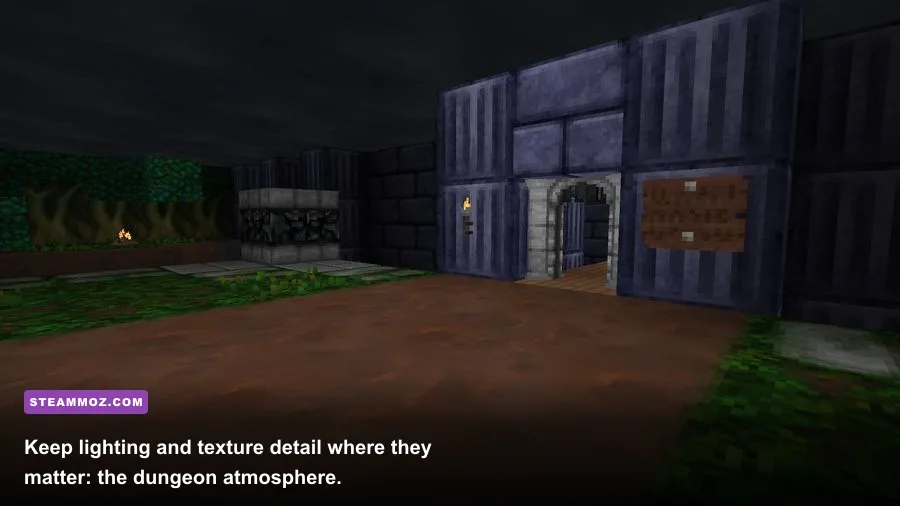
Once the game is stable, restore visual quality in a deliberate order. Textures on high are usually a safe upgrade if your graphics card has enough VRAM. Next, raise anti-aliasing if distant geometry shimmers. Shadows should come last because their cost rises sharply in rooms filled with lights and moving enemies. Ambient occlusion is a luxury setting, not a requirement for readable combat.
There is also a gameplay reason to avoid aggressive visual reductions. Barony's hazards and enemies are easier to read when contrast remains intact. Turning every effect off may improve FPS but can make magical attacks, flames, and environmental cues less obvious. The balanced profile is therefore my recommendation for most players: native resolution, low AA, medium textures, low-to-medium effects, low shadows, and AO off.
Keep the official Barony developer site and the community wiki nearby for gameplay references, but use your own repeatable dungeon test for performance decisions. Seeds, enemy populations, co-op parties, and active spells can change the workload dramatically.
The short version is simple: preserve resolution and textures, cut shadows and post-processing, cap the frame rate, and judge performance during combat rather than while staring at an empty corridor. That approach gives Barony the responsiveness it needs without stripping away the torch-lit dungeon mood that makes every run feel dangerous.
If you're tuning other demanding indie games, Steamoz's Clone Drone beginner tips and Door Kickers raid guide are useful next reads for performance-minded players.