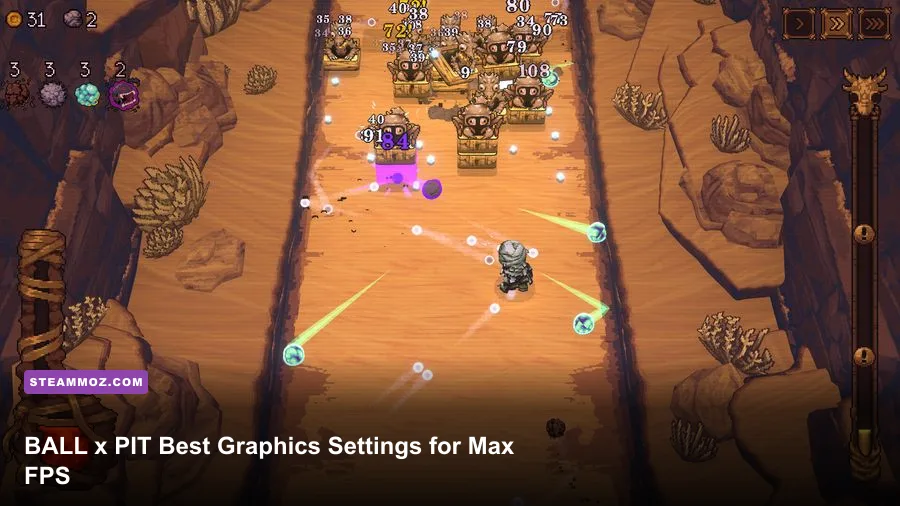
The best BALL x PIT graphics settings for maximum FPS are 1080p fullscreen, VSync off, a stable frame cap, and reduced screen effects. Set the game to your monitor’s native resolution first, disable VSync if you use a proper frame limiter, and lower screen shake, hit flashes, damage numbers, and other combat effects before touching image quality. BALL x PIT is a lightweight pixel-art game during the opening minutes, but its frame-time load rises sharply when a run combines large enemy waves, dozens of bouncing balls, elemental effects, damage pop-ups, and a busy base screen.
That distinction matters. You probably won’t gain much by lowering 1080p to 720p if your PC is struggling during a late wave. The GPU has very little trouble drawing the game’s deliberately retro environments. The CPU, effects layer, object count, and presentation effects are more likely to cause stutter. This guide gives you a clean competitive profile, a quality profile for stronger PCs, and a troubleshooting route for laptops or handheld PCs.

Best BALL x PIT settings for max FPS
Start with the table below, then adjust only one option at a time. The FPS impact is relative rather than a promise of a fixed number because BALL x PIT performance depends on your processor, graphics driver, display resolution, background applications, and how chaotic your current run becomes.
| Setting | Recommended Value | FPS Impact | Visual Note |
|---|---|---|---|
| Display Mode | Fullscreen | Low to medium benefit | Usually gives the cleanest frame pacing and avoids desktop compositing overhead. |
| Resolution | Native 1920×1080 | Low in most systems | Preserves crisp pixel-art edges; lower resolution is a fallback, not the first fix. |
| VSync | Off with an external cap | Medium latency benefit | Removes synchronization delay, though tearing can appear. |
| Frame Rate Limit | 60 FPS, or your monitor’s stable refresh target | Improves consistency | A locked 60 FPS is better than an unstable 144 FPS during huge waves. |
| Post-Processing | Low or Off | Low to medium | Reduces extra screen effects without changing the core pixel-art look. |
| Screen Shake | Off | Small average gain, large clarity gain | Stops camera movement from hiding enemy movement and projectile paths. |
| Hit Flash and Combat Flash | Low or Off | Small to medium in crowded fights | Reduces bursts of overlapping effects during multi-hit attacks. |
| Damage Numbers | Low, condensed, or Off | Small CPU and visual gain | Improves readability when several balls hit at once. |
| Particles and Effects | Medium | Medium during late waves | Keeps elemental attacks readable while reducing effect clutter. |
| Background Detail | Medium | Low | Useful only after combat effects have already been reduced. |
If your menu uses slightly different labels after an update, look for the equivalent option. The important targets are fullscreen presentation, a stable frame rate, fewer full-screen effects, and reduced combat clutter. Don’t chase a maximum benchmark number in the opening area. A run that feels perfect at the start can still hitch once enemies, balls, pickups, and effects occupy nearly every part of the arena.
My recommended competitive profile
For the most consistent feel, use fullscreen at 1920×1080, VSync off, a 60 FPS cap, low post-processing, medium particles, and screen shake disabled. Keep the resolution native unless you’re playing on an integrated GPU or an older laptop. Pixel art can look noticeably softer when the game is scaled from an unusual resolution, so 1280×720 is a better fallback than an arbitrary custom value.
Players with 120Hz, 144Hz, or 165Hz monitors can try a higher cap, but only if the game actually holds that target in the densest wave you can reach. If it repeatedly drops from 144 to 90 FPS, a locked 90 or 120 FPS profile will feel smoother than an uncapped presentation that constantly fluctuates. Use a driver-level limiter through NVIDIA App, AMD Adrenalin, or your handheld’s performance software if the in-game limiter produces uneven pacing.
🎮 BALL x PIT
Looking to experience this game? Grab your digital key directly on our store for $11.99.
View on Steammoz Store →Why BALL x PIT slows down during chaotic runs
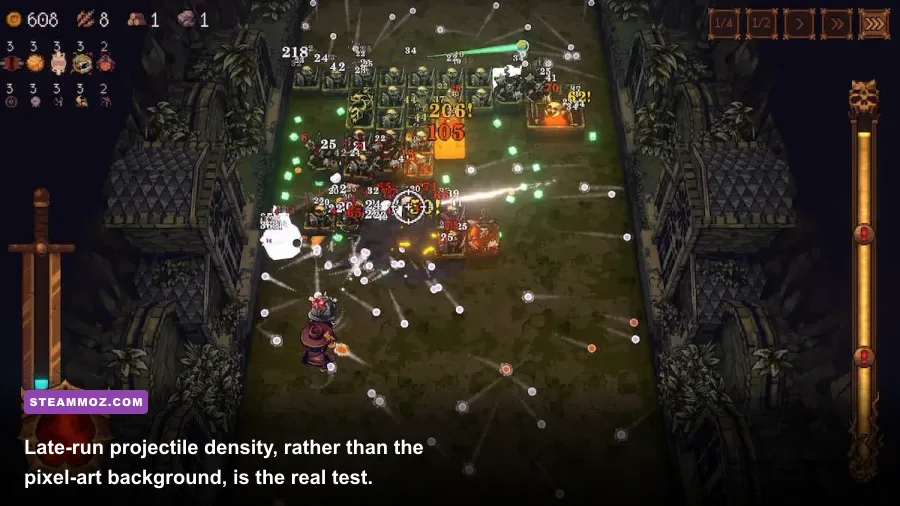
BALL x PIT’s biggest performance spikes come from simulation density. Every bouncing ball needs movement and collision handling. Every enemy needs pathing, attack timing, hit detection, health updates, and death behavior. Add Fireball-style area damage, Iceball control effects, Poisonball damage-over-time ticks, Swordball-style melee contact, or other upgraded ball combinations, and the game has far more work to process than its simple art style suggests.
That’s why a low-end PC may report comfortable GPU usage while still feeling a hitch. Your graphics card is waiting for the CPU to finish the next simulation step. Task Manager can help confirm this: watch CPU utilization by core rather than looking only at the overall percentage. A single busy thread can limit frame delivery even when total CPU usage appears modest.
There’s also a visual side to the problem. Bright hit flashes, floating damage numbers, explosions, elemental trails, and screen shake may not be the main cause of a slowdown, but they make a small frame-time spike much easier to notice. They also make it harder to read enemy telegraphs. In a game built around positioning and repeated projectile interactions, clarity is performance in practical terms.
| Scenario | What Usually Causes the Drop | First Fix to Try | Why It Works |
|---|---|---|---|
| Opening minutes run smoothly | Low object and effect count | Keep native resolution | There’s no reason to sacrifice sharpness before the game becomes busy. |
| Large enemy wave stutters | CPU simulation and collision load | Cap FPS and reduce particles | Fewer effect events and a realistic target improve frame pacing. |
| Elemental build causes flashes | Overlapping combat effects | Lower post-processing and hit flash | Reduces bursts layered over every successful hit. |
| Base screen feels uneven | Scaling, background apps, or menu compositing | Use fullscreen and close overlays | Removes common presentation overhead outside combat. |
| Handheld dips while plugged in | Power profile, heat, or frame cap mismatch | Use a 60 FPS cap and balanced TDP | Prevents the device from chasing a target it cannot sustain thermally. |
Don’t assume every hitch is a graphics problem. If lowering resolution changes nothing, restore native resolution and focus on effects, frame pacing, drivers, and background software. This is the same basic diagnostic logic we use in our ELEX PC performance fixes and the EscapeVR low-FPS troubleshooting guide: identify whether the limit is GPU rendering, CPU simulation, thermal throttling, or frame pacing before lowering everything blindly.
Best settings for low-end PCs and Steam Deck
On an older laptop, integrated graphics system, or Steam Deck, the winning approach is controlled consistency rather than maximum image quality. Begin at 1280×800 on Steam Deck or 1280×720 on a conventional laptop, select fullscreen or the game’s borderless option if fullscreen behaves badly, and cap the game at 60 FPS. If the device cannot hold 60 FPS during late waves, lock 40 FPS or 30 FPS instead of letting the frame rate jump between targets.
Steam Deck owners should avoid stacking multiple limiters. If you use the SteamOS frame-rate limiter, leave VSync behavior consistent and don’t add an aggressive second cap through another overlay. A practical starting point is 60Hz, 60 FPS, low post-processing, medium particles, screen shake off, and brightness high enough to distinguish enemies from the background. If battery life matters more than responsiveness, 40Hz and 40 FPS can be a remarkably stable compromise.
For Windows handhelds, choose the 15W to 20W range only if testing proves the system can sustain it without heat-related clock drops. BALL x PIT may look easy to run, but the long-run test is more important than the first five minutes. Use the same save or run route repeatedly, reach a crowded encounter, and watch the one-percent-low behavior. A steady 60 FPS is preferable to a short-lived 90 FPS spike followed by stutter.
| Hardware Profile | Resolution | Target | Recommended Preset |
|---|---|---|---|
| Modern gaming PC | Native 1080p or 1440p | 60–144 FPS | High visuals, VSync off, cap below unstable peaks. |
| Older four-core laptop | 1280×720 or 1600×900 | 60 FPS | Low post-processing, medium particles, effects reduced. |
| Integrated graphics | 1280×720 | 30–60 FPS | Fullscreen, low effects, damage numbers minimized. |
| Steam Deck LCD or OLED | 1280×800 | 40 or 60 FPS | 60Hz/60 FPS first; 40Hz/40 FPS for battery and stability. |
| Older mini PC | 1280×720 | 30 FPS | Everything affecting effects and post-processing set low or off. |
Keep the Steam overlay off if you’re chasing the last few milliseconds of frame time, especially when recording or using third-party overlays. Close browser video tabs, RGB control suites, launchers, and hardware monitoring tools you don’t need. Avoid aggressive Windows power-saving modes during testing, but don’t leave a laptop in a high-performance thermal profile permanently if the fans are already struggling.
Visual settings that improve gameplay, not just FPS
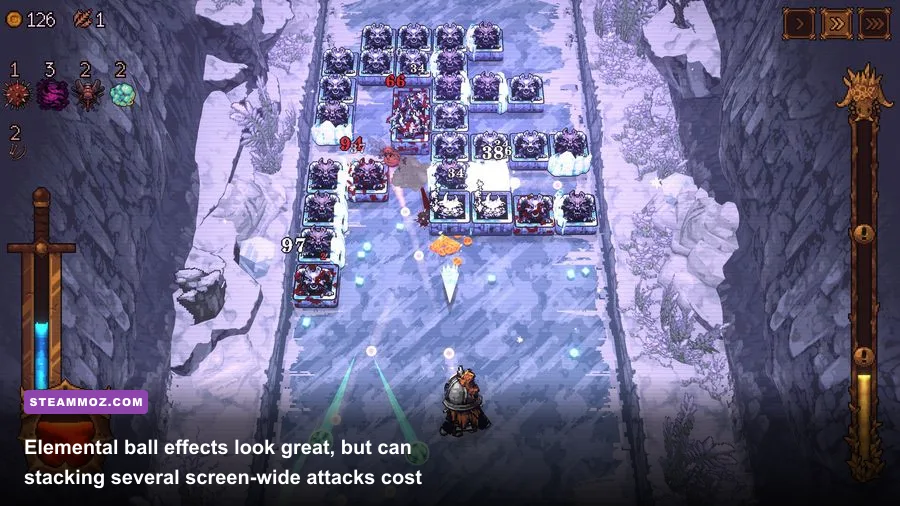
Screen shake is the first option I’d disable, even on a powerful PC. BALL x PIT throws a huge amount of information at you, and camera movement can obscure incoming enemies or make a ball’s return path harder to judge. The setting may not double your frame rate, but it makes the game feel more responsive because your eyes can follow the action cleanly.
Damage numbers are more complicated. They’re useful when testing a new ball combination or deciding whether an upgrade is pulling its weight, but a wall of numbers can bury enemy silhouettes. Keep them on while learning a build, then reduce them for serious runs. If the menu offers a compact or reduced display, that’s the best middle ground.
Particle quality deserves a medium setting rather than an automatic minimum. Turning every effect off can make Fireball explosions, Poisonball damage-over-time feedback, and Iceball-style control effects harder to read. Medium usually preserves the visual cue while limiting the number of overlapping particles. If a particular build creates constant full-screen flashes, lower combat effects before background detail.
Don’t confuse pixel sharpness with expensive rendering
Native resolution and nearest-neighbor-style pixel scaling are worth preserving when possible. The game’s visual identity depends on hard edges, readable sprites, and clear projectile silhouettes. Lowering resolution can make the whole screen blurry without fixing the CPU-bound spikes that happen during crowded combat. Likewise, a higher resolution on a strong GPU may have almost no measurable effect if the processor is the actual limit.
For that reason, the best-looking high-performance setup is often native 1080p with restrained effects, not 720p with every visual option disabled. This also makes screenshots, enemy outlines, and pickups easier to read. If you want another example of why resolution is only one part of PC tuning, our Fatal Fury: City of the Wolves PC specs breakdown explains how different games can hit very different bottlenecks despite similar resolutions.
How to test FPS properly before a long run
Use a repeatable test instead of judging the game from its title screen. Launch a run, keep the same resolution and frame cap, and play until you reach a wave with dense enemy movement and several simultaneous ball effects. Record the average FPS, the lowest sustained behavior, and whether input feels delayed. A single one-second hitch is less useful than knowing whether the game regularly dips every time a new enemy group enters the arena.
Five-step performance test
- Start at native resolution. Use 1920×1080 on a standard Full HD monitor or the panel’s native value on a handheld.
- Set a realistic cap. Choose 60 FPS first. Only move to 120 FPS or higher after the densest battle remains stable.
- Disable screen shake. This gives you a cleaner read on responsiveness and removes a distracting variable.
- Test effects separately. Change particles, post-processing, hit flash, and damage numbers one at a time.
- Repeat the crowded section. Compare frame pacing, not just the highest number shown by an overlay.
If you see screen tearing with VSync off, try a driver-level cap a few frames below your display refresh rate. On a 60Hz monitor, a 60 FPS cap with VSync may be preferable if tearing bothers you; on a variable-refresh display, FreeSync or G-SYNC plus a sensible cap usually gives the best combination of responsiveness and smoothness. The correct choice is the one that avoids both visible tearing and repeated frame-time spikes.
Steam’s official BALL x PIT store page is the right place to check current system requirements and patch notes. Requirements can change as the developer tunes effects, adds content, or fixes compatibility problems. If you encounter a repeatable hitch, note your hardware, resolution, frame cap, graphics preset, and the exact type of encounter before reporting it. “Low FPS” is much less useful than “the game drops from 60 to 42 FPS when a large wave and multiple area attacks appear.”
Final max-FPS profile and troubleshooting checklist
For most players, this is the profile I’d actually use: native 1920×1080, fullscreen, VSync off, 60 FPS cap, low post-processing, medium particles, screen shake off, reduced hit flashes, and damage numbers set to compact or off. On Steam Deck, use native 1280×800 with a 60 FPS target, then move to 40 FPS if battery life or sustained performance is more important. On an integrated GPU, drop to 1280×720 only after reducing combat effects.
| Problem | Likely Cause | Action | Expected Result |
|---|---|---|---|
| Tearing with smooth FPS | VSync disabled | Enable VSync or use VRR with a frame cap | Cleaner presentation with slightly more latency. |
| Stutter only in huge waves | CPU simulation or object count | Cap to 60/40 FPS and reduce particles | More even frame pacing when the arena is crowded. |
| Blurry pixel art | Non-native scaling | Return to native resolution and use fullscreen | Sharper sprites and cleaner projectile silhouettes. |
| Performance worsens over time | Thermal throttling or background apps | Check temperatures, power mode, and overlays | More stable clocks during longer sessions. |
| FPS looks high but controls feel bad | Frame pacing or double limiting | Remove extra limiters and test one cap | More consistent input response. |
Before blaming your hardware, update your graphics driver, verify the game files in Steam, restart after changing display modes, and test without recording software. If the issue survives all of that, check the developer’s official site and Devolver Digital’s BALL x PIT page for support information and updates. You can also compare the approach with our Far Cry 6 max-FPS settings guide, although BALL x PIT’s bottleneck is usually simulation and effect density rather than heavy 3D rendering.
The short version is simple: keep the pixel art sharp, cap the game at a frame rate your PC can genuinely sustain, and cut visual clutter before cutting resolution. BALL x PIT rewards quick reading and clean positioning, so disabling screen shake and taming combat effects can improve your run even when the FPS counter barely moves. Test your settings in the busiest fight you can reach—not the quiet opening—and you’ll get a setup that stays smooth when the ball combinations and enemy waves finally become outrageous.