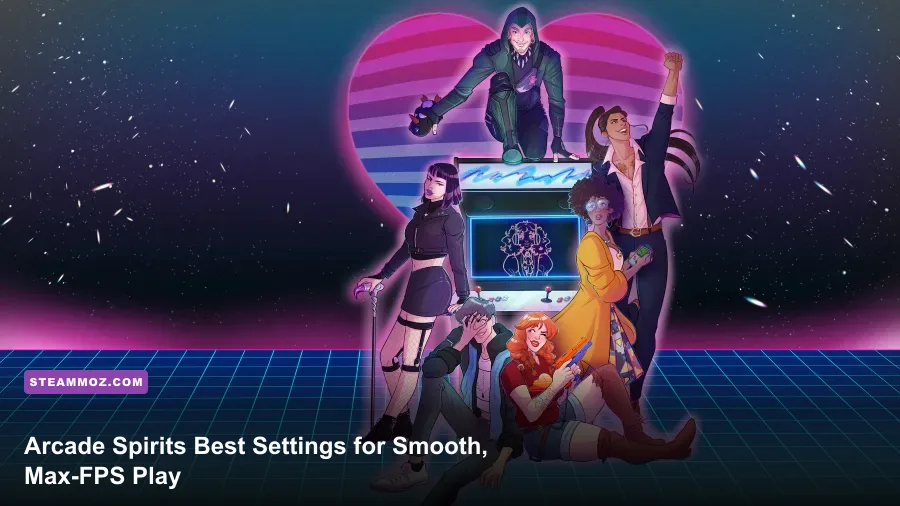
If you want the best Arcade Spirits graphics settings for max FPS, use 1920x1080 or your monitor’s native resolution, enable fullscreen, keep quality at High, and turn VSync on unless you specifically want the lowest possible latency. Arcade Spirits is an exceptionally light PC game, so performance problems usually come from incorrect scaling, background applications, overlays, or display-mode quirks rather than a weak graphics card.
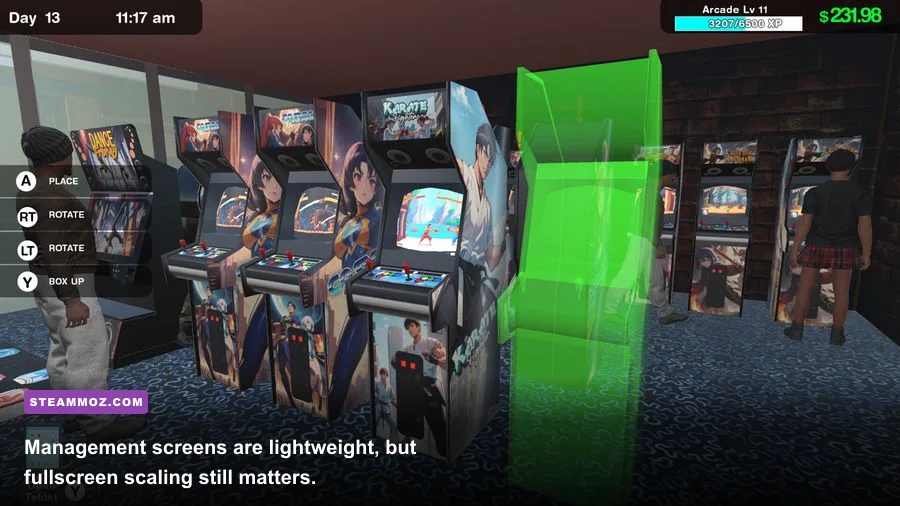
That distinction matters. Arcade Spirits is a visual novel and arcade-management game, not a 3D action title pushing hundreds of animated objects through a demanding world. Its presentation relies on illustrated character portraits, 2D backgrounds, interface panels, transitions, and occasional arcade-floor scenes. Once the game reaches a stable refresh rate, raising the frame counter higher rarely changes how it feels. The real win is eliminating stutter, delayed transitions, blurry scaling, and fullscreen problems.
This guide focuses on the Windows PC version available through Arcade Spirits on Steam. Before changing anything, make sure the game is updated and compare your setup with the official Steam system requirements. You’ll find that the recommended hardware is extremely modest by modern standards.
The best Arcade Spirits settings at a glance
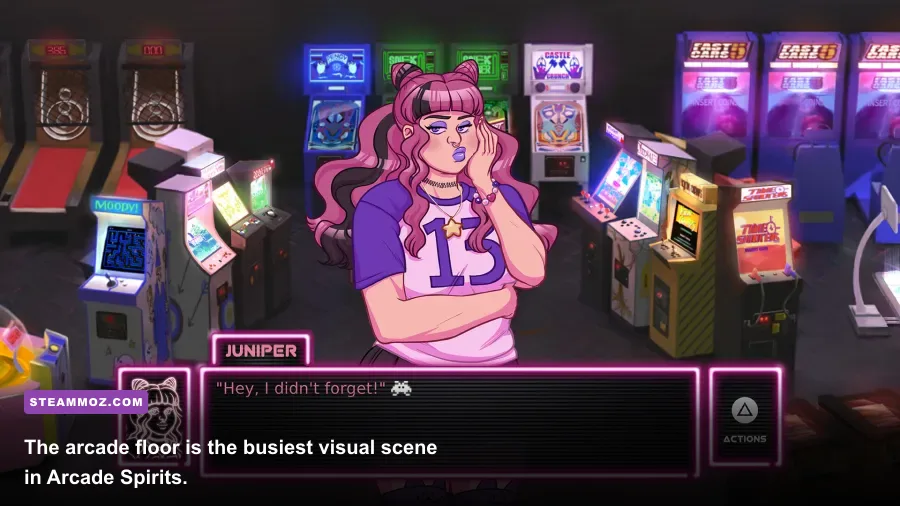
For almost every gaming PC, the ideal profile is simple: native resolution, fullscreen mode, High quality, and VSync enabled. That combination preserves the clean edges of the game’s illustrations while preventing tearing during scene changes and menu movement. If your display is 144Hz or faster, don’t assume Arcade Spirits needs to run at that rate. A locked, consistent presentation is more valuable here than chasing an inflated FPS number.
| Setting | Recommended Value | FPS Impact | Visual Note |
|---|---|---|---|
| Display Mode | Fullscreen | Low | Usually gives the most consistent presentation and avoids desktop compositor surprises. |
| Resolution | Native monitor resolution | Low | Prevents soft text and blurred character art caused by non-native scaling. |
| Quality Preset | High | Very low | Best image quality; lower presets are mainly useful for troubleshooting. |
| VSync | On | None in most cases | Removes tearing during transitions and scrolling. |
| Frame Rate | Stable monitor refresh or 60 FPS | None | Stability matters more than pushing 144 FPS in a dialogue-heavy game. |
| Windowed Mode | Use only when needed | Low | Helpful for multitasking, but can introduce scaling or focus issues. |
Arcade Spirits does not need aggressive reductions to shadows, effects, or texture quality because it isn’t built around the kind of 3D rendering load those options usually control. If your version exposes a quality preset rather than individual graphics toggles, start at High and step down only after testing. Dropping every setting to Low on a modern PC won’t create a meaningful gameplay advantage.

🎮 Arcade Spirits
Looking to experience this game? Grab your digital key directly on our store for $1.99.
View on Steammoz Store →Why resolution and fullscreen matter more than FPS
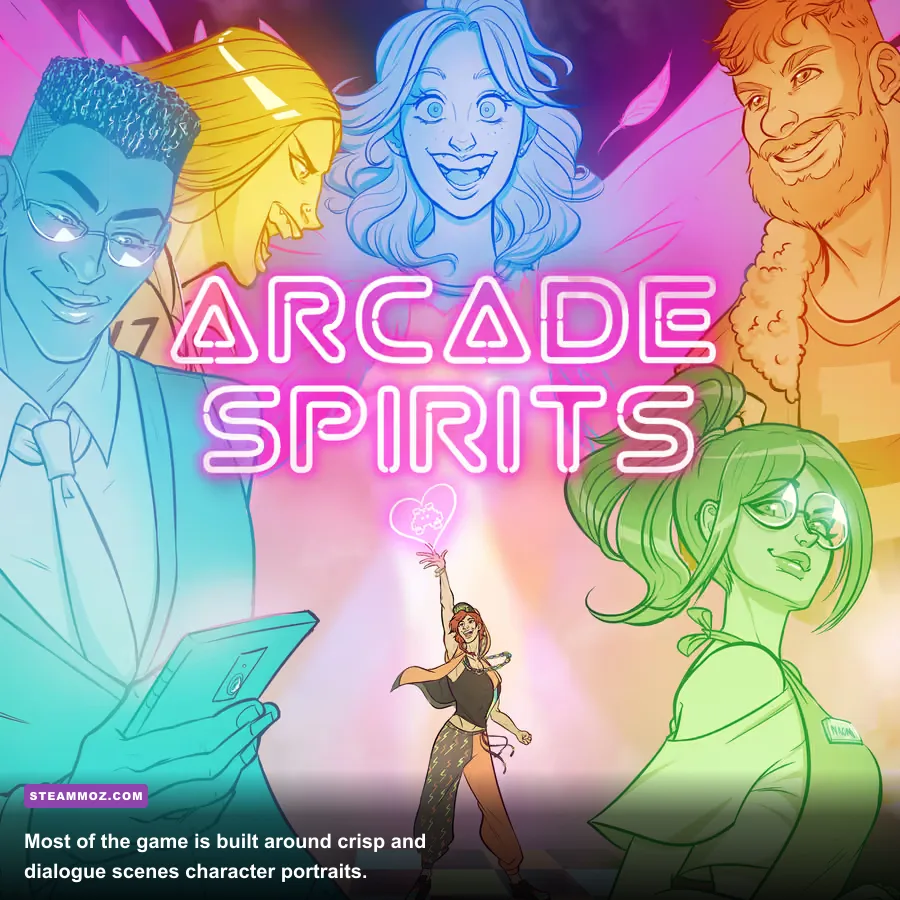
Resolution is the setting most likely to affect perceived quality. Arcade Spirits uses small text, sharp interface borders, and detailed character artwork. Running at 1280x720 on a 1920x1080 display forces the monitor or game to upscale the image, which can make dialogue text look fuzzy. Native 1080p is the sweet spot for most players, while 1440p and 4K are perfectly reasonable if your monitor supports them.
Fullscreen is also worth testing before you touch quality. Exclusive fullscreen, where supported by the build, can reduce interference from desktop notifications and compositing. Borderless or windowed modes are more convenient, but a badly scaled window may look softer than a native fullscreen image. If the game appears stretched, clipped, or surrounded by unexpected borders, switch modes, restart the game, and then reselect the correct resolution.
Players using ultrawide displays should expect some variation. Arcade Spirits was designed around conventional widescreen presentation, so a 21:9 monitor may show side borders or a centered image rather than a genuinely expanded field of view. That isn’t an FPS problem. Forcing an aspect-ratio hack can distort portraits and interface elements, so preserving the original composition is the safer choice.
Windows display scaling can complicate things further. If text looks strangely enlarged or the game ignores your chosen resolution, right-click the executable, open Properties, select Compatibility, then inspect the high-DPI scaling override options. Change one setting at a time and test again. The goal is to stop Windows and the game from applying two competing scaling passes.
Best performance profiles for different PCs
Arcade Spirits should run on hardware far below today’s entry-level gaming laptops. The important point is that its official PC requirements describe a baseline for launching and playing the game, not a modern competitive FPS target. Even integrated graphics should have plenty of headroom, provided the system isn’t busy with video capture, browser tabs, or overlays.
| PC Type | Resolution | Quality | VSync | Expected Result |
|---|---|---|---|---|
| Modern desktop or gaming laptop | Native resolution | High | On | Stable presentation with no meaningful GPU strain. |
| Older integrated graphics PC | 1080p, or 720p if needed | Medium or High | On | Comfortable play; lower resolution is a troubleshooting step, not a first choice. |
| Low-power laptop | 1280x720 or native panel resolution | Low or Medium | On | Reduced rendering overhead and better battery efficiency. |
| High-refresh monitor | Native resolution | High | On initially | Use a stable 60 FPS-style presentation; disable VSync only if tearing bothers you less than latency. |
On a very old machine, lower resolution before lowering image quality. The game’s art is the main attraction, and reducing quality may offer little improvement if the bottleneck is actually CPU scheduling, storage delay, or a driver issue. If the game runs smoothly in dialogue but hitches when the arcade environment appears, that points to asset loading or background activity rather than sustained rendering pressure.
Battery players should use a 60Hz display mode and close unnecessary launchers. A discrete GPU forcing maximum performance for a 2D visual novel can produce extra heat and drain without improving the experience. Windows’ balanced power profile is usually enough.
How to fix stutter, tearing, and input delay
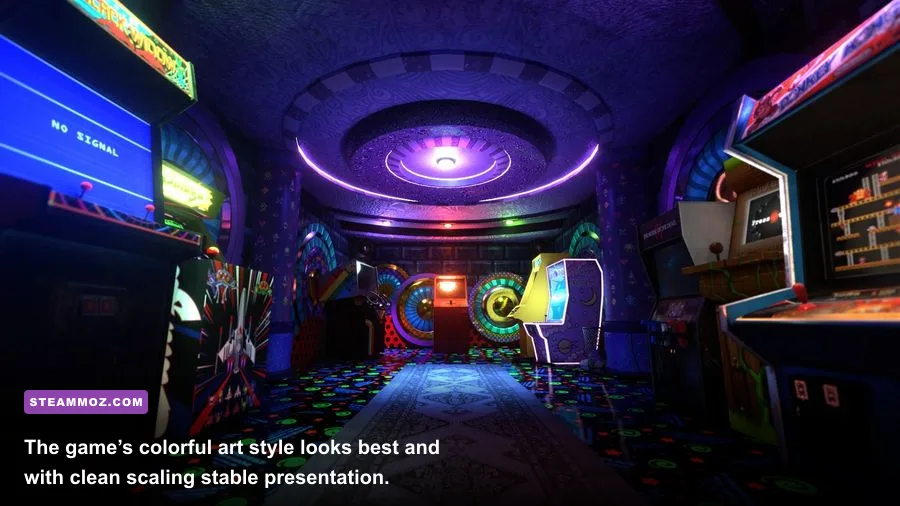
Stutter in Arcade Spirits often feels more noticeable than the raw frame rate suggests because scene transitions are clean and deliberate. A brief hitch between dialogue panels stands out against an otherwise static screen. Start with the boring fixes: restart the game after changing display mode, update your graphics driver, disable third-party overlays, and verify the installation through Steam.
Steam Overlay, Discord Overlay, Xbox Game Bar, GeForce Experience, Radeon Software, and recording tools can all hook into a game’s presentation layer. None is guaranteed to cause trouble, but visual novels are light enough that overlay conflicts can become the largest performance variable. Disable them temporarily rather than permanently; if the stutter disappears, re-enable each service separately to identify the culprit.
VSync should be your first answer to visible tearing. Tearing can appear during menu movement or animated transitions even when the game is technically running at a high frame rate. If VSync creates noticeable delay, disable it and use your driver’s frame limiter instead. Set the limit to your display refresh rate or 60 FPS. Avoid stacking multiple limiters in the game, driver, and third-party software, since conflicting caps can cause uneven frame pacing.
For Nvidia users, test Arcade Spirits with the default application profile first. For AMD users, avoid forcing enhanced sync or aggressive anti-lag features until the game is stable. These technologies are valuable in fast competitive games, but Arcade Spirits has no twitch combat and no benefit from shaving a few milliseconds off input response.
If the game freezes for a moment whenever a new scene loads, check whether it is installed on a nearly full hard drive. Moving it to an SSD can improve asset-loading consistency, though it won’t transform the game’s average FPS. Also pause cloud-sync utilities and large downloads while testing. A lightweight game can still hitch when the operating system is competing for disk access.
Graphics settings that are safe to lower
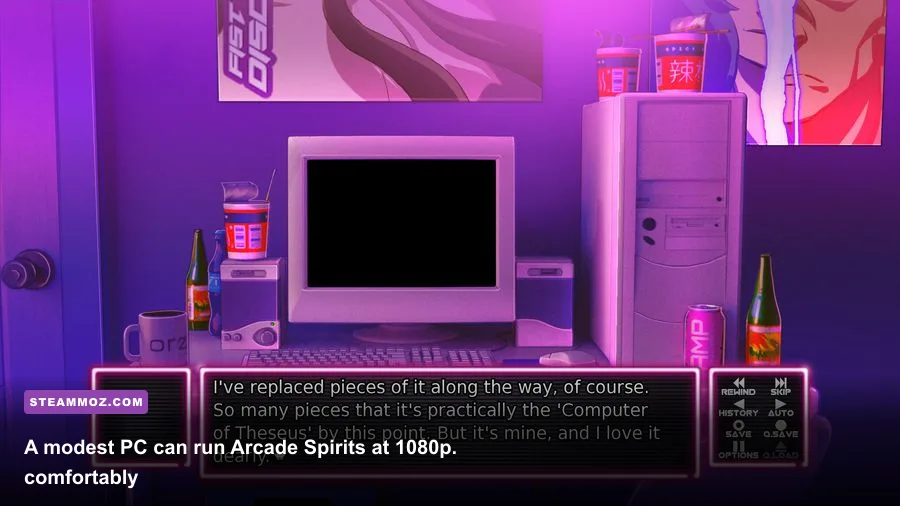
If High causes a problem on an exceptionally old laptop, lower settings in a controlled order. Don’t immediately sacrifice resolution and image quality together, because then you won’t know what solved the issue. The table below prioritizes the changes that usually have the least visible cost.
| Change | When to Use It | Performance Benefit | Image Quality Cost |
|---|---|---|---|
| Disable animated effects, if exposed | Transitions visibly hitch | Small to moderate | Less motion during scene changes. |
| Lower quality from High to Medium | Older integrated GPU struggles | Small | Minor reduction in presentation polish. |
| Lower resolution one step | Frame pacing remains uneven | Moderate | Text and artwork may look softer. |
| Use windowed mode | Fullscreen causes crashes or focus loss | Situational | Possible scaling artifacts or borders. |
| Disable VSync | VSync causes obvious delay | None to small | Potential tearing. |
There’s no reason to lower texture quality for a VRAM shortage on a normal modern GPU. Arcade Spirits’ illustrated assets are tiny compared with those in a current 3D release. Likewise, resolution scaling below native should be a last resort because it directly affects every portrait, line of dialogue, and menu label.
If you enjoy performance tuning, Steamoz’s guides for Borderlands 2 settings and Cricket Through the Ages PC performance cover much heavier or more unusual workloads. Arcade Spirits is the opposite case: restraint is the optimization.
Final profile for the smoothest playthrough
Set Arcade Spirits to fullscreen at your display’s native resolution, choose High quality, enable VSync, and leave Windows on a balanced or normal power profile. Then play through a busy arcade-floor sequence and several dialogue transitions. If those scenes are smooth, your setup is already optimized. There’s no practical reward for forcing 200 FPS in a game whose core rhythm is reading, choosing responses, and managing your arcade.
If problems remain, verify the Steam installation, disable overlays, test windowed mode, and lower resolution only after those checks. Keep notes about each change; random toggling makes it much harder to identify whether the issue is scaling, frame pacing, or a conflicting background utility.
Most importantly, don’t judge the game by the wrong benchmark. The appeal of Arcade Spirits is its cast, branching conversations, and nostalgic arcade setting, not demanding graphics technology. Once the image is sharp and transitions are consistent, even an aging office PC can deliver the intended experience. For more lightweight PC tuning, see our guides to Drizzlepath: Glass performance settings and BloodRayne: Terminal Cut fixes. And for the game itself, the Fiction Factory Games website is the best place to follow the developer’s work.